
Customer records
The customer list, labels, and why attaching a customer to an order matters more than it looks.
What it is
The customer record is the one entry that everything else about a
customer connects to — loyalty points, store credit, order history,
coupon redemptions, and referrals. It's managed from the Customers
screen (/customers), the Customer Labels screen (/customers/labels),
and a profile page for each customer.
Customers belong to the brand, not to a single branch. A customer who orders at one outlet is the same customer at every other outlet in the brand — same points, same credit, same history. See Branch boundaries below.
How it works
What a customer record holds
| Field | Notes |
|---|---|
| Name | |
| Phone | The usual way to find a customer at the till. Must be unique within the brand |
| Optional. Must be unique within the brand | |
| Date of birth | Used to send birthday offers and greetings |
| Anniversary date | Used to send anniversary offers and greetings |
| Notes | Free text for anything internal, like dietary restrictions or seating preferences |
| Labels | Tags you define yourself |
| Points | Current loyalty balance, plus a separate running total of lifetime points |
| Credit | Wallet balance |
| Referral | Who referred this customer, if anyone (see below) |
The Customers screen
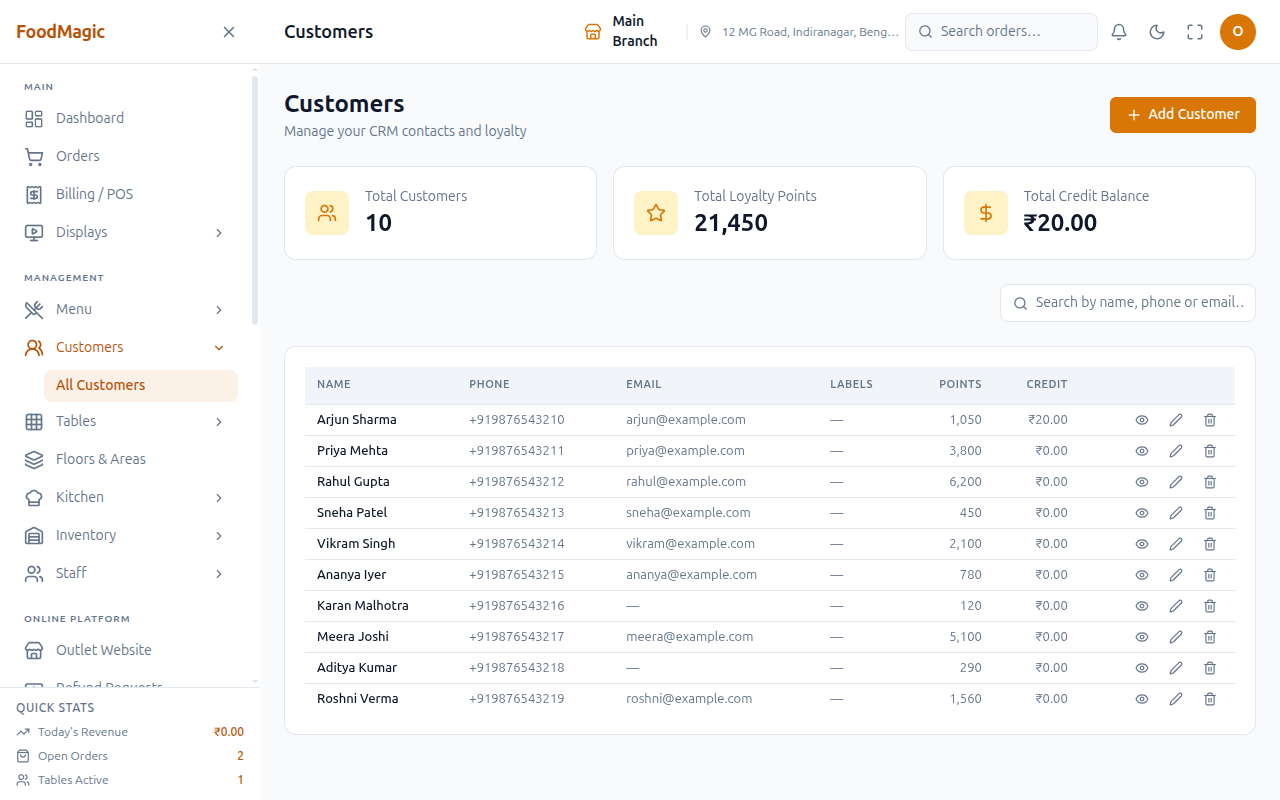
The Customers screen (/customers) shows a table with Name, Phone,
Email, Labels, Points, and Credit. Above it are three summary cards:
Total Customers, Total Loyalty Points, and Total Credit Balance, added up
over whatever page is loaded. There's also a search box.
Viewing this screen is controlled by permission — an admin decides who gets to see the customer list, from Roles & Permissions.
You can also find a customer from anywhere in the app, using the Search anything… box in the top header (click it, or press Ctrl K/⌘K). It searches Orders, Menu Items, Tables and Staff too. See Orders → Finding an order for how that box works.
Add Customer
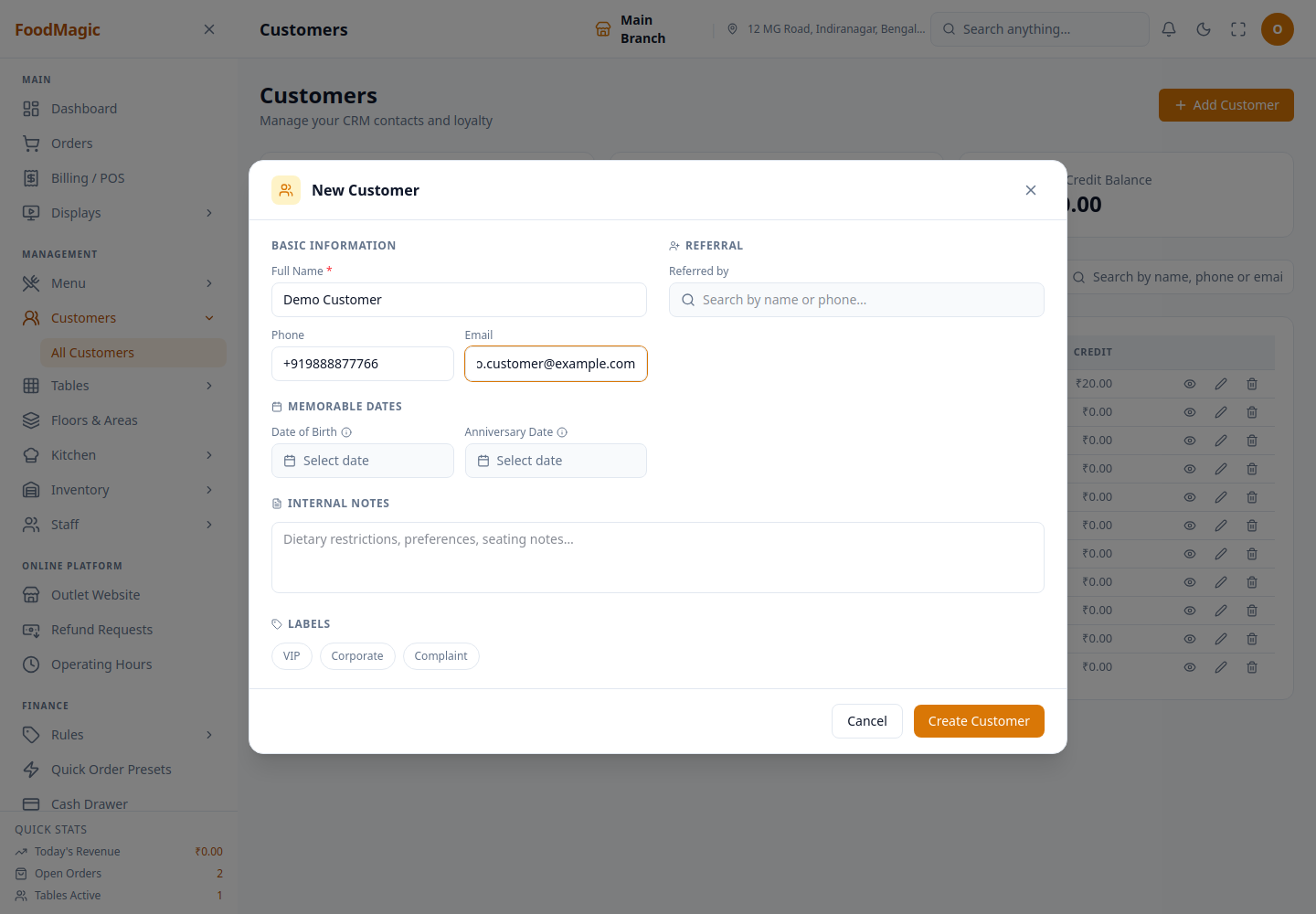
This opens a form covering the basics — name, phone, email — plus a referral search, date of birth, anniversary date, internal notes, and label tags.
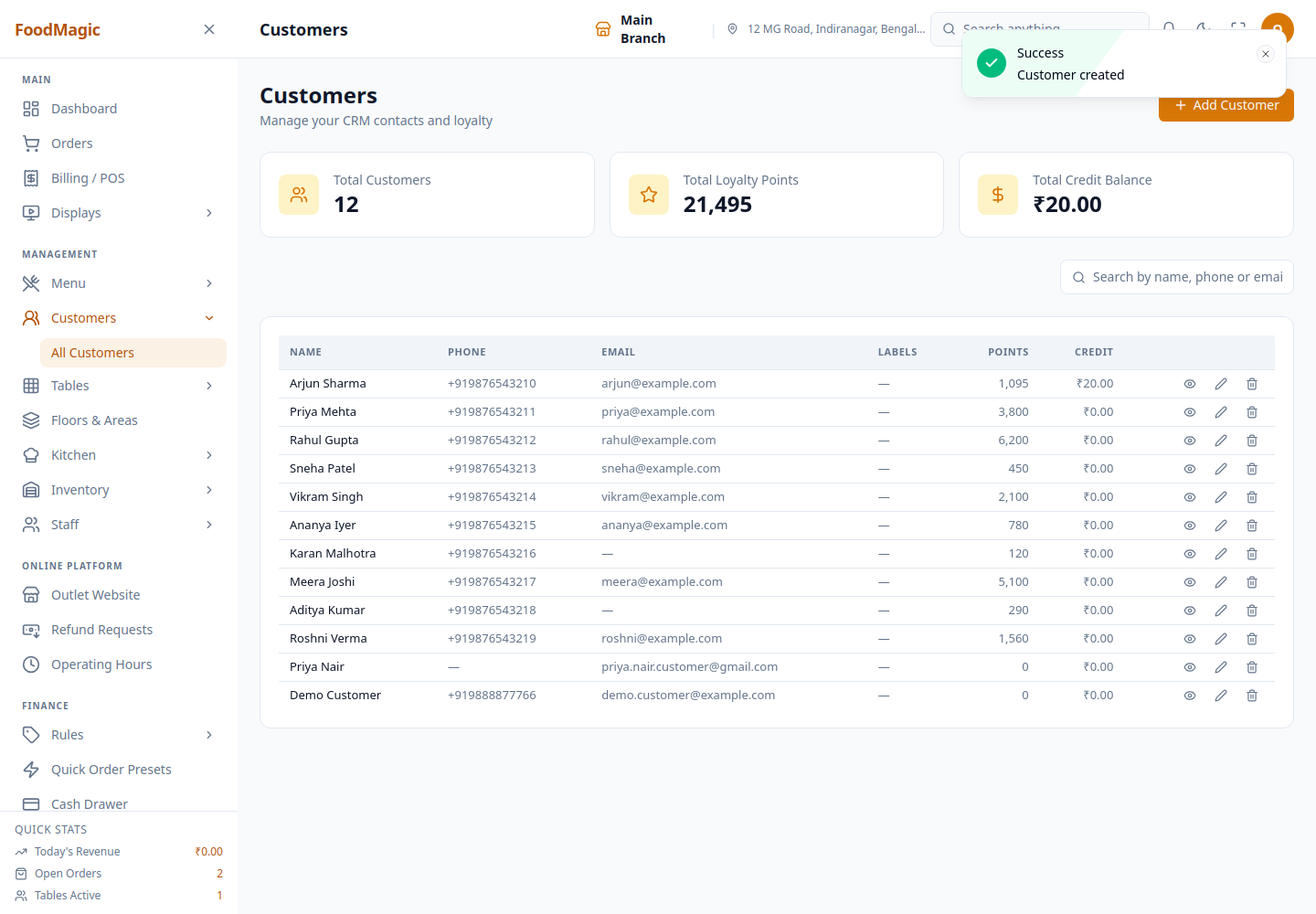
When you save a new customer, the system also creates a one-time "opening" entry in their credit history. Their wallet starts at ₹0, but this way the balance history reads consistently from day one, instead of looking like it's missing its start.
Use this for a phone booking, a walk-in who wants to be remembered, or any time a customer needs a record before you can attach an order to them.
Creating a customer is its own permission, separate from viewing. The Add Customer button is hidden for anyone who doesn't have it — that's why a delivery rider never sees it.
View, Edit, Delete (row actions)
Each row can have up to three icon buttons on the right: an eye icon opens the customer's profile page (see below), a pencil opens the same form as Add Customer but already filled in with their details, and a trash icon asks you to confirm before removing the record. Deleting only hides the record — it isn't destroyed.
Use View to look up a customer's history. Use Edit to fix a phone number, change labels, or add notes. Use Delete to remove a duplicate or mistaken entry.
Viewing a row needs nothing beyond being able to see the list at all. Editing and deleting are each their own separate permission. Both icons are hidden for anyone who hasn't been given the matching permission.
Loyalty points and credit balance cannot be typed into this form by hand. If you try to set a balance or point total directly, the edit quietly ignores that part instead of showing an error.
This closes off a path that used to let someone assign a balance with no record of where it came from. Credit only moves through order refunds, loyalty conversions, and spending at the till. Points only move through the loyalty system.
See Credit balance for the one place a balance actually can be changed by hand today, and the gap that page found while documenting it.
Referrals — captured at creation, not a separate screen
The Add Customer form has a Referral section. Here you can search for an existing customer as "Referred by," and optionally type in a referral code — if you leave it blank, one is generated automatically.
Filling this in creates a referral record linking the two customers, with the code and a "pending" status, ready to be marked complete later.
On the Edit form, this same section becomes read-only. It just shows who referred this customer and the code's status. A separate Customers Referred section, only shown when editing, lists everyone this customer has referred since.
This only happens when a new customer is first created — use it if they came in through an existing customer's referral code, or through word of mouth you want to give credit for.
Creating a referral happens as part of saving a new customer — there's no separate "add referral" button anywhere in the app.
Confirmed gap. A new referral always starts with its reward amount at zero. Marking a referral "completed" only changes its status label — nothing in the system actually moves money or points to the referrer when that happens.
If a referral reward is supposed to be paid out, someone has to do it manually today. And as the Credit balance page explains, there is currently no screen anywhere in the app for making a manual credit adjustment either. This was confirmed by checking every place a referral's status can change — none of them touch a customer's points or wallet.
Customer Labels
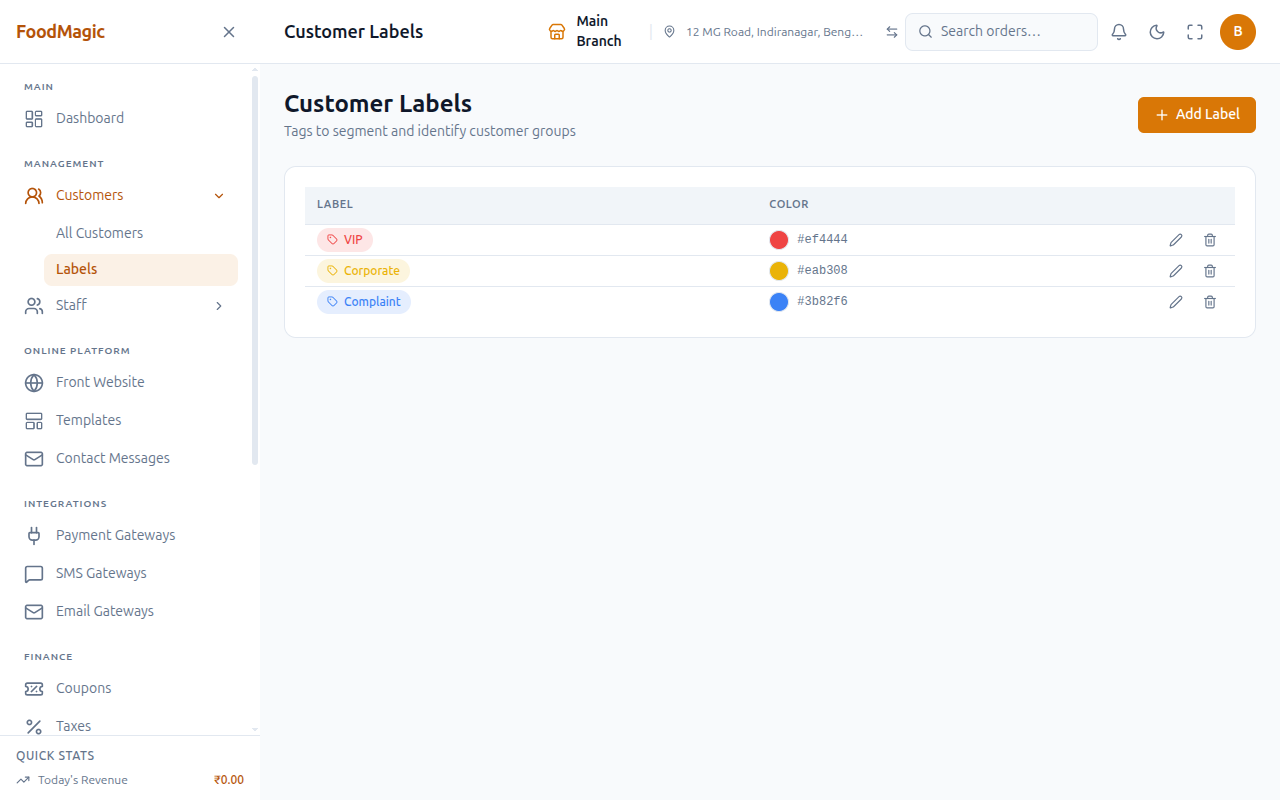
Customer Labels (/customers/labels) is a separate, brand-only
screen — it's not a tab on the Customers screen. It manages the list of
tags (name and colour) that the Labels column, and the label chips on the
Add/Edit Customer form, both draw from.
This screen needs its own dedicated permission to manage labels. This has been confirmed on the live system: an outlet owner, a waiter, and a delivery rider are all sent back to the dashboard if they try to open it, while a brand super-admin can open it normally.
Applying an existing label to a customer is a normal part of editing a customer, and works wherever editing a customer works. It's only creating or changing the label list itself that's restricted to the brand level.
Add Label / Edit / Delete
This opens a small window with a label name, twelve preset colours to choose from (or you can enter your own colour code), and a live preview of the tag. Deleting a label asks you to confirm, and warns that it will be removed from every customer currently wearing it.
Use this when you want to standardise your tags — for example, VIP, Corporate, Complaint — so staff pick from one shared list instead of typing near-duplicate tags themselves.
Adding, editing, or deleting a label needs that same brand-only permission. Just reading the label list doesn't — anyone who's logged in can see the existing labels, so the tags show up correctly wherever a customer is edited. Only creating or changing the label list itself is limited to a brand super-admin.
Why attaching a customer matters
An order with no customer attached earns nothing, and can't spend anything either. No loyalty points get earned, store credit can't be used, and the sale never shows up in anyone's history. There is no way to attach a customer afterward and award the points retroactively.
This is the single most common way loyalty quietly fails. The scheme is switched on, but staff don't ask for a phone number at the till, so nothing ever gets earned.
The customer profile
Clicking the eye icon, or any customer's name anywhere in the app, opens their profile page. It shows an identity card with an avatar or initials, their name, a tap-to-call phone number, and a tap-to-email address. Below that are five clickable stat tiles, and a details panel with date of birth, anniversary, last order, joined date, and referral count. Back to Customers returns you to the list.
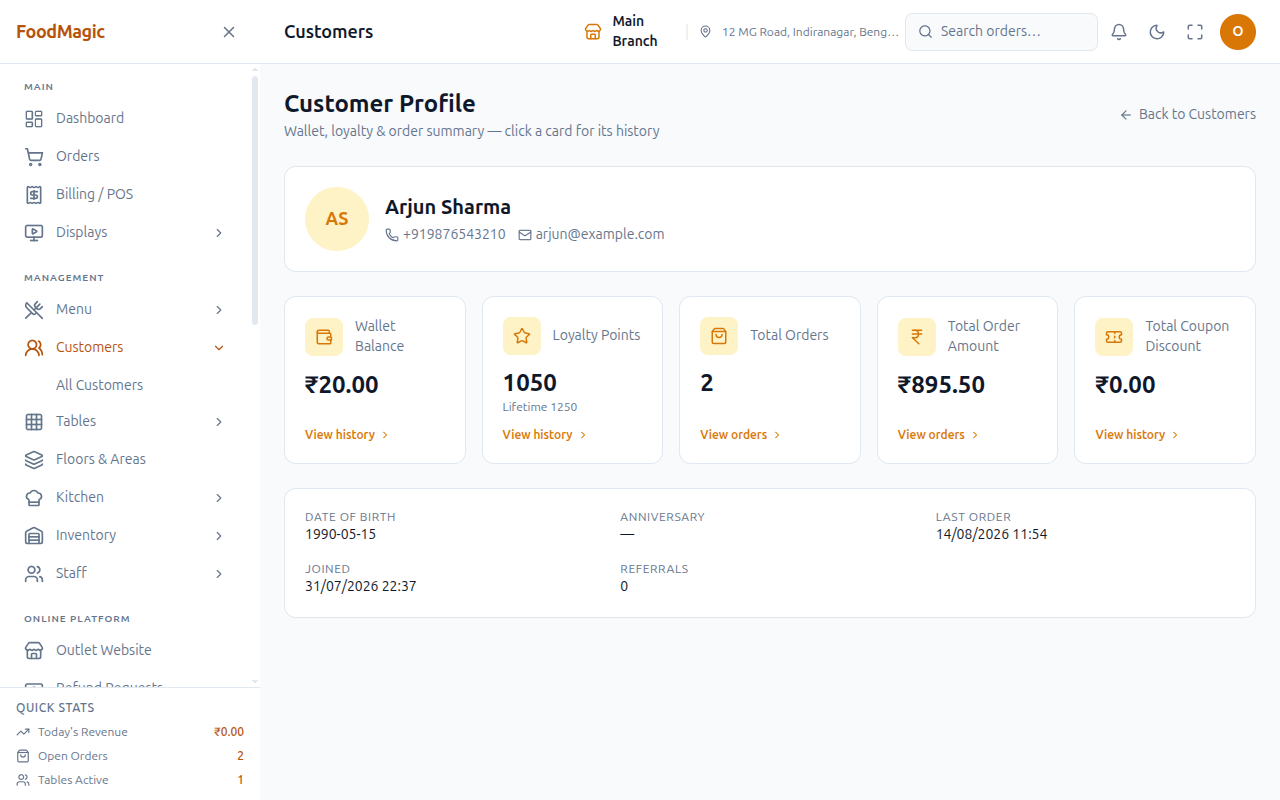
The five stat tiles — each one opens a history drawer
Every tile is a button. Clicking one opens a window listing the transactions behind it, which you can filter by date range, category, or free text.
| Tile | Opens |
|---|---|
| Wallet Balance | Credit Balance History — Date, Description, Amount, Balance; filter by Earned/Used |
| Loyalty Points (shows current + Lifetime total) | Loyalty Points History — Date, Type, Points, Balance; filter by type |
| Total Orders | Order History — Order, Date, Type, Status, Amount; filter by type |
| Total Order Amount | Same Order History drawer as Total Orders |
| Total Coupon Discount | Coupon Discount History — Date, Coupon, Order, Discount; filter by coupon code |
All five tiles use the same viewing permission as the rest of the profile. Every one of these history windows only shows data from the signed-in brand — trying to look up a customer from another brand fails outright, rather than showing that brand's history by mistake.
The Total Orders and Total Order Amount figures are calculated once when the profile loads. They count only completed or ready orders, and don't change depending on which page of the history window you happen to have open.
Use these any time staff need to answer "why is this customer's balance, points, or spend what it is," without leaving the profile page.
The full order list page
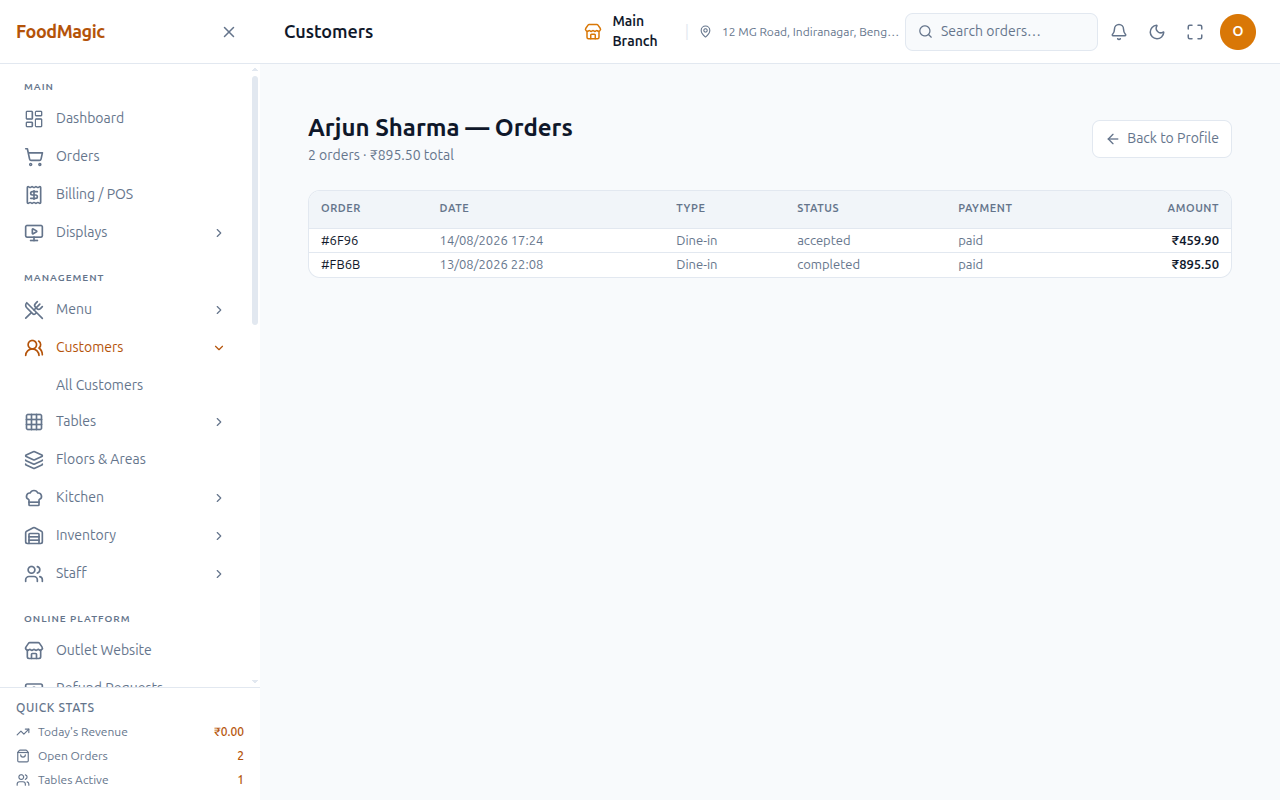
This is a full page, not a pop-up window, listing every order for the customer: Order, Date, Type, Status, Payment, and Amount. Each row can be clicked through to that order's own detail page. Back to Profile returns you to the customer's profile.
It shows the same order history as the Total Orders tile above — just as a full page instead of a small window.
Use this when a customer has enough orders that the small window feels cramped — this page has more room, and a direct link into each order. It needs the same permission as the rest of the profile.
Finding a customer
The customer list searches by name, phone, or email as you type. At the till, this same search is how you attach a customer to an order. There's also a quick phone-number lookup used elsewhere in the app to find a matching customer fast.
Where to see it
| Screen | Shows |
|---|---|
Customers (/customers) |
The full list, with totals for customers, points and credit |
Customer Labels (/customers/labels) |
The brand's tag vocabulary — brand super-admin only |
| Customer Profile | Identity, stat tiles, and drill-down history for one customer |
| Customer Orders | That customer's full order list |
| Customer Report | Behaviour per customer — visits, orders, total spent, last visit, loyalty |
The Customer Report is the one built to answer business questions, like who spends the most, who hasn't come back, and what an average customer is worth.
How it is secured
Who can do what. Every action below is its own separate permission, managed independently from Roles & Permissions. A role can hold any combination of them, and an admin decides this for each role from that screen.
| Action | Roles that hold it out of the box |
|---|---|
| View the customer list / profile / history | Outlet Superadmin, Waiter, Delivery Rider, Brand Super Admin |
| Add a customer | Outlet Superadmin, Waiter, Brand Super Admin |
| Edit a customer | Outlet Superadmin, Brand Super Admin |
| Delete a customer | Outlet Superadmin, Brand Super Admin |
| Read the label vocabulary | Every signed-in role — no separate permission needed |
| Author labels (add/edit/delete) | Brand Super Admin only |
| Redeem store credit at the till | Outlet Superadmin, Waiter |
The Brand Super Admin does not automatically get the till-side "redeem store credit" ability. That one is deliberately left to the people actually running a till — outlet staff — not the brand office.
Branch boundaries. Customers belong to the brand as a whole, not to any single outlet. A customer record no longer belongs to any one branch. This was a deliberate change: customers used to belong to a single outlet, but the system was updated so a customer recognised at one branch is automatically recognised — with the same points and the same wallet balance — at every other branch of the same brand. One brand's customers are never visible to another brand.
Validation. Phone numbers only accept digits, spaces, and the usual
+ - ( ) symbols. They must be unique within the brand, not across the
whole platform — so the same phone number can exist once per brand,
meaning two different restaurant brands could each have a customer with
that same number.
Email, if given, must be a valid address, and is also unique within the brand.
Loyalty points and credit balance can never be typed into the Add/Edit Customer form. Those two numbers can only be changed by the system itself — through an order, a refund, or a conversion — never by someone typing a new number into a box.
Audit trail. Every customer created, edited, or deleted is recorded in the system's audit log, including what changed on an edit.
There's one known gap. Since customers no longer belong to a specific outlet, the audit entry's "which outlet did this happen at" field is always blank for customer records. The create, edit, or delete itself is still logged correctly — only that one outlet detail is left blank.
Known weaknesses
Customer visibility isn't limited to one outlet, and structurally can't be, since a customer no longer belongs to any single outlet. Both a Waiter and a Delivery Rider have permission to read the customer list, and nothing in the system filters that list by outlet, by who it's assigned to, or by role. Anyone who can view customers at all sees the entire brand's customer book — names, phone numbers, loyalty points, wallet balances — no matter which outlet they actually work at.
This is a confirmed finding, re-checked for this documentation pass and still true today. A delivery rider account was shown the brand's full customer list, including every customer's wallet balance and loyalty points, with no outlet restriction anywhere. This was checked directly with a rider's own account, not just assumed from what the screen looks like.
Adding, editing, and deleting customers are correctly limited by role — a rider has no Add, Edit, or Delete button. This is specifically a problem with viewing, not with making changes. And it's a structural one: because a customer record no longer has any outlet information on it at all, there's nothing left to filter by. Fixing this would mean either bringing back a link to a specific outlet, or adding a separate, deliberate restriction for outlet-based roles.
The quick phone-number lookup used at the till applies the same brand check as every other way of looking up a customer.
Referral rewards have no payout path. See How it works → Referrals above for the full detail.
Related pages
Earning points, and converting them into credit.
The wallet, redemption at the till, and every movement in and out.
- Orders — the customer must be attached to an order before points can be earned or credit can be spent; order totals feed the Total Orders / Total Order Amount stat tiles above.
- Roles & Permissions — where customer-related permissions get assigned to a role.