
Salary advances
Paying staff ahead of payday and recovering it from later payslips.
An advance is money paid to a staff member before payday, then recovered from their later payslips.
What it is
Salary Advances is where a manager records money paid to staff ahead of their normal payday, approves or rejects the request, and tracks what's still owed until it's fully paid back. It sits next to Payroll in the sidebar, since the whole point of an approved advance is to be settled by a later payroll run.
- Who uses it — Outlet managers raise, approve, reject, and track advances. There's no separate screen where staff can request an advance themselves — a manager records the request on their behalf.
- Where it lives — One screen: a table of every advance at the outlet, with running totals.
- Current status — Live. Recovery from a payslip happens automatically once payroll is paid. A direct repayment — cash handed back outside of payroll — is recorded by hand on this same screen.
How it works
The three states
| State | Meaning |
|---|---|
| Pending | Requested, awaiting a decision |
| Approved | Granted — the money is paid out and will be recovered |
| Rejected | Refused |
How an advance moves
Created from Salary Advances with the amount needed.
Approving records how the money was actually paid out. Rejecting closes the request.
An approved advance is deducted from that staff member's payslip automatically — no one has to remember to do it.
Repayments are recorded as they happen.
New Advance — raising the request
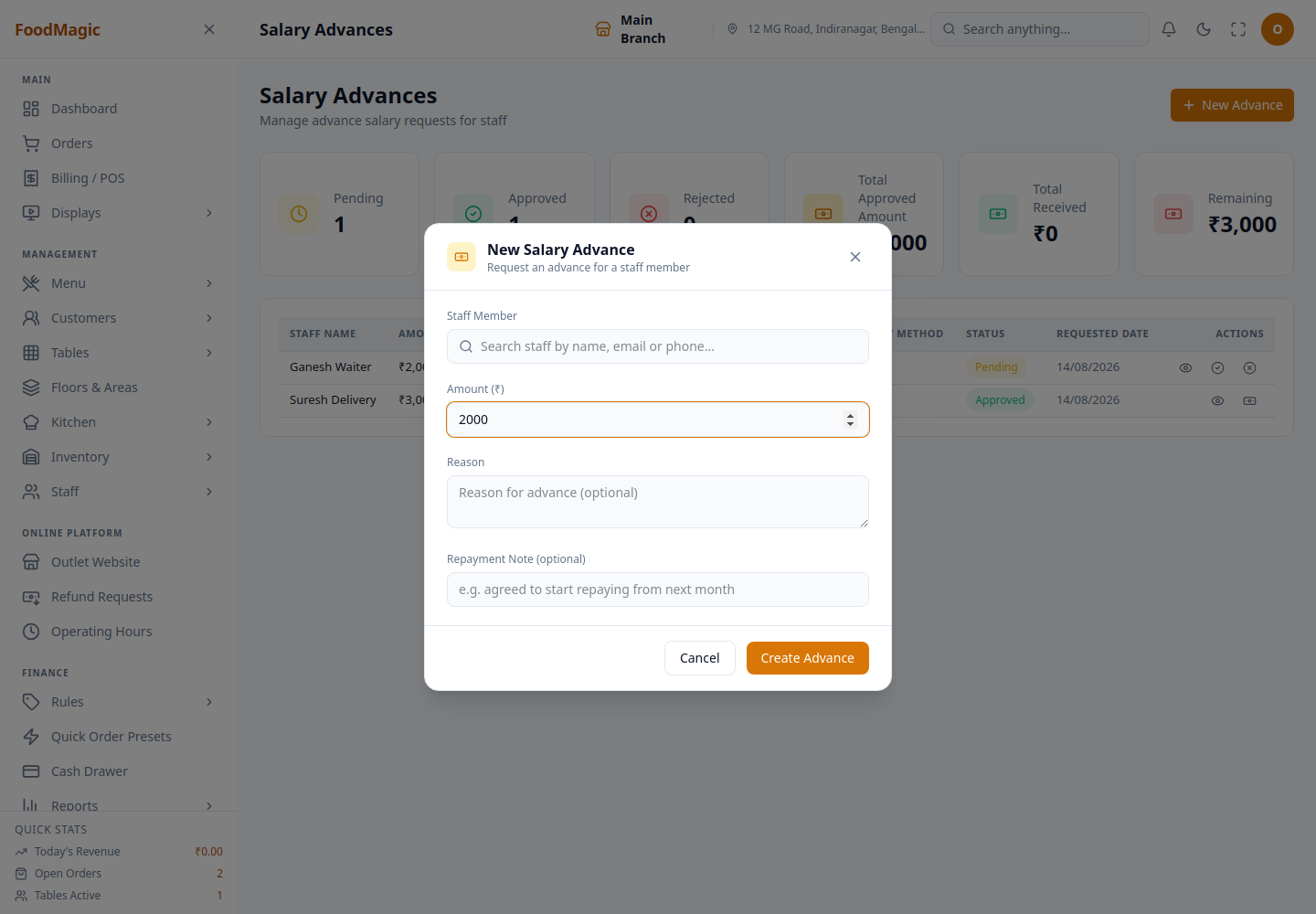
A form with a staff picker (search by name, email, phone, or role — the same quick lookup used at the till, not the full staff list), an amount, and an optional reason. Use this whenever a staff member needs money before their next payday.
Approve or reject
Approving needs a payment method (cash, bank, or UPI) and takes an optional note. This is recording how the money actually left the till, not just giving permission for it to leave. Only a pending advance can be approved or rejected.
Approve once the payout has actually happened, or is about to. The payment method you record here is what shows up in the advance's history afterward. Reject if the request shouldn't be paid at all.
Repay — recording money coming back outside of payroll
A direct repayment is an amount, an optional method (cash, bank, or UPI), and a note — separate from the automatic payroll deduction. Use this when a staff member pays back some or all of an advance directly (cash handed back in person, a bank transfer), instead of waiting for it to come out of their next payslip.
Only an approved advance can take a direct repayment, and the amount can never be more than what's still outstanding on it — the form won't accept a repayment that would push the balance below zero. Once the balance reaches zero, whether through payroll deductions, direct repayments, or a mix of both, the advance is marked fully settled.
The table columns
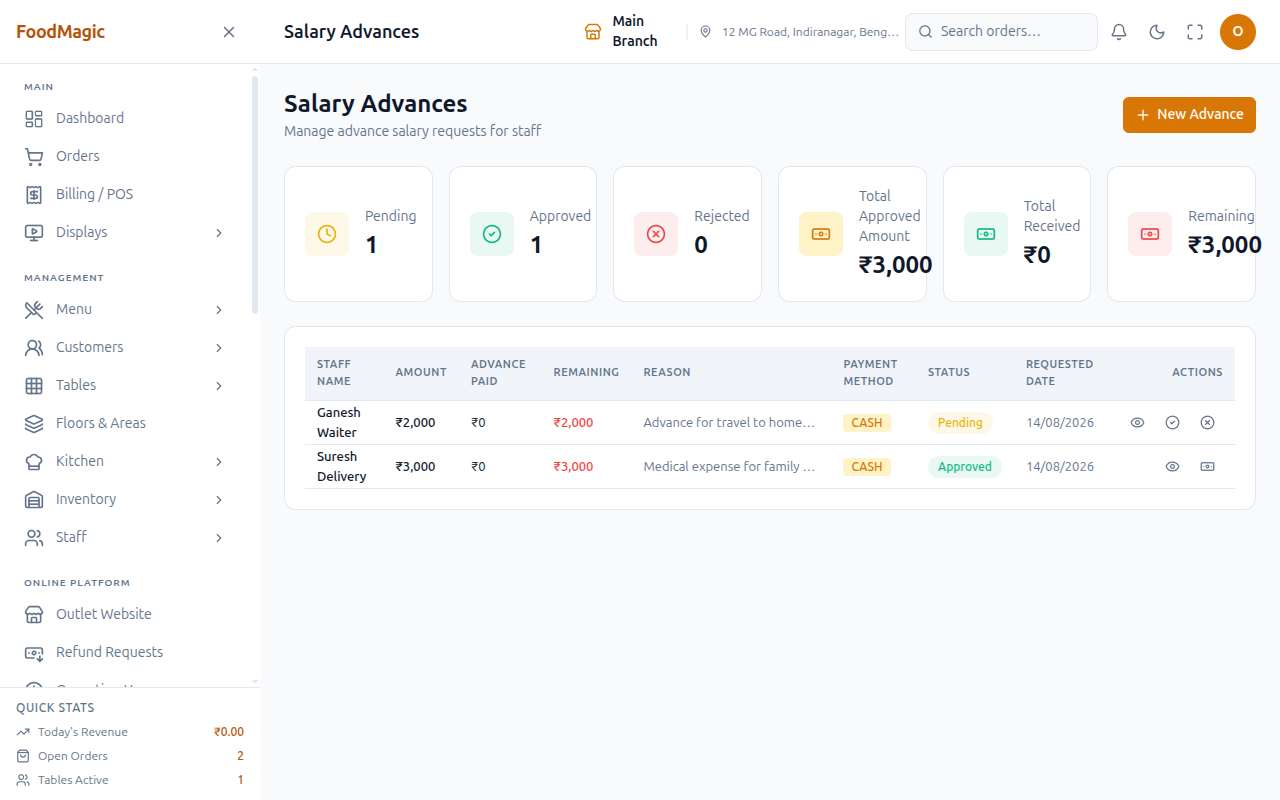
Staff Name, Amount, Advance Paid, Remaining, Reason, Payment Method, Status, Requested Date, Actions — one row per advance. Advance Paid and Remaining track how much of the original amount is still owed. The row's Actions column holds Approve/Reject while it's pending, or Repay once it's approved.
The figures on screen
| Figure | Meaning |
|---|---|
| Pending / Approved / Rejected | Counts by state |
| Total Approved Amount | Everything ever granted |
| Total Received | How much has come back |
| Remaining | What is still to be recovered |
Remaining is the number that matters. An advance isn't finished just because it's approved — it's only finished once it's been fully repaid, whether through payroll deductions, direct repayments, or both. If the Remaining figure across the outlet keeps growing, money is going out faster than it's coming back.
Timing against payroll
An advance must be approved before payroll is started if it's going to be recovered in that same period. Approve it afterwards, and the deduction waits for the following period instead — leaving the money outstanding a month longer than intended.
How it is secured
Salary advances have one control on the Roles & Permissions screen — Manage salary advances — covering the whole process: raising a request, approving or rejecting it, and recording a direct repayment. There's no separate read-only view. Holding the control means full access to this screen, and not holding it means the screen doesn't appear at all.
Who holds this by default
By default, only the Outlet Manager role has Manage salary advances. Neither Waiter nor Delivery Rider has it, and the brand Super Admin doesn't either — it's handled at the outlet level, and the Super Admin's automatic permissions cover brand-wide things plus a short list that doesn't include it. See Staff overview for the full picture.
Tenancy — one outlet at a time
Every advance belongs to a single outlet, though — unlike most records of this kind — that isn't strictly enforced behind the scenes, so it's technically possible for an advance to be saved without one. In normal use, every advance raised through the screen is tied to the outlet it was created at, and there's no brand-wide view of advances across every outlet.
Validation
A new advance needs a real staff member and an amount that's a genuine number of at least ₹1. The reason and any repayment note are both optional, each limited to 255 characters. Approving needs one of the three recognised payment methods. A direct repayment needs a positive amount that doesn't go over the current outstanding balance — this is checked at the moment it's saved, so two repayments recorded at the same time can't together overdraw the balance.
Audit trail
Every advance records who approved or rejected it and when. Every repayment — whether from a payslip or recorded directly — is kept as its own line, so the full history of how an advance was paid down is always visible on that advance's record. There's no separate audit log on top of that; to review the history, you open the advance itself.