
Notification templates and rules
What Food Magic sends to customers and staff, when it sends it, and how to see what was sent.
This page covers the screen that decides what gets sent to customers and staff, and keeps a record of it. There's no separate "rules" concept any more: each message is already tied to the event that triggers it, so setting up a message for an event is just a matter of editing that message.
If you've seen older notes, screenshots or an earlier version of this page describing an Add Rule button and a separate Rules tab, that's the old version of this screen. It no longer exists — everything below describes the current, single-list screen.
What it is
The screen that decides what a customer or a staff member actually gets told when something happens to an order — a message placed, an order gone ready, a leave request approved — and keeps a record of every message it tried to send. There's a fixed set of these messages (twelve, covering every event Food Magic currently sends a notification for); you can edit their wording, who they go to, and which channels carry them, but you can't add a brand new one or delete an existing one.
This is a different screen from Email and SMS setup: that page connects the outside providers messages travel through; this page decides what gets sent, to whom, and when.
The two pieces
The wording, channels and recipients of each message — one fixed row per event.
What was actually sent, and whether it worked.
Templates
Each row stands for one event — an order being placed, an order becoming ready, a leave request being decided — plus who it's sent to (customer or staff), and holds the message wording, the list of channels, and, for staff rows, which roles receive it. Only someone with a brand-level permission, managed from Roles & Permissions, can edit templates.
Storefront sign-in OTPs are not one of these templates. They go through a completely separate provider connection (see Setting up email, SMS and WhatsApp → Troubleshooting), not this template list. Don't look here if a customer says they never got their OTP.
The list of templates is fixed — there's no way to add a brand-new template or delete an existing one. A template you added yourself wouldn't be tied to anything that actually happens in the system, so it would just sit there doing nothing; deleting one would silently turn off that notification for good, since the template is what makes the message go out in the first place.
Templates are the wording, channels and (for staff) recipient roles. Which provider actually delivers a message — which SMS provider, which email host — is set up separately: see Setting up email, SMS and WhatsApp. Connecting a provider there does not create or attach a template; the two are independent decisions.
The seeded catalogue
Twelve templates come ready-made across the ten events below — most events have just one message, but two (Order placed, Order ready) send both a customer AND a staff version, which is where the extra two come from. If the template list is ever refreshed, it never overwrites wording an owner has already edited.
| Event | Customer message | Staff message | Fires when |
|---|---|---|---|
| Order placed | Order Confirmed | New Order (Staff) | A new order is created |
| Order accepted | Order Accepted | — | Staff accept the order |
| Order ready | Order Ready for Pickup | Order Ready (Staff) | The order becomes ready |
| Order out for delivery | Out for Delivery | — | A delivery order leaves the outlet |
| Order delivered | Order Delivered | — | A delivery order is delivered |
| Order cancelled | Order Cancelled | — | An order is cancelled |
| Loyalty points converted | Loyalty Points Converted | — | Points are converted to store credit |
| Leave approved | — | Leave Approved | A manager approves a leave request |
| Leave rejected | — | Leave Rejected | A manager rejects a leave request |
| Leave requested | — | New Leave Request | Staff submits a leave request |
An order actually moves through more stages than the table above shows — Preparing, Picked Up, Reached, Served and Completed are all real stages — but only the events listed have a message set up for them. An order passing through one of those other stages sends nothing and doesn't create a log entry either, which is a different situation from the "nobody to send to" case described in the warning further down this page.
Recipients and channels, per row
- Customer rows go to the order's own customer, by phone or email — at most one recipient.
- Staff rows go to every user holding one of that template's chosen roles at the order's outlet — except the two leave-approval templates, which always go to the one specific person whose leave was decided, regardless of role.
- Every row's editable channels are SMS, Email, Push and WhatsApp — all four are offered on both customer and staff rows.
- The starting defaults are narrower than what you're allowed to pick: every customer row starts on email only, and every staff row starts on push only — turn on the others yourself if you want them.
What each channel actually is
| Channel | Who it can reach | What it needs to actually deliver |
|---|---|---|
| Customer or staff | Works out of the box through the server's default mailer. Connecting a brand Email Gateway is optional — it only changes which mailbox the message goes out through. | |
| SMS | Customer or staff | A brand SMS Gateway set as active and default. Only MSG91 and Twilio are wired up to actually send today — Gupshup, AWS SNS and Plivo can still be saved as a gateway, but every send through one fails with "no driver implementation yet." |
| Push | Staff only | The server has VAPID keys configured, and that staff member's browser accepted the notification permission prompt (asked automatically, once, right after they log in). |
| Customer or staff | A brand WhatsApp Gateway set as active and default. Only Gupshup is wired up to actually send today — Meta Cloud API can be picked and saved as a provider, but every send through it fails the same "no driver implementation yet" way. |
A customer-facing template with Push turned on will never deliver — and never says why. The channel picker offers Push on customer rows, but nothing about a customer carries a device subscription the way a staff member's browser does, so a customer Push send always logs as failed with "No push contact for customer." If a customer-facing message needs a channel besides Email, SMS or WhatsApp, there isn't one yet — don't turn Push on for a customer row.
WhatsApp sends plain text, not a pre-approved Meta template. Even
though a template stores a whatsapp_approval_status field, nothing
currently checks it before sending — a WhatsApp message goes out through
Gupshup's ordinary message API the moment its gateway is configured,
the same way an SMS does. There's no 24-hour customer-session window
enforcement and no template pre-approval gate today.
Logs
The delivery record — kept per outlet, so an outlet manager can see their own branch's history without needing brand-level access. When a customer says they never received an order update, this is where you find out whether it was sent and what happened. The recipient's phone number or email is partly hidden on screen rather than shown in full. Viewing logs needs its own, outlet-level permission.
A storefront sign-in OTP never shows up here, sent or not. OTPs go
through their own provider connection in the Storefront module, entirely
separate from NotificationDispatcher — nothing about sending one writes
a row to this log. If a customer says they never got their OTP, this tab
has nothing to tell you either way; see
Setting up email, SMS and WhatsApp → Troubleshooting
instead.
Viewing logs and managing templates are separate permissions, and in the default setup no single role holds both: the Super Admin can manage templates but not view logs; the Outlet Owner can view logs but not manage templates. See Tab switcher below for what that means in practice.
Screen: Notifications (/notifications)
Reached from the sidebar under Notifications. You need at least one of the two permissions — managing templates, or viewing logs — to open the page at all; which one you hold decides which tab you land on.
Tab switcher
Which tab you land on — and whether you even see a switcher — depends on your permissions: managing templates unlocks the Templates tab, viewing logs unlocks Logs. If you only qualify for one, that's what you see, and the tab switcher itself doesn't appear — there's no point showing a single tab you can't switch away from.
In the default setup, this means most people never see a switcher at all: the Super Admin always lands on Templates and the Outlet Owner always lands on Logs. The switcher only shows up for a custom role that's been deliberately given both permissions.
Templates tab
A stats strip at the top (Total, Active, Customer, Staff — counted across the whole list, not just what's currently filtered) sits above search and filters: Search (name or subject), Recipient (All / Customer / Staff), Channel (All / SMS / Email / Push) and Status (All / Active / Inactive), plus a Reset button. The whole list loads at once, so filtering is instant. Each row shows the template's name with a plain-English "Sent when…" description underneath, its recipient type, and its channels as coloured badges.
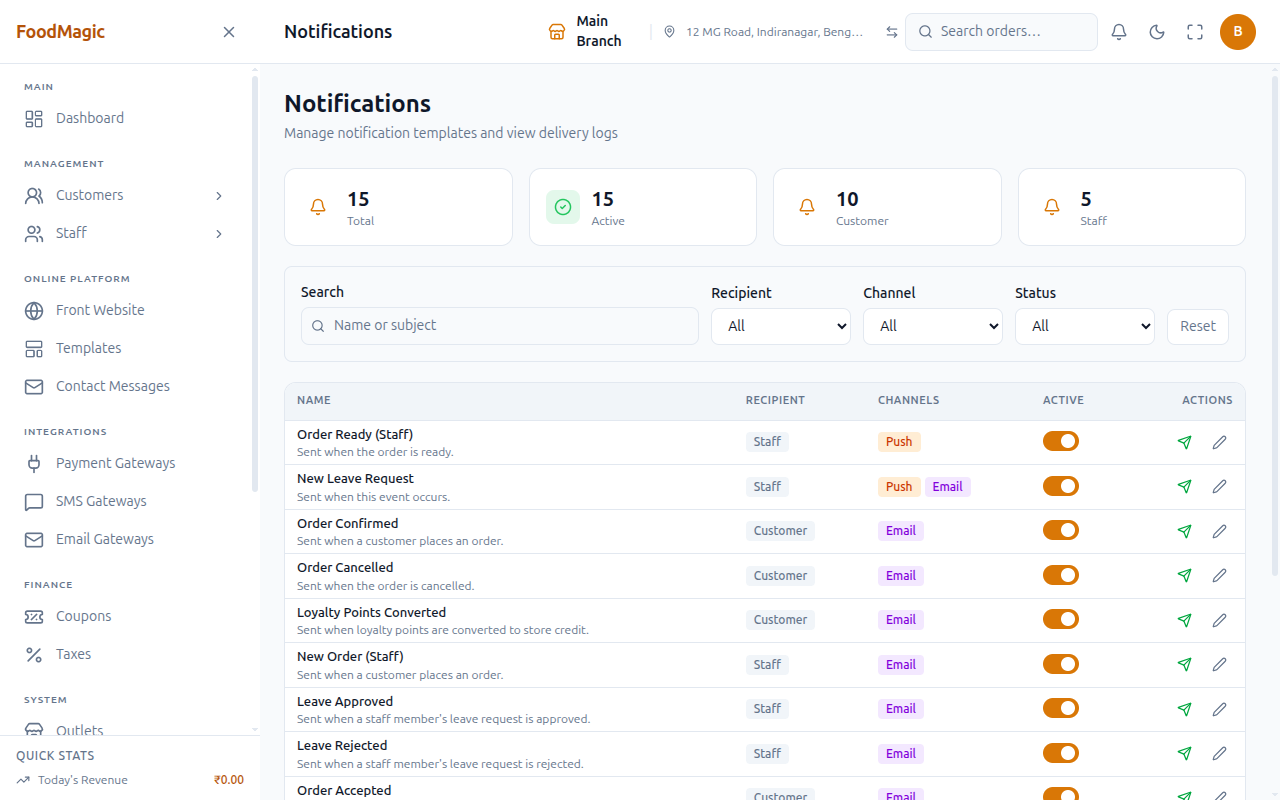
Use search and filters to find one template among the fifteen before editing it, or to check at a glance which ones are switched off.
There's no Add Template button here on purpose — the list is fixed and comes ready-made. A template the system doesn't already know about wouldn't be tied to anything that actually happens, so it would just sit there doing nothing.
The send-test icon (a paper plane) opens a small dialog asking for a phone number or email address. Confirming sends a real message to that recipient through the same delivery path a live event would use — not a preview. Use it to check a template's wording and formatting actually look right before relying on it in production, especially right after editing the body.
The edit icon (a pencil) opens a window showing the trigger event and recipient type as fixed, read-only fields — neither can ever be changed — with editable Channels (limited to what that recipient type supports), which roles receive it (for staff rows), plus Name, Subject, Body and an Active toggle. The message body offers click-to-insert placeholders specific to that template, so a loyalty template only offers loyalty-related placeholders and an order template only offers order-related ones — you're never shown a placeholder that wouldn't actually work. A Save button inside the window commits whatever you've changed — nothing here is applied until you click it.
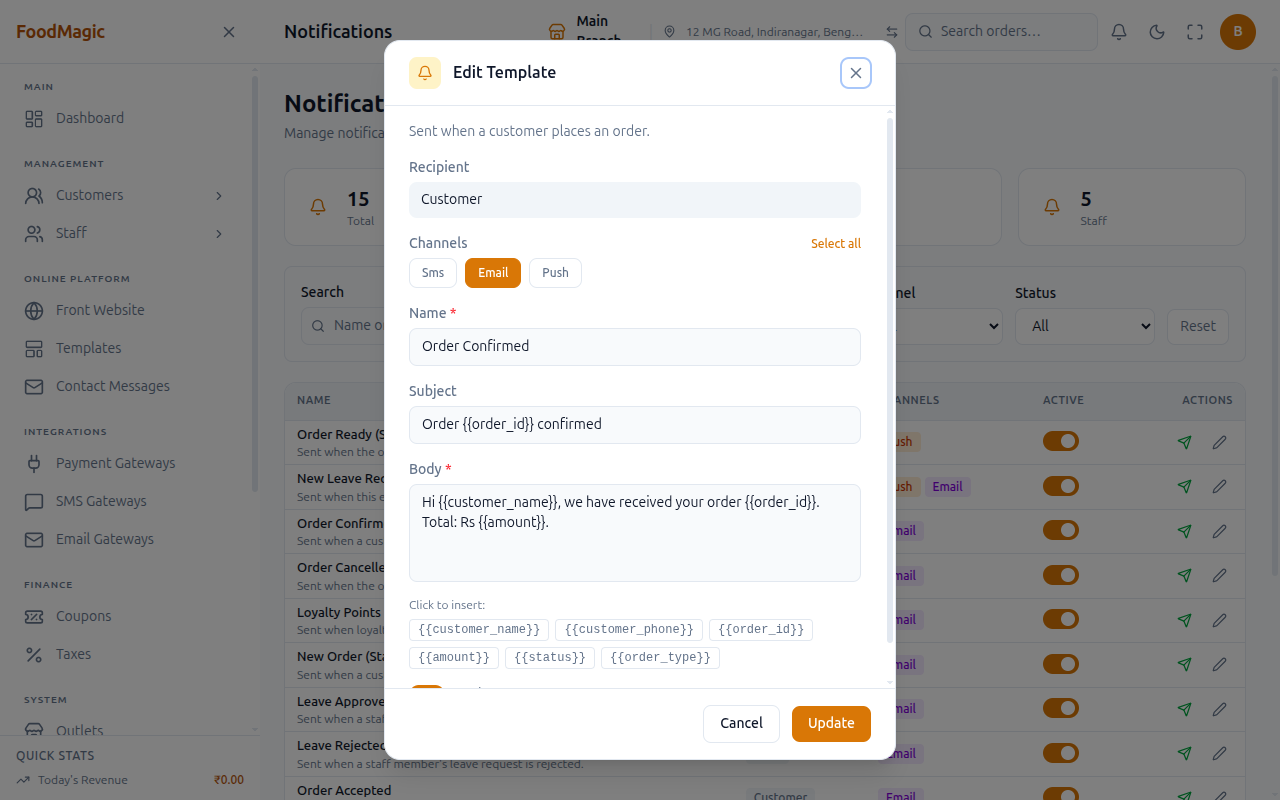
Leaving Channels empty, or leaving role selection empty on a staff row, doesn't stop you from saving — you'll see an on-screen warning that the notification will reach nobody, but the save still goes through. When that event next happens, it gets logged as a failed delivery rather than silently doing nothing — check the Logs tab if a template looks properly set up but nothing's arriving.
The Active toggle in the table is the reversible way to stop a message going out without touching its wording — switch it off and that template is skipped for every future event until it's switched back on.
Logs tab
Filter by a search box (recipient or subject), Channel, Status (Pending / Sent / Delivered / Failed), a date range, and a Clear button that appears once a filter is set. Results page through with a simple previous/next pair. Each row shows the timestamp, channel, template, a masked recipient, status, and the message — hover the subject to see the full body.
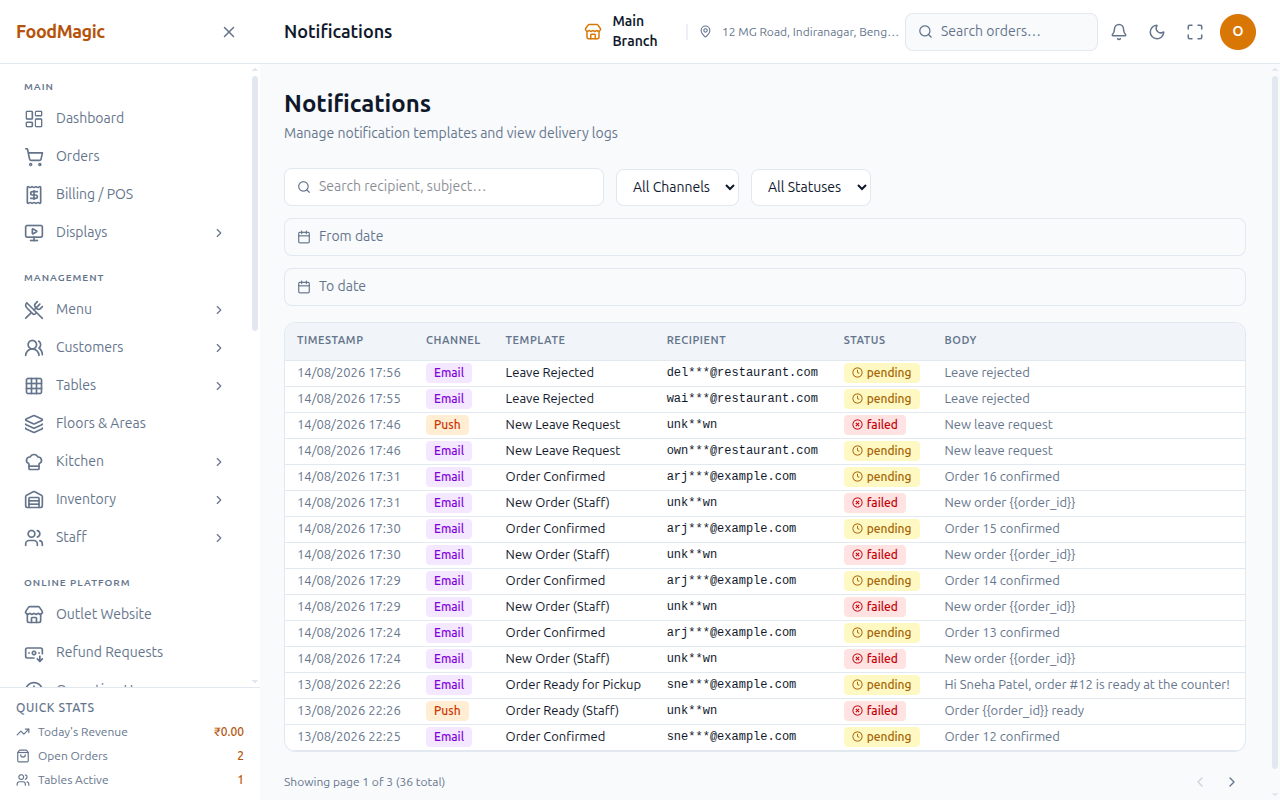
Use this to check on one specific delivery — "did the OTP for this number actually go out, and what happened to it" — or to scan for a run of failed deliveries after changing a template's channels.
Notifications inside the app
Beyond email and SMS, two in-app alerts run on the order flow, both switched on at brand level under Brand Settings → Order Notifications:
| Alert | Who gets it |
|---|---|
| Order assigned | The waiter it was assigned to |
| Order ready | Only the waiter who accepted it |
The ready alert deliberately goes to the waiter who accepted the order, not everyone on the floor. Alerting the whole team on every ready order trains staff to ignore the alert.
Delivery riders have a comparable alert on their deliveries screen, with a mute control.
These two in-app alerts are a separate mechanism from the template list above — they aren't one of the fifteen ready-made rows and don't appear on this screen at all.
How it is secured
Who can do what
| Action | Level | Who currently holds it |
|---|---|---|
| Manage templates (edit wording, channels, roles, active flag; send a test) | Brand | Super Admin |
| View delivery logs | Outlet | Outlet Owner |
Both are separate, named permissions on the Roles & Permissions screen — "Manage message templates" and "View communication logs" — so an admin can, in principle, grant one without the other to a custom role. In the default setup, though, nobody holds both: the Super Admin manages templates but can't see the Logs tab, and the Outlet Owner sees delivery logs but can't touch a template's wording. That's why the tab switcher on this screen only ever shows up for a deliberately customised role.
Tenancy — templates are brand-wide, logs are per-outlet
Every notification your customers or staff receive is set once, brand-wide — there's no per-outlet override of wording, channels or recipients. Logs are the opposite: each delivery record belongs to the outlet the order happened at, so an outlet manager sees only their own branch's message history, never another branch's.
What's checked before a save goes through
Editing a template doesn't block on an empty result — leaving the channel list empty, or leaving role selection empty on a staff row, still lets the save go through, just with an on-screen warning that the message will currently reach nobody. That's a deliberate choice (a manager may be setting a template up ahead of assigning roles), but it means a misconfigured template doesn't announce itself until an event actually happens and nothing goes out.
What's recorded when something changes
There's no separate change history for template edits — no record of who changed a template's wording or when, and nothing about it appears on a dedicated Audit Logs screen. The Logs tab is the notification system's own record, but it only tracks messages that were actually sent (or attempted) — not edits to the templates themselves.
Two things quietly limit what customers and staff actually receive today, and neither shows up as an error anywhere in the product. First, a channel only delivers if its gateway is actually configured and uses a supported provider — see the channel table above for exactly which SMS/WhatsApp providers are wired up and which just log a permanent "no driver implementation" failure. A template with Push turned on for a customer row is a special case of this: it can never deliver, full stop (see the warning above). Second, several stages an order can reach (Preparing, Picked Up, Reached, Served, Completed) have no template at all, so nothing is sent and nothing is logged when an order passes through them — a different situation from a template that exists but fails to reach anyone. A manager scanning the Logs tab for "did anything go out at this stage" needs to know which of these explains an empty result.
Related pages
The providers that deliver these messages.
The events that trigger them.
The in-app waiter/rider alerts and storefront OTP settings this page doesn't cover.
Where "Manage message templates" and "View communication logs" get assigned to a role.