
The Dashboard
What you see the moment you sign in — and why it looks different depending on who you are.
What it is
This is the first screen you see after signing in. It isn't the same for everyone — what you see depends entirely on your role. An Outlet Owner sees the whole day's trading at a glance. A Waiter sees only their own tables and orders. A Delivery Rider sees only their own deliveries. A Super Admin sees the whole business across every outlet, instead of the floor of any single restaurant.
Every card, chart and shortcut on the dashboard checks on its own whether you're allowed to see it. Two people with the same role but slightly different permissions can see a slightly different dashboard — it's never all-or-nothing.
Where it lives
/dashboard — this is where every role lands automatically right
after signing in (unless a "must change password" or "pick an outlet"
step needs to happen first — see
Login). It's also the Dashboard link
at the very top of the sidebar, so you can always get back to it. No
separate permission is needed to see some version of the dashboard —
every signed-in account gets one, even if that version turns out to be
almost empty (see When there's nothing to show, below).
The Outlet Owner dashboard
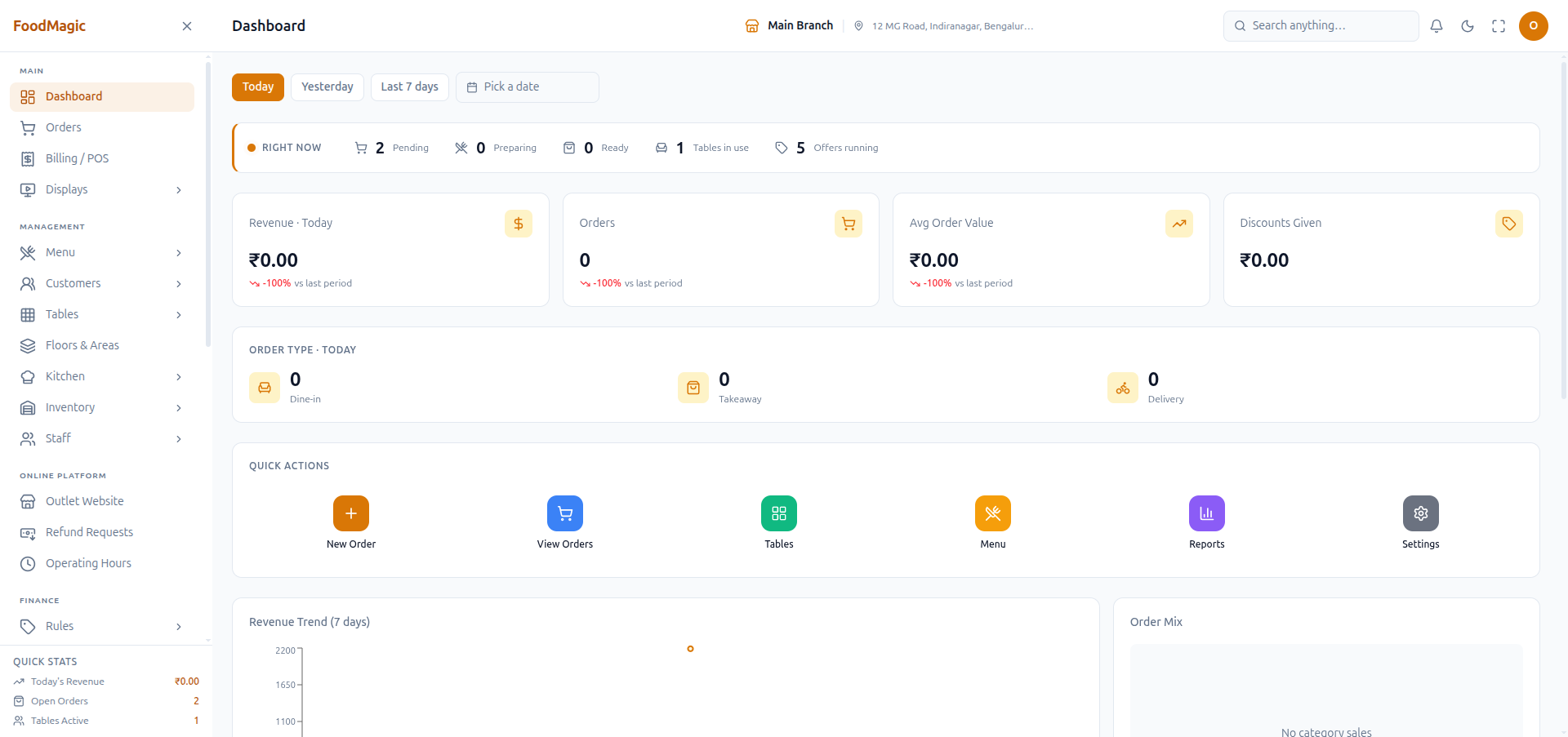
- Right now — a live strip along the top showing orders that are Pending, Preparing, or Ready this very moment. It also shows how many tables are currently occupied and how many offers are running. This strip always shows what's happening right now. It doesn't change when you pick a different date range below it.
- Date range — choose Today, Yesterday, Last 7 Days, or pick any single date. Everything below the "Right now" strip follows this choice.
- Revenue, Orders, Average Order Value, Discounts Given — four headline numbers for the period chosen, each showing how it compares to the same-length period before it.
- Order Type — how the period's orders split across Dine-in, Takeaway and Delivery.
- Quick Actions — one-tap shortcuts to New Order, View Orders, Tables, Menu, Reports and Settings.
- Revenue Trend and Order Mix — a chart of revenue over the last seven days, and a breakdown of revenue by menu category.
- Top Selling Items and Peak Hours — which dishes sold the most in the chosen period, and which hours of the day were busiest.
- Orders — the most recent orders for the period, with a link through to the full Orders screen.
Changing the date range
Click Today, Yesterday, or Last 7 days for an instant switch, or click Pick a date to open a calendar and choose any single day — including a day in the past, to see how that specific day performed.
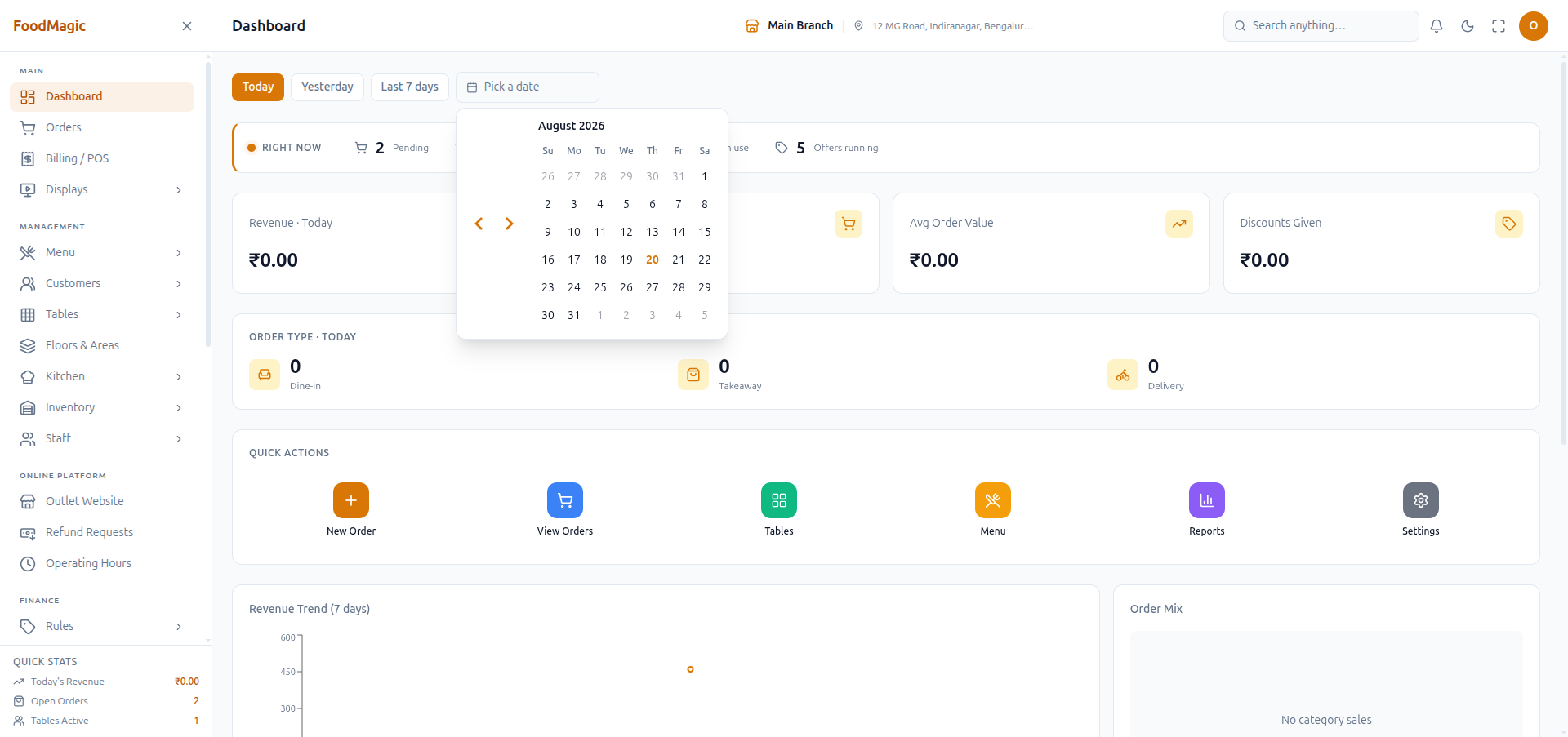
| Button | What happens |
|---|---|
| Today | Loads the dashboard for the current calendar day |
| Yesterday | Loads the dashboard for the previous calendar day |
| Last 7 days | Loads the dashboard for a rolling 7-day window ending today |
| Pick a date | Opens a calendar to choose any single specific day |
| Quick Actions → New Order | Goes to /billing, the till |
| Quick Actions → View Orders | Goes to /orders, the full order list |
| Quick Actions → Tables | Goes to /tables |
| Quick Actions → Menu | Goes to /menu |
| Quick Actions → Reports | Goes to /reports |
| Quick Actions → Settings | Goes to /outlet-settings |
| Orders → View All | Goes to /orders, same destination as View Orders |
| Clicking an order row | Opens that order's own detail page |
The Waiter dashboard
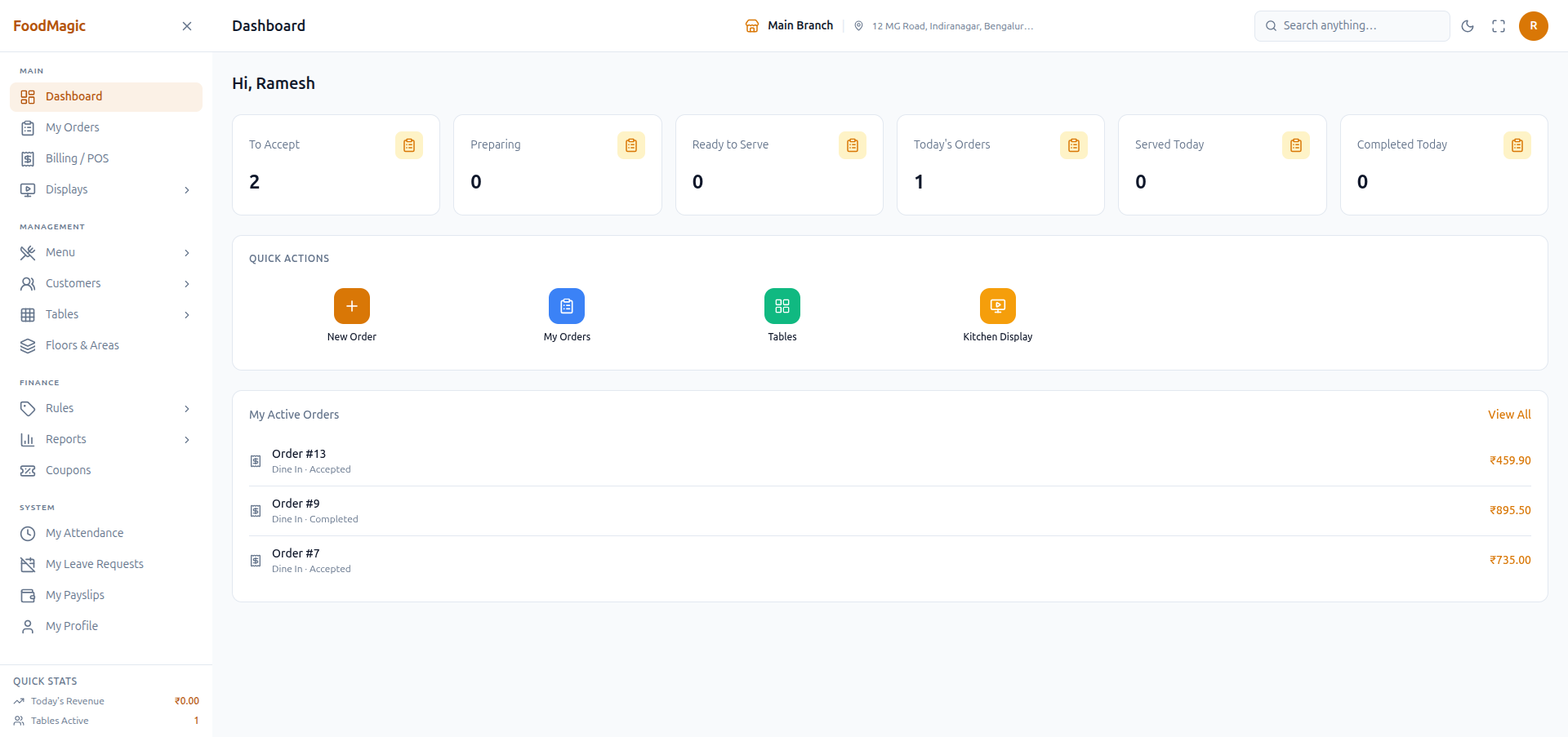
This dashboard greets the signed-in waiter by first name. It then shows six counts covering only that waiter's own orders: To Accept, Preparing, Ready to Serve, Today's Orders, Served Today, and Completed Today. Below that are shortcuts (New Order, My Orders, Tables, Kitchen Display) and a list of that waiter's own active orders.
The Delivery Rider dashboard
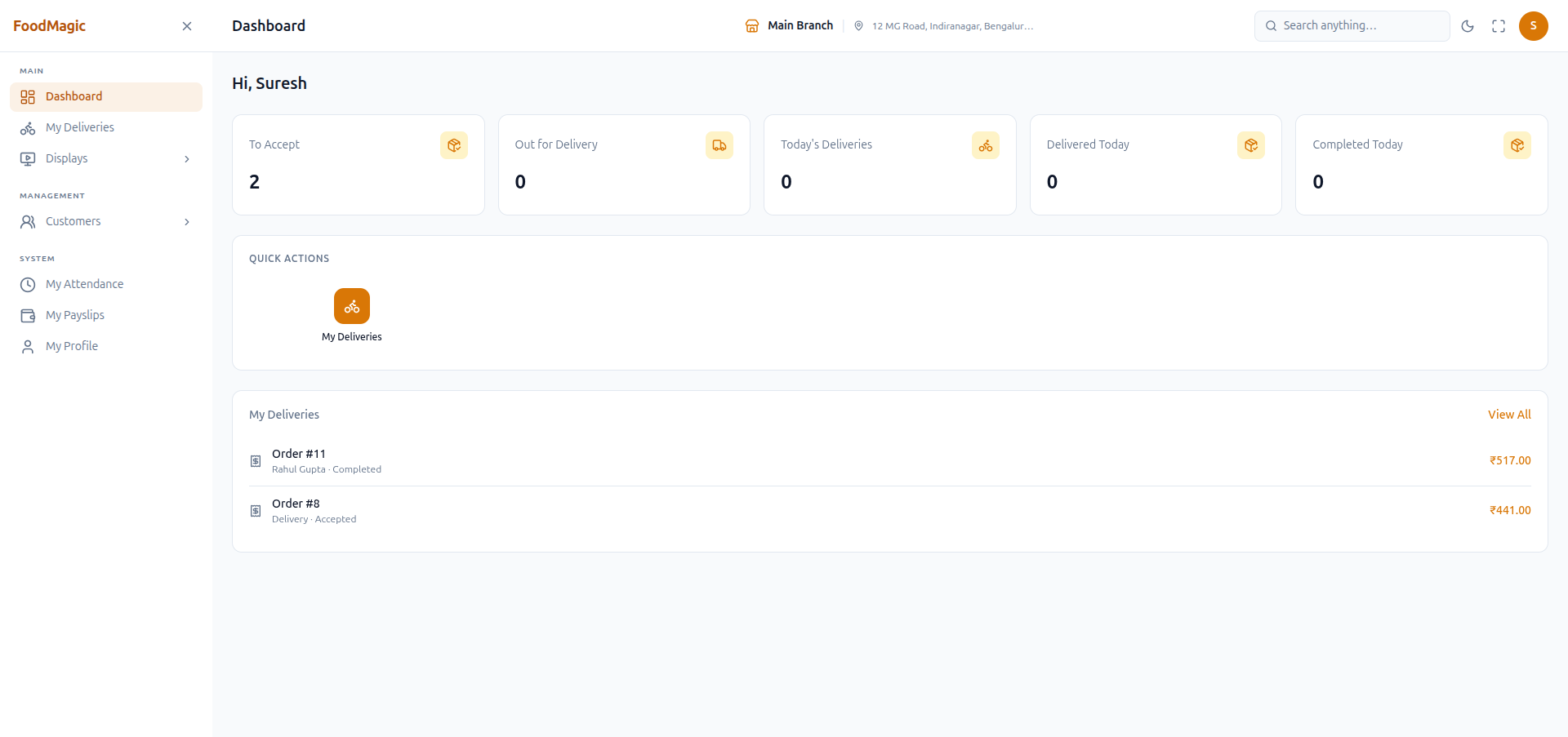
This works the same way as the Waiter dashboard, but for a rider's own deliveries: To Accept, Out for Delivery, Today's Deliveries, Delivered Today, and Completed Today. There's a single My Deliveries shortcut, and a list of that rider's own active deliveries.
The Super Admin dashboard
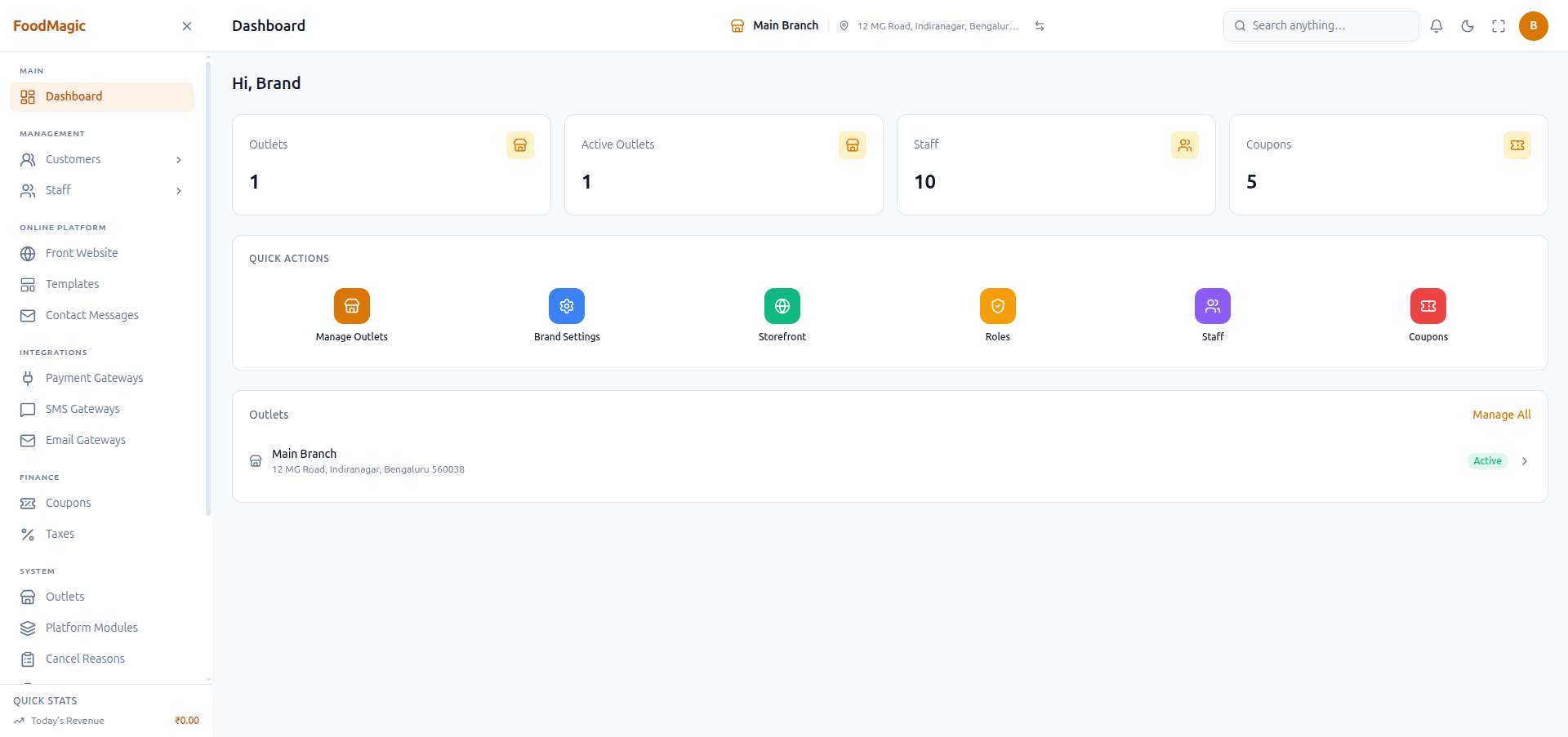
This dashboard looks at the whole business, not just one restaurant floor. It shows counts of Outlets, Active Outlets, Staff, and Coupons across the whole business, plus shortcuts to Manage Outlets, Brand Settings, Storefront, Roles, Staff, and Coupons. Below that is a list of every outlet, each with an Active/Inactive badge and a link through to manage it.
When there's nothing to show
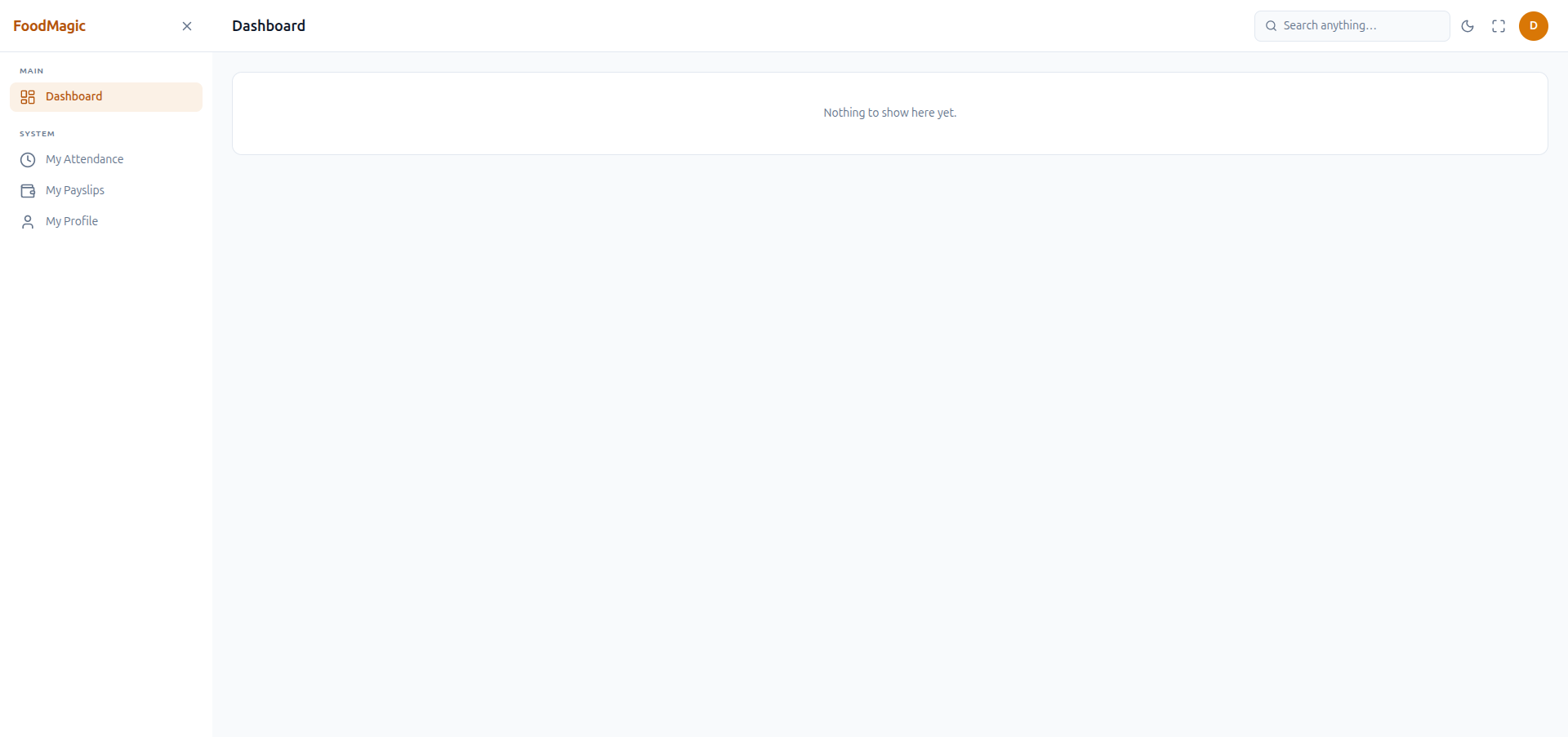
An account with no role and no restaurant attached to it lands on a dashboard that shows almost nothing — no counts, no charts, just a plain "Nothing to show here yet" message. See Register for exactly how an account can end up in this state. This isn't a loading screen or an error — it means the account has nothing it's allowed to see yet. An administrator needs to set it up with a role and a restaurant before it becomes useful.
Common questions
Where do I find the dashboard?
/dashboard — the very first link at the top of the sidebar, and where
you land automatically right after signing in.
Do I need a permission to see the dashboard?
No single permission gates the page itself. Every signed-in account gets some version of it — what varies is how much that version shows, based on your role and your individual permissions. See the warning above for what the least amount possible looks like.
Why does my dashboard look different from a coworker's?
Two reasons: your role decides which of the four dashboard layouts you see at all (Owner, Waiter, Delivery Rider, or Super Admin), and even within the same role, individual permission differences can hide or show specific cards — nothing here is all-or-nothing. See Who can do what for the full permission model.
Why is my dashboard almost empty?
Your account most likely has no role and no restaurant attached to it yet — see When there's nothing to show, above. This is the known outcome of the self-registration bug described on the Login and password reset page. An administrator needs to assign you a role from the Users screen.
Does changing the date range affect what other people see?
No. The date range is a per-session choice on your own screen — it doesn't change any stored data, and doesn't affect what a coworker sees on theirs.
Does the "Right now" strip follow the date range I pick?
No — it never does. "Right now" always shows this exact moment's Pending/Preparing/Ready counts, tables in use, and running offers, regardless of whether you've picked Today, Yesterday, or a past date below it.
Can a Waiter or Delivery Rider see revenue or other outlet-wide numbers?
No. Both of those dashboards are scoped to that person's own orders or deliveries only — no revenue figures, no charts, no outlet-wide counts. Only the Outlet Owner and Super Admin dashboards show business-level numbers.
How do I get back to my normal dashboard after I've been looking at Reports or Orders?
Click Dashboard at the top of the sidebar — it's always there, regardless of which screen you've navigated to.
Troubleshooting
| Problem | Likely reason | What to do |
|---|---|---|
| Dashboard shows "Nothing to show here yet" | Account has no role or no restaurant attached | Ask an admin to assign a role from the Users screen |
| Numbers seem stuck on an old date | You have a past date selected via Pick a date | Click Today to return to the live view |
| Revenue/order numbers look wrong for "today" | The "Right now" strip and the dated KPIs below it measure different things | Re-check which section you're reading — "Right now" is live, everything below follows the date range |
| Quick Action button does nothing / goes nowhere useful | You may lack the permission for that destination screen | Confirm with an admin which permissions your role holds |
| Can't find the dashboard after navigating away | Sidebar collapsed, or you're deep in another module | Click Dashboard, the first link under Main in the sidebar |
Related pages
Signing in, self-registration, and what happens right after.
Why an Outlet Owner, Waiter, Delivery Rider and Super Admin each see a different dashboard.
The full Orders screen the dashboard's order counts and lists summarize.
Where the dashboard's revenue, category and item charts come from in more detail.