
Modifiers and options
The choices a customer makes on a dish — spice level, extra toppings, no onions — and how they are grouped.
Modifiers are the choices attached to a dish, built from two pieces: the question and the answers.
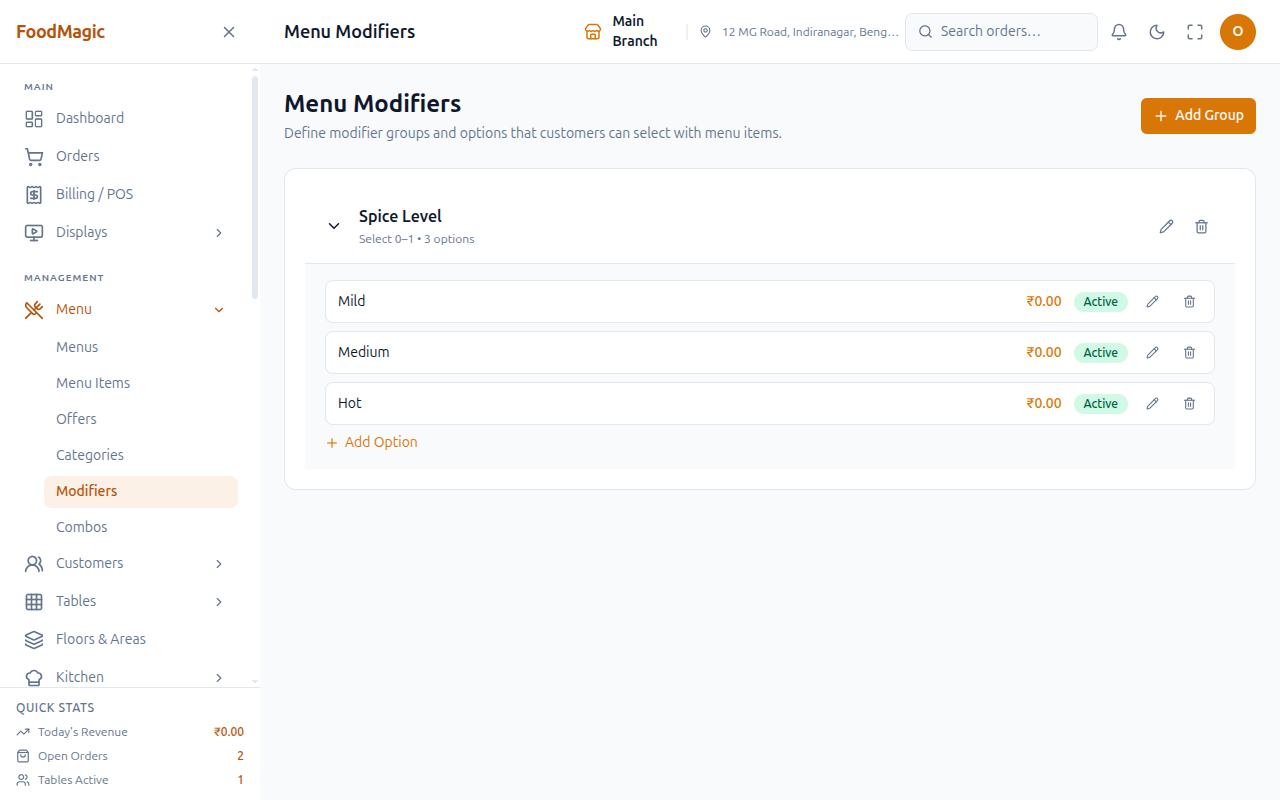
What it is
A modifier group is the question — Choose your spice level, Add a topping. A modifier option is one of the answers — Mild, Medium, Hot — and each option can have its own price added on top of the dish.
Outlet managers set up groups and options on the Modifiers screen. Waiters and till staff never build or edit them. They only see the finished choices while taking an order at the till, and that's where the customer actually makes their selection.
You'll find this on the Modifiers screen, under Menu in the sidebar.
This feature is live. Every action described below — viewing, adding, editing, and deleting a group or an option — works on the real screen today. We checked this by using the screen itself, not just by reading about it.
How it works
The question — Choose your spice level, Add a topping.
The answers — Mild, Medium, Hot. Each one can have its own price.
A group has a minimum and maximum number of options a customer must or can choose, and whether it's required at all. An option has its own price, which gets added to the item's price when it's chosen.
A chosen option's price never actually reaches the bill total. It shows up correctly on the order line itself — an item's line price on Order Details and the billing screen already includes every modifier price selected on it. But the order's own Subtotal, tax, and Payable Amount are calculated straight from the dish's plain price, never touching the modifiers on that line. So a ₹50 "Extra Cheese" option displays on the item row, and the row's own price reflects it, but that ₹50 is silently missing from what the customer is actually charged — the two numbers on screen won't add up if you check them by hand. This is a real, current gap in order-total math, not something specific to this screen — the same gap applies wherever an order total is computed.
The Modifiers screen
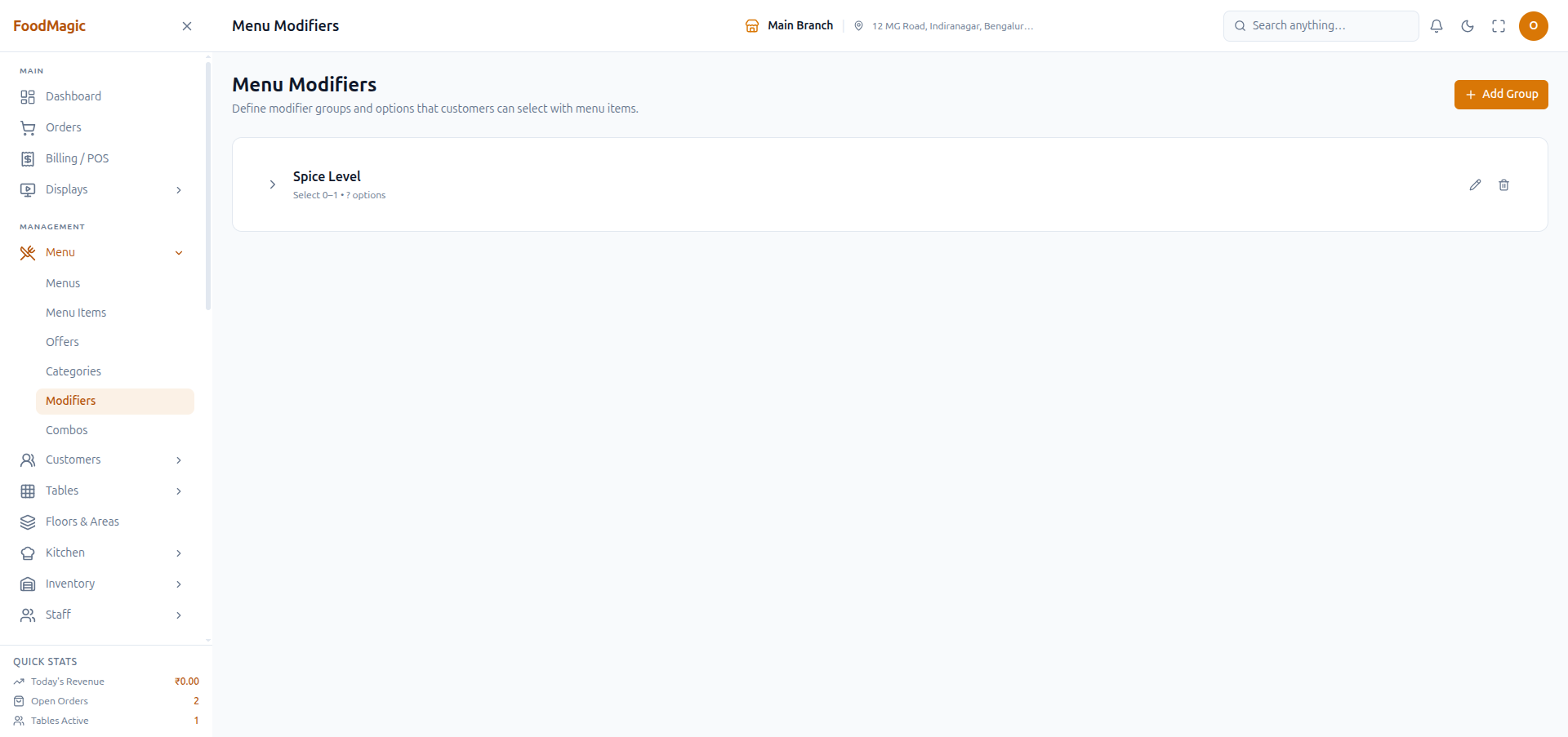
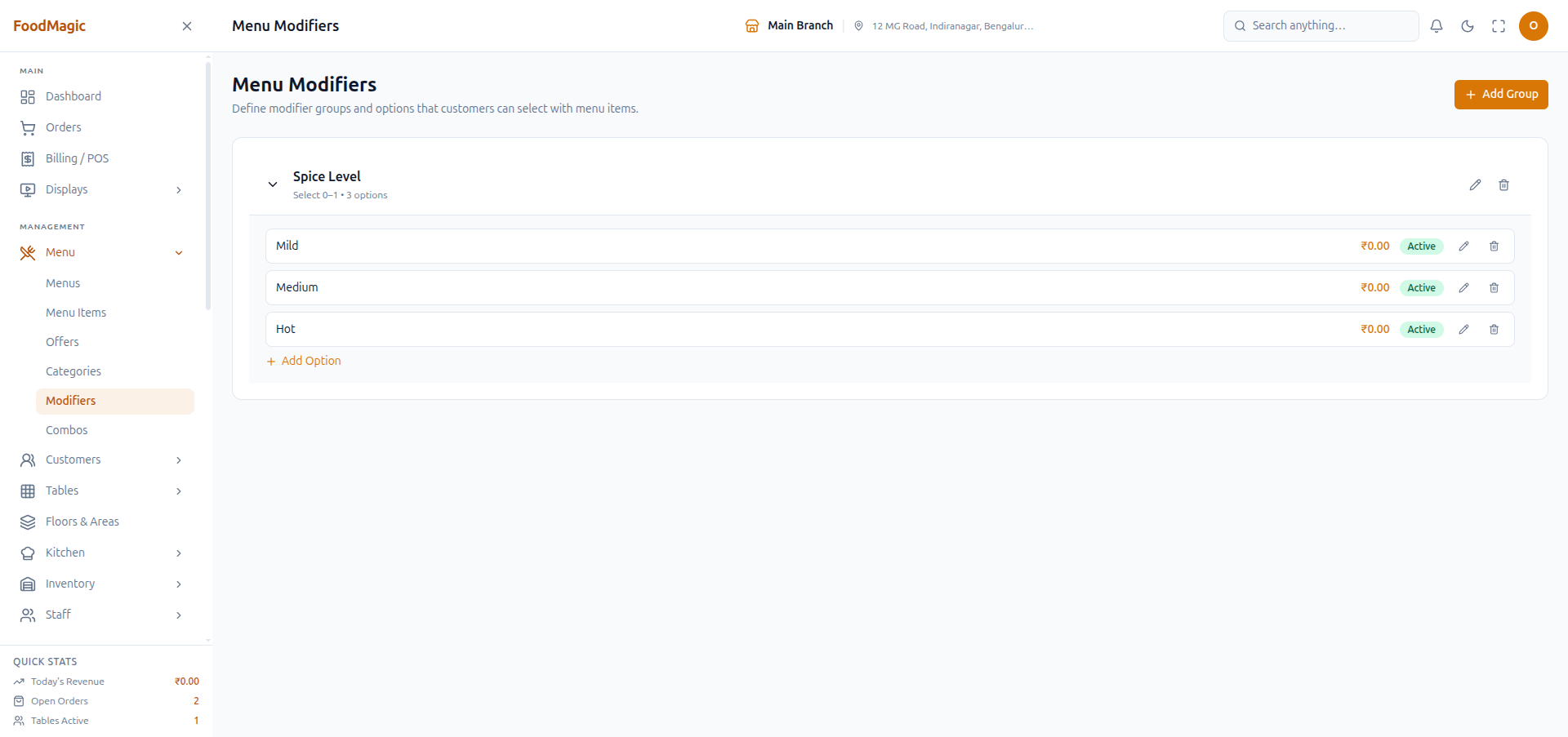
The screen shows a list of groups, collapsed by default. Expand a group to see its options and its Add Option button, or use Add Group at the top to start a new one. This is an Outlet Owner / outlet-superadmin task — waiters never open this screen.
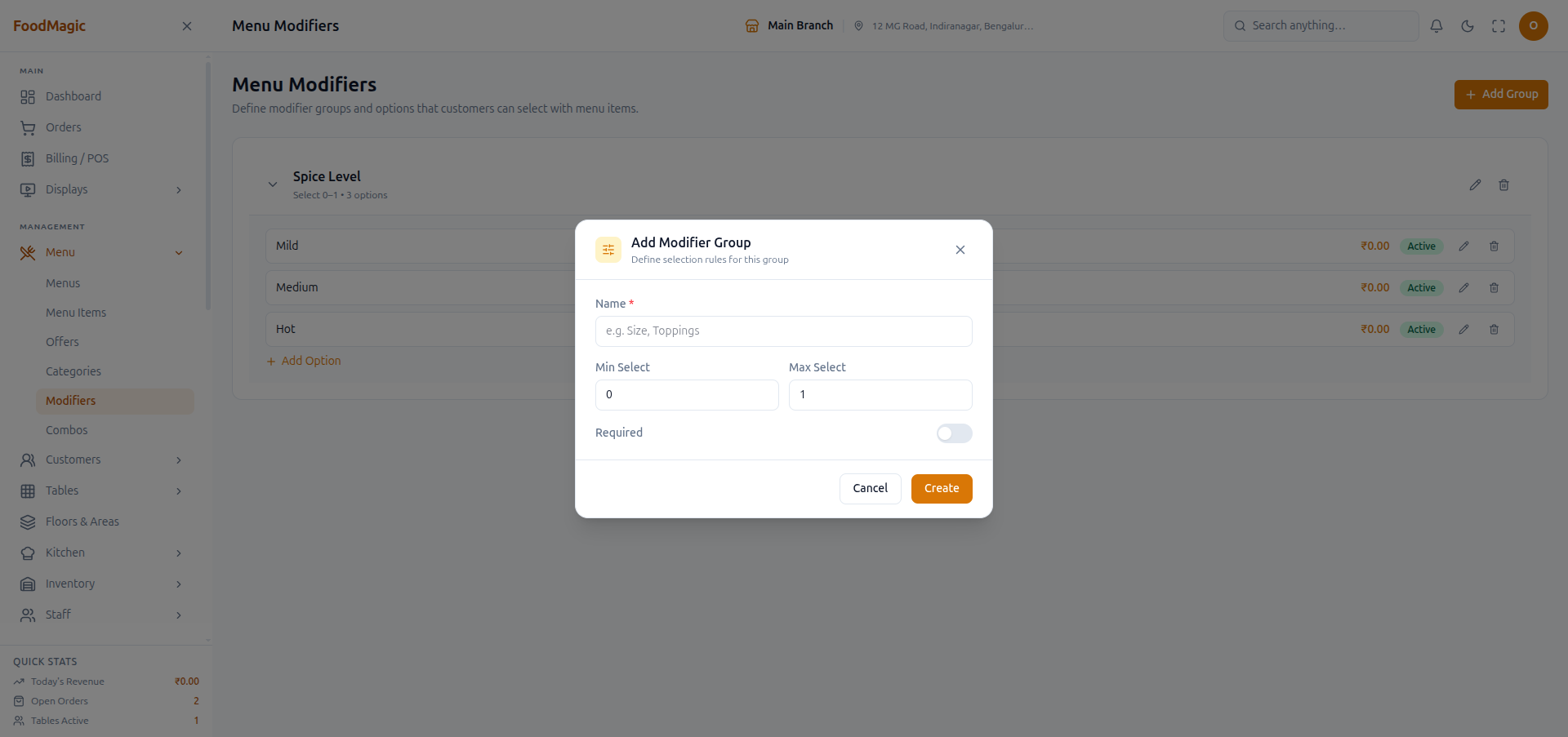
Add Group opens a form for the group's name, whether it's required, and how many options must or can be chosen. A new group defaults to optional and single-choice until you change that. Use this to introduce a new choice on a dish, like "Choose your spice level," before attaching it to an item.
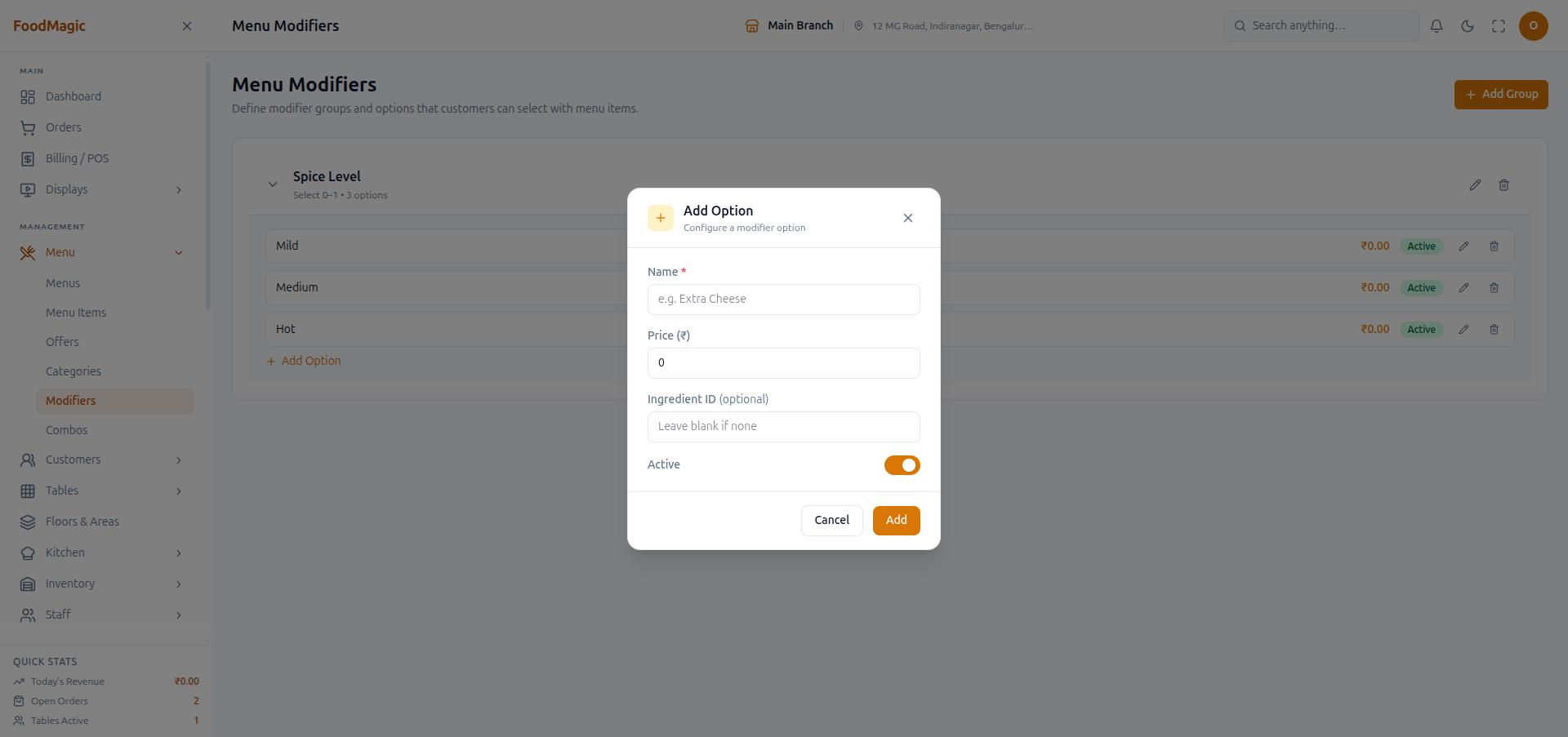
Add Option opens a form for the option's name, price, and whether it's active. It gets added under whichever group you opened it from. Use this to add one more answer to an existing question — a new topping, a new spice level.
Editing or deleting a group or option works the way you'd expect: rename a choice, change its price, or remove one you no longer offer. Adding, editing, and deleting each need their own separate permission, so an admin can let someone edit modifiers without letting them delete one, for example. See "How it is secured" below.
The form also lets you link an option to a specific stock ingredient — for example, tying "Extra Cheese" to the cheese ingredient in your inventory — so that choosing the option would automatically use up some stock.
This ingredient link doesn't actually work yet. You can fill in the field on the Add/Edit Option form, and the screen makes it look like it saved — but the ingredient you picked isn't actually stored. It gets silently dropped. And even if it were stored, nothing else in the system currently reduces stock when a modifier option is chosen — not orders, not billing, nothing. So choosing "Extra Cheese" would not reduce your cheese stock today, either way. We found this by checking the code, not by watching stock levels change on screen — but it's worth fixing before you rely on it for inventory accuracy.
Required groups and the "no active options" trap
A modifier group can be marked required, meaning the customer must choose an option before the item can be added to an order.
A required group with no active options left in it would make that dish impossible to order — the customer must choose, but there's nothing to choose from. This used to be a real bug that silently blocked the sale entirely. It's now handled two ways: if a required group has no options at all, the till treats it as already satisfied instead of blocking the sale over a choice nobody can make. And the Modifiers screen itself won't let you deactivate or delete the last active option in a required group in the first place.
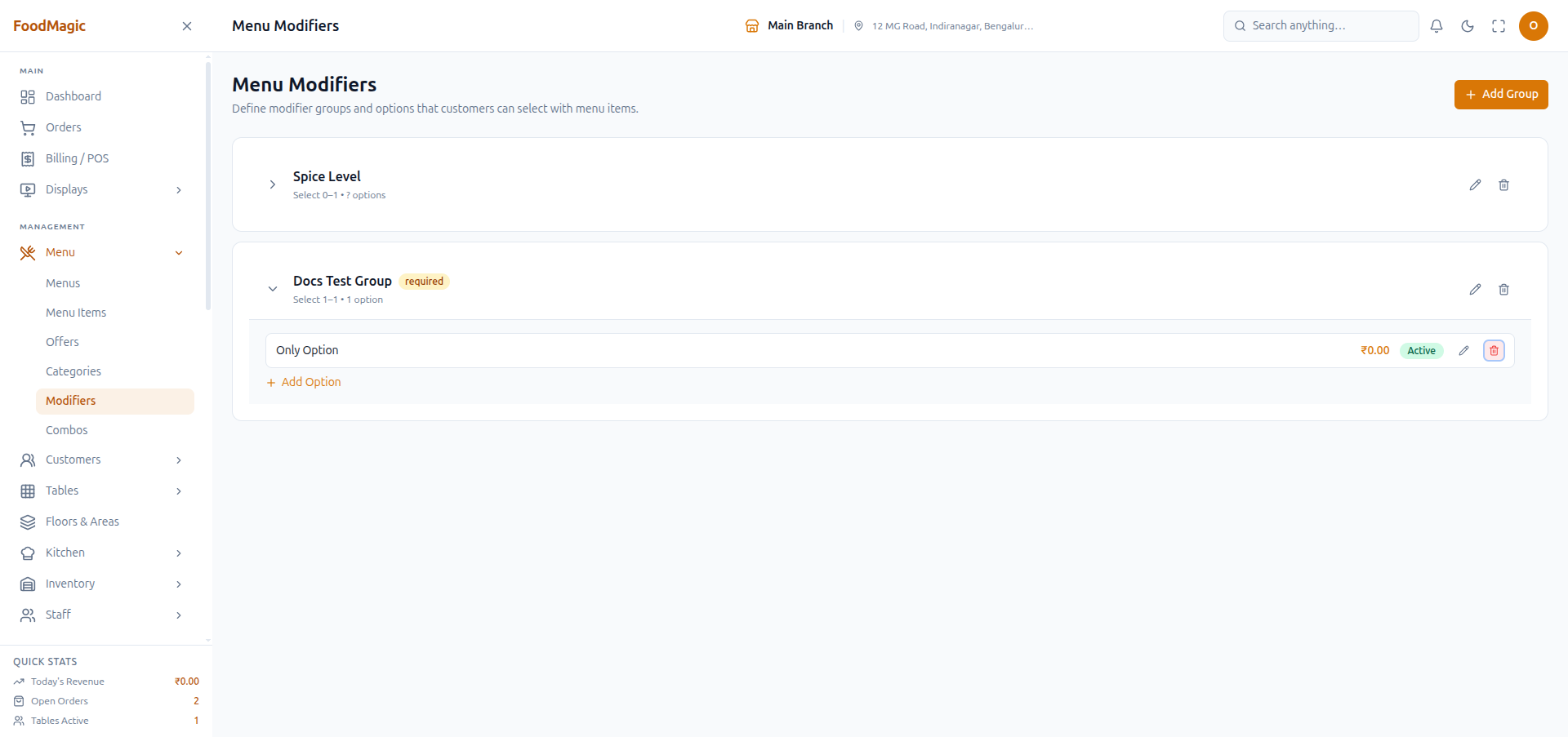
That second safeguard only lives on the Modifiers screen — it's a check built into that one screen, not something enforced everywhere data can be changed. Some other way of reaching the same records, like a script or a future bulk-import tool, could still recreate the original problem by deactivating a group's last option from outside this screen.
This is also why the till only ever offers options that are "currently available" when a customer is ordering, rather than every option that has ever existed. It needs to know what's orderable right now, not just what exists on paper.
There's also a way to ask the system for "every modifier option that exists," but it isn't wired up correctly and would fail if something tried to use it. The Modifiers screen you actually use never calls it — it always asks for options one group at a time — so this hasn't caused a visible problem. It's just a loose end worth knowing about if anything new is ever built on top of this.
How it is secured
Seeing, creating, editing, and deleting groups and options are each their own separate checkbox on the Roles & Permissions screen — "View modifiers", "Create modifiers", "Update modifiers", "Delete modifiers". That means a role can see modifiers without being able to change them, for example. Unlike some other Menu screens, every one of these checks — including just viewing the list — is enforced before the request even goes through. It isn't left up to the screen to simply hide a button. So there's no way for someone without permission to sneak an action through just because a button happened to be missing.
Role access
- The Waiter role doesn't hold any Modifiers permission at all. Waiters only see modifier choices through the item they're adding to an order at the till — never through the Modifiers management screen.
- The Outlet Owner / outlet-superadmin role holds all four Modifiers permissions.
- Modifiers is managed per restaurant, not centrally. None of its permissions are brand-wide, so each outlet controls its own modifiers.
Restaurant-to-restaurant separation — a modifier group belongs to a single outlet, so one branch's "Choose your spice level" group never shows up at another branch's till. A modifier option doesn't carry its own outlet tag — it's only ever reached through the group it belongs to, so in practice it stays within that group's outlet. But there's no separate protection on the option record itself if it were ever looked up on its own.
What the forms check before saving
- Group name: required, and can't repeat within the same outlet among groups that haven't been deleted.
- Minimum/maximum selections: both must be zero or higher, and the maximum can never be lower than the minimum.
- Option name: required.
- Option price: optional, but can't be negative.
What gets recorded
Adding, editing, or deleting a modifier group or option is written to the outlet's Audit Log — who did it, when, and what changed.
Related pages
- Menu management — the dishes modifiers attach to.
- Orders and the POS — where the customer makes the choice.
- Stock — where the ingredient link on a modifier option was meant to reduce stock, though it doesn't work yet.