
Staff attendance
Marking who worked each day, how half-days and holidays count, and why attendance must be right before payroll runs.
Attendance is marked every day, for every outlet, for everyone on the roster. It's the single biggest factor in what most staff get paid, so a mistake here becomes a pay mistake later.
What it is
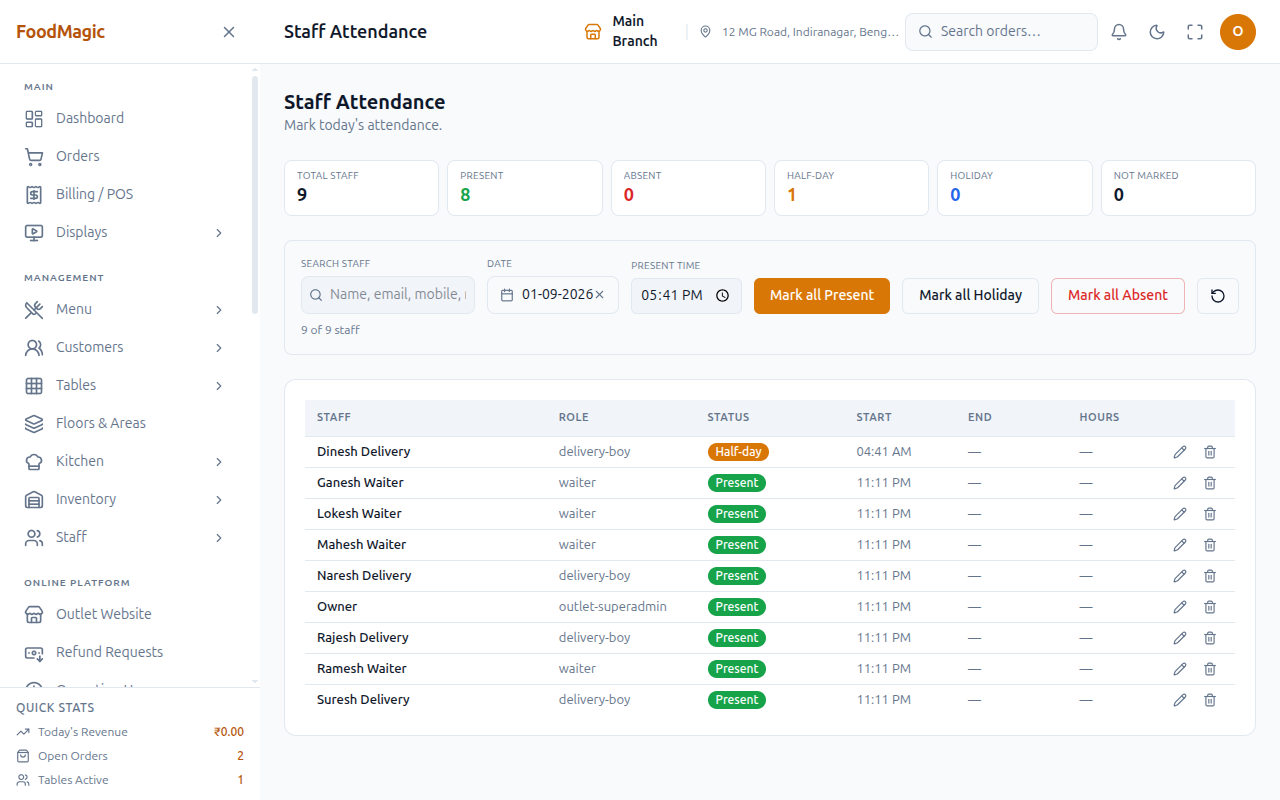
The Staff Attendance screen is where a manager marks, for a chosen day, whether each staff member was present, absent, on a paid holiday, or worked half a day. It sits inside the Payroll area of the sidebar, next to Salary Advances, because attendance is what payroll is built on.
- Who uses it — outlet managers mark the sheet. Every staff member can see their own record on a separate screen, My Attendance, with no permission needed.
- Where it lives — the daily marking sheet, a per-person history report, and the self-service calendar.
- Current status — live, and marked by hand every day. There is no clock-in kiosk or device — start and end times are typed in by whoever is marking the sheet.
How it works
The four states
| State | Counts as | Meaning |
|---|---|---|
| Present | a full day | Worked the day |
| Half-day | half a day | Worked part of the day |
| Holiday | a full day | Paid non-working day |
| Absent | nothing | Did not work, not paid |
A holiday pays exactly the same as a full day worked. A half-day pays exactly half. Only Absent costs the staff member anything — which is why marking someone absent when they were actually on approved leave is such an expensive mistake.
Marking the day
The screen lists everyone on the roster for a chosen date. Anyone not yet marked shows as not marked, with a count at the top of the screen.
Mark all Present, Mark all Holiday or Mark all Absent sets everyone on the roster at once.
Change the few people who differ from the bulk setting.
Start and end times are used to work out total hours. This matters most for hourly staff — without times entered, they earn nothing for the day.
An unmarked day is not the same as an absent day — it has no record at all, and will not be paid.
What's on the Staff Attendance screen
| Element | What it is |
|---|---|
| Date picker (defaults to today) | Switches which day's sheet you're marking |
| Mark all Present / Mark all Holiday / Mark all Absent | Sets every unmarked row on the sheet to that state in one action |
| Name, email, mobile, role search | Filters the roster list while marking |
| Columns: Staff, Role, Status, Start, End, Hours | One row per person on the roster for that date |
Mark all — bulk-setting the day
Each button sets the same status for every row on the sheet in one go. You don't have to mark the roster person by person unless you need to make exceptions. Marking one person by hand and marking the whole roster at once work exactly the same way — the only difference is how many people you're marking at a time.
Use this on most days, since most of the roster usually shares the same outcome — either everyone worked a normal day, or the outlet was closed and everyone gets a Holiday. Set the bulk status first, then fix the handful of people who are different.
Hours and overtime
When both a start time and an end time are entered, the hours worked come from the difference between them. Anything beyond eight hours in a day counts as overtime and is tracked separately from ordinary hours — this is the same eight-hour line that payroll uses to work out overtime pay, so a long shift marked here is what turns into extra pay later. See Staff payroll.
The deadline that matters
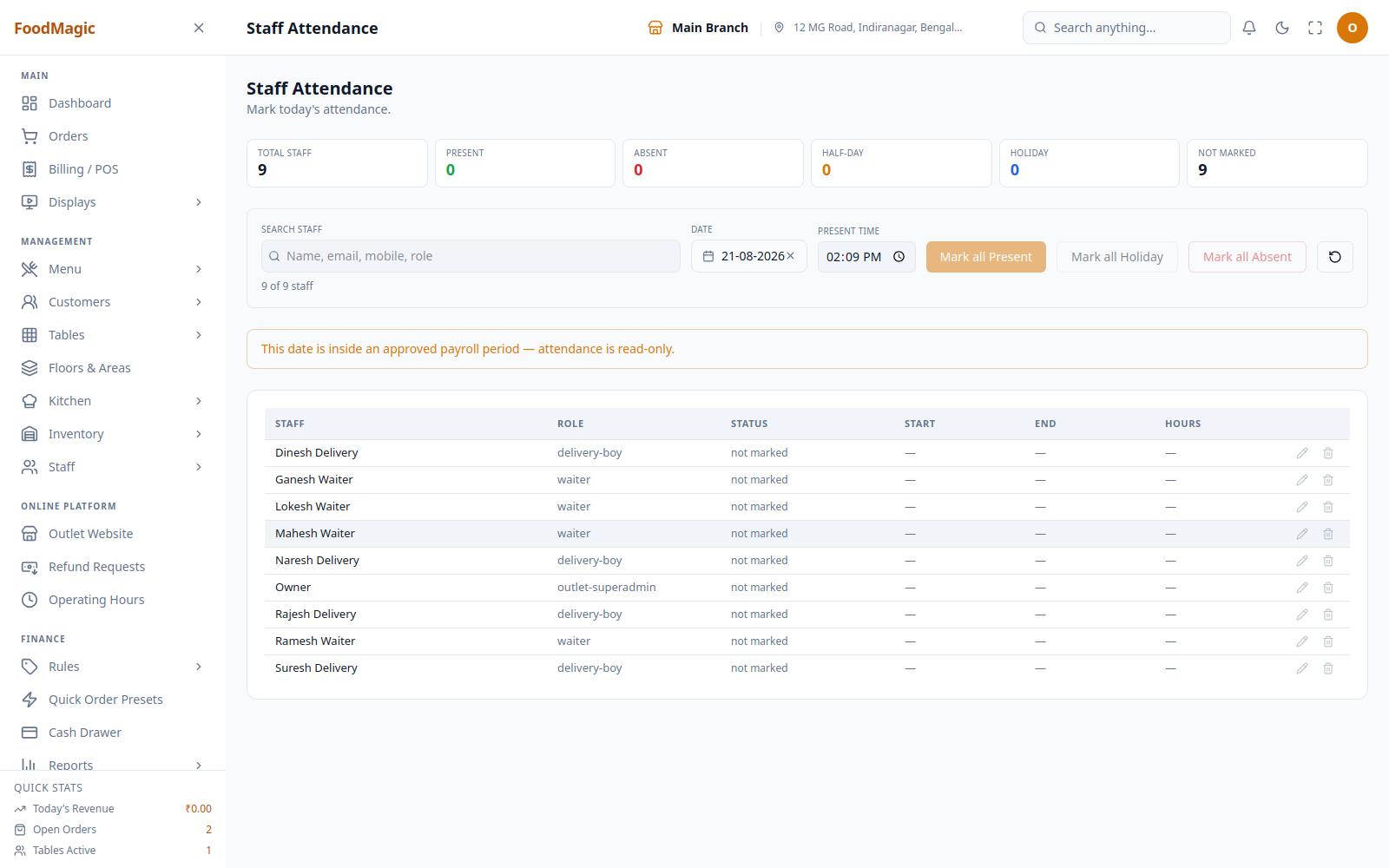
Attendance locks once payroll runs. As soon as a payroll period covering a date is approved, that date can no longer be edited or deleted — there's no way back, from this screen or anywhere else. Every correction has to happen before payroll is generated and approved.
Approved leave is not marked for you
Approving someone's leave does not set their attendance. They are two separate records. Leave days that are left unmarked, or marked as absent, will not be paid. Mark approved leave days as Holiday so they get paid in full.
See Staff leave requests for the approval side.
Where to see it
| Screen | Who | Shows |
|---|---|---|
Staff Attendance (/payroll/attendance) |
Managers | Today's marking screen for the whole roster |
Staff Attendance Report (/reports/attendance) |
Managers | Per-person totals across a date range — present, absent, half-day, holiday, total hours |
My Attendance (/my-attendance) |
Every member of staff | Their own record, as a month calendar — no permission needed, everyone can see their own |
Check the Staff Attendance Report for unmarked days before running payroll. It's the quickest way to catch a gap while there's still time to fix it.
How it is secured
Attendance has two separate permissions on the Roles & Permissions screen — View attendance and Mark attendance. This means a role can be given read-only access to the sheet without being able to change it, or the other way around.
- View attendance — needed to open the Staff Attendance sheet, the attendance history behind it, and the Staff Attendance Report.
- Mark attendance — needed to actually mark, edit or remove an entry. This is a separate switch from viewing — someone could technically be given the ability to mark attendance without being able to look back at what's already been marked, though that combination is unusual in practice.
My Attendance, a staff member's own record, needs neither permission — every signed-in user can see it, staff and managers alike.
Who holds these by default
By default, only the Outlet Manager role holds both View attendance and Mark attendance — this role automatically holds every outlet-level control that exists. Neither Waiter nor Delivery Rider starts with either permission, and the brand Super Admin doesn't get them automatically either, since attendance is an outlet-level control, and the Super Admin's automatic permissions are brand-wide plus a short extra list that doesn't include attendance. See Staff overview for the full breakdown of who holds what.
Tenancy — one outlet at a time
Every attendance entry belongs to a single outlet. There's no brand-wide attendance view — a brand running several restaurants has to review attendance one outlet at a time, because each record doesn't separately track which brand its outlet belongs to.
Validation
The daily marking form only accepts a real staff member from the roster, and one of the four defined statuses — nothing else is accepted. If both a start time and an end time are given, the end time can't be earlier than the start time. A note on any entry can be at most 500 characters.
The lock, enforced twice
The attendance lock described above isn't just a disabled button on screen. Trying to mark or edit a locked date is refused outright, no matter how that attempt reaches the system. There's no way to slip a correction through once the payroll period covering that date has been approved.
Audit trail
Every attendance record can be traced back to who last saved it, through ordinary edit history. But there's no separate day-to-day audit log for attendance changes, the way some other areas of the system have. To review what happened on a specific day, you open that day's sheet — there's no central log to search.
Related pages
How all four staff processes connect, and the safe order to do them in.
Approved leave still has to be marked as Holiday here by hand.
Where attendance turns into pay — and where the lock comes from.
Turn View/Mark attendance on or off for a role.