
Running coupons
How discount codes work end to end — creating them, the rules that decide whether one applies, who is allowed to do what, and where redemptions are reported.
A coupon is a code that gives a customer money off an order. They can enter it at the till, or at checkout on your website. Food Magic checks the code against a set of rules. If it passes, the discount is recorded on that order.
A coupon is different from a discount rule. A customer or cashier types in a coupon. A discount rule applies on its own, without anyone entering a code, whenever its conditions are met — happy hour, a staff discount, a percentage off one category. Both lower the price, but only coupons need a code. Discount rules are covered under how discounts work.
What it is
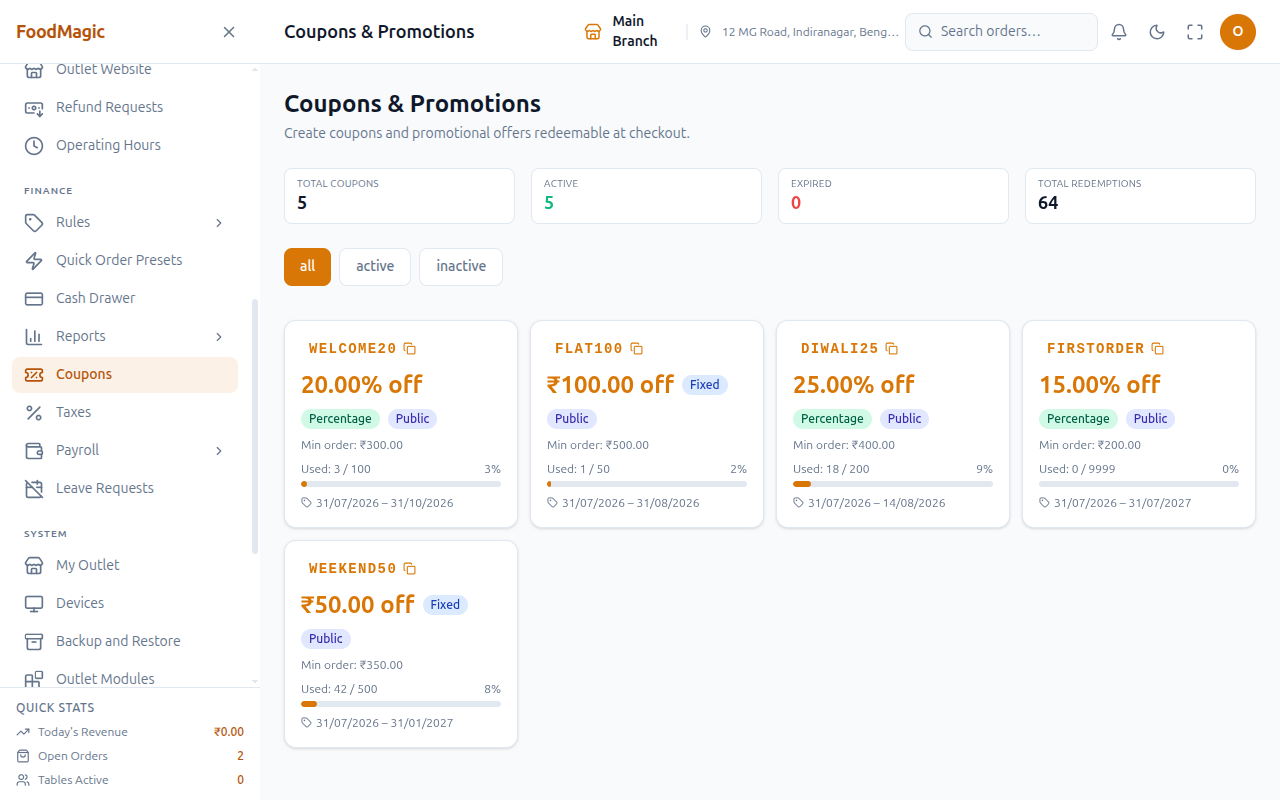
Coupons are your brand's promo-code system. There is one shared list of codes for every branch. A code can be redeemed at the till or on your online storefront.
- Who uses it — the brand's Super Admin creates and manages codes. Outlet Owners and Waiters can see the list and apply a code at the till. Customers type a code in at checkout on the website, or hand it to a cashier.
- Where it lives — go to Coupons (
/coupons) and click Add Coupon to create a new code. The till has a coupon field for applying a code during a sale. The storefront checkout lets a customer apply their own code. Redemptions show up on the Coupon Report and on a customer's own profile. - Current status — creating, listing, and applying codes all work today. There is one gap worth knowing about: a coupon applied at the till is checked less strictly, and recorded differently, than one applied on the website. This is explained fully below, under How it works.
Who can do what
Here's the part that catches people out: creating a coupon and using one are two separate permissions, granted separately, on the Roles & Permissions screen.
| Action | Who holds it by default |
|---|---|
| See coupons, apply a code | Super Admin, Outlet Owner, Waiter |
| Create, edit, deactivate | Super Admin only |
An outlet owner cannot create a coupon. They can see the list and apply codes, but only the Super Admin can create one. Promotions are a brand-wide decision, so one branch cannot invent its own discount. If a branch wants a code, the brand has to create it.
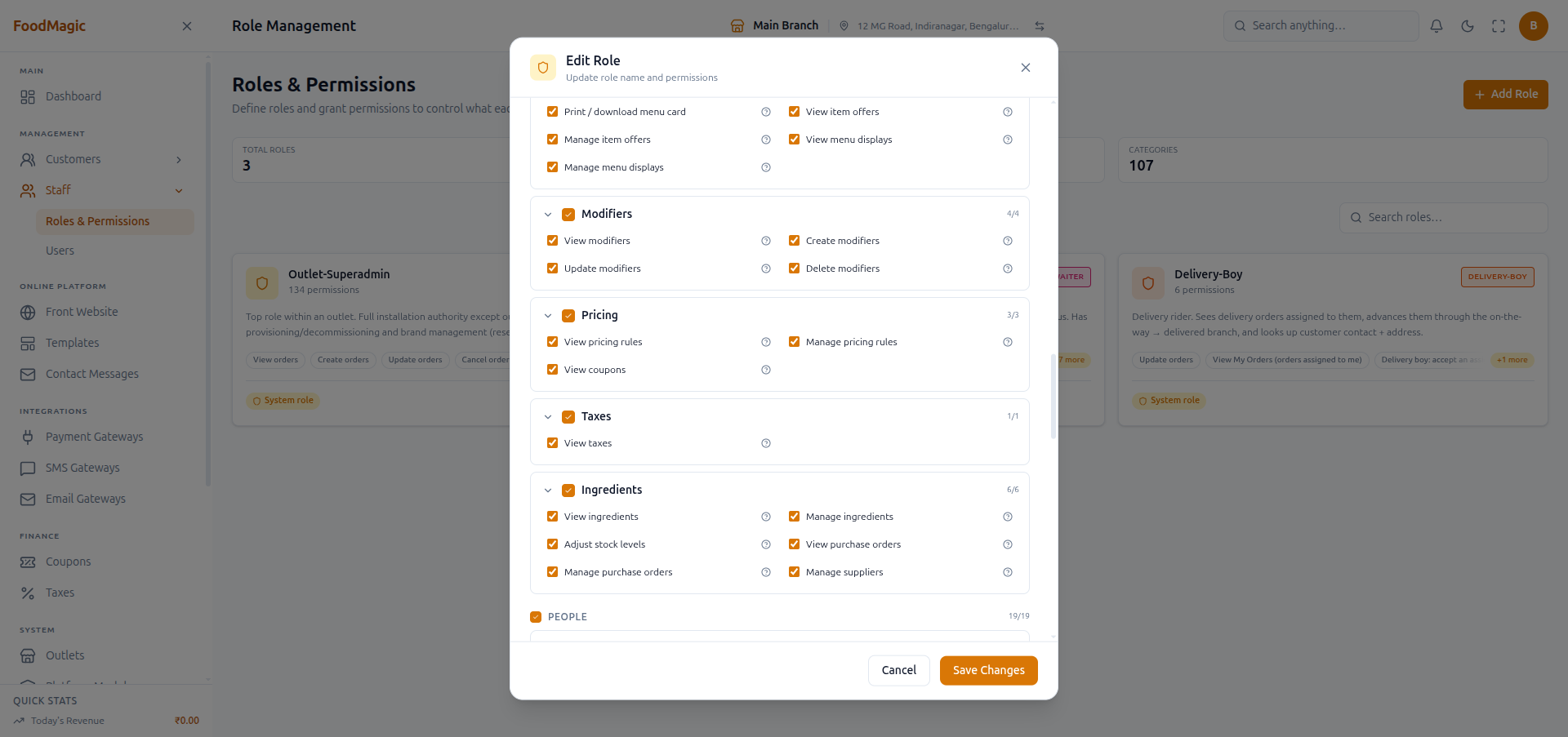
Waiters can see and apply coupons on purpose — a cashier at the till needs to be able to type in a code the customer hands over, without also being able to create new codes.
What a coupon is made of
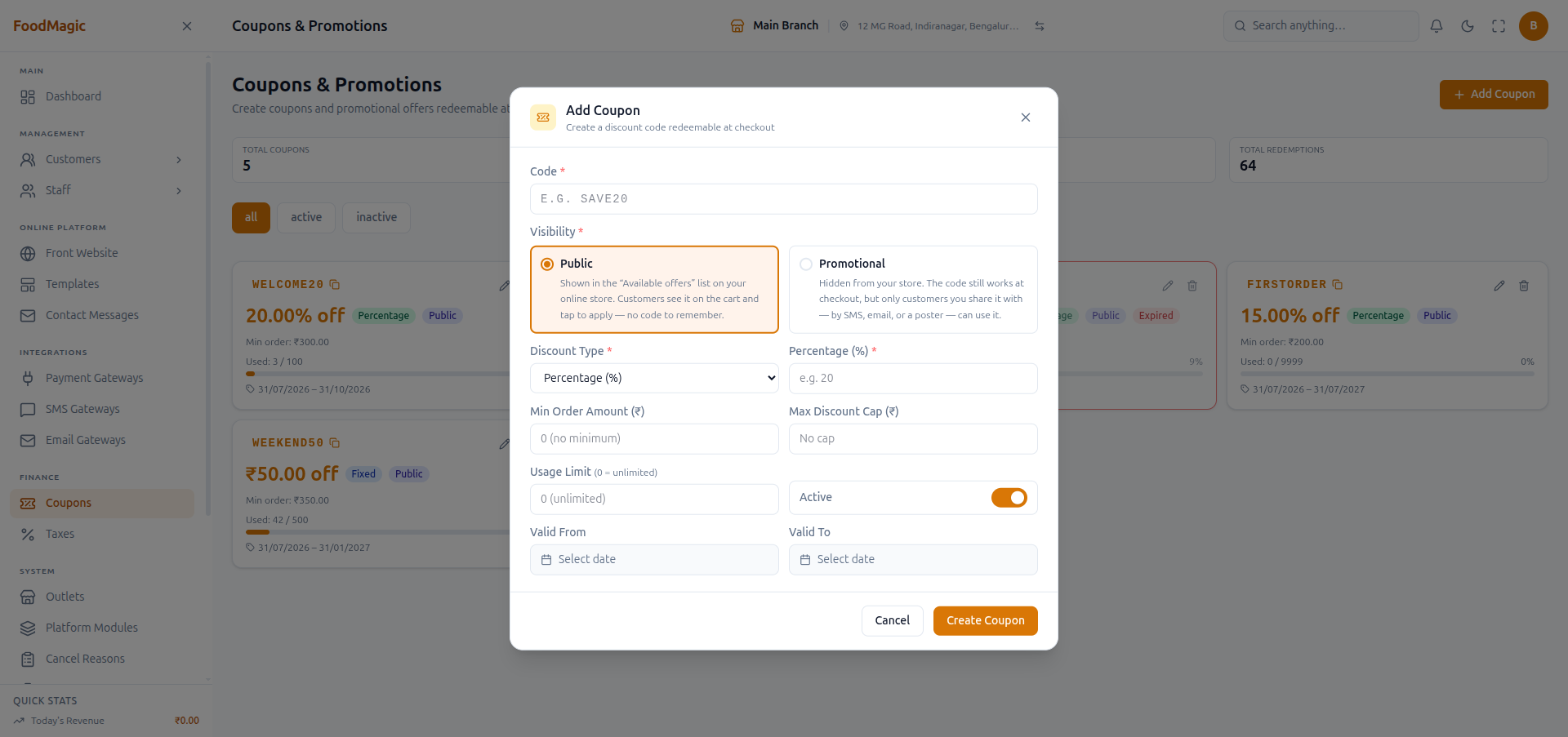
Every coupon has these details. Together, they are the whole policy — there's no separate rules engine behind them.
| Field | What it does |
|---|---|
| Code | What the customer types, e.g. WELCOME20 |
| Visibility | Public — listed in the storefront's "Available offers," a customer can tap to apply it. Promotional — hidden from that list; the code still works, but only for someone you've shared it with directly (SMS, email, a poster) |
| Discount type | Percentage or fixed amount |
| Amount | 20 means 20% if percentage, ₹20 if fixed |
| Minimum order value | Order must reach this before the code is accepted |
| Discount cap | The most this code can ever take off |
| Valid from / valid to | The window the code works in |
| Usage limit / used so far | Total redemptions allowed, and how many have happened |
| Active switch | Off switch, independent of the dates |
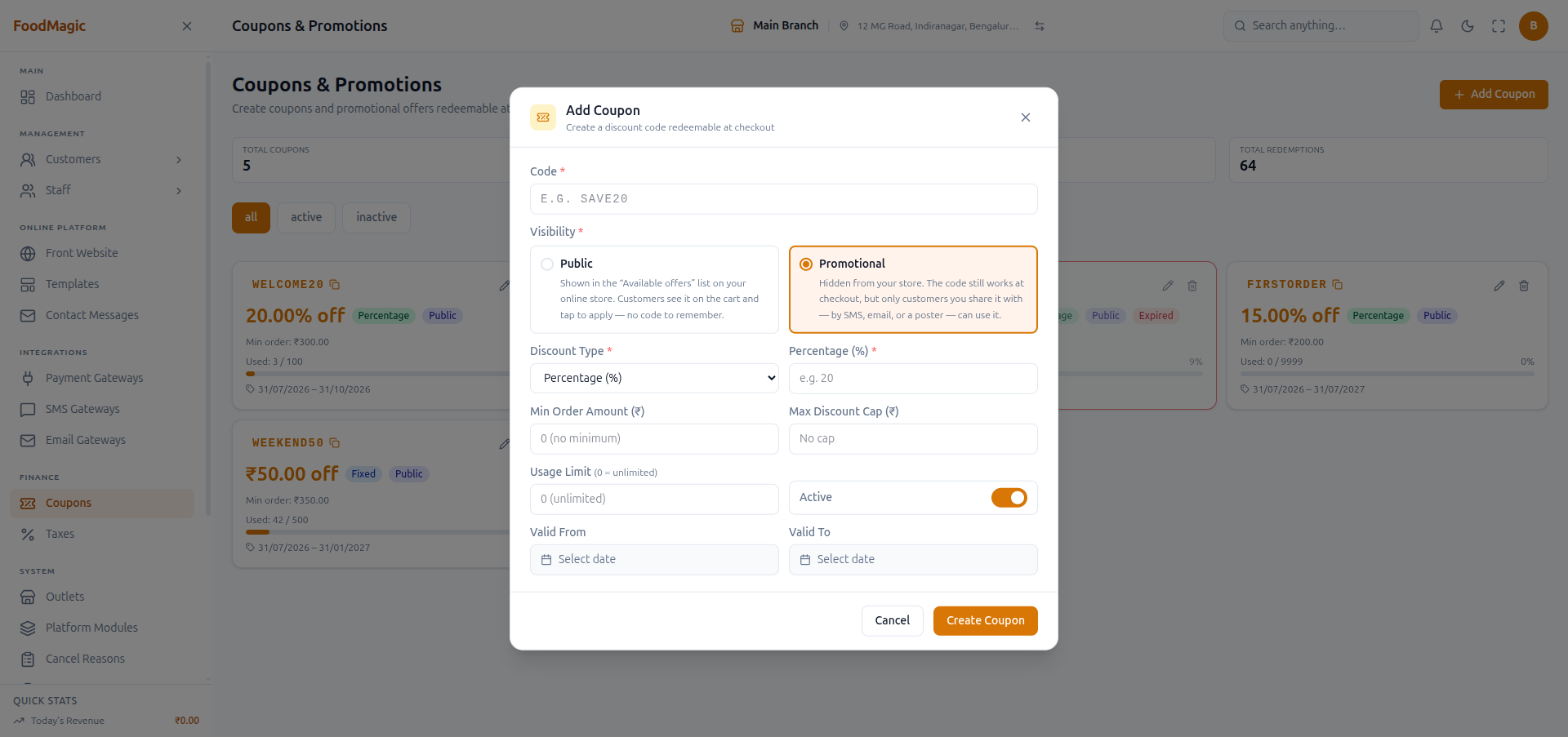
Coupons used to be able to belong to one outlet, as well as the whole brand. That option has been removed. Every coupon today applies brand-wide — there's no way to tie a code to a single branch any more.
The cap stops a percentage discount running away
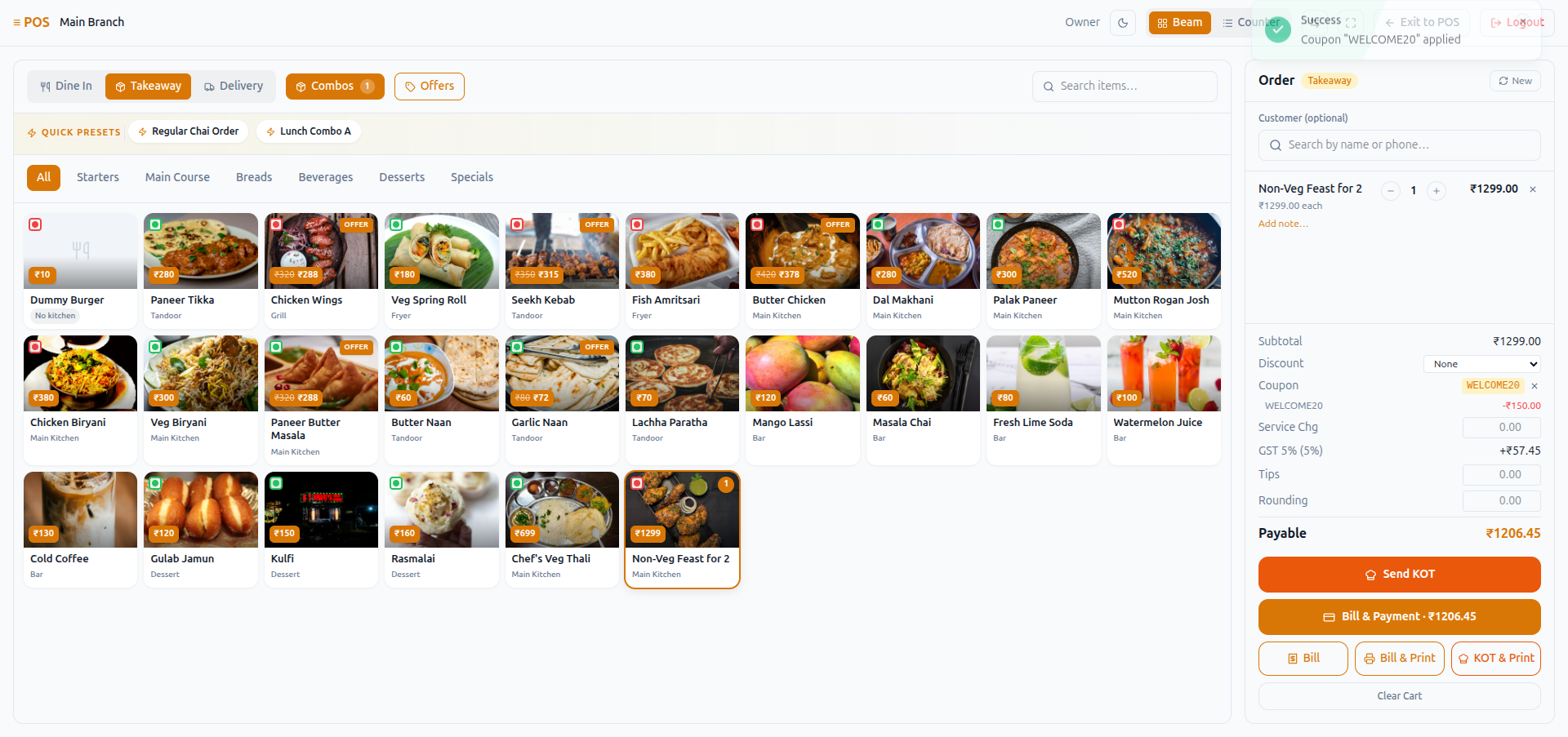
On a percentage coupon, the discount cap is your safety net. WELCOME20 is 20% off, but capped at ₹150. On a ₹1,000 order, the customer saves ₹150, not ₹200. Always set a cap on a percentage coupon. Without one, a large order could give away far more than you intended.
On a fixed coupon, the cap is usually just the same amount again — FLAT100 is ₹100 off, capped at ₹100 — so it doesn't really do anything. Caps only matter for percentage coupons.
Demo: create, edit, and remove a coupon
A full pass through the lifecycle, done live as Super Admin on
Coupons (/coupons) — creating a code, hitting its validation,
editing it, deactivating it, then deleting it.
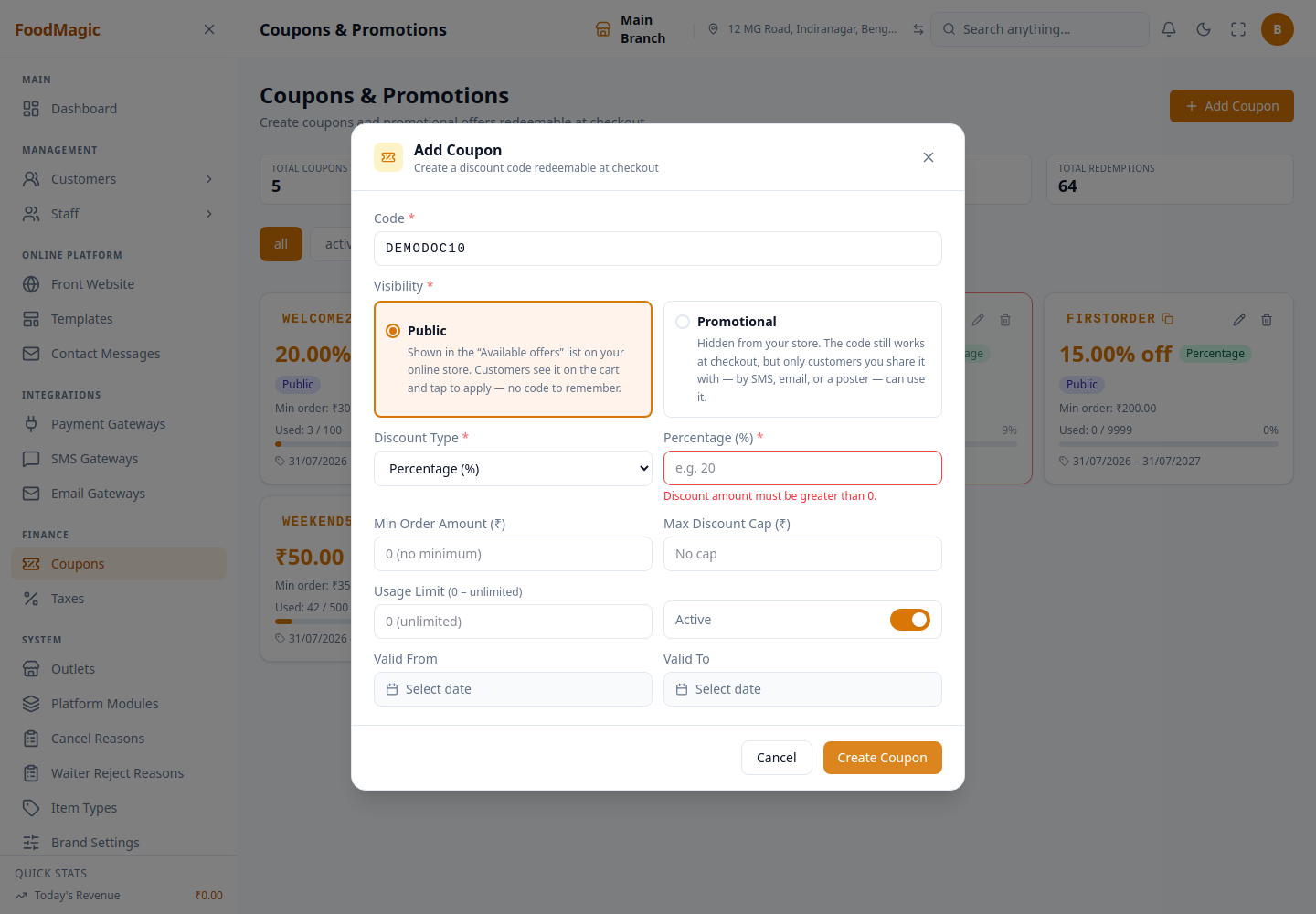
Type a code and click Create Coupon with the amount left at 0.
Type 150 into Percentage and click Create Coupon again.
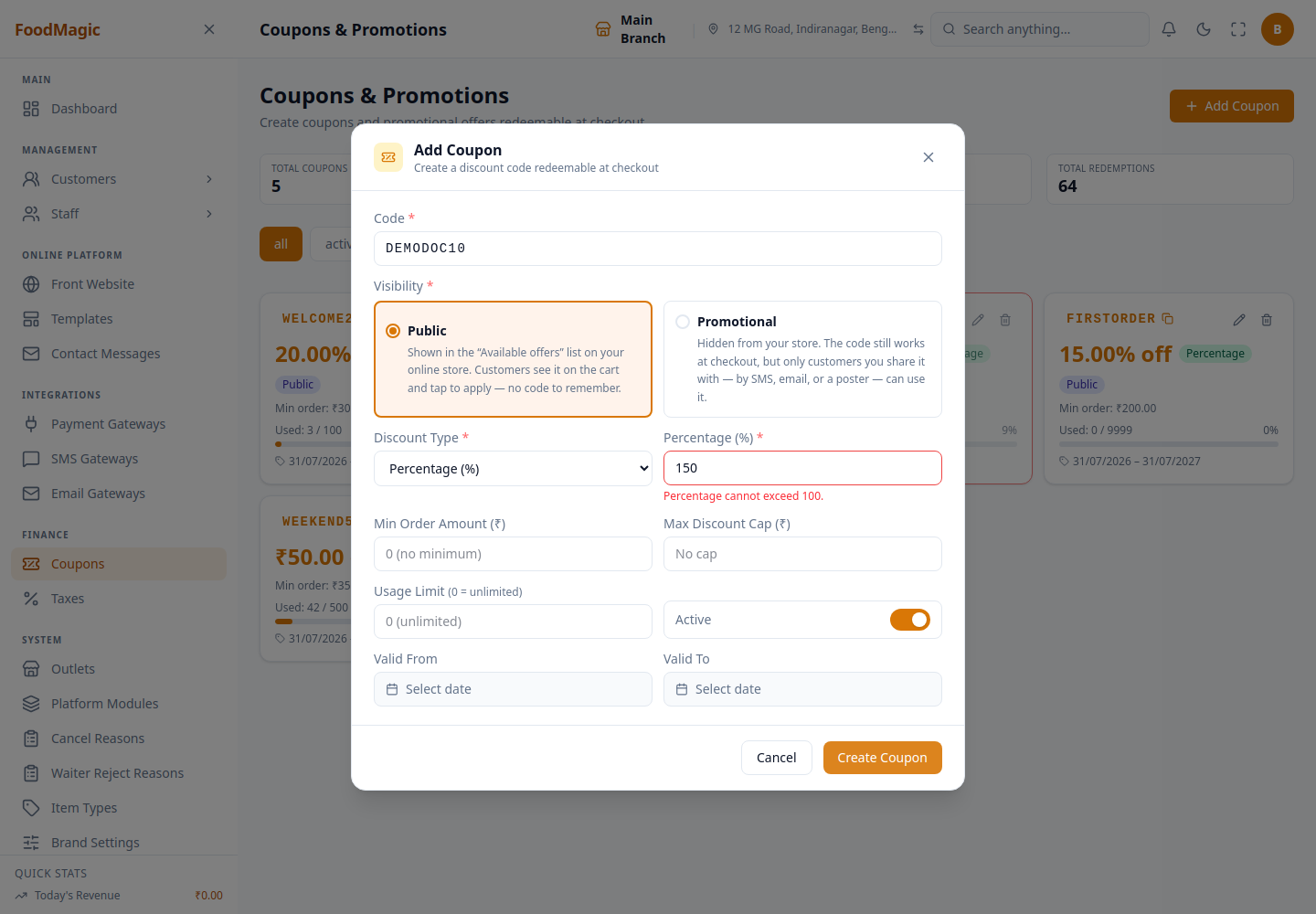
Both checks run client-side, on Create Coupon, before any request is sent — a code and a valid amount are the only two fields you can't skip.
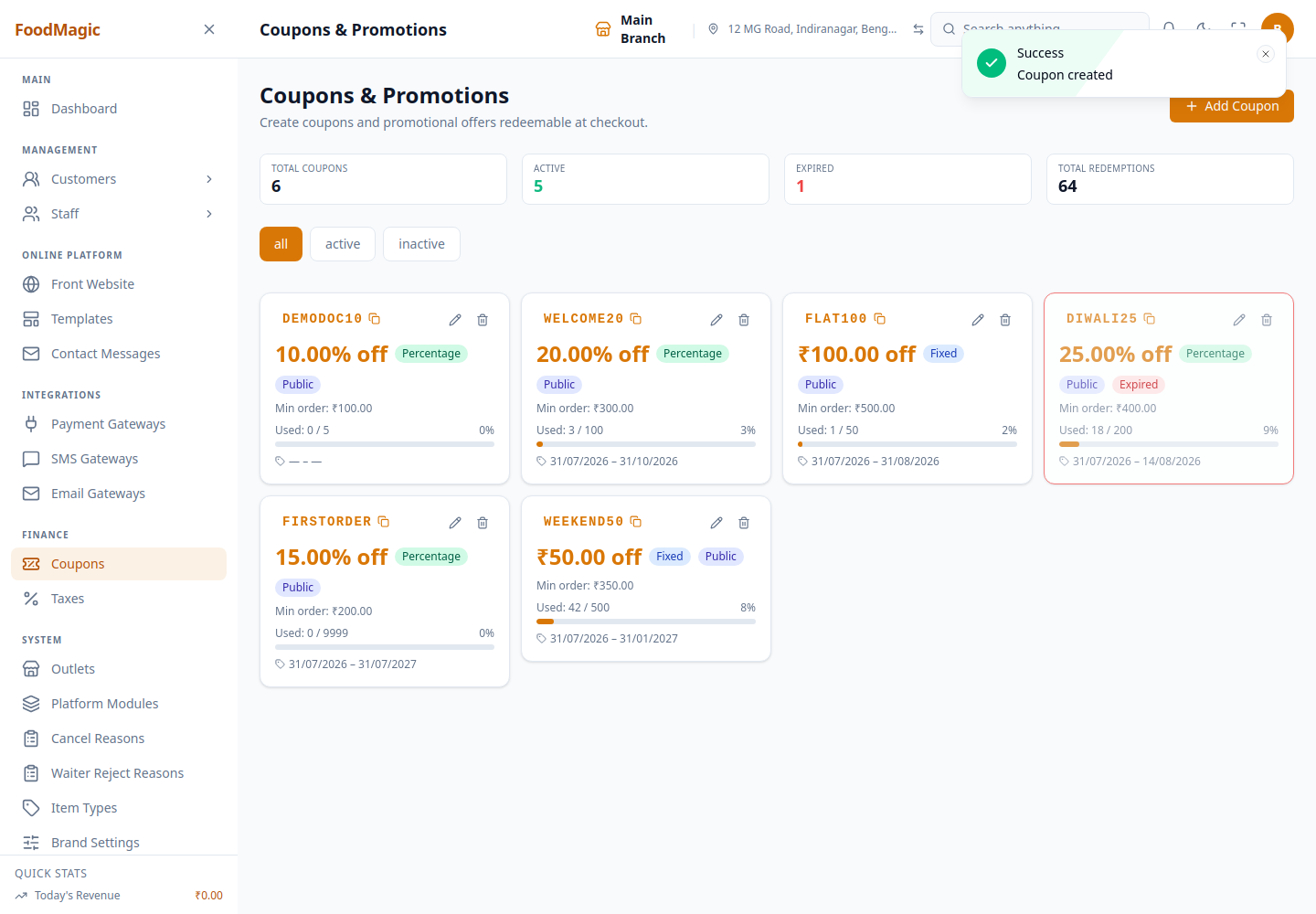
10%, ₹100 minimum order, ₹50 cap, a limit of 5 uses, Public, Active.
Open it again and change Min Order Amount from ₹100 to ₹150.
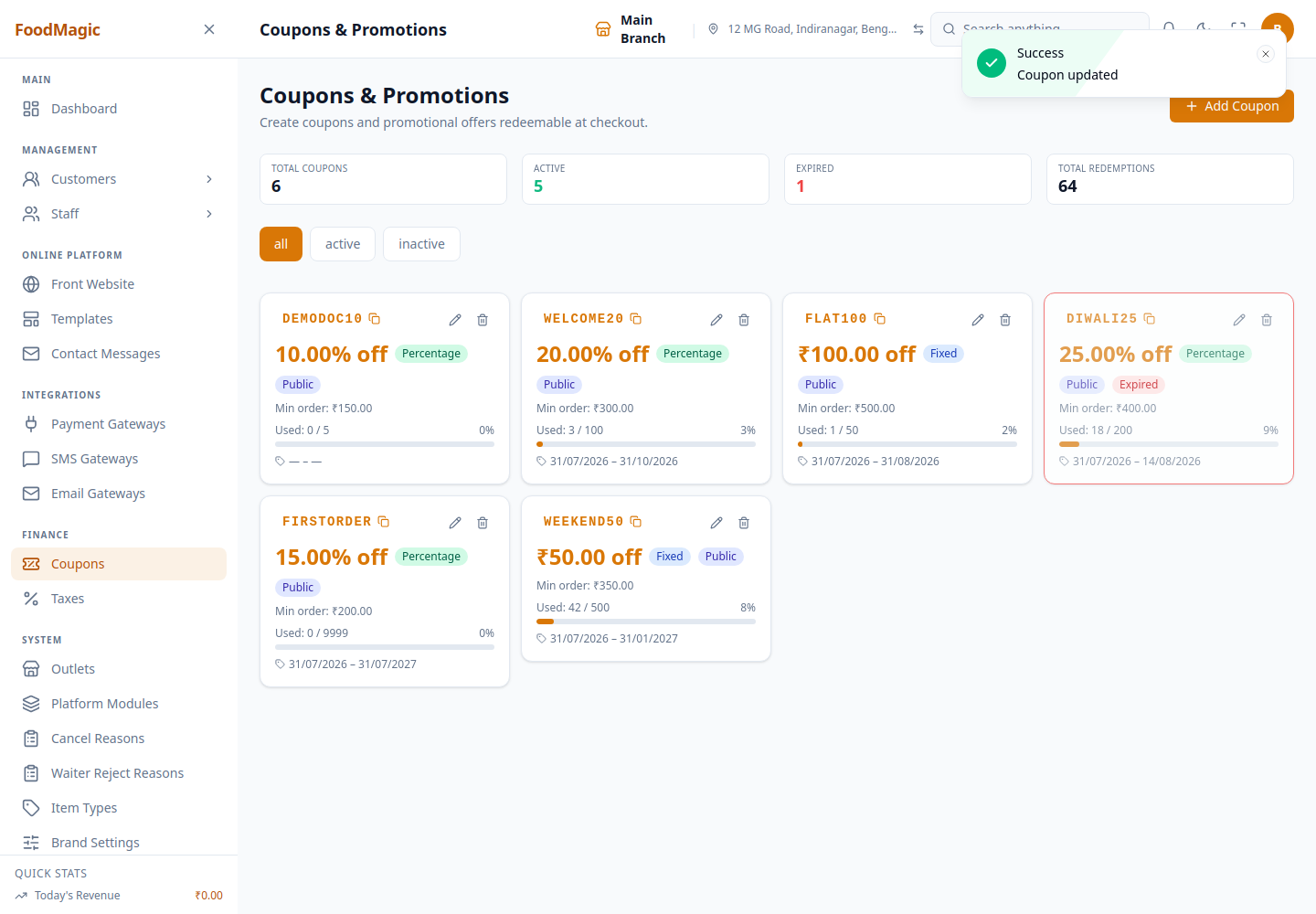
Flip the Active switch off and save — no separate confirmation, it's the same Save Changes button as any other edit.
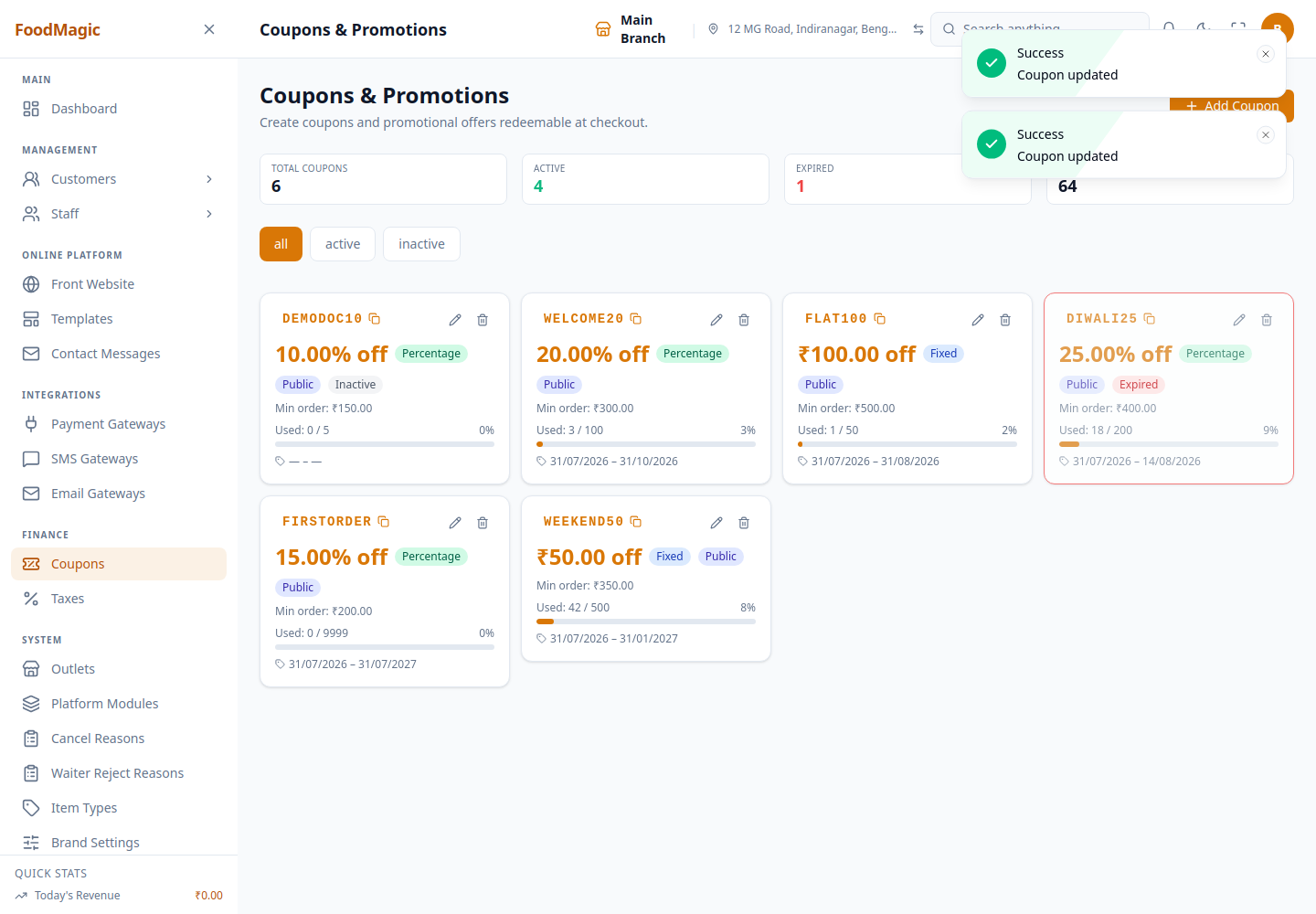
A deactivated code fails the same "is it active?" check any expired or unknown code fails — see How a code is checked below.
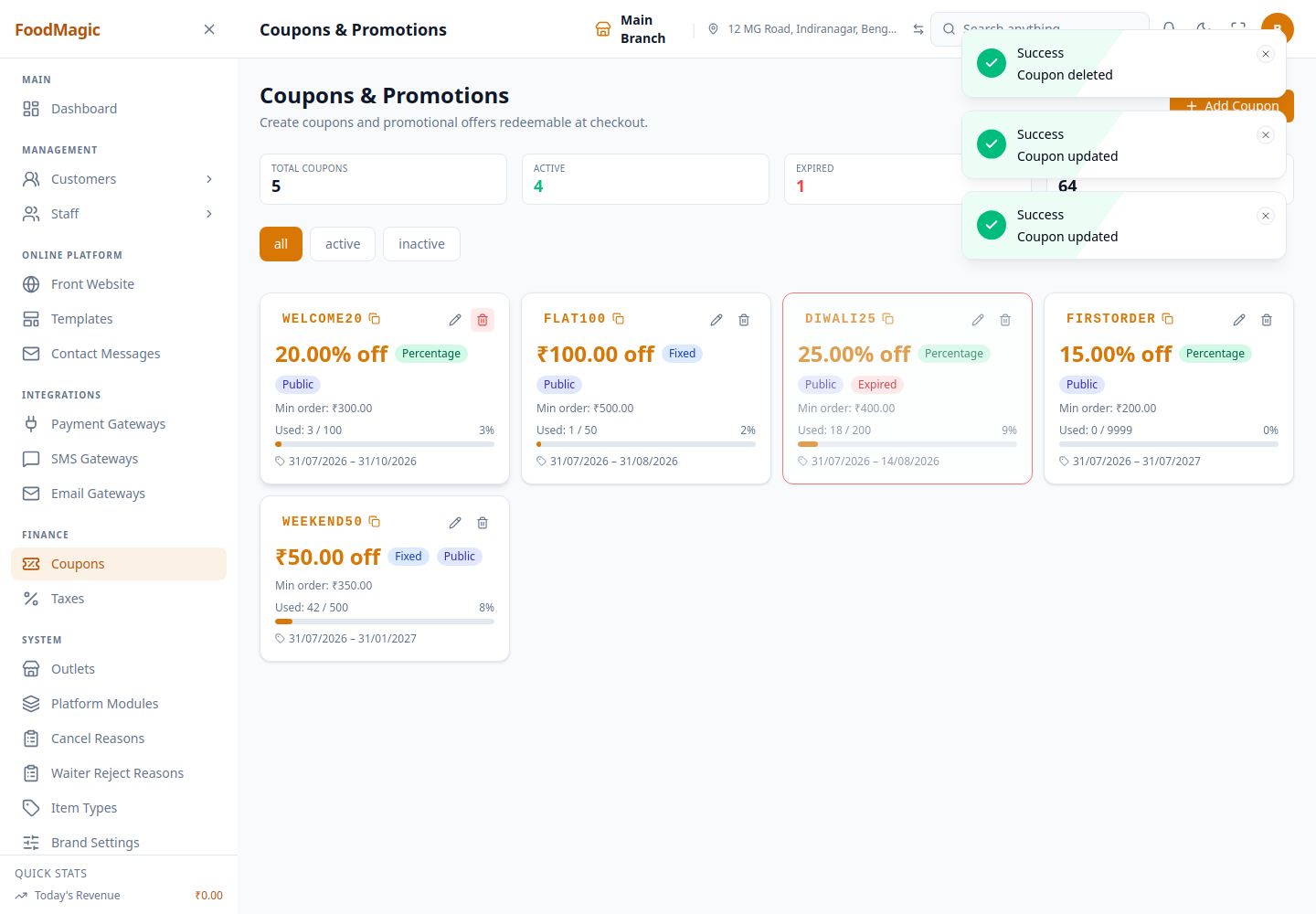
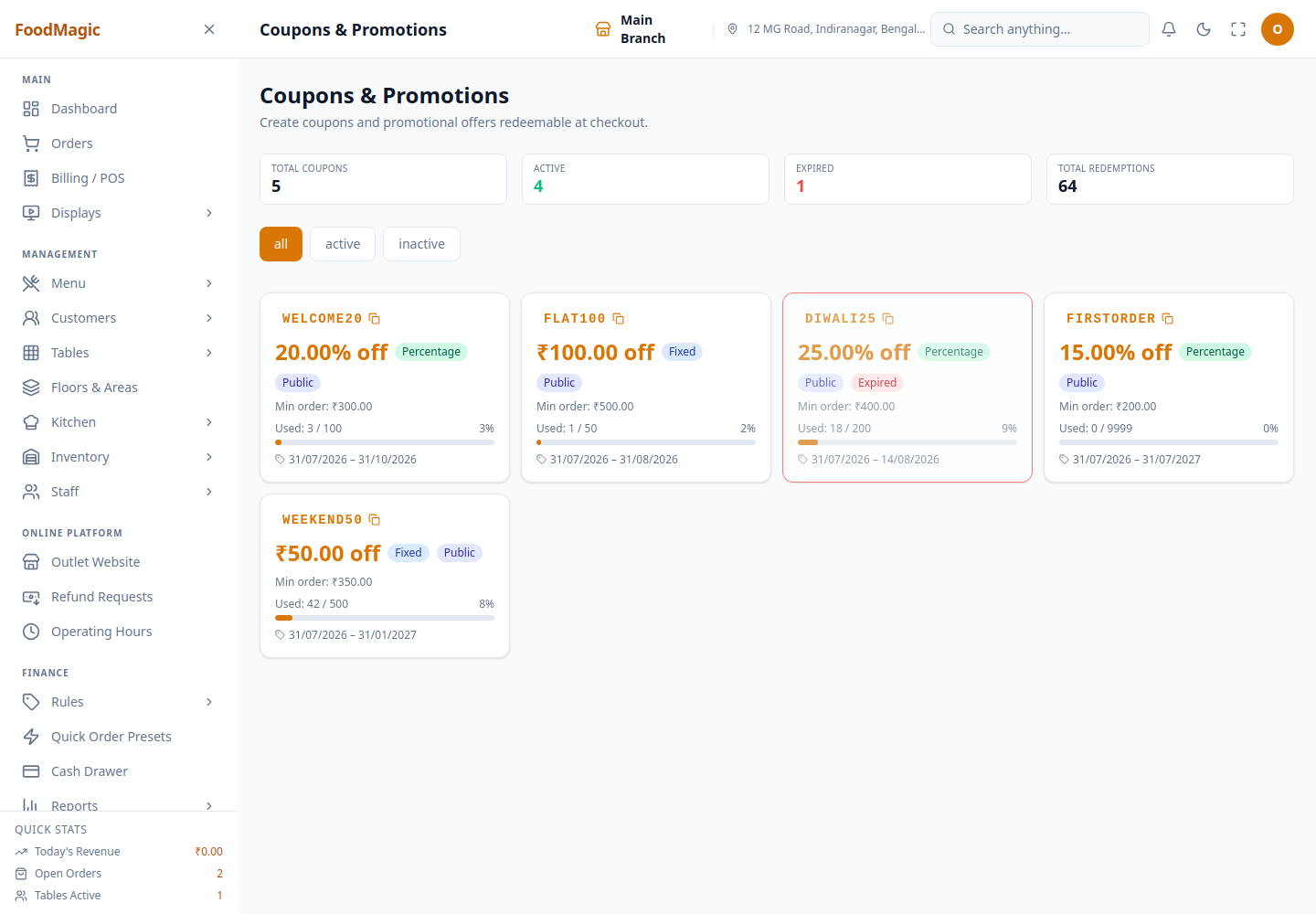
Click the delete icon. The browser's own confirm dialog asks "Delete coupon "DEMODOC10"? This cannot be undone." — accepting it removes the coupon immediately, no soft-delete or recovery.
The live coupons
Here's a snapshot of the current codes:
| Code | Type | Value | Min order | Cap | Valid to | Used |
|---|---|---|---|---|---|---|
| WELCOME20 | percentage | 20% | ₹300 | ₹150 | 2026-10-31 | 3 / 100 |
| FLAT100 | fixed | ₹100 | ₹500 | ₹100 | 2026-08-31 | 1 / 50 |
| DIWALI25 | percentage | 25% | ₹400 | ₹200 | 2026-08-14 | 18 / 200 |
| FIRSTORDER | percentage | 15% | ₹200 | ₹80 | 2027-07-31 | 0 / 9999 |
| WEEKEND50 | fixed | ₹50 | ₹350 | ₹50 | 2027-01-31 | 42 / 500 |
Notice the pattern: the bigger the discount, the shorter the window it runs for. DIWALI25 is the most generous, at 25% off up to ₹200, and it only runs for two weeks. FIRSTORDER is the smallest discount, and it runs for a year.
How it works
How a code is checked
When someone enters a code — at the till or at checkout on the website — every one of these checks has to pass before it's accepted:
An unknown code, or one with its active switch turned off, is rejected right away.
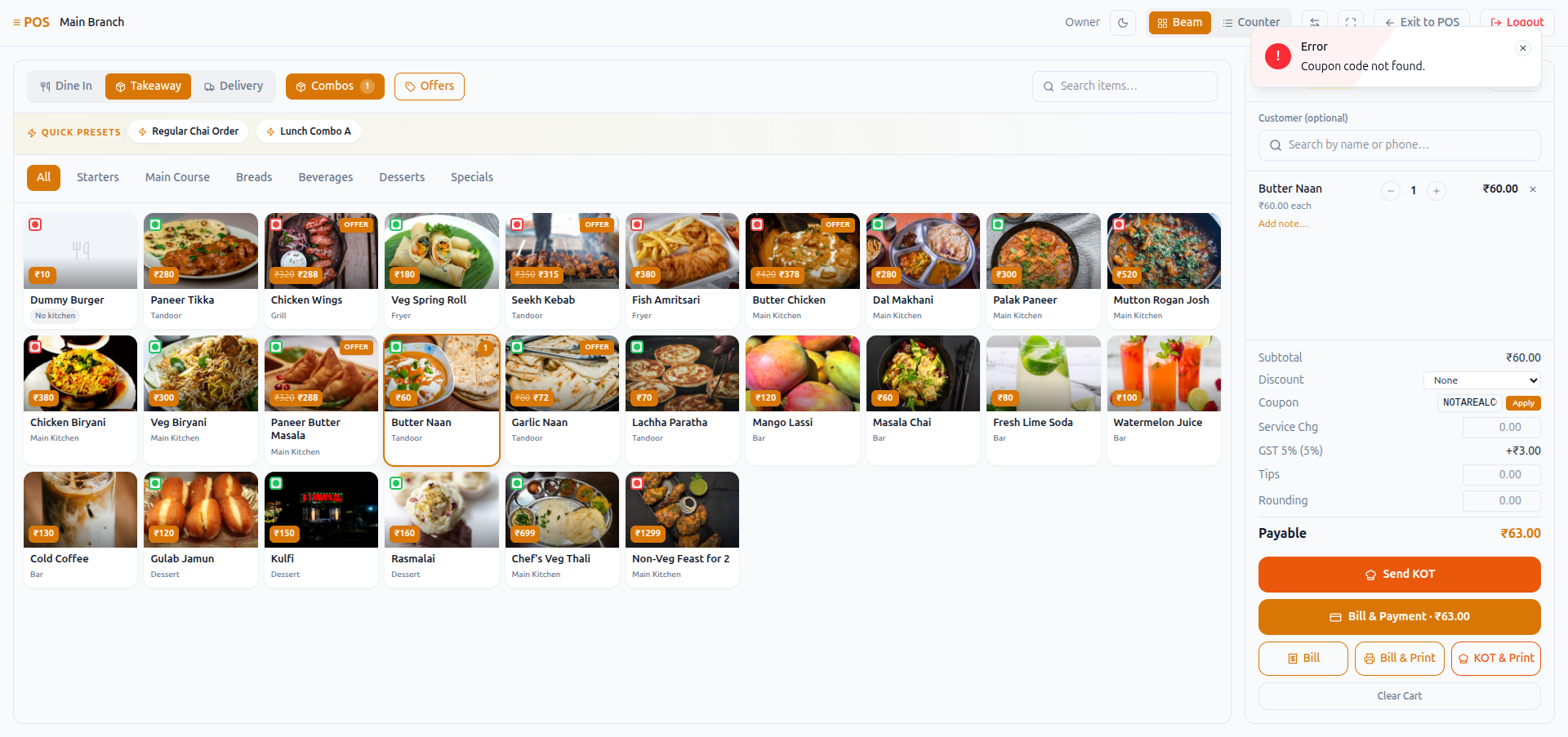
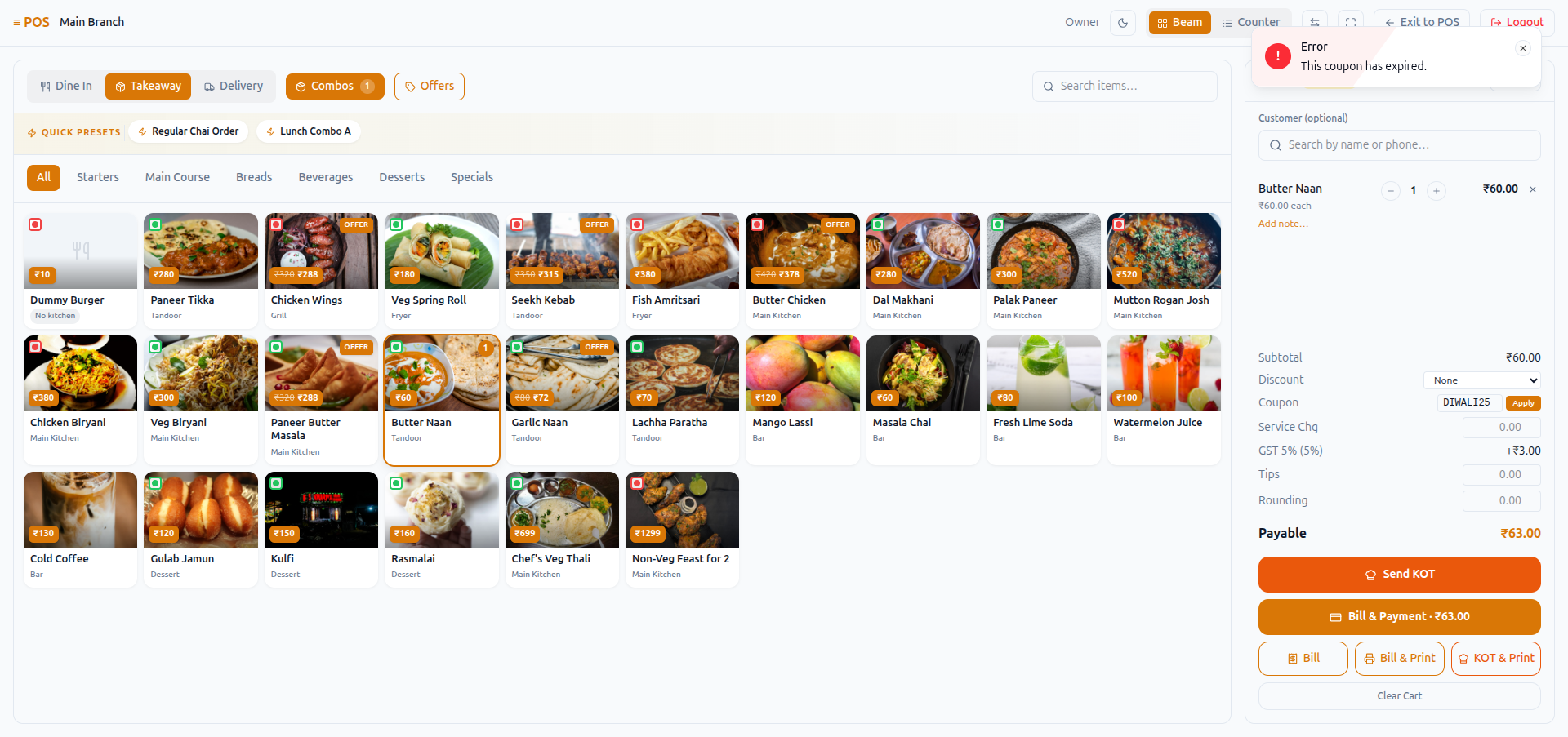
Before the start date or after the end date, the code won't work, even if the active switch is still on. The dates and the switch are checked separately.
Once the number of times it's been used reaches the usage limit, it's rejected.
Not pictured — reaching a real usage limit live would mean either exhausting one of the coupons in the Live coupons table above (making that table inaccurate) or redeeming through the storefront checkout enough times to hit a cap, which is out of scope for this pass. The behavior itself follows the same "Error" toast pattern shown in the other steps here.
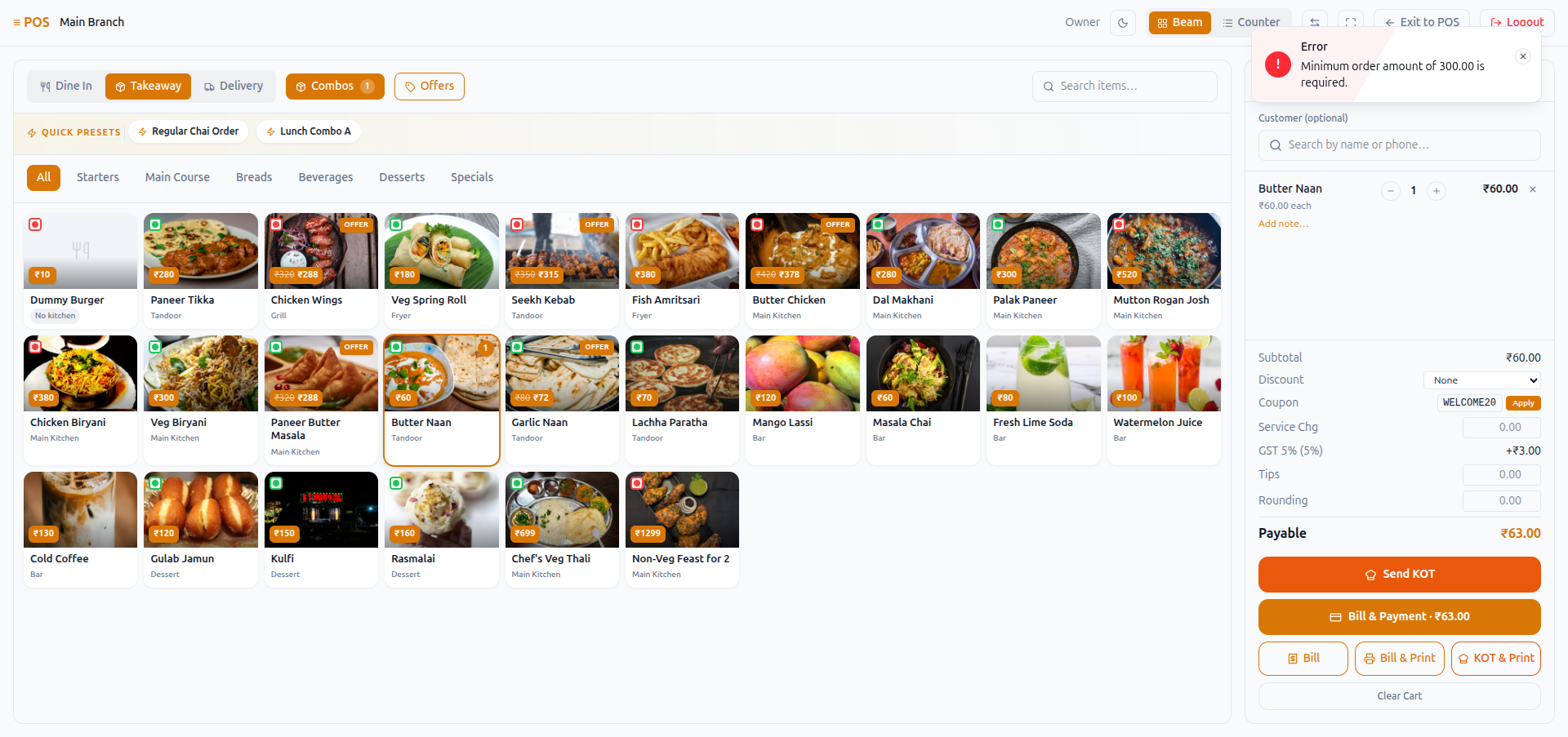
The order has to reach the minimum order value. This is checked against the order's full value, before any discount is taken off.
Food Magic works out the percentage or fixed amount, then trims it down to the discount cap if it goes over.
Two different paths — the till and the website don't work the same way
A coupon applied on your website and one applied at the till are not checked, or recorded, to the same standard. This affects how much you can trust the usage limit and the redemption reports.
On the website, applying a coupon is fully protected. The code is checked against every rule again, right at the moment it's used. The coupon is briefly locked so two customers can't both use up the last redemption at the same instant. Only then does the system count the redemption and add it to the customer's history.
At the till, the cashier's Apply button does check the code first, using the same rules and the same cap. But that check only answers "would this code work right now?" When the order is actually saved, the discount that lands on the bill is whatever number was already showing on screen. It is not checked against the coupon a second time, no usage count is added, and no redemption record is created in that customer's history.
In practice, this means a coupon's usage limit is only truly enforced on the website. The same code can be used at the till more times than its limit allows, and none of that use will show up in the Coupon Report or in a customer's redemption history — both are built entirely from redemption records, and using a coupon at the till never creates one.
The Apply button check itself was confirmed live, on the running system, for this page. Completing a till sale and then checking whether it skipped a second validation and left no redemption record has not been re-confirmed live in this pass — that part is based on how the till and the website each handle a coupon behind the scenes, not a guess. The Coupon Report screenshot further down, though, does show live evidence consistent with the claim: every coupon's "Used" count reads 0 there, while the same coupons show real usage counts on the Coupons list above.
Because the discount amount on a till order comes from what was already calculated on screen, rather than being checked again when the order is saved, it's possible for an inflated number to be sent through with the order. This is the same general concern already flagged for discounts on the how discounts work page.
One more thing worth knowing: a coupon code has to be unique across the whole platform, not just within your brand. If another business using Food Magic already has a code called WELCOME20, you can't create a new code with that exact same text — even though coupons otherwise belong to one brand and are invisible to every other brand.
What it does to the bill
A coupon reduces the amount tax is calculated on — it isn't simply taken off the final total. The discount is applied before GST is worked out, so a coupon also lowers the tax charged. The full calculation order — discount, then coupon, then tax, then service charge, then rounding off the final amount to pay — is explained in how tax works.
What is recorded
Every successful website redemption is saved to that customer's history: which code was used, on which order, who used it, how much it actually saved, and when. The amount saved is stored as the actual saving, not the coupon's full value — so a 20% code that hit its ₹150 cap is correctly recorded as ₹150.
As explained above, this record is only created for website redemptions. A code applied at the till still reduces that bill, but it doesn't create a matching entry here.
Where to look afterwards
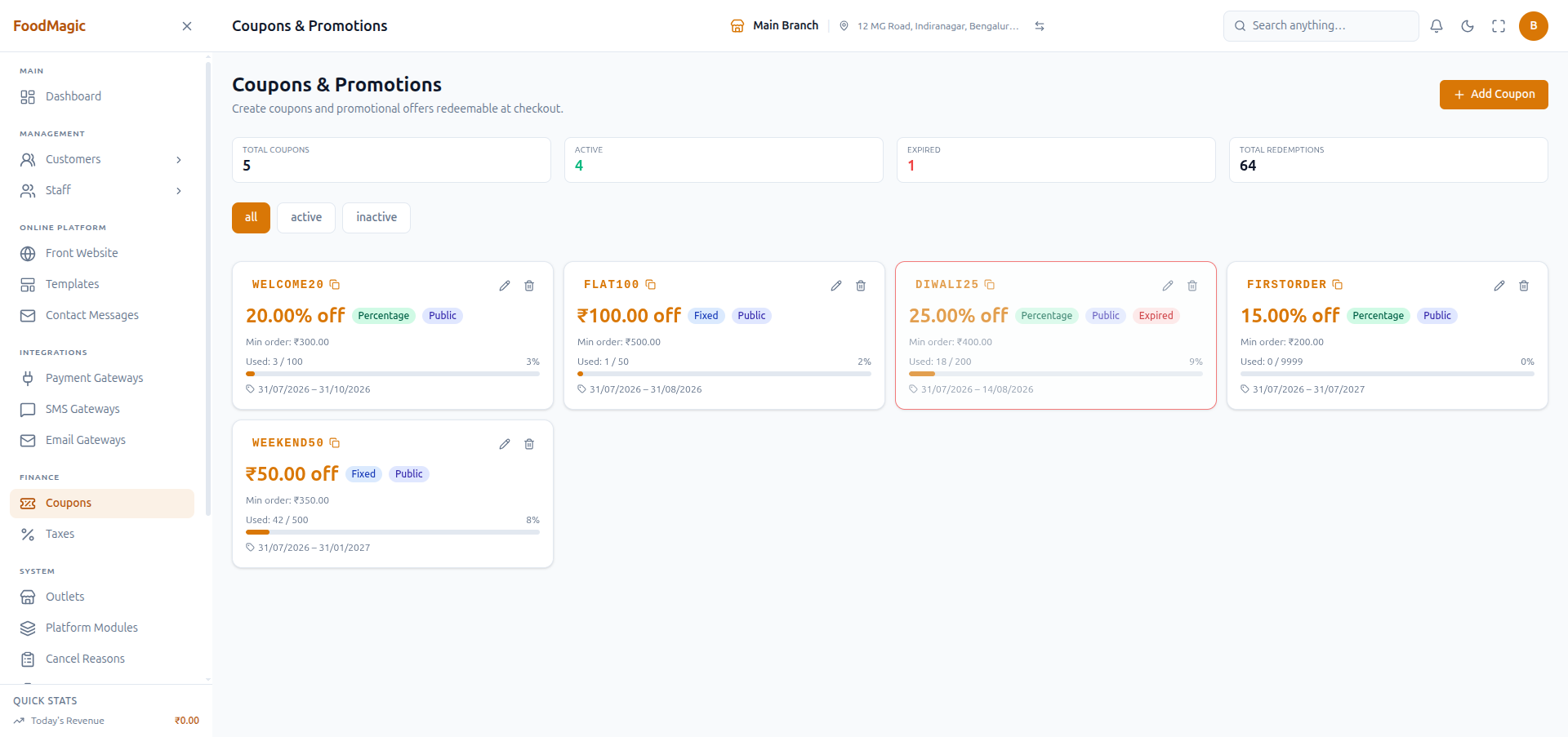
The coupon screen
/coupons — the list of codes, with an Add Coupon button and all /
active / inactive filters. Both Super Admin and Outlet Owner can open
this screen, but only the Super Admin sees a working Add Coupon
button.
The coupon report
/reports/coupons — shows redemptions, how much each code cost, and how
often it was used.
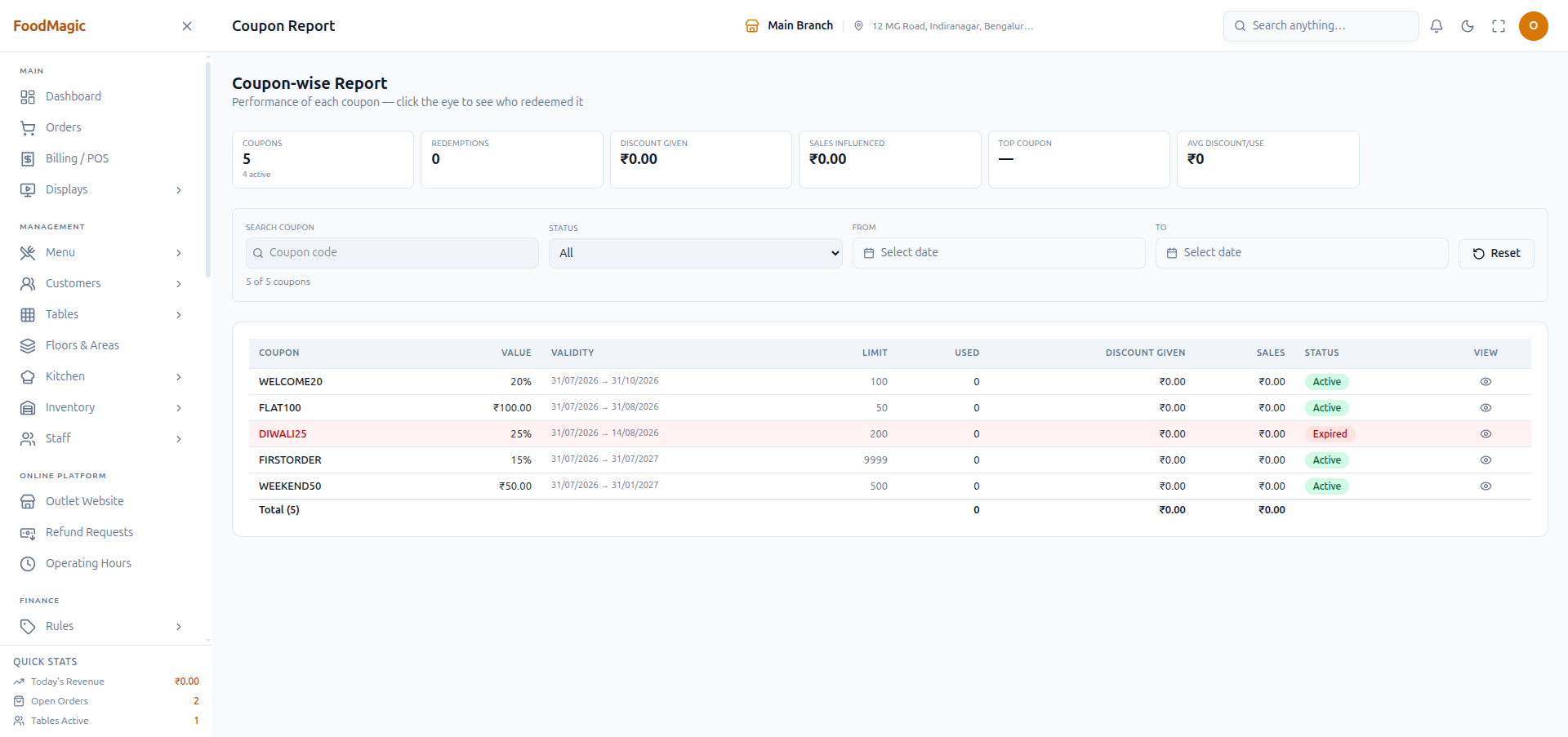
This report only covers one outlet at a time, and the Super Admin can't
open it. It's scoped to the outlet where the order was placed, so it
answers "what did this branch give away," not "how is my whole campaign
doing." A brand admin who opens this page is sent to the dashboard
instead — confirmed live: navigating a Super Admin session to
/reports/coupons redirects straight to /dashboard. The report is also
built entirely from website-style redemption records, so as explained
above, coupon use at the till won't show up here.
One customer's history
A customer's profile shows Total Coupon Discount with a View history link. This also only reflects redemptions recorded from the website.
How it is secured
On-screen permissions. Viewing the coupon list and applying a code is one permission. Creating, editing, or deactivating a coupon is a separate, more restricted one. Both can be granted independently on the Roles & Permissions screen.
Role access.
- Super Admin holds both permissions, so they're the only role that sees a working Add Coupon button.
- Outlet Owner only holds the viewing/applying permission. Creating and editing codes is deliberately kept at brand level, so an outlet owner sees the coupon list but has no way to add to it.
- Waiter also only holds the viewing/applying permission, so the Apply button works for them at the till. This permission was added as a specific fix — applying a code at the till used to fail for waiters before it was granted.
What shows on screen. The Add Coupon button, and the edit and delete icons next to each coupon, only appear for someone who holds the create/edit permission. A Waiter or Outlet Owner sees the same list, just without those buttons. Anyone holding either permission — viewing/applying, or create/edit — can open the Coupons page itself; they don't need any extra brand-wide access on top. An earlier version of the system briefly hid the whole page from outlet-level roles because of a stricter check on the page itself; that's since been relaxed, so the page now loads for everyone with either permission, and the permissions control what they can do inside it.
Keeping brands separate. Coupons belong to one brand and are invisible to every other brand on the platform — a Super Admin only ever sees their own brand's codes. The one exception is the code text itself: as mentioned above, a code has to be unique across the whole platform, not per brand, so two different brands can't use the exact same code.
What gets checked before saving. A coupon needs a code, a discount type, and an amount. A percentage coupon can't be set above 100%. The end date can't be earlier than the start date. If a coupon is set to expire "today," it still works for the rest of today — it doesn't expire the moment the day starts.
Audit trail. Creating, editing, or deactivating a coupon is written to a central activity log, showing who did it, when, and what changed. Actual redemptions — a customer using a code — are not written to that same log. They're tracked separately, in the redemption history you can see on the Coupon Report and on a customer's profile, but you can't search for them in a general activity search.
Common questions
A customer says the code is not working
Check these in order: is the active switch on, is today inside the valid dates, has it hit its usage limit, and does the order reach the minimum order value? An expired date is the usual culprit — the code can still look live in the list because its active switch hasn't been touched.
Why did a 25% coupon only take off ₹200?
It hit its cap. DIWALI25 is capped at ₹200, so any order over ₹800 saves exactly ₹200, no more. That's working as intended.
Can one branch run its own promotion?
Not on its own. There's no way to tie a code to a single outlet any more — every coupon is brand-wide, and only the Super Admin can create one.
Can a waiter apply a code?
Yes. Waiters can see and apply codes, which is exactly what the till needs. They can't create or edit one.
Why doesn't a coupon used at the till show up in the report?
Because the report is built from redemption records, and — as explained under How it works above — using a code at the till doesn't currently create one. The discount still comes off that bill; it just isn't tracked the same way a website redemption is.
How do I create a new coupon, step by step?
Log in as the brand's Super Admin, go to Coupons (/coupons), and
click Add Coupon. Fill in the code, choose Public or Promotional
visibility, pick percentage or fixed, set the amount, and — if it's a
percentage — set a discount cap. Add a minimum order value and usage
limit if you want them, leave the Active switch on, and set the valid
dates. Click Create Coupon and it's live everywhere, at every outlet
in the brand, immediately.
Who can create a coupon?
Only the Super Admin role. Not the Outlet Owner, not a Waiter — see the warning and the Roles & Permissions screenshot above. This is deliberate: a coupon is brand-wide, so only the brand-level role can make one.
Who can apply a coupon at the till?
Both the Outlet Owner and the Waiter hold the "View coupons" permission, which is what the till's Apply button checks. Either role can type a customer's code into the Coupon field during a sale.
When should I add a new coupon?
Whenever the brand wants to run a promotion — a launch discount, a festival sale, a win-back code for lapsed customers. Set the valid dates to match the campaign window rather than leaving it open-ended, and always put a cap on a percentage coupon (see The cap stops a percentage discount running away, above) so an unexpectedly large order doesn't give away more than intended.