
Ingredients, stock and recipes
Setting up what you buy, linking it to what you sell, and keeping stock levels honest.
Ingredients are what you buy. Recipes connect them to what you sell. Stock counts change as ingredients arrive and get used up. The menu calls this area "Inventory," but ingredients, recipes, and the stock log are really one connected set of records.
What it is
This is where an outlet tracks what it has on hand — flour, chicken, oil, packaging — separately from the dishes it sells. It answers three questions for kitchen and purchasing staff: what do we have, what does each dish use, and what moved in or out, and when.
Outlet staff who manage stock use this page — typically an outlet owner or admin, or a store-keeper role if one is created. Waiters, delivery riders, and customers never use it.
You'll find it on the Inventory page in the main app, reached from the sidebar.
This page is live and used every day for tracking ingredients, unit conversion, reorder levels, recipes, and a movement log. One important piece isn't built yet — see the warning below about recipes and orders.
Selling a dish does not automatically use up its recipe's ingredients. You can set up a recipe and it will look complete, but nothing in order-taking or billing actually reads it to reduce stock when the dish is sold. The only things that move stock automatically today are receiving a purchase order (stock goes up) and recording a supplier return (stock goes down). Everything else — including "a customer ordered 3 butter chickens" — has to be entered by hand using Adjust Stock. Otherwise your stock levels will quietly drift away from what's actually on the shelf.
How it works
The three tabs
The Inventory page has three views, switched with the tabs under the header:
| Tab | Holds |
|---|---|
| Ingredients | Everything you buy, with its unit and stock level |
| Recipes | Which ingredients each dish uses |
| Stock Log | Every movement in and out |
Only the Ingredients tab loads when you first open the page. Recipes and Stock Log each load their own data the first time you click on them.
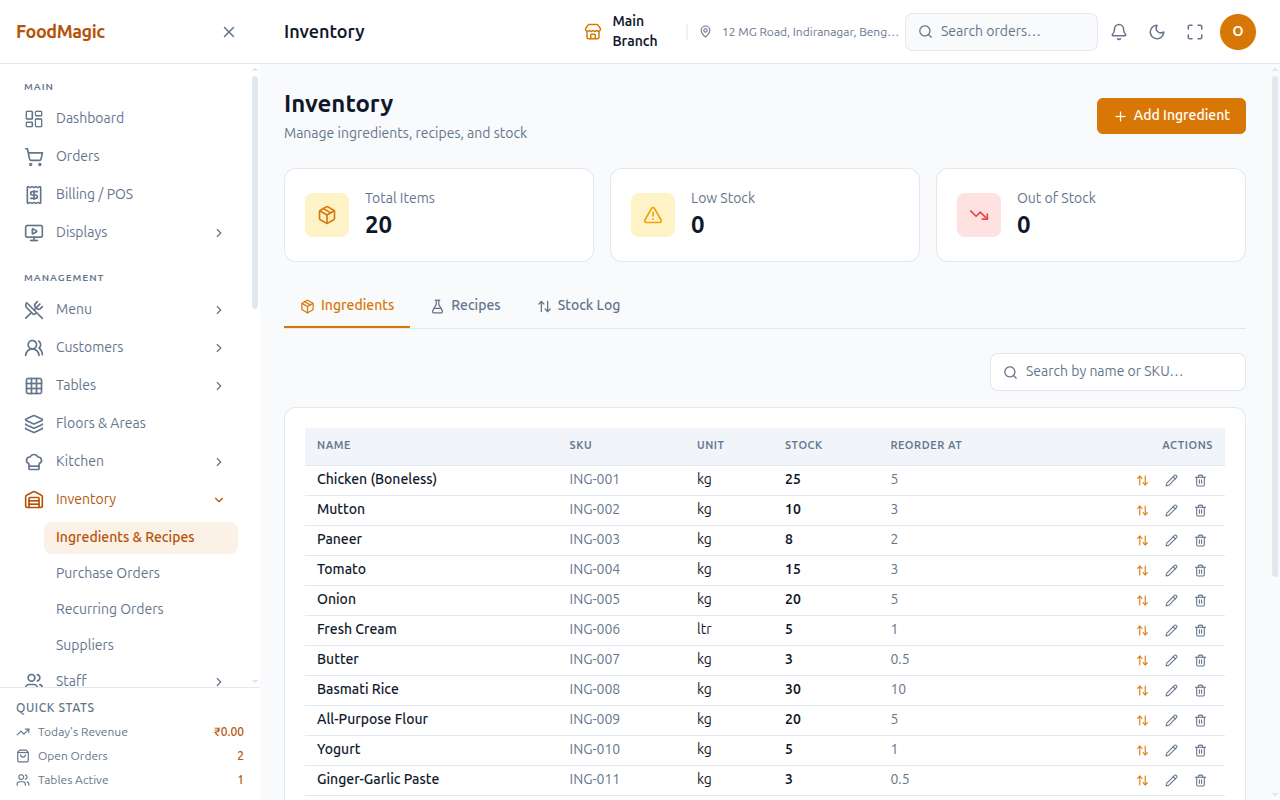
Both the Ingredients and Recipes tabs have their own search box (by name/SKU for Ingredients, by menu item for Recipes), sortable column headers, and an Export button (CSV/print, capturing every matching row, not just the current page) — the same toolbar pattern used across the rest of the app's list screens. The Stock Log tab, covered further down, does not have any of this yet.
Adding an ingredient
Each ingredient has:
| Field | Notes |
|---|---|
| Name | e.g. Chicken (Boneless) — required |
| Unit | kg, ltr, gm, pcs — the unit you buy and count in — required |
| SKU | Your own reference code |
| Unit Factor | A conversion multiplier — e.g. 1000 if you track the ingredient in grams internally but buy it in kilograms. Defaults to 1. |
| Opening Stock | How much you currently hold |
| Reorder Threshold | The level at which it counts as low |
Choose the unit carefully — everything downstream depends on it. Recipes, purchase orders, and stock counts all use it. If you change a spice from grams to kilograms later, you'll need to revisit every recipe that uses it.
There is no cost price field on this screen, even though the ingredient record itself keeps one behind the scenes. The only way an ingredient's cost actually changes is the rate you type in when a purchase order line is received (see Raising a purchase order) — you can never edit the cost directly from the ingredient form.
Add Ingredient opens a form split into two parts: Details (name, unit, SKU, unit factor) and Stock (opening stock, reorder threshold). Saving submits the whole form at once.
Do this once for each item you buy, before you can build a recipe or a purchase order line around it — both draw their ingredient list from here.
Adding an ingredient needs a stronger permission than just viewing the list. An owner can let someone see Inventory without letting them add or change anything in it.
Edit and delete (the pencil and trash icons on each row) need that same stronger permission. Delete asks for a plain confirmation before going through. Use these to fix a name, unit, or reorder level, or to remove an ingredient that turned out to be a duplicate or was never actually stocked.
Adjusting stock (the ⇅ icon)
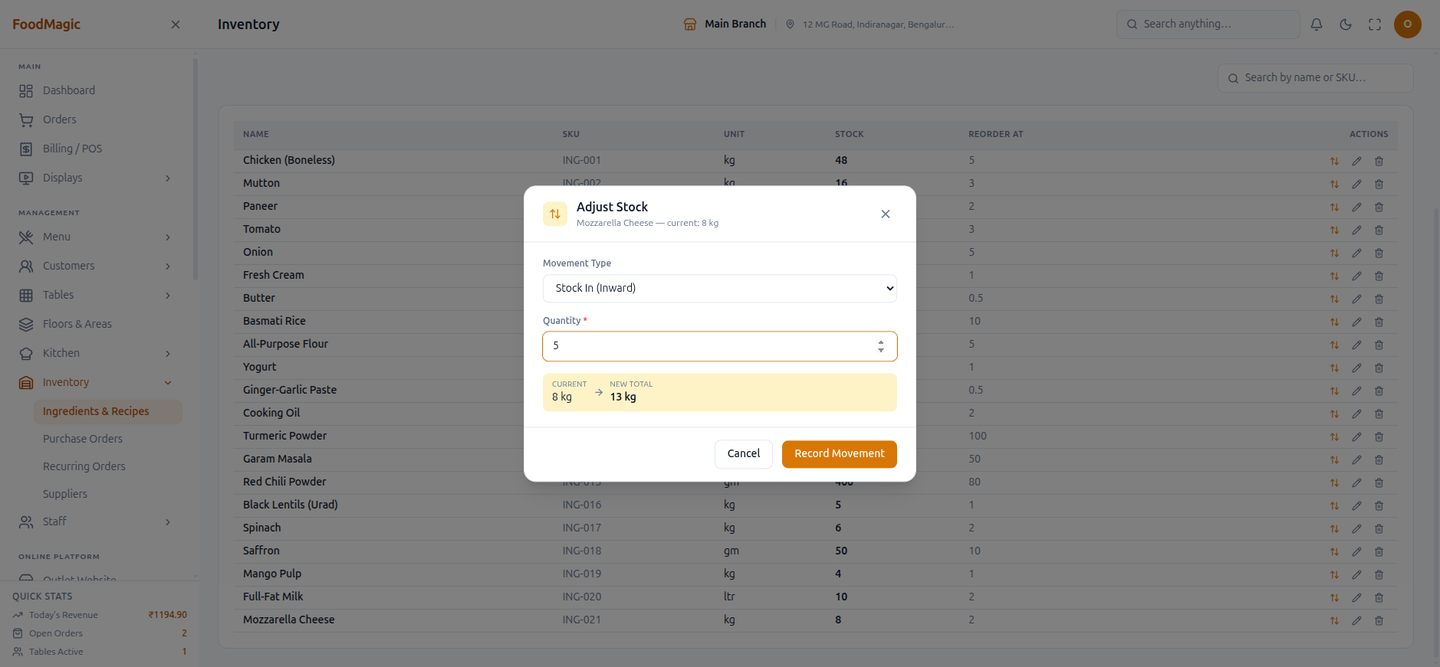
A separate, smaller icon — different from edit and delete — opens a Movement Type window: Stock In (Inward), Consumption, Adjustment, or Wastage, plus a quantity. For the three types that actually move stock, the window shows a live "current total → new total" preview before you confirm. For Adjustment, it instead shows a note that this entry doesn't change stock automatically — you have to edit the ingredient's stock number yourself. That matches how the system actually behaves: Stock In and incoming transfers add to stock; Consumption, Wastage, and outgoing transfers subtract from it; an Adjustment is only recorded for the trail, and deliberately doesn't move the number on its own.
Use this for any manual correction outside the automatic flows: stock that arrived without a purchase order, a kitchen mistake logged after the fact, or a recount that turned up a discrepancy. Given the warning above, this is also the only way today to record that stock went down because dishes were sold.
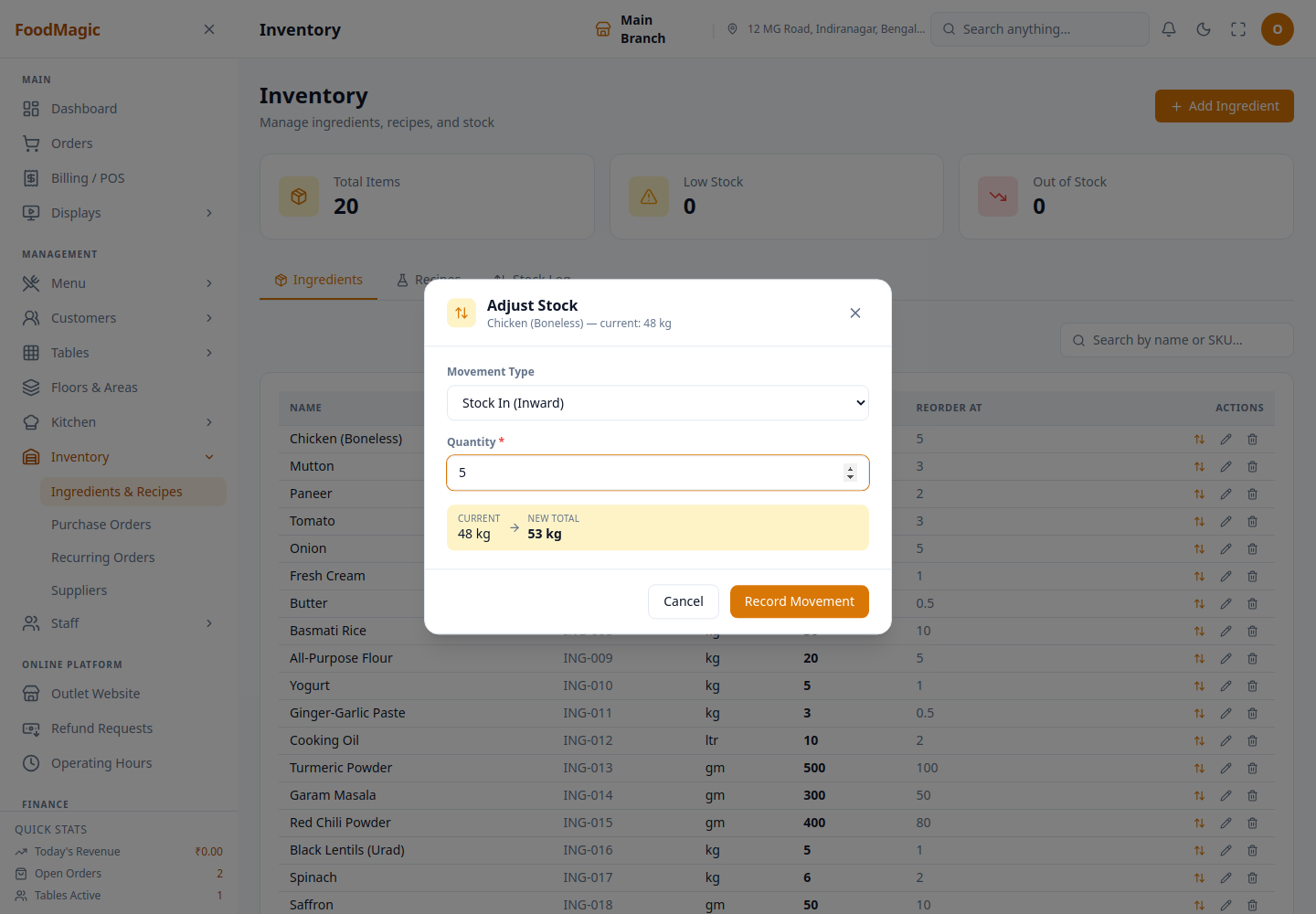
The system also has transfer-in and transfer-out movement types for stock moving between locations, but neither shows up as an option in this window — only Stock In, Consumption, Adjustment, and Wastage do.
Adjusting stock has its own permission, separate from adding or editing ingredients — so a role can be allowed to log stock movements without being able to touch the ingredient list itself.
The Low Stock counter on this page (below) is worked out from whichever ingredients are already loaded on screen — those at or below their reorder point — rather than from a separate low-stock report elsewhere in the system.
Recipes: linking ingredients to dishes
A recipe records how much of each ingredient a dish uses. In principle, this is what should make stock go down as you sell — see the warning at the top of this page for why it doesn't, on its own, yet.
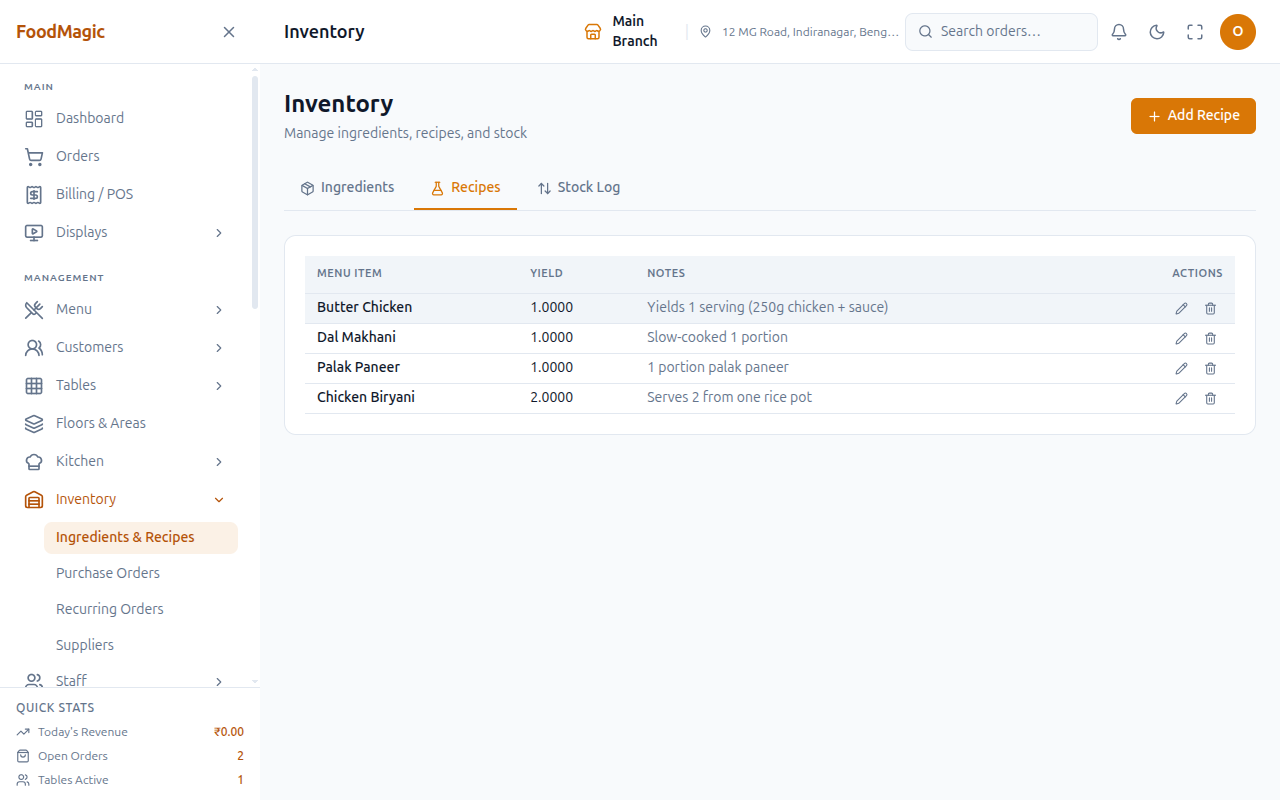
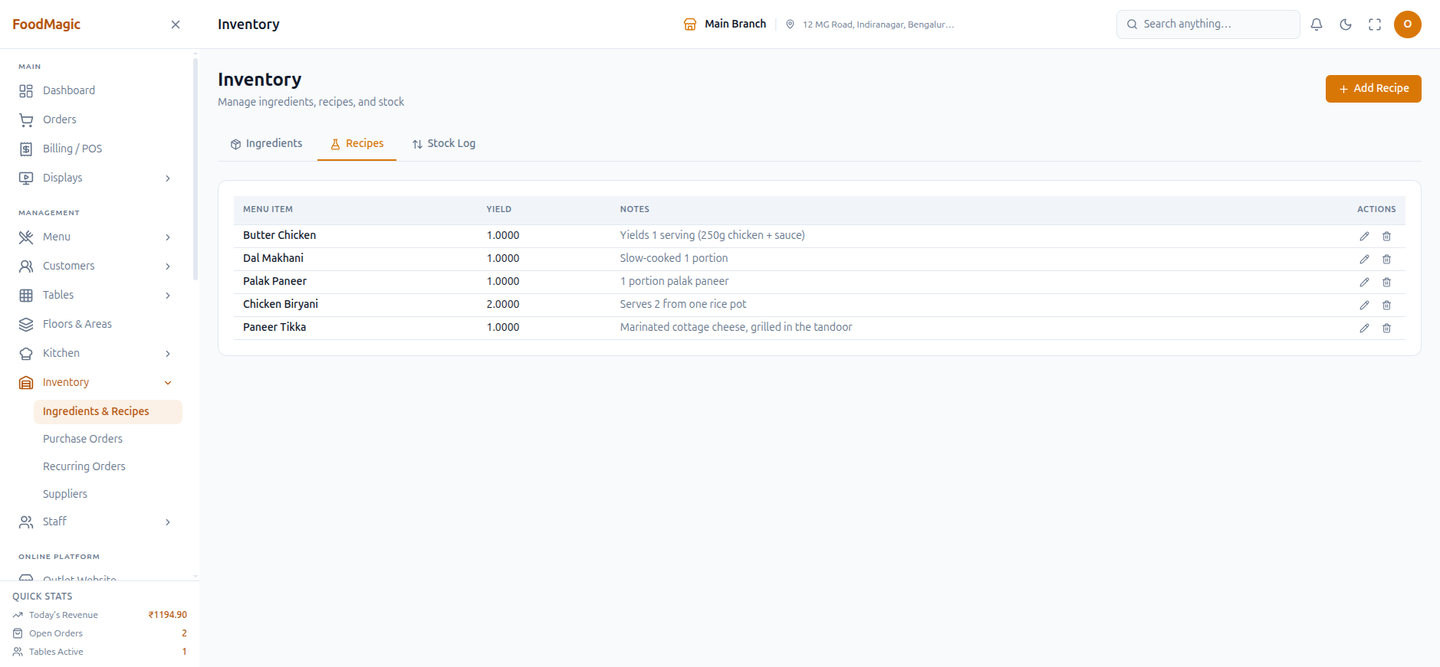
Add Recipe opens a two-column form. The left side is the recipe itself: the menu item (locked once created), a Yield (how many portions it makes), free-text Notes, and a running list of ingredients you've added so far. The right side is a searchable list of every ingredient, each with a quantity box and an Add button. On a brand-new recipe, ingredients stay on screen and only save once you click Create Recipe; on an existing recipe, each Add click saves right away.
Do this once for every dish you want documented for costing and future automation — every dish on the menu that isn't, say, a flat-fee cover charge.
Creating a recipe, and adding ingredients to it, both need the same permission as managing ingredients.
Edit / Ingredients and Delete (the pencil and trash icons) — the pencil opens the same two-column form, pre-filled with the recipe's existing ingredients; you can't change the menu item once the recipe exists. Each linked ingredient has its own Remove (×) button. The trash icon deletes the whole recipe after a confirmation. Editing or deleting a recipe, and removing one ingredient from it, all use that same permission.
Recipes are not currently kept separate by outlet the way ingredients and purchase orders are. If you run more than one outlet, this means recipe data isn't reliably walled off between outlets the way the rest of Inventory is. Keep this in mind before relying on recipes for anything outlet-specific, like per-outlet costing. We confirmed this by checking how recipes are stored and fetched, not by watching it happen live with two outlets side by side.
Watching stock levels
Three counters sit at the top of the Ingredients tab:
| Counter | Meaning |
|---|---|
| Total Items | How many ingredients you track |
| Low Stock | At or below the reorder level |
| Out of Stock | None left |
Set it high enough to cover the time your supplier takes to deliver. A reorder level of zero means you find out you're out of stock only when a dish can't be made.
It's your shopping list.
Send it to whichever supplier provides those ingredients.
Your levels go back up.
The stock log
The Stock Log tab records every movement, so if a level looks wrong, you can trace it back instead of just correcting it and forgetting about it.
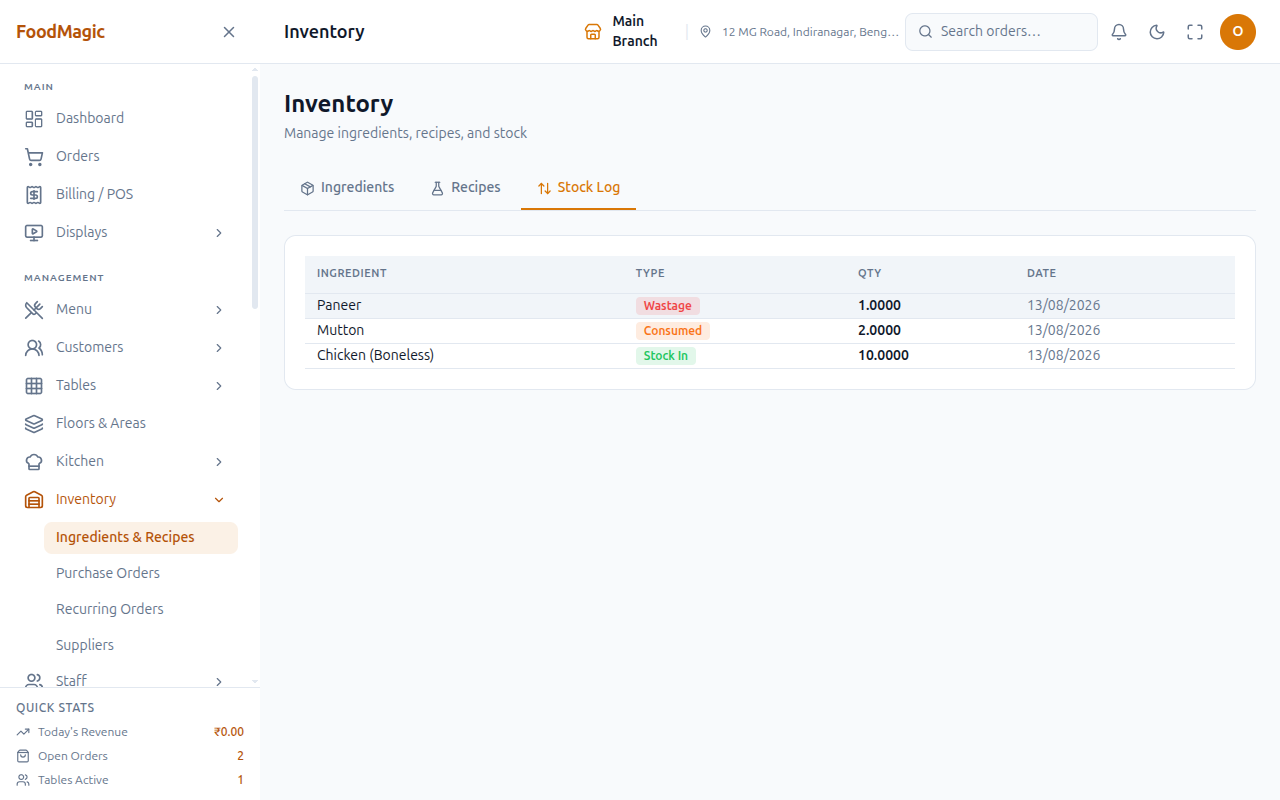
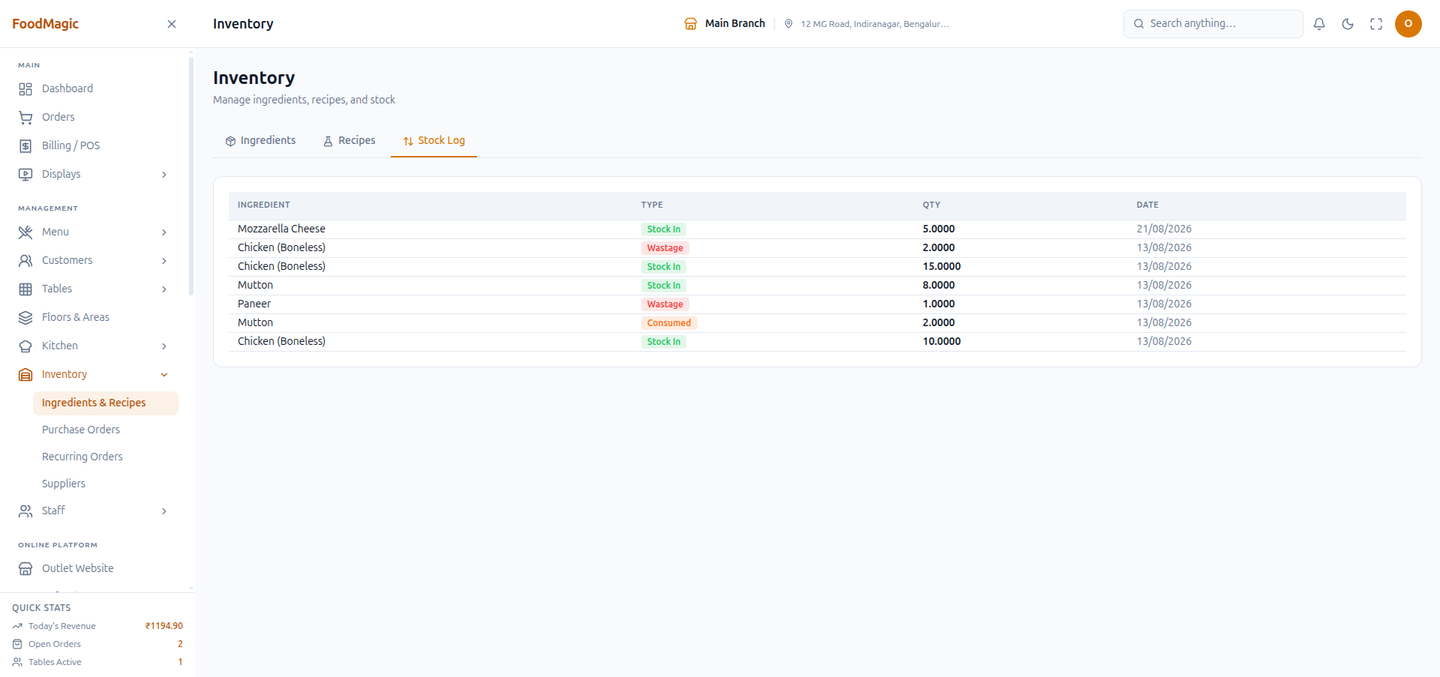
Each row shows the ingredient, the type of movement, the quantity, and the date. The type is a colour-coded badge: green for stock arriving, orange for stock leaving through consumption or transfer, red for wastage, and indigo for a manual adjustment. Viewing the log needs the same permission as the rest of Inventory.
The rows in this log get written automatically when a purchase order is received (as stock arriving) and when a supplier return is recorded (as wastage — see Raising a purchase order), as well as manually whenever you use Adjust Stock above.
This tab has no search, filter, or date range. It shows only the most recent 50 movements, with nothing filtered out by ingredient or type. There's currently no screen for a longer or narrower view.
When a count doesn't match, the log tells you whether stock left through a return or a manual adjustment — sales won't show up here unless someone logged them by hand, per the warning above. Correcting the number without checking the log hides the real cause, and the same problem happens again next month.
Setting up in the right order
Set these up with their units and reorder levels.
So you can tick which ingredients each one supplies.
Link dishes to ingredients for costing — remember, this doesn't move stock automatically today.
Now everything's in place to order and receive stock properly.
Demo: add an ingredient, adjust its stock, and build a recipe
A full pass through the setup order above, done live as Owner on
Inventory (/inventory) — adding a new ingredient, stocking it in,
linking it into a recipe, and confirming the movement in the log.
Add Ingredient, filled in the same way any new item would be: a name, a unit, a SKU, an opening stock, and a reorder threshold.
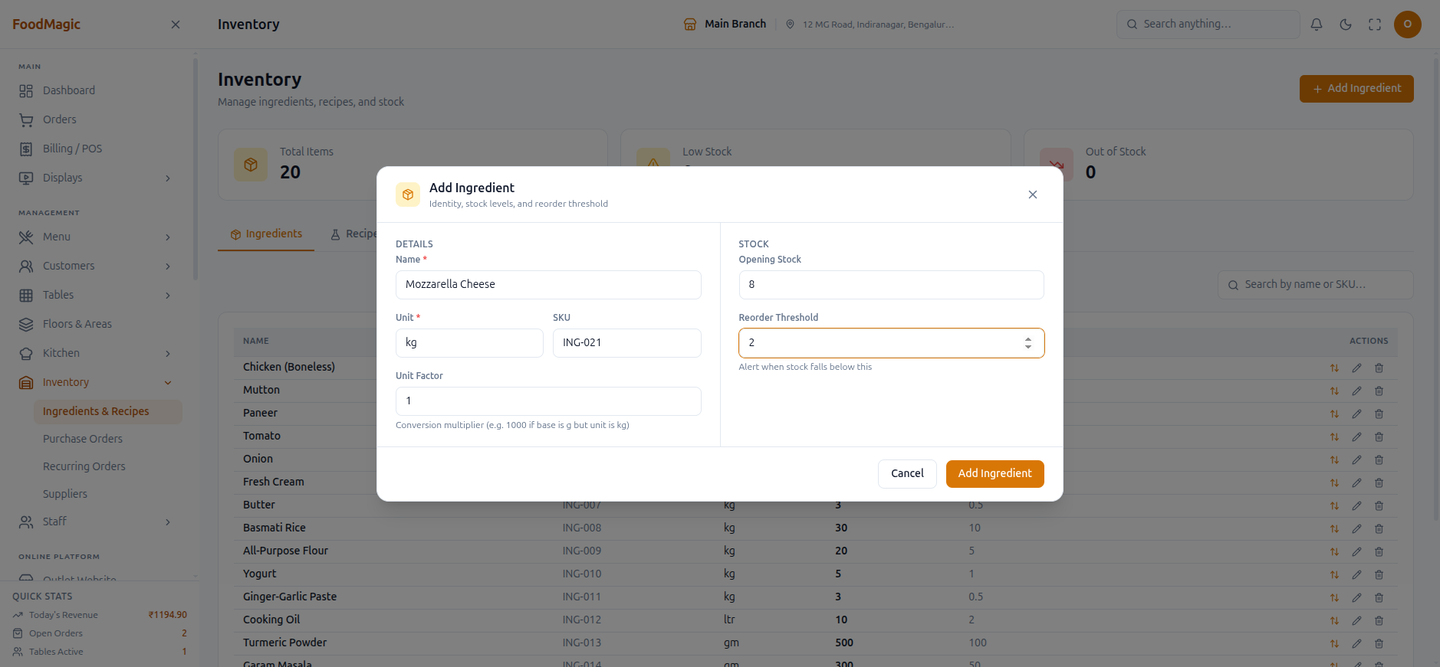
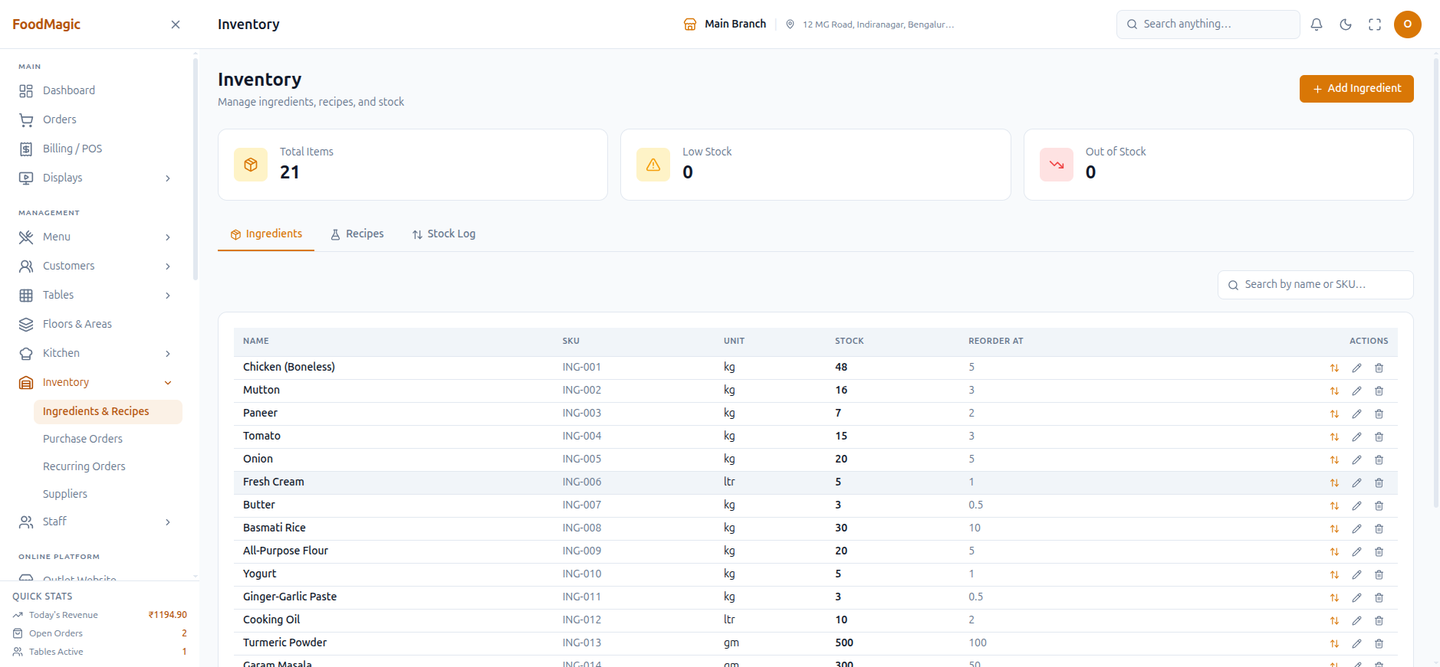
Total Items went from 20 to 21 the moment the form saved — no separate publish step.
Opened Adjust Stock (⇅) on the new row, left Movement Type on its default of Stock In, and typed a quantity. The current-to-new preview updated before anything was confirmed.
Switched to the Recipes tab, Add Recipe, picked Paneer Tikka (no recipe yet), and added two ingredients from the right-hand list — Paneer at 0.2 kg and the Mozzarella Cheese just stocked in, at 0.05 kg.
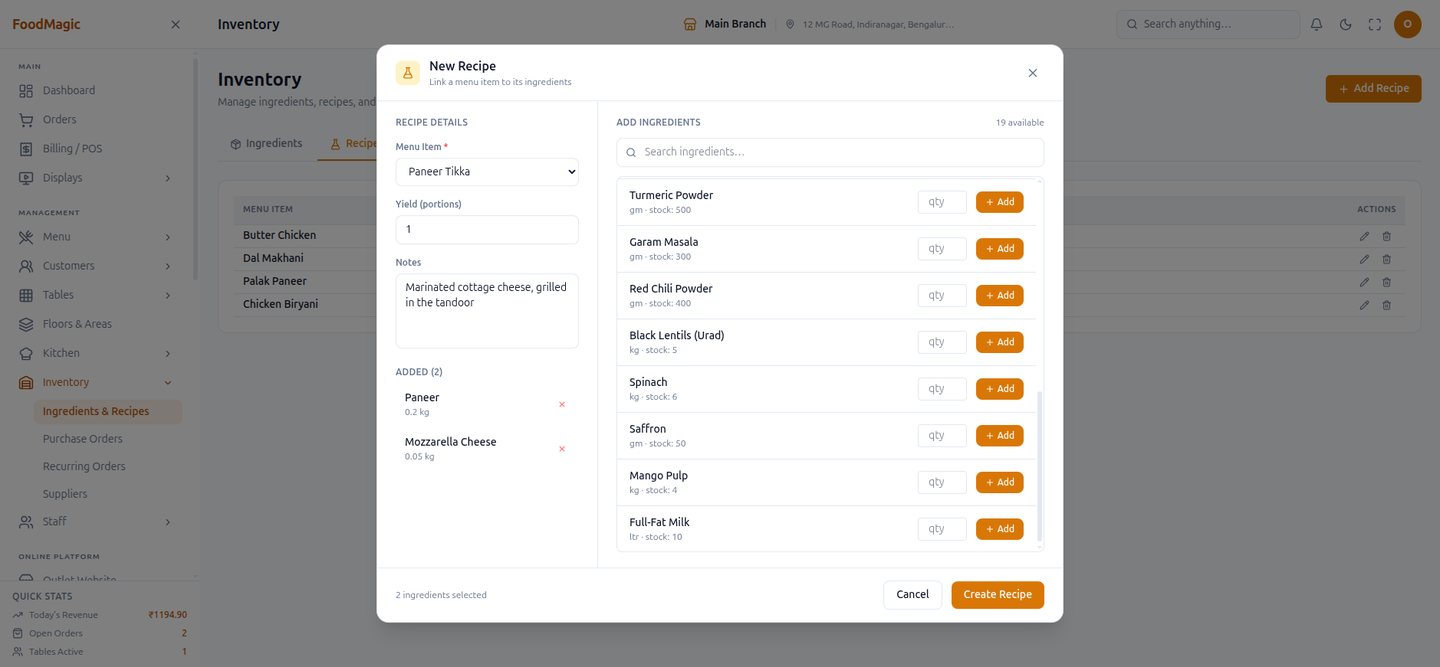
Create Recipe saved it alongside the four that already existed.
The Stock In movement from earlier sits at the very top, newest first, with the same green badge described above.
How it is secured
An owner controls who can see and use this screen from the Roles & Permissions screen, assigning each staff member a role and granting or removing specific rights one at a time. Here are the rights that matter for this page, exactly as they appear there:
| What the role can do | Grants |
|---|---|
| View ingredients | See the Ingredients, Recipes, and Stock Log tabs — read-only |
| Manage ingredients | Add, edit, and delete ingredients, and everything under Recipes (create, edit, delete recipes and their ingredient links) |
| Adjust stock levels | Use the Adjust Stock (⇅) window — kept separate on purpose, so someone can log stock movements without being able to touch the ingredient list itself |
There's just one "Manage ingredients" right covering both Ingredients and Recipes — it isn't split further. Anyone who can edit an ingredient can also build and edit recipes.
The built-in Outlet Admin role has all three rights out of the box. The Waiter and Delivery Rider roles have none of them — Inventory doesn't appear on their sidebar at all.
The brand owner account does not automatically get access to Inventory at any outlet. Inventory is entirely an outlet-level feature — the brand-owner role has no built-in ingredient, recipe, stock, or purchasing rights anywhere, only the outlet's own Outlet Admin does. If a brand owner wants to see or manage stock themselves, someone needs to give them a role with the Inventory rights above, the same way any other staff member would be granted them.
Ingredients, suppliers, and stock movements are each tied to the outlet that created them, and a staff member only ever sees their own outlet's records. One branch cannot see another branch's stock counts or ingredient list.
Recipes are the exception. Unlike ingredients and stock, a recipe isn't tagged to a specific outlet, so if you run more than one outlet, recipe data isn't confirmed to be walled off between them the same way. This comes from checking how recipes are stored, not from testing it live on a two-outlet setup — flagged here as something worth checking before you rely on it in a multi-outlet business.
An ingredient needs a name and a unit; the unit factor and reorder threshold, if set, must be positive numbers. A recipe needs a menu item that doesn't already have one — you edit the existing recipe instead of creating a second one for the same dish — and each ingredient line needs a positive quantity; you can't add the same ingredient twice to one recipe. A stock movement needs an ingredient, a movement type, and a quantity. When a regular staff member (not a brand-level super-admin) submits one, the system always uses their own outlet and ignores anything else sent, so a staff member can't write a stock movement into another outlet's books, even by mistake or by tampering with the request.
Every ingredient created, edited, or deleted is written to the system's audit trail, along with who did it and what changed. Every purchase order created, edited, or deleted is logged the same way (see Raising a purchase order). Individual stock movements and recipe changes are not separately written to that audit trail beyond what the Stock Log itself records — it's not clear whether that's intentional.
Related pages
- Adding a supplier — set these up once your ingredients exist, so you can tick which ingredients each vendor supplies.
- Raising a purchase order — the only flow that currently adds stock automatically (on receiving) or removes it automatically (on a supplier return).