
Setting up email, SMS and WhatsApp
Connect Food Magic to an email, SMS and WhatsApp provider so the system can send order updates, OTPs and receipts to your customers.
Food Magic sends email, SMS and WhatsApp messages through the provider you connect on these screens. What each channel actually needs to deliver differs by channel — see the table on Notification templates and rules for exactly which providers are wired up to send today and which just log a permanent failure. OTPs for storefront sign-in work through a completely separate setup, covered in Troubleshooting.
All three are brand-level settings. You configure them once and every outlet uses them. Only a Super Admin can open these screens by default.
Email works even if you never touch this page. A brand with no Email Gateway configured still sends through the server's own default mailer — connecting a gateway here only changes which mailbox the message goes out through. SMS and WhatsApp are the opposite: without an active, default gateway of the right provider, nothing sends on that channel at all. The step-by-step instructions below are the correct way to fill in each provider's details either way.
What it is
Three screens where a brand connects the outside providers that deliver everything Food Magic sends to customers and staff — a sign-in code, an order confirmation, a receipt. Each screen manages one kind of channel:
- Email Gateways — the mailbox providers (SMTP, SendGrid, Zoho, Amazon SES, Mailgun, Postmark, Brevo, SparkPost) email can be sent through. Of these, SMTP and SendGrid are wired up to actually deliver today.
- SMS Gateways — the text-messaging providers (MSG91, Twilio, Gupshup, AWS SNS, Plivo) texts can be sent through. Of these, MSG91 and Twilio are wired up to actually deliver today.
- WhatsApp Gateways — its own screen, separate from SMS Gateways, for connecting a WhatsApp Business provider (Meta Cloud API or Gupshup). Of these, only Gupshup is wired up to actually deliver today.
All three screens only handle the connection itself — credentials, who the message appears to come from, and a test/live switch. None of them decide what gets sent or when; that's the separate template list covered in Notification templates and rules.
Picking an unimplemented provider (Zoho, Amazon SES, Mailgun, Postmark, Brevo or SparkPost for email; Gupshup, AWS SNS or Plivo for SMS; Meta Cloud API for WhatsApp) isn't blocked anywhere in the UI — the form saves normally. Every send through that gateway then fails with "no driver implementation yet," logged the same way any other failed send is. See Troubleshooting below.
Before you start
You will need an account with a provider, and its credentials to hand. Pick the provider first — the fields you need depend on which one you choose.
Setting up email
Go to Settings → Email Gateways (/settings/email-gateways).
This screen is reserved for the Super Admin — an admin can grant it to another role from Roles & Permissions if needed.
Pick one from the list. The form changes to show only the fields that provider needs — see the table below.
Fields marked as secret are entered as password fields and are not shown again once saved.
This is who the email appears to come from. It must be an address the provider has verified — an unverified sender is the single most common reason email silently fails to arrive.
Each gateway runs in test or live mode. Use test while you confirm delivery, then switch to live.
Save, then send yourself a test message before relying on it.
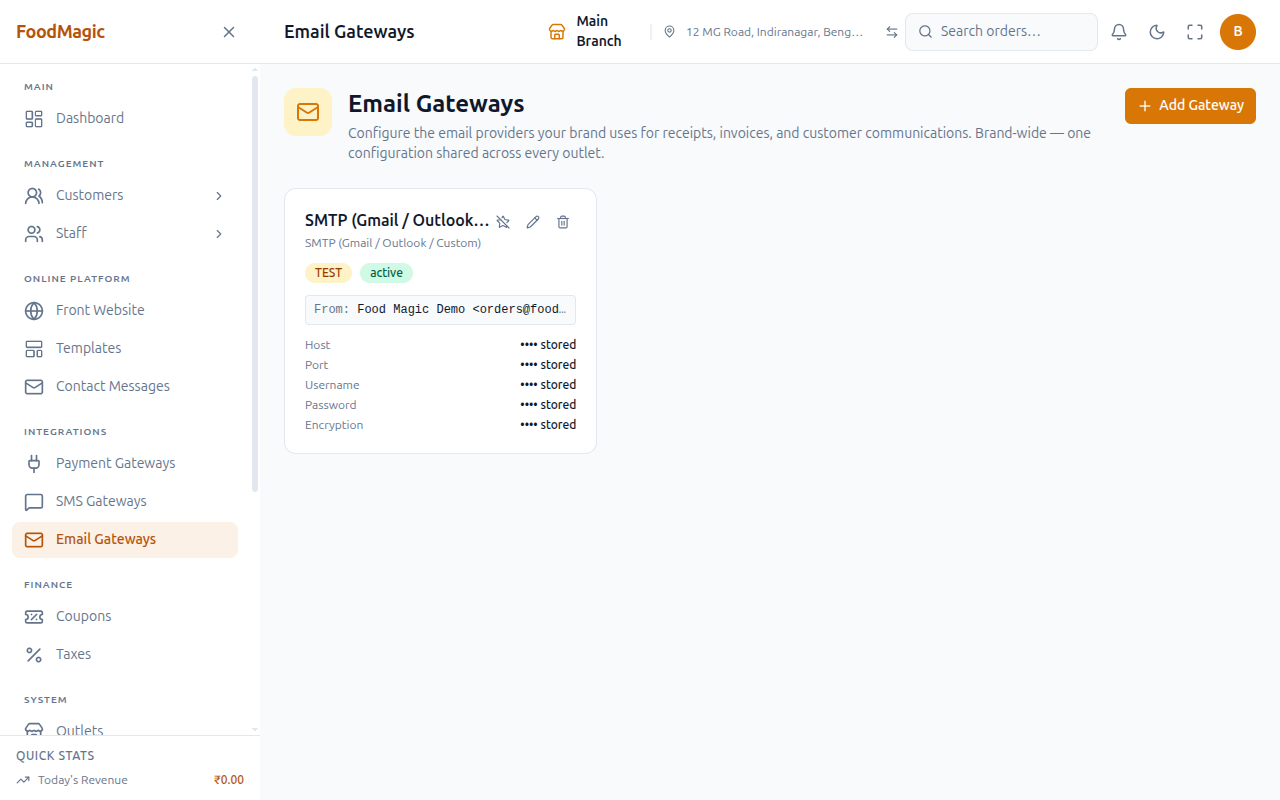
What each email provider needs
SMTP (Gmail / Outlook / Custom)
Any SMTP server — Gmail, Outlook, Zoho, or your own host.
| Field | Value |
|---|---|
| Host | e.g. smtp.gmail.com |
| Port | 587 for TLS, 465 for SSL |
| Username | Usually your full email address |
| Password | Secret. Use an app password if two-factor auth is on |
| Encryption | tls or ssl |
From address: any address your SMTP server is allowed to send from.
With Gmail or Outlook and 2FA enabled, your normal account password will not work — you must generate an app password.
SendGrid
Twilio SendGrid — generous free tier, easy setup.
| Field | Value |
|---|---|
| API key | Secret. Starts SG. — from Settings → API Keys |
From address: a verified sender or authenticated domain.
Zoho Mail
SMTP send via your Zoho-hosted mailbox.
| Field | Value |
|---|---|
| Username | Your full Zoho email address |
| App password | Secret. Generate under Zoho → Security |
| Region | com, in, eu or au — your data-centre suffix |
From address: a Zoho-hosted address or verified domain.
Getting the region wrong is a common failure — Zoho accounts are tied to a specific data centre and credentials will not authenticate against another one.
Amazon SES
Pay-as-you-go, roughly $0.10 per 1,000 emails. Strong deliverability.
| Field | Value |
|---|---|
| Access key ID | Your AWS access key |
| Secret access key | Secret |
| Region | e.g. us-east-1, ap-south-1 |
From address: an email or domain verified in SES — verification is per region, so verify in the same region you configure here.
Mailgun
Developer-focused, with EU and US regions.
| Field | Value |
|---|---|
| API key | Secret |
| Domain | e.g. mg.yourbrand.com, verified in Mailgun |
| Region | us or eu (defaults to us) |
From address: an address on your verified Mailgun domain.
Postmark
Fast transactional delivery. Strict policy against bulk marketing mail.
| Field | Value |
|---|---|
| Server token | Secret |
From address: a verified sender signature in Postmark.
Brevo (Sendinblue)
Transactional and marketing email, EU-based.
From address: a verified sender or domain in Brevo.
SparkPost
High-volume transactional email.
From address: a verified sending domain.
Setting up SMS
Go to Settings → SMS Gateways (/settings/sms-gateways).
This screen is reserved for the Super Admin — an admin can grant it to another role from Roles & Permissions if needed.
Choose based on where your customers are — see the comparison below.
The sender ID is what the customer sees as the sender. Its format depends on the provider.
Confirm a message actually arrives on a real handset before going live.
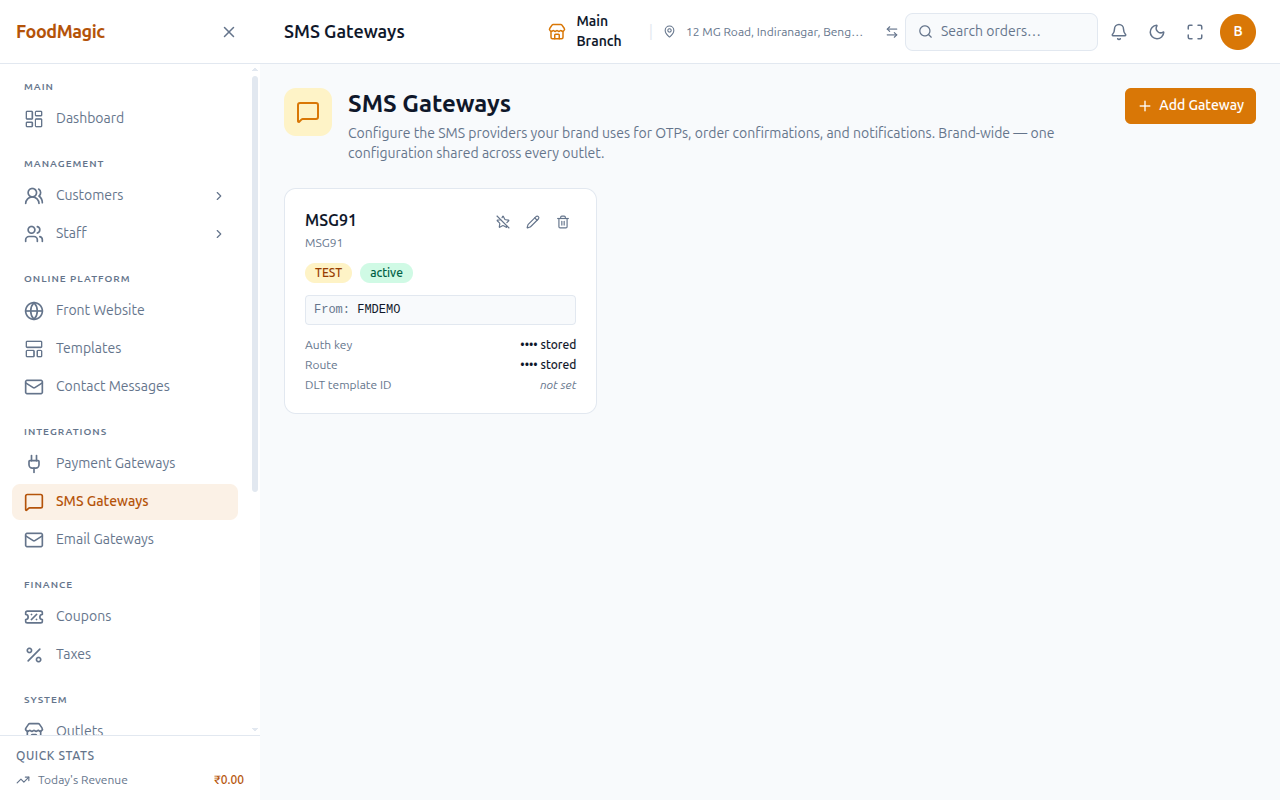
Which SMS provider?
| Provider | Best for | Note |
|---|---|---|
| MSG91 | India | DLT-compliant, transactional + promotional |
| Gupshup | India | SMS + WhatsApp, popular for OTPs |
| Twilio | International | Broader reach, higher cost |
| Plivo | International | Competitive pricing |
| AWS SNS | Pay-as-you-go | No DLT compliance for India |
If you send SMS to Indian numbers, you need DLT registration. Indian carriers block transactional SMS from unregistered senders. MSG91 and Gupshup handle this; AWS SNS does not, so do not pick SNS as your India provider.
What each SMS provider needs
MSG91
| Field | Value |
|---|---|
| Auth key | Secret |
| Route | 4 = transactional, 1 = promotional |
| DLT template ID | Optional — applied per message |
Sender ID: a DLT-registered 6-character sender ID.
Twilio
| Field | Value |
|---|---|
| Account SID | Starts AC… |
| Auth token | Secret |
| Messaging service SID | Optional — MG…, for sender pools |
Sender ID: an E.164 number (e.g. +14155552671) or a messaging
service SID.
Gupshup
| Field | Value |
|---|---|
| API key | Secret |
| App name | Your application identifier in Gupshup |
Sender ID: an approved 6-character sender ID.
AWS SNS
| Field | Value |
|---|---|
| Access key ID | Your AWS access key |
| Secret access key | Secret |
| Region | e.g. ap-south-1 |
Sender ID: up to 11 alphanumeric characters.
Plivo
| Field | Value |
|---|---|
| Auth ID | Your Plivo auth ID |
| Auth token | Secret |
Sender ID: an E.164 number or alphanumeric sender.
Setting up WhatsApp
Go to Settings → WhatsApp Gateways (/settings/whatsapp-gateways) — a
separate sidebar entry and screen from SMS Gateways, even though the two
share the same underlying gateway list on the backend.
Two are listed — Meta Cloud API and Gupshup — but only Gupshup actually sends a message today. Meta Cloud API saves without complaint; every send through it then fails.
For Gupshup: an API key, the app name (Gupshup calls this
src.name), and the WhatsApp Business phone number as the sender ID.
All three are required — a Gupshup send fails immediately if any is
missing, without ever calling out to Gupshup.
Send a test message from a template's send-test icon on Notification templates and rules — there's no separate test button on this screen itself.
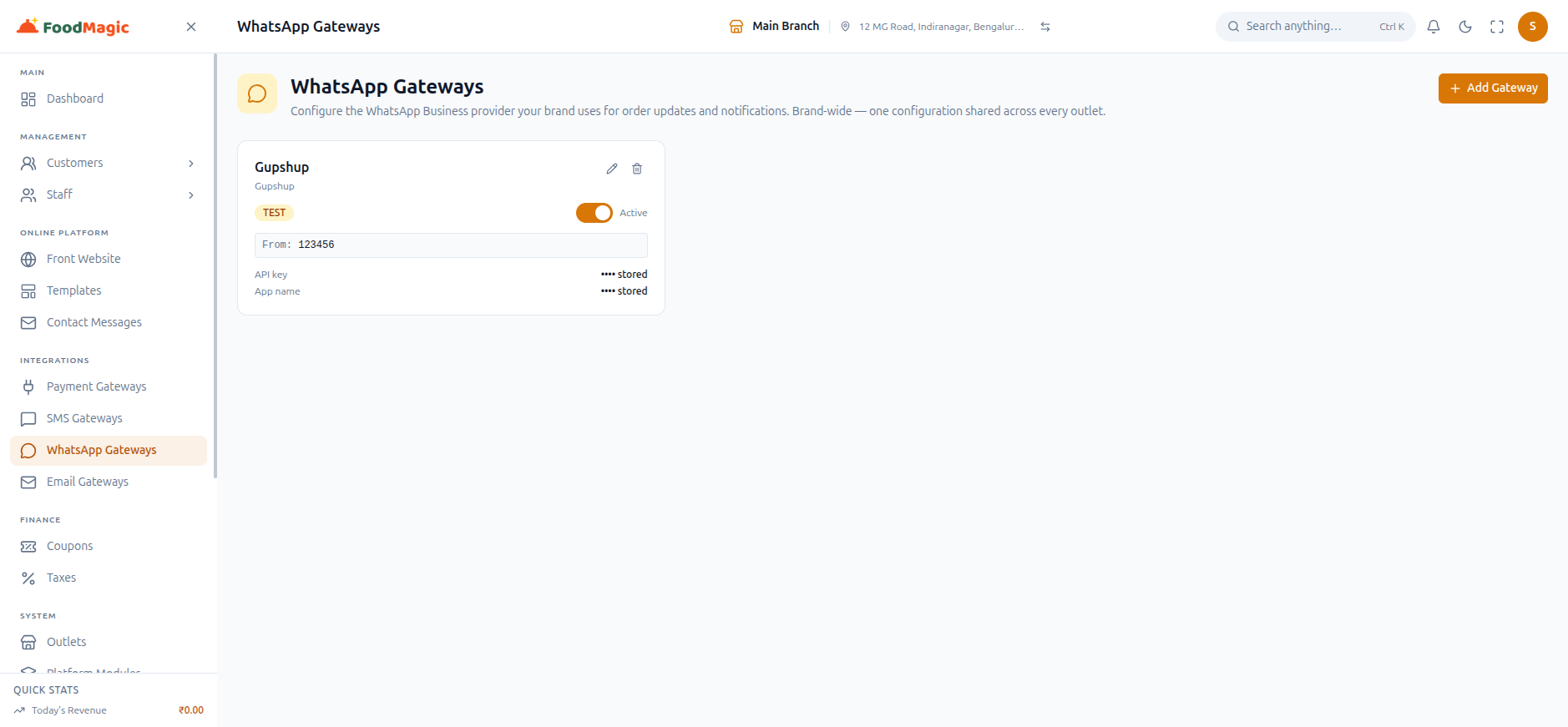
A WhatsApp gateway is entirely separate from an SMS gateway, even for the same brand and the same underlying provider account — connecting Gupshup here for WhatsApp does not also give you Gupshup for SMS (Gupshup isn't one of the two SMS providers implemented anyway), and vice versa. Set each one up independently.
WhatsApp sends plain text, not a Meta-approved template message. There's no 24-hour customer-session window check and no template pre-approval gate — a message goes out through Gupshup's ordinary message API the moment the gateway is active and default, the same as an SMS would. Don't assume WhatsApp here behaves like the Meta Business Platform you may already know from elsewhere.
Troubleshooting
Nothing is being sent at all
Check that a gateway exists and is in live mode. A gateway left in test mode will not send to real customers.
Email sends but never arrives
Almost always the From address. It must be verified with the provider — SendGrid, SES, Mailgun and Postmark all reject or silently drop mail from an unverified sender. With SES, remember verification is per region.
SMS not delivered to Indian numbers
DLT registration. The sender ID must be DLT-registered and, for MSG91, the
route should be 4 for transactional messages. AWS SNS cannot meet this
requirement.
Gmail rejects the password
With two-factor authentication on, you must use an app password, not your account password.
WhatsApp gateway saved fine but nothing ever sends
Check the provider. Meta Cloud API can be picked and saved on the WhatsApp Gateways screen, but there is no driver for it yet — every send through it fails with "no driver implementation yet." Only Gupshup actually delivers WhatsApp messages today.
Customers cannot receive an OTP to sign in
Storefront login OTPs don't use the SMS Gateway screen above at all. They go through a separate provider connection — MSG91, Twilio, or a log-only fallback — saved as part of the brand's own storefront identity settings, not this gateway list. Check that provider's credentials, and the OTP length and validity window, on Settings → Brand Storefront → Login & Identity instead of here.
How it is secured
Who can open these screens
All three screens are reserved for the brand owner (Super Admin) by default. Email Gateways and SMS Gateways each have their own pair of permissions on the Roles & Permissions screen — a "view" one ("View email gateways", "View SMS gateways") and a "manage" one ("Manage email gateways", "Manage SMS gateways") — so an admin can, if they choose, let a support role see what's configured without letting them change credentials or flip a gateway from test to live.
WhatsApp Gateways has no permission of its own. It's gated by the exact same "View SMS gateways" / "Manage SMS gateways" permissions as the SMS Gateways screen — anyone who can manage SMS gateways can also manage WhatsApp gateways, and there's no way to grant one without the other.
Neither permission is given to any outlet-level role out of the box; this is deliberately brand-owner territory.
Tenancy — one set of providers per brand
A gateway belongs to the brand, not to any single outlet — connect one SendGrid account or one MSG91 account and every branch shares it. There is no per-outlet override, and no outlet role can add or see a gateway of their own. A brand can also register more than one gateway of the same kind (say, two email providers) and mark one of them as the default.
What's checked before a save goes through
Provider, a display name, and (for SMS and WhatsApp) a sender ID are required; the "From" email address, when supplied, must actually look like an email address; and the test/live switch only accepts those two values. Secret fields — API keys, auth tokens, passwords — are entered once, stored in encrypted form, and the screen never shows them again; saving again without retyping a secret leaves the existing one in place rather than clearing it.
What's recorded when something changes
Each gateway remembers which admin created it and which admin last edited it, so — unlike the storefront settings pages — there is at least a "who touched this last" trail here. There's no full history of every past edit, and none of it shows up on a dedicated Audit Logs screen; you can only see it by opening the gateway itself.
The biggest risk on these three screens isn't misconfiguration — it's the false sense of security that comes from successfully saving one. A brand owner can fill in real, working credentials for an unsupported provider — Zoho, SES, Mailgun, Postmark, Brevo, SparkPost for email; Gupshup, AWS SNS, Plivo for SMS; Meta Cloud API for WhatsApp — flip the gateway to live, and see a "saved" confirmation, and still have nothing actually go out. The screen behaves exactly as if it works; only sending a real test message reveals that the provider has no driver behind it yet.
Related pages
Every other settings screen, and whether it is brand-level or outlet-level.
What actually gets sent, to whom, and when — the piece these gateways will eventually deliver.
Where the storefront's own OTP provider and length/validity settings live.
Where "Manage email gateways" and "Manage SMS gateways" get assigned to a role.