
Brand Settings
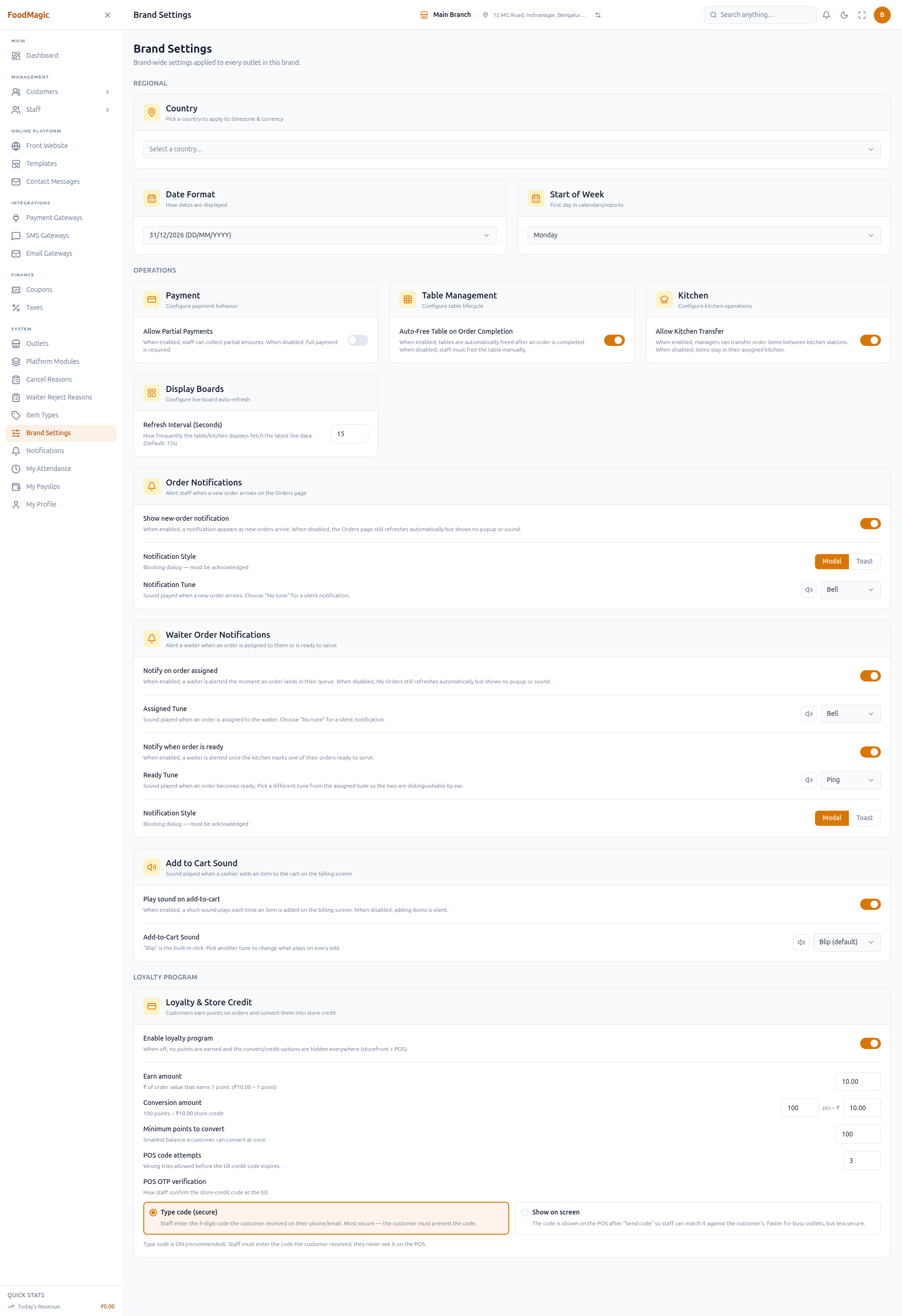
Every field on the Brand Settings screen — the first screen a new brand's Super Admin sets up — and what each one does.
Brand Settings is one screen, one record per brand — every outlet follows what's set here. It's normally the first thing a new brand's Super Admin fills in, since Country drives timezone and currency, which pricing, reports and receipts all depend on.
What it is
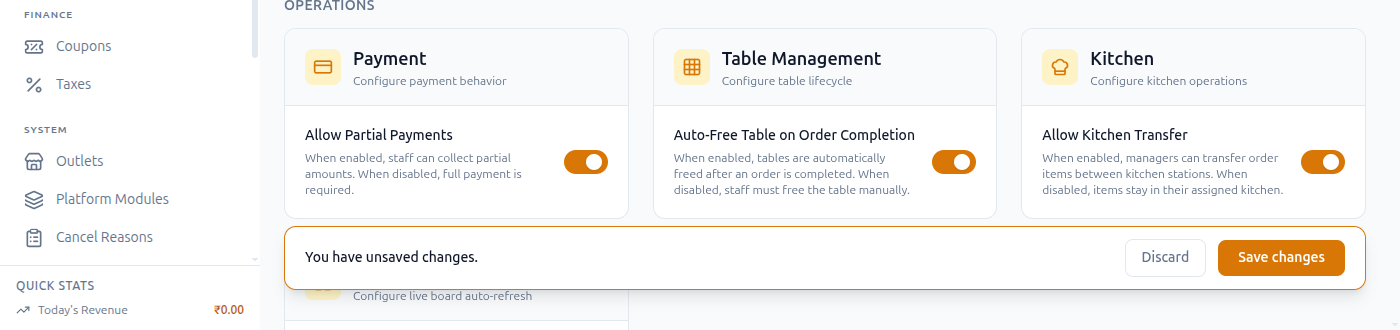
Brand Settings — saved together with a single Save bar. Nothing writes until you confirm; Discard puts every field back. In the sidebar: System → Brand Settings.
flowchart TD
    A[Open Brand Settings] --> B[Edit a field]
    B --> C[Unsaved-changes bar appears]
    C -->|Discard| A
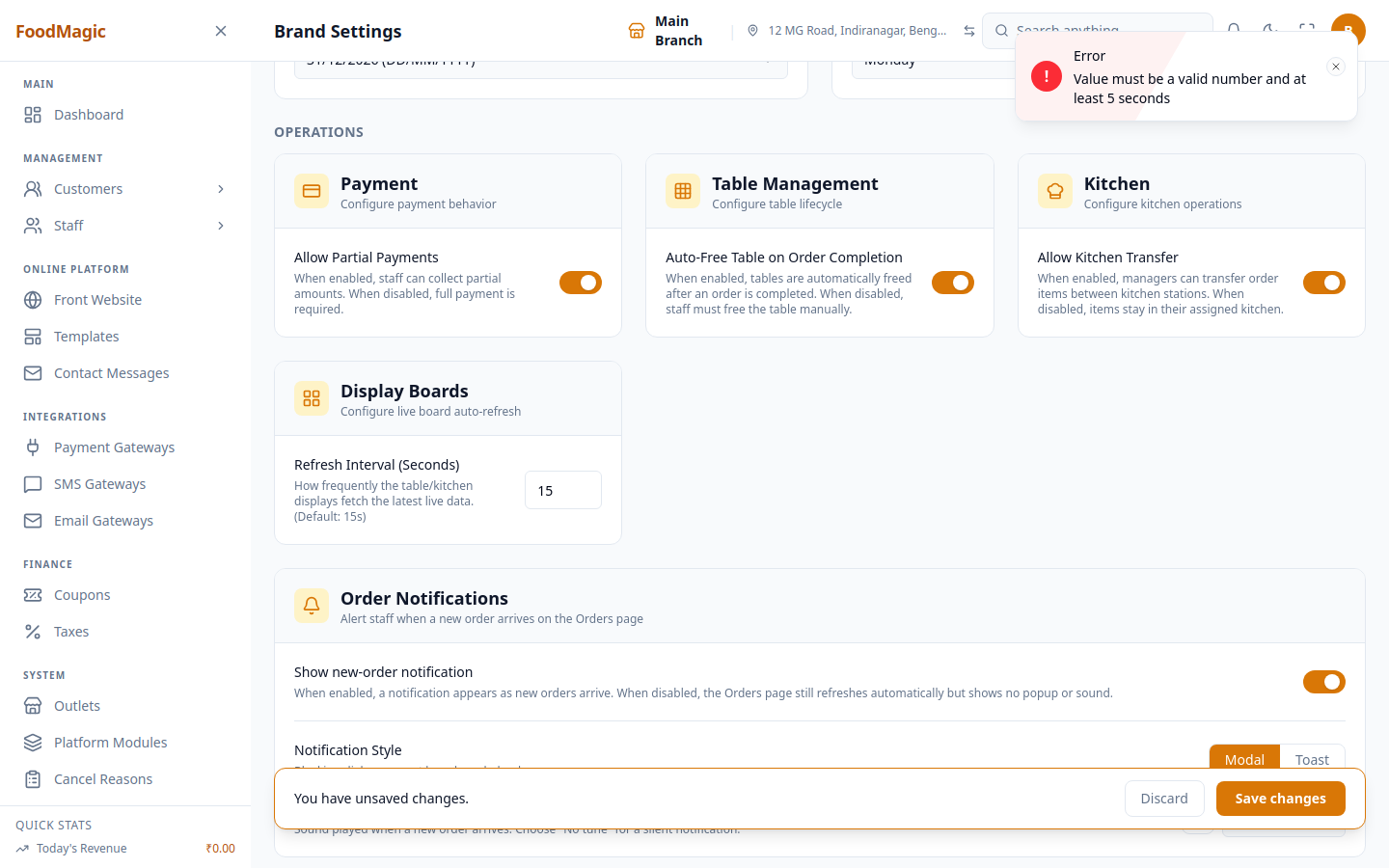
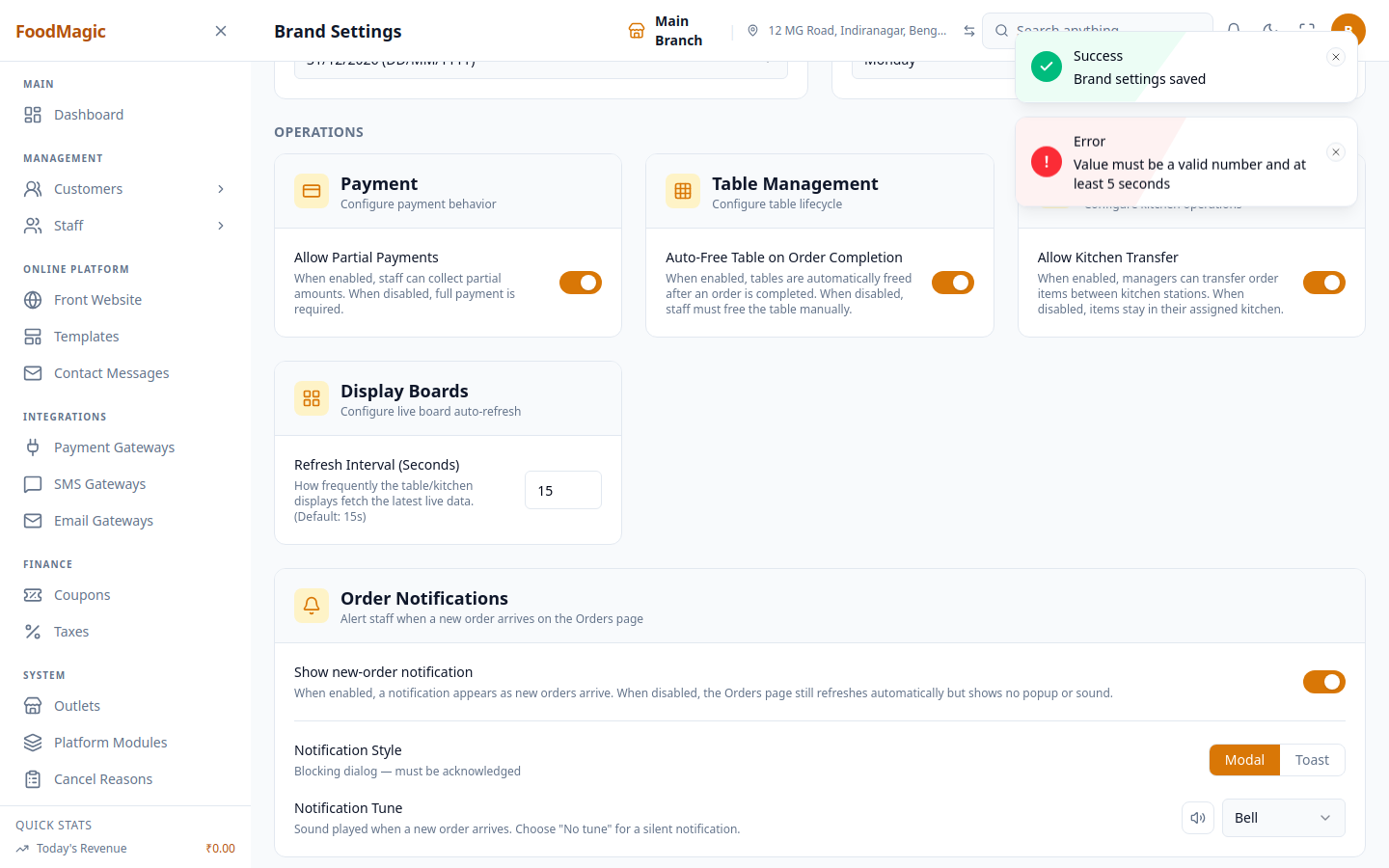
    C -->|Save changes| D{Passes validation?}
    D -->|Yes| E[✅ Brand settings saved]
    D -->|No| F[❌ Error toast, value reverts]
Save validates every changed field at once — if one is invalid, nothing saves, not even the valid changes.
Regional
- Country — picks the country; fills in timezone, currency, and currency symbol in the same save (still editable after).
- Date Format — 4 layouts (31/12/2026, 12/31/2026, 2026-12-31, 31-Dec-2026) with a live preview.
- Start of Week — Monday, Sunday, or Saturday.

Operations
Payment — Allow Partial Payments: on lets staff collect less than the full bill at the till and settle the remainder later; off requires the full amount every time a payment is taken on Billing / POS. Store credit is always exempt from this guard, since it's the customer's own prepaid money rather than a shortfall.
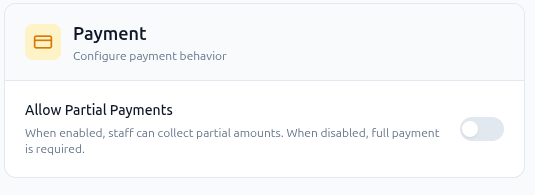
This toggle doesn't currently do anything. Payments are checked against
outlet_settings.allow_partial_payment, a per-outlet field with no
screen left to edit it — not against this Brand Settings value. Flipping
this switch changes what the screen shows, not what the till enforces.
It's the same class of bug as the Kitchen Transfer issue below, just not
yet fixed the same way.
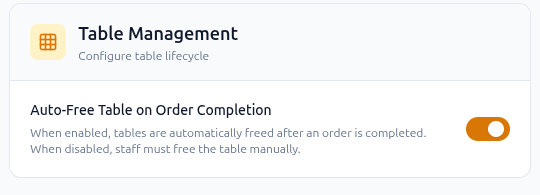
Table Management — Auto-Free Table on Order Completion: on frees a table automatically the moment its order completes, so it's immediately selectable again from Select Table on Billing / POS. Off leaves the table marked occupied until a staff member frees it by hand on the Tables screen.
Kitchen — Allow Kitchen Transfer: on lets a manager reassign an order item to a different kitchen station from the Kitchen Display after it's already been sent (bumped). Off keeps every item pinned to whichever station it was originally routed to.
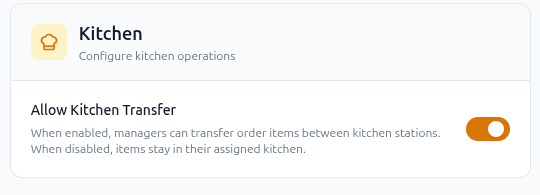
This one used to have the same bug as Payment above — the toggle wrote to Brand Settings while the API enforced a frozen, no-longer-editable outlet-level copy, so a Super Admin turning it back on did nothing (GitLab #185). It's since been fixed to read this Brand Settings value.
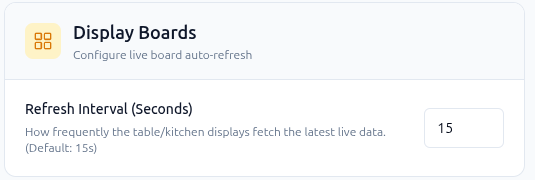
Display Boards — Refresh Interval (Seconds): how often every live, auto-refreshing screen re-polls for new data — Kitchen Display, Table Display, Available Tables, Display Board, Customer Order Board, My Orders, My Deliveries, and the main Orders page all read this same value. 5–300 seconds, default 15; lower means fresher data at the cost of more requests.
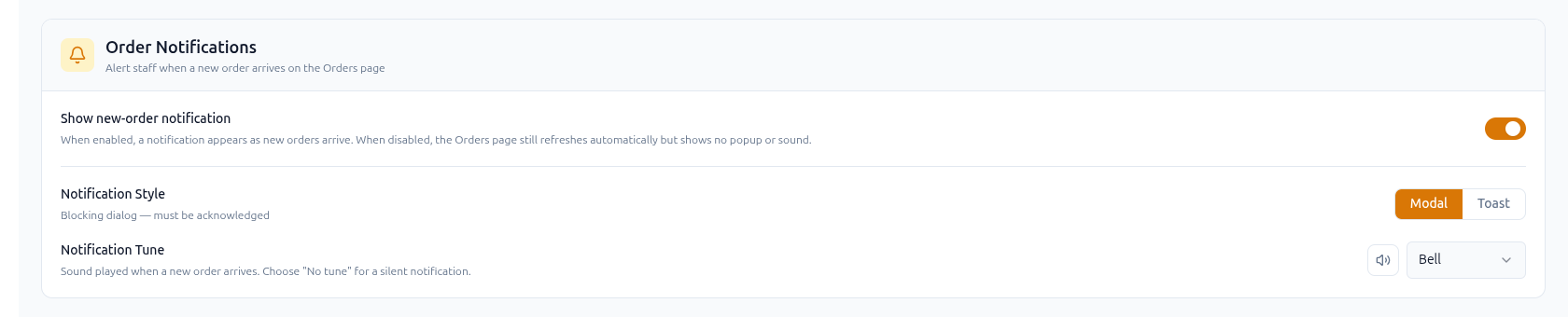
Order Notifications — the "new order arrived" alert: a master switch, Notification Style (Modal or Toast), and Notification Tune (with preview). It fires on the same set of live screens as the refresh interval above — Orders, Kitchen Display, Customer Order Board, Display Board, My Orders, and My Deliveries — so turning it off is brand-wide, not just for one screen.
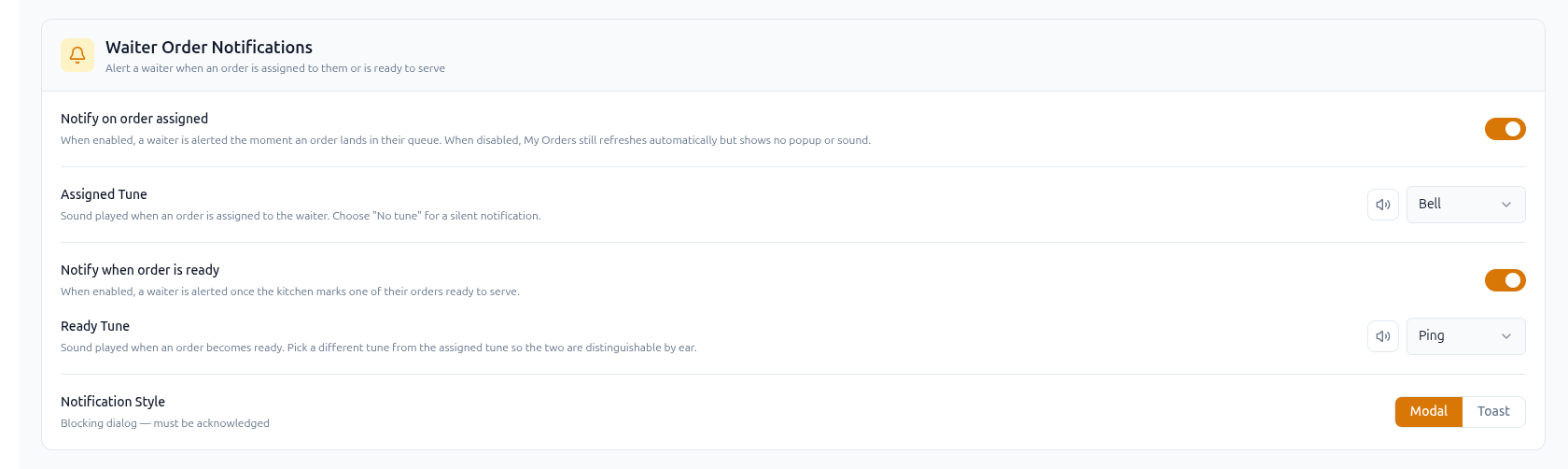
Waiter Order Notifications — repeats the same idea, but scoped to a waiter's own My Orders screen specifically: a switch and tune for "assigned to me," and a separate switch and tune for "ready to serve," so the two are distinguishable by ear.
Add to Cart Sound — a switch plus a tune, played on the billing screen every time an item is added to the cart. Default "Blip."

Loyalty Program
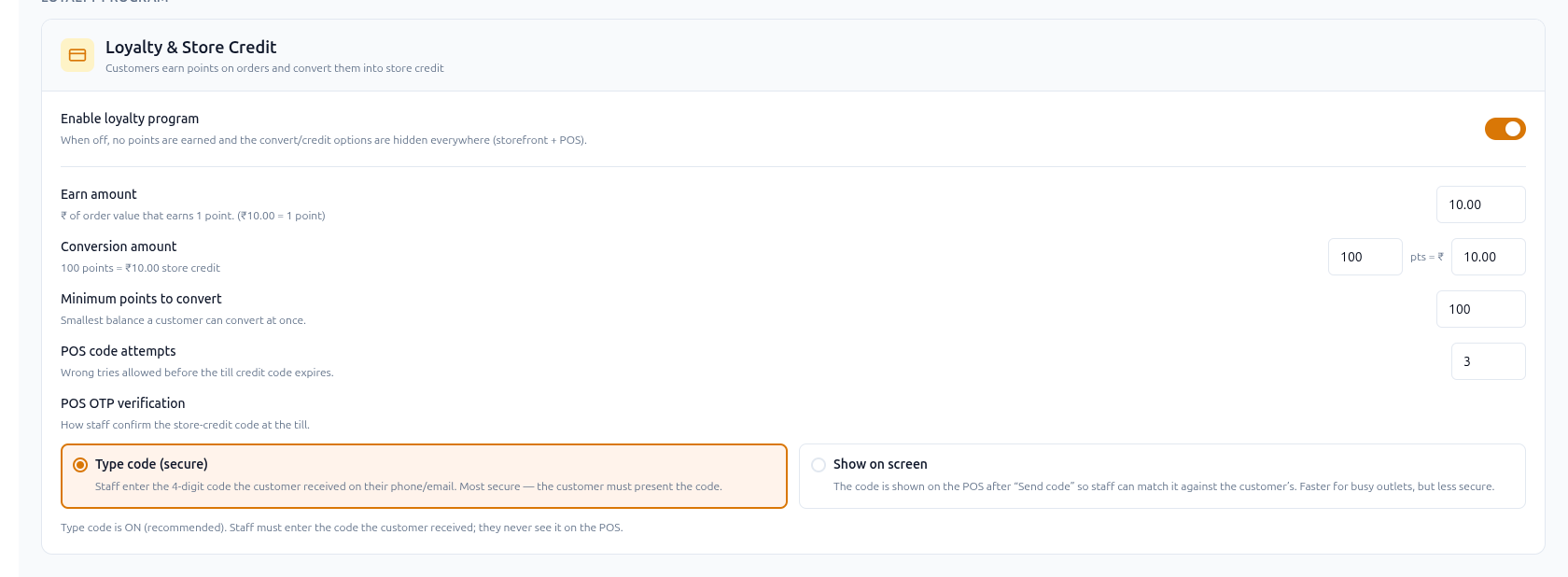
Loyalty & Store Credit — master switch Enable loyalty program; off hides every loyalty control everywhere. On, five fields tune it: Earn amount (spend per point), Conversion amount (points → currency ratio), Minimum points to convert, POS code attempts (1–10), and POS OTP verification — Type code (staff never see it, secure) vs. Show on screen (faster, weaker).
See Settings reference for full validation rules.
Common questions
Can I change this after saving?
Yes, any time — not a one-time wizard.
Who can open this screen?
Super Admin, or a custom role with Manage brand settings
(settings.brand.manage). The permission gates the whole screen, not
just saving — anyone else typing the URL directly is redirected to the
Dashboard before the page renders, with no error message.
I saved, but nothing changed.
You likely navigated away before clicking Save — check for the unsaved-changes bar first.
Troubleshooting
| Problem | Likely reason | What to do |
|---|---|---|
| Redirected to Dashboard on click | Missing Manage brand settings | Ask your Super Admin to grant it |
| Change didn't take effect | Left the page before clicking Save | Watch for the unsaved-changes bar, then Save |
| "Value must be a valid number and at least 5 seconds" | Refresh Interval below 5, or above 300 | Re-enter within 5–300 |