
Backup and restore
Protecting your data — scheduled backups, Google Drive, downloading, and restoring. Covers both the outlet-level screen and the separate Platform Backups screen.
What it is
Food Magic has two separate backup systems, at two different levels. They don't share any data:
This covers one outlet's own data — its database and uploaded files. It's stored locally on the server, and can also be mirrored to that outlet's own Google Drive. This is where Restore lives. You reach it from Backup and Restore in an outlet's own sidebar.
This is a separate, simpler screen that backs up the whole installation. It's stored on Google Drive only, never on the server's own disk. There is no restore button anywhere on this screen — restoring the whole platform is a deliberately manual step done outside the app. It also has no sidebar link at all, for any role. You can only reach it by typing the address directly.
The outlet-level screen is currently broken for the Super Admin role. All three tabs open, but every action inside them is refused. This isn't a bug in one button — it's structural. The screen requires you to belong to one specific outlet before it will do anything, and the Super Admin, by design, isn't tied to one outlet. The same kind of gap also affects Payroll, Salary Advances, and Menu Print — see Staff overview and Menu Management for those.
What follows describes the working behaviour — what an Outlet Manager sees. On a live system, this showed 13 backups, with full Download, Restore, Settings, and History access.
How it works
The outlet screen (Backup and Restore)
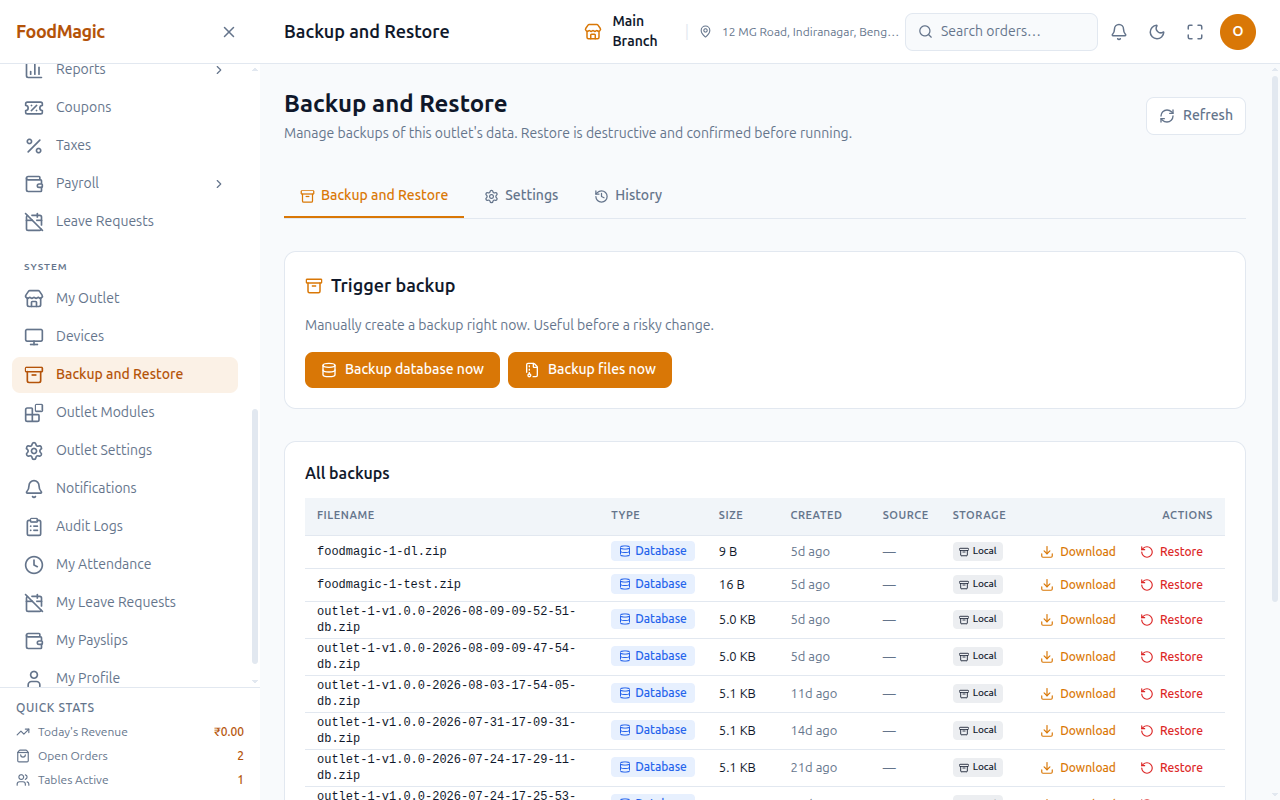
As an Outlet Manager, the screen's heading reads "Backup and Restore", with three tabs: Backup and Restore, Settings, and History. Each tab has its own web address, so refreshing the page or sharing a link keeps you on the same tab.
The Settings and History tabs only show up for someone who actually has the matching permission. So a person who can only download backups sees a two-tab screen, not a disabled third tab.
Backup and Restore tab
The table lists Filename, Type, Size, Created, Source, Storage, and Actions. Source shows a Manual or Auto badge, depending on how the backup was triggered. Storage shows Local or Drive badges — a file can exist in both places, just one, or, rarely, neither, if the Drive listing couldn't be checked at that moment.
Backup database now / Backup files now
These buttons run immediately, and they wait until the backup is actually finished before handing control back to you. This is different from the equivalent button on the Platform Backups screen, which queues the job and returns right away. This matters on hosting where a background worker often isn't even running.
Use this before a risky manual change, like a bulk price edit or a migration, when you want a fresh restore point right now instead of waiting for the next scheduled backup.
Download
Downloading uses the copy stored on the server itself, if there is one, and falls back to the Google Drive copy if the local file isn't there. Use it to take an off-server copy manually, separate from whatever Drive mirroring is already happening.
Upload to Drive / View in Drive
Each backup row shows one of two buttons, depending on its state. A file that only exists locally, with Drive connected, shows Upload to Drive. A file already on Drive shows a View in Drive link straight to the file instead.
Use Upload to Drive to back up an existing local file after the fact — for example, if Drive was only connected after the backup was already taken.
Restore
Restoring opens a confirmation dialog. You have to type the word
CONFIRM before the Restore now button becomes clickable, so there's
no way to trigger it by accident. Once you confirm, the system checks that
the file actually belongs to your own outlet, then restores it in the
background — you don't have to wait on the page.
Treat restoring as a last resort for recovering from bad data — see the warning further down this page. There's also a second, separate switch in Backup Settings, called "Allow restore from UI," which can hide the Restore button entirely for everyone at the outlet, even someone who otherwise has restore permission. It's a deliberate extra safeguard, separate from the permission itself.
There's also a way to upload a backup file directly and restore straight
from it, without it needing to already appear on this screen. It only
accepts a .zip file, runs the same ownership check, and queues the same
background restore. No button in the interface currently offers this, but
the capability exists.
Settings tab
This tab has two side-by-side cards, Database backup and Files backup, each with a Mode choice (Manual, Auto, or Both) and a Retention count. There's also a Google Drive backup card, a Scheduled backup web address card, a Restore policy checkbox, and a Save settings button.
Mode (Manual / Auto / Both)
Manual means the backup only ever runs when someone clicks the trigger button — it's never scheduled. Auto means it only ever runs on a schedule, and the trigger button disappears from the Backup and Restore tab. Both is the recommended default. It allows either option, so someone can still force an extra backup between scheduled runs, without giving up the automatic safety net. Database backups and file backups each have their own independent mode.
Connect Google Drive / Disconnect
Connecting opens a Google sign-in window, and links the outlet's backups to a Drive folder once you approve access. Disconnecting revokes that access and clears the stored connection.
This is a one-time setup per outlet, once the server itself has been configured to allow Google sign-in. The page walks you through that server-side setup, with copy-to-clipboard buttons for the values it needs.
Copy (scheduled backup address)
This copies a ready-made web address to the clipboard, with a secret access code already built in. It's meant for pasting into your hosting provider's own scheduled-task manager, outside the app entirely. Use this to set up automatic backups through your host, rather than relying on the app's own scheduler.
The address only appears once the server has been set up with that access code. Otherwise, the page shows a notice that this step still needs to be done.
Restore policy checkbox (Allow restore from UI)
Turning this off removes the Restore button from every backup row, for every user at the outlet — no matter who individually has restore permission. It doesn't take the permission away from anyone; it just hides the button. This is for someone who wants restores to only ever happen through a controlled process, rather than a click in the dashboard.
History tab
This tab lists Type, Operation, Started, Finished, Source, and Status — the most recent 50 backup and restore attempts, whether manual or scheduled. If an attempt failed, its error message shows as a tooltip on the Finished column. This tab is visible to anyone who can trigger, download, restore, or configure backups.
The Platform Backups screen
This is a separate feature from the outlet-level screen above. It has different access rules, different storage — Google Drive only, never the server's own disk — and no restore button anywhere in its interface.
The screen lists filename, type, size, and creation date for each backup, with Backup database now and Backup files now buttons, plus a refresh icon. Both buttons queue the backup and return immediately, rather than waiting for it to finish. This is different from the outlet-level trigger, which finishes the backup before returning control to you. So the list refreshes a moment later on a best-effort basis, rather than by watching the job all the way to completion.
Use these buttons before a risky business-wide change, like a migration or a bulk data fix — separate from any one outlet's own routine backups.
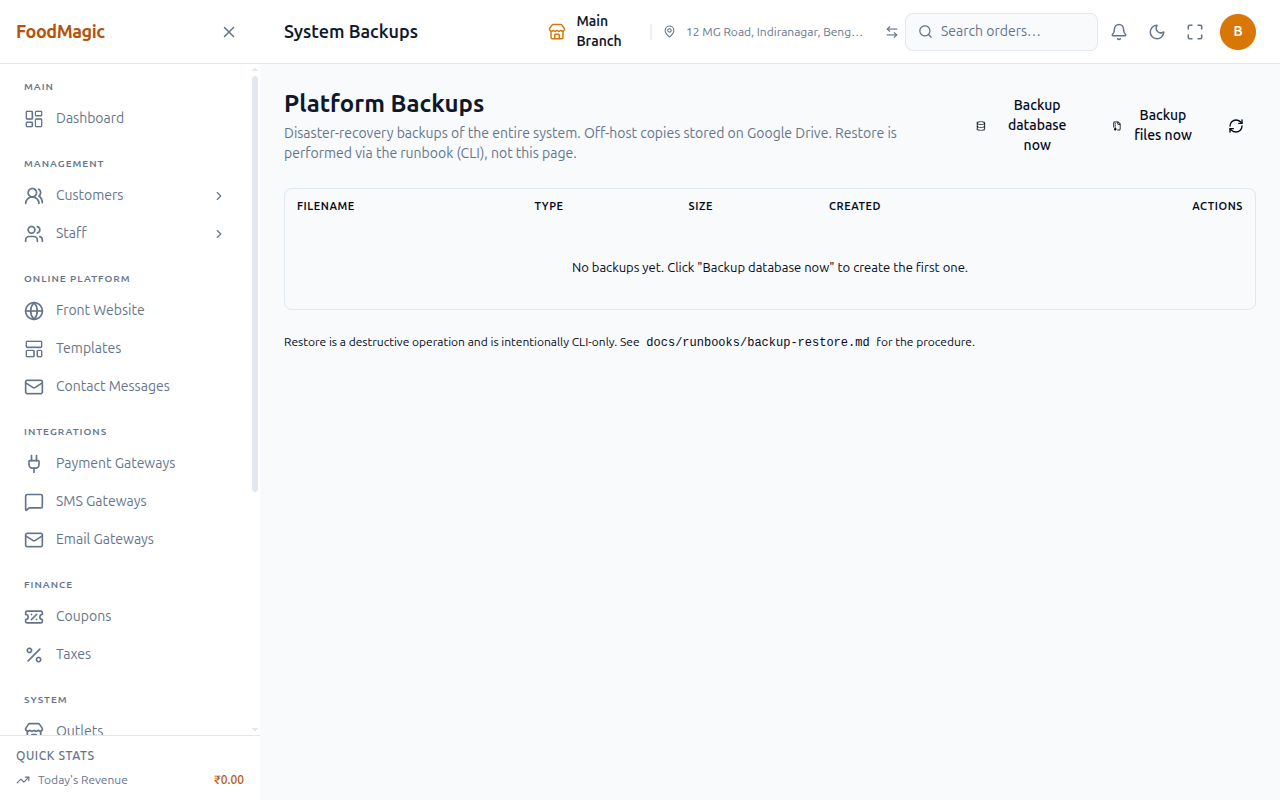
Download streams the backup file so you can archive it off the server entirely — for example, before a major version upgrade. If the Drive connection isn't configured in the current environment, the list simply comes back empty, with a message explaining why, rather than an error.
Restore is intentionally not offered here. This is a deliberate limit. A business-wide restore is a destructive operation, meant to be done manually, with direct access to the server — not something exposed as a button in the interface.
Taking a backup
You can take a backup on demand from the Backup and Restore tab, or set up a schedule from Backup Settings.
Backups rely on the database's own backup tool on the server, so that tool needs to be installed and reachable. See System requirements.
Storing backups off-site
A backup that lives on the same server as your data doesn't protect you from much. Food Magic can also push backups to Google Drive.
From Backup Settings, connect the outlet to Google Drive.
Once you approve access, Google sends your browser back, and the connection is stored.
Upload any existing backup to Drive, or let new ones sync automatically.
Disconnect at any time from the same screen.
The step where Google sends you back doesn't require you to be logged in at that exact moment. Google is the one redirecting your browser, and it can't carry your login session along with it. That's just how this kind of connection works — it isn't a gap.
Restoring
| Action | What it does |
|---|---|
| Download | Get a copy of a backup you hold |
| Restore | Restore the outlet from a backup you hold |
| Upload and restore | Upload a backup file directly and restore straight from it |
Restoring replaces your live data. There is no partial restore. Treat it as a recovery action, not a routine one — and take a fresh backup first.
The backup list mixes real backups with tiny test files, and every row has the same Restore button. On one live install, genuine scheduled backups of a few kilobytes sat in the same table as leftover test files of only 9 and 16 bytes. Restoring one of those tiny test files by mistake would wipe out the outlet's real data and replace it with essentially nothing. Always check a backup's size and date before restoring it — not just its filename.
Scheduled backups
There's a dedicated web address that a scheduler calls to run backups automatically across every outlet in the installation. It's the same address you copy using the Copy button on the Settings tab, mentioned above, for pasting into a hosting panel's scheduled-task manager.
It only runs if the secret access code baked into the address matches. Otherwise it refuses the request, so it can't be triggered by someone who simply guesses the address.
It also protects against two overlapping runs creating a duplicate backup. And it works through every outlet in the installation in a single pass, skipping any outlet that isn't actually set to back up automatically. So this one address is what keeps every outlet's automatic backups running — not just one outlet's.
How it is secured
Four separate permissions on the Roles & Permissions screen cover the outlet-level system: "Manage outlet backup settings," "Trigger outlet backup," "Download outlet backup," and "Restore outlet backup." So an outlet owner could, for example, give someone the ability to download backups without also giving them the ability to restore one. Just seeing the backup list requires holding any one of those four permissions, since anyone who can trigger, download, restore, or configure backups has a legitimate reason to see what backups exist.
The Platform Backups screen is covered by a single, separate permission — "Manage backups" — which controls both triggering and downloading there.
By default, the four outlet backup permissions are only ever granted to the Outlet Manager role. Waiter and Delivery Rider never see this screen at all.
The Super Admin role is never granted any of the four outlet permissions either. This is the direct cause of the broken-page warning at the top of this page: the screen and its tabs render for a Super Admin, but every action inside them is refused. None of the four permissions are ever turned on for that role, and the outlet-level system also insists on a specific outlet being attached to the account.
"Manage backups," for Platform Backups, works the other way round. It's only ever granted to Super Admin, never to an Outlet Manager, Waiter, or Delivery Rider.
This is one of the better-guarded corners of the product. Every outlet-level backup action double-checks that the file being downloaded, restored, or listed genuinely belongs to your own outlet, before doing anything with it. An Outlet Manager at one branch can't reach another branch's backup file, even by guessing its name.
Restoring also requires the outlet's own "Allow restore from UI" switch to be turned on, on top of holding the restore permission itself. That's a second, independent gate on the single most destructive action on this page.
A restore requires typing the word CONFIRM before it will run. An
uploaded file for restore must be a genuine .zip archive — anything else
is rejected outright. Retention counts and backup modes on the Settings
tab are restricted to sensible ranges. Drive backups can't be switched on
until Google Drive is actually connected.
Backing up, restoring, connecting or disconnecting Drive, and changing backup settings do not appear on the Audit Logs screen. That history is only visible on this page's own History tab, at the outlet level — at the platform level, it isn't visible anywhere. A manager checking the general Audit Logs screen for "who restored the database" would find nothing there.
There's one known weakness worth flagging.
A Super Admin cannot use the outlet-level backup screen at all, even for their own testing or troubleshooting. Every action there requires being tied to a specific outlet, and the Super Admin role deliberately isn't. This shows up as the broken-page symptom described at the top of this page, instead of a clean "you don't have outlet backups" message — which could be confusing during support.
On the plus side, the ownership check on downloading and restoring a specific backup file holds up well. One outlet genuinely cannot pull another outlet's backup, even by editing the web address by hand.