
Who can do what
The four kinds of user in Food Magic, what each one is responsible for, and where brand-level work ends and outlet-level work begins.
Food Magic is built for a restaurant brand that runs one or more outlets (branches). Almost every question about who can do what comes down to one thing:
Is this decided once for the whole brand, or separately at each outlet?
What it is
In Food Magic, access depends on a person's role, not on the person themselves. Each person has exactly one role at a time, and that role decides everything they can see and do.
There's nothing else going on behind the scenes. What a role can do, and what a person can do, both come from the same place: the permissions ticked for that role on the Roles & Permissions screen.
Roles work on two levels, not three:
Decisions made once, applying to every outlet — payment gateways, the online store's look, tax rates, which features are switched on.
This is the Super Admin's job.
The day-to-day running of one location — taking orders, billing, tables, staff, stock, opening hours.
This is the Outlet Manager and the staff below them.
Simple rule to remember: the brand sets the rules, the outlet does the trading. A branch cannot make up its own tax rate or connect its own payment provider. Those are set once, for every branch, so bills work the same way everywhere.
Right now, Super Admin is the only brand-level role. Every other role — the three built-in ones, plus any custom role a brand creates — works at the outlet level. The system could support more brand-level roles later (a "brand accountant" role, for example), but none exist yet.
The four kinds of user
Super Admin — runs the brand
The person who owns or runs the whole business. They are not tied to any single branch, which is what lets them work across all of them.
What they do
- Create branches, then appoint each branch's first manager via Users (these are two separate steps, not one)
- Connect the payment, SMS and email providers
- Design the online store — branding, theme, payment methods, login rules
- Set tax rates and GST configuration
- Turn features on and off for the business
- Maintain shared lists everyone uses: cancellation reasons, customer labels, item types
What they do not do Day-to-day trading. They do not take orders, run the till or manage tables — that is the branch's job.
Outlet Manager — runs one restaurant
The manager of a single branch, and the busiest role in the system. Everything they do stops at their own branch's boundary.
What they do
- Everything on the floor: orders, billing, refunds, tables, kitchen
- Staff at their branch — add people, set what they can do, approve leave, run payroll
- Stock: ingredients, suppliers, purchase orders, wastage
- Their branch's menu availability, pricing rules and coupons
- Their branch's own settings — opening hours, delivery charges, whether online ordering is open
- All reports for their branch
What they cannot do Touch another branch's data, or change anything brand-wide. They can set their opening hours; they cannot change the brand's payment gateway.
Waiter — takes and serves orders
Floor staff, built around one loop: pick up an order, send it to the kitchen, serve it, take payment.
What they can do
- Create and update orders, and open the till
- See the orders assigned to them, and accept or decline each one
- Send items to the kitchen and watch the waiter board
- Serve items as they become ready
- Take payment and record a tip
- See tables and free one when the guests leave
- Look up or add a customer, and apply loyalty points at the till
- See the menu, price rules and coupons — to use, not to change
- Apply for leave
What they cannot do Edit the menu, change prices, give refunds, see reports, or see another waiter's orders.
Delivery Rider — runs deliveries
The narrowest role. The whole job is:
- See the deliveries assigned to them — and only those
- Accept or decline a delivery
- Update it as it moves: picked up, out for delivery, reached, delivered
- See the kitchen display, to know when food is ready
- Look up the customer they are delivering to
They cannot take payment, cannot see the menu, and cannot see any order that is not theirs.
Side by side
| Super Admin | Outlet Manager | Waiter | Delivery Rider | |
|---|---|---|---|---|
| Level | Brand | Outlet | Outlet | Outlet |
| Create branches | Yes | — | — | — |
| Brand settings, gateways, tax | Yes | — | — | — |
| Take orders | — | Yes | Yes | — |
| Take payment | — | Yes | Yes | — |
| Give refunds | — | Yes | — | — |
| Menu & pricing | Brand-wide | Own branch | View only | — |
| Tables | — | Yes | View & free | — |
| Staff, leave, payroll | — | Yes | Apply for leave | — |
| Stock & suppliers | — | Yes | — | — |
| Reports | — | Yes | — | — |
| See own assigned jobs | — | Yes | Yes | Yes |
How it works
So what is the Super Admin actually for?
The Super Admin cannot take a single order. They cannot create, view or edit an order, cannot open the till, and cannot touch a table, the kitchen, or stock. They can only see two supplier reports, not the full set of reports.
There's one small exception. The Super Admin can edit the list of reasons staff choose from when cancelling an order, or when a waiter or rider turns one down. That's just wording, though — not actually running an order — so it doesn't really break the rule.
Think of the Super Admin as a configuration role, not an operating role. They set the rules the restaurant trades under, then step back and let the outlet run the business.
What only the Super Admin can do
Everything the Super Admin does falls into six jobs. Each one is something decided once for the whole business:
| Job | What it covers |
|---|---|
| Manage outlets | Create, edit and delete outlets; manage brands |
| Connect outside services | Payment, SMS and email providers |
| Run the public website | Brand storefront settings, page sections, the contact-message inbox |
| Set shared lists | Item types, cancel reasons, waiter and delivery reject reasons |
| Set the money rules | Create, edit and delete taxes; manage coupons and payment methods |
| Manage the system | Roles and permissions, platform modules, system settings, platform backups |
What both roles can do
Both roles can look at (but not change) taxes, coupons and pricing rules. Both can view every report. And both can do the everyday work of managing staff accounts — creating, updating or deleting a staff account, or resetting a password.
Here's the pattern: the Super Admin sets taxes and coupons, and the outlet can only view them. Both can manage staff, because hiring happens at the branch, but the brand still needs to be able to step in when needed.
And the outlet owner?
Everything the Super Admin doesn't touch belongs to the outlet owner. That's basically all day-to-day running of the restaurant: orders and the till, the menu, tables and floor plans, the kitchen, stock and suppliers, every report, payroll, attendance and leave, devices, activity logs, and this outlet's own backups and website.
If you're not sure who owns a decision, ask: does this need to be the same at every branch? If yes, it belongs to the Super Admin. If a branch could reasonably do it differently, it belongs to the outlet owner. Payroll is a good example — each outlet pays its own staff, so payroll belongs to the outlet, even though it feels like something head office should handle.
What is the Waiter for?
The waiter is the only role that follows an order the whole way through — from taking it to getting it paid.
| Stage | What they can do |
|---|---|
| Seat | See the floor plan, and free a table once the guests leave |
| Take the order | Open the till, create the order, browse the menu |
| Send to kitchen | Send items to the kitchen, and watch the waiter board |
| Own the job | Accept or reject the order assigned to them, and see their own queue |
| Serve | Mark items served as they're ready, update the order |
| Take the money | Accept payment, view bills |
| Look after the guest | Look up or add a customer, apply loyalty points |
| Apply codes | See coupons and pricing rules — to use, not to change |
| Themselves | Apply for their own leave |
Two details worth knowing:
- They can add a customer, but not delete one. A walk-in guest can be added at the till and given loyalty points. Cleaning up the customer list is someone else's job.
- They accept or turn down the order assigned to them. A waiter isn't just handed an order with no say — turning one down sends it back, using the reject reasons the Super Admin set up.
What is the Delivery Rider for?
The role with the fewest permissions in the system. Everything they can do is about one journey:
| Action | Why |
|---|---|
| Accept a delivery | Take the job |
| Reject a delivery | Hand it back |
| See their own queue | Only the jobs assigned to them |
| Update delivery status | Move it along the ladder |
| See the kitchen display | Know when food is ready |
| Look up customers | Find who they're delivering to |
They cannot take an order, take payment, see the menu, touch a table, or open a report. They also cannot apply for leave. Waiters can apply for leave in the system, but riders can't — so a rider has no way to book time off through Food Magic. This is a deliberate choice, not a bug: the leave-request screen works fine, the rider role simply isn't allowed to use it.
Customer lookup shows more than a rider needs. When a rider looks up a customer, they can see the brand's entire customer list — every name, phone number, email, loyalty points and store-credit balance — not just the customers on their own delivery run. Compare that to orders: a rider only ever sees the orders assigned to them, never anyone else's. Customer lookup doesn't have that same limit. This is flagged as something the security review should look at.
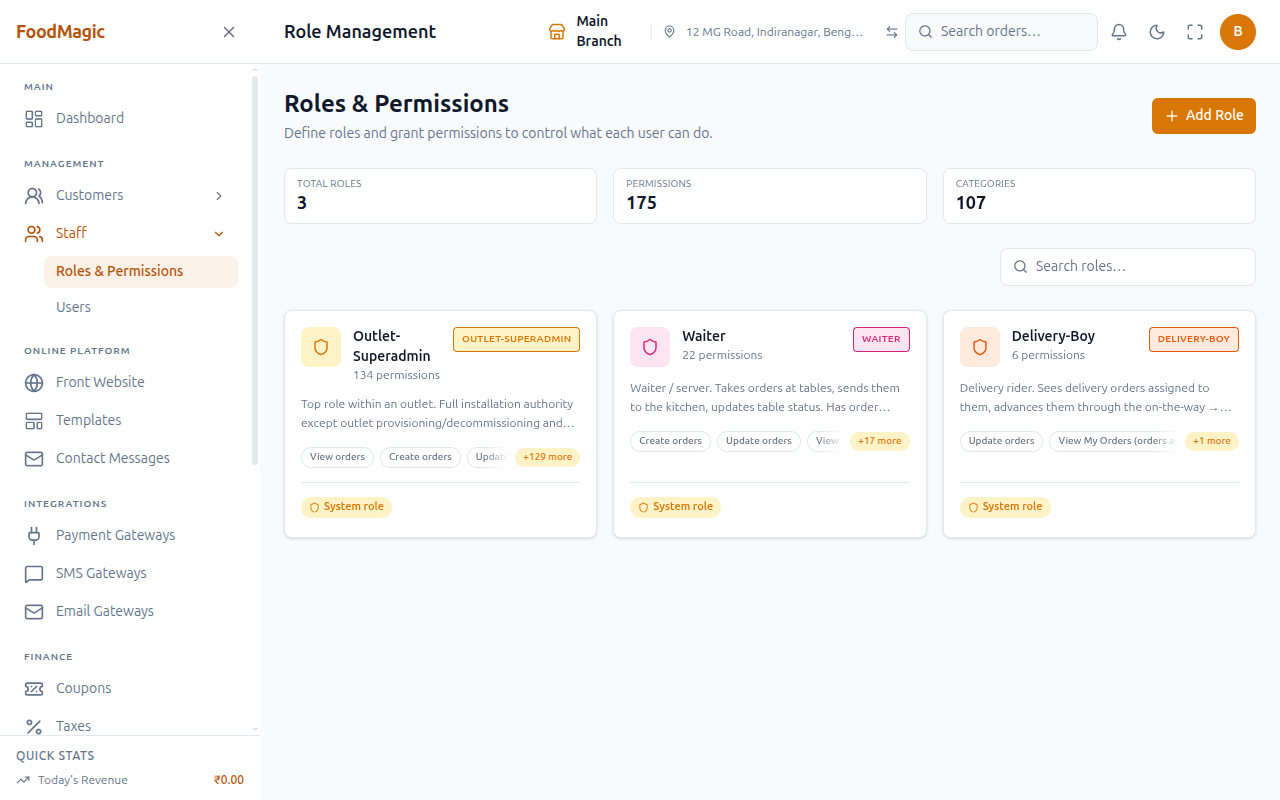
The role editor — Roles & Permissions
Every role in the system — the four built-in ones and any custom role a brand has added — is edited from one screen: Roles & Permissions.
| Control | What it does |
|---|---|
| Add Role | Opens the same editor as Edit, empty |
| Search roles… | Filters the visible role cards by name |
| Role card → Edit (pencil) | Opens the editor pre-filled with that role's name and permissions |
| Role card → Delete (trash, custom roles only) | Deletes the role — hidden entirely for the four built-in roles |
| System role badge (crown/shield) vs Custom role badge | Marks Super Admin, Outlet Superadmin, Waiter and Delivery Rider as built-in and undeletable; anything else is a role the brand created |
One single permission controls all of this — viewing the list, creating a role, renaming one, deleting one, and seeing the full list of permissions. On the Roles & Permissions screen, it's called Manage roles. Unlike the Users screen, there's no separate "view only" permission here — it's all or nothing.
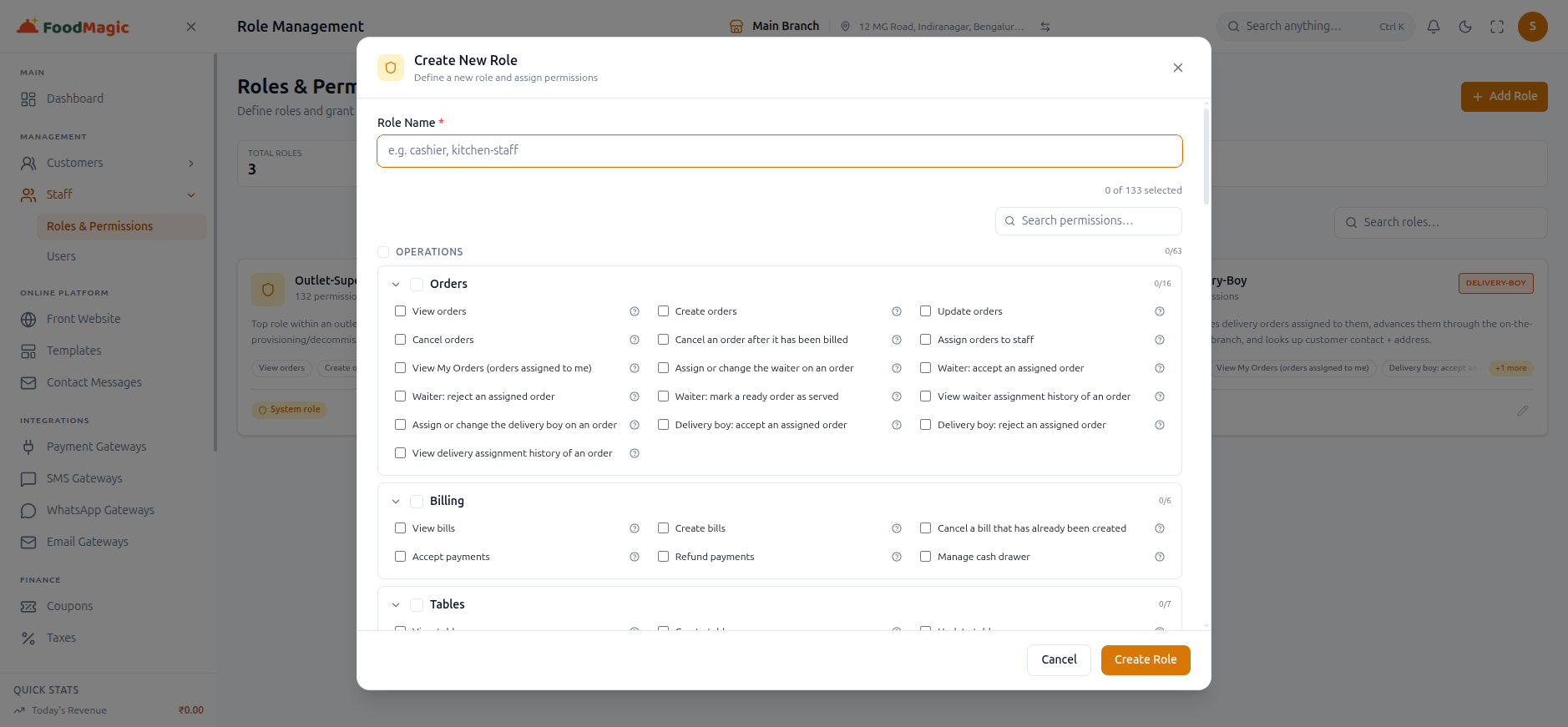
The permission checklist inside Add Role / Edit Role
Permissions are organized in two layers: first by category, then by individual module, shown as cards you can expand or collapse. Each card has its own select all checkbox — it shows a dash if only some of that module's permissions are picked. Click the question-mark icon next to any permission to see what it actually does. When you save, Food Magic only sends the changes — what you added and what you removed — not the entire list.
Whatever number this screen shows will already be a little out of date by the time you read this page. The permission list grows as features ship, so the exact count keeps moving — it was 134 the last time this screenshot was refreshed, 133 the time before that. The shape the screenshot demonstrates is what's stable and worth trusting: this picker only ever offers outlet-level permissions, grouped by module, with a live counter at the top. Trust the counter on your own screen, not any number printed in this page.
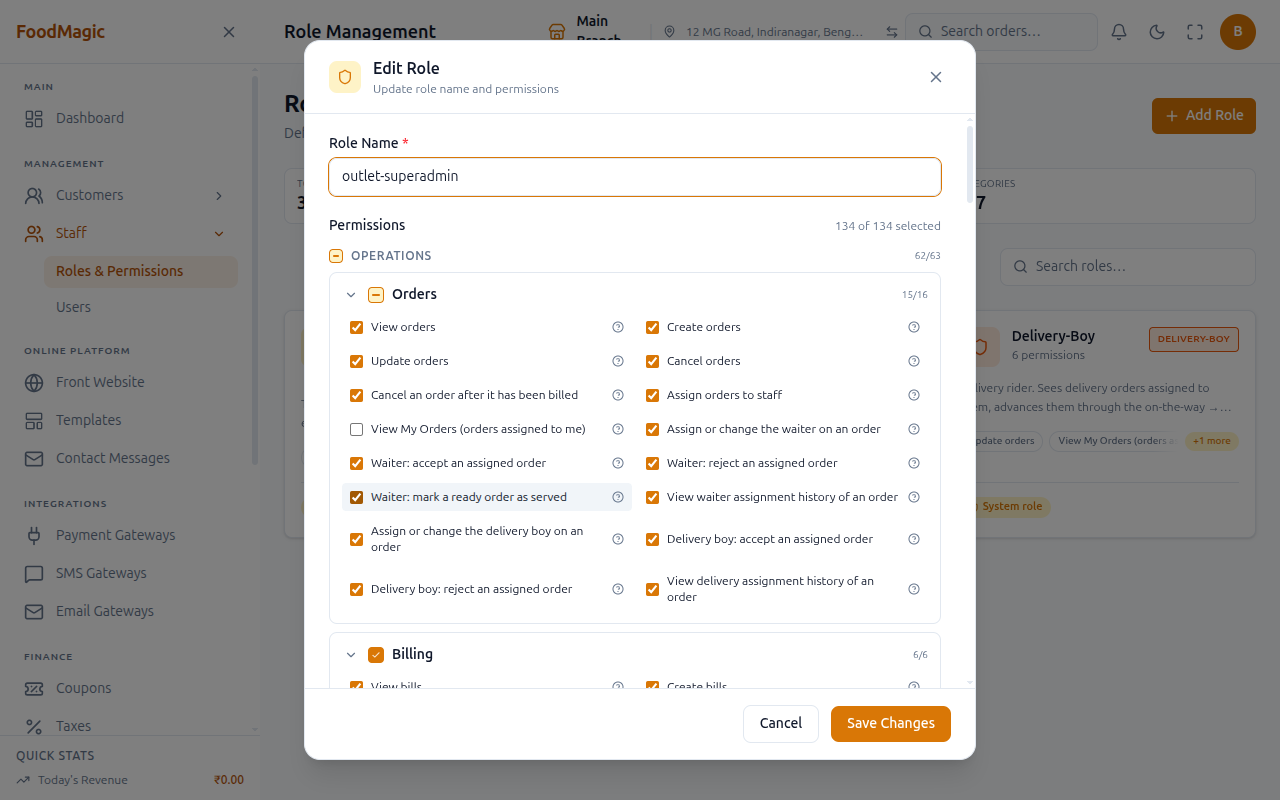
Use this screen when you need a role that doesn't quite match any of the four built-in ones — for example, a shift lead who needs more access than a waiter but less than a full outlet manager. Any custom role you create this way is an outlet-level role.
Something we're still checking, not yet explained: the permission picker seems to group permissions into more categories than you'd expect for the actual number of individual permissions. We haven't tracked down why yet — we're noting it here rather than leaving it out, in line with this site's rule of always mentioning things we've noticed but haven't fully explained.
The permission picker only ever shows outlet-level permissions. Brand-level permissions — the ones that belong to Super Admin — are fixed on that role and can't be added to any other role from this screen. It's not just hidden from view, either: even if someone tried to force a brand-level permission onto another role, Food Magic would refuse to save it.
You can't rename brand-level roles — right now, that just means Super Admin. Only its permissions can be changed, not its name, because other parts of the system rely on that exact name. Outlet-level roles — Outlet Superadmin, Waiter, Delivery Rider, and any custom role a brand creates — can all be renamed freely.
How a permission check actually resolves
Whenever someone clicks a button, or a screen tries to load data, Food Magic asks one question: does this person's current role include the permission that action needs? This check works the same way everywhere in the system:
- Look up the person's one current role.
- Look up whether that role has been given the permission in question, from the same list edited on the Roles & Permissions screen above.
- Before finishing, check whether that specific person has an individual override on their own record (see Special Permissions below) — an override always wins over whatever the role says.
There's no separate, hidden system making this decision behind the scenes. The role's permission list — the same one you edit on the Roles & Permissions screen — is the answer, every time.
On most screens, Food Magic gives the Super Admin role a shortcut: if you're signed in as Super Admin, the screen simply assumes you can do everything, and doesn't actually check the permission list. This applies to the Roles & Permissions page itself, among other screens. There's a stricter check used whenever the system actually fetches data — that one does look at the real, granted permission list, with no shortcut. In practice, this only matters in one unusual situation: if a Super Admin's own role were ever edited to remove a permission it normally has, the button or page would still look available. But trying to actually use it would still be correctly blocked, because the stricter check kicks in at that point. We've confirmed this by checking how the system is built — it hasn't come up yet with a real account.
Giving one person extra access
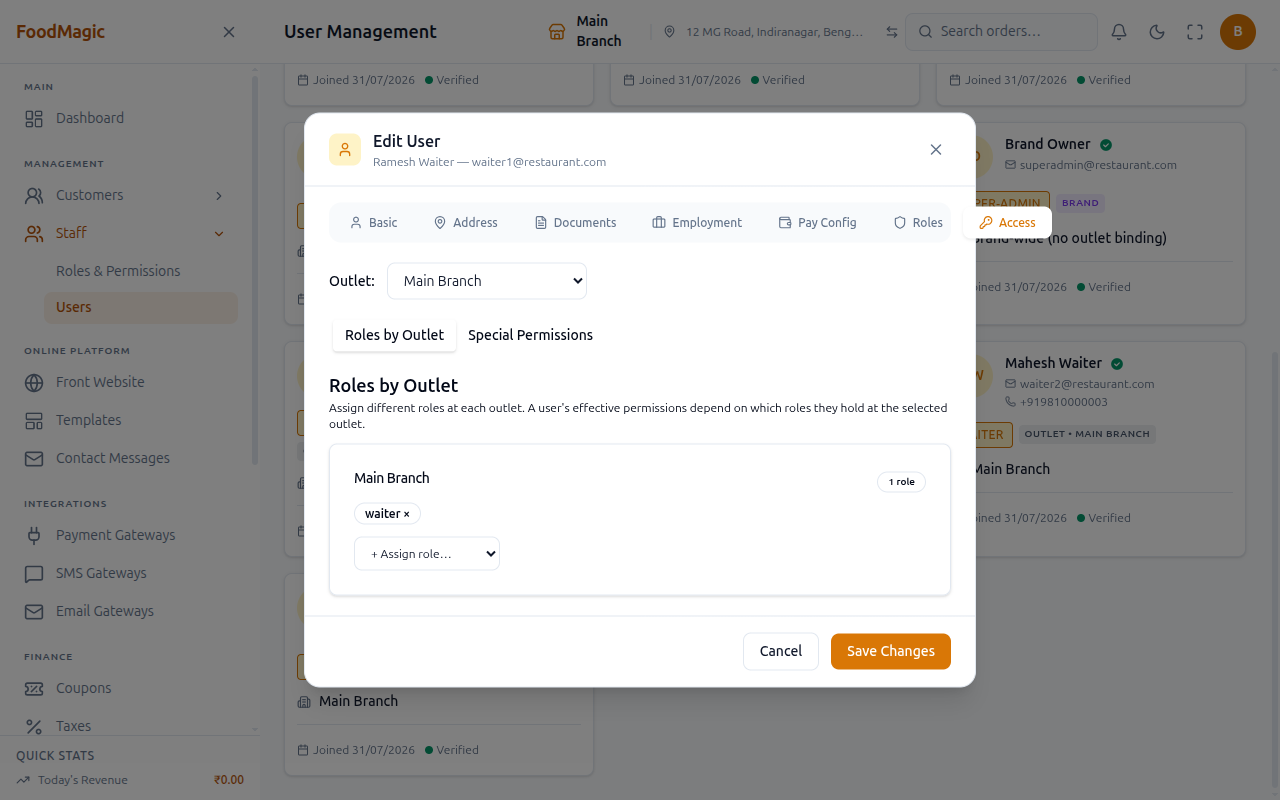
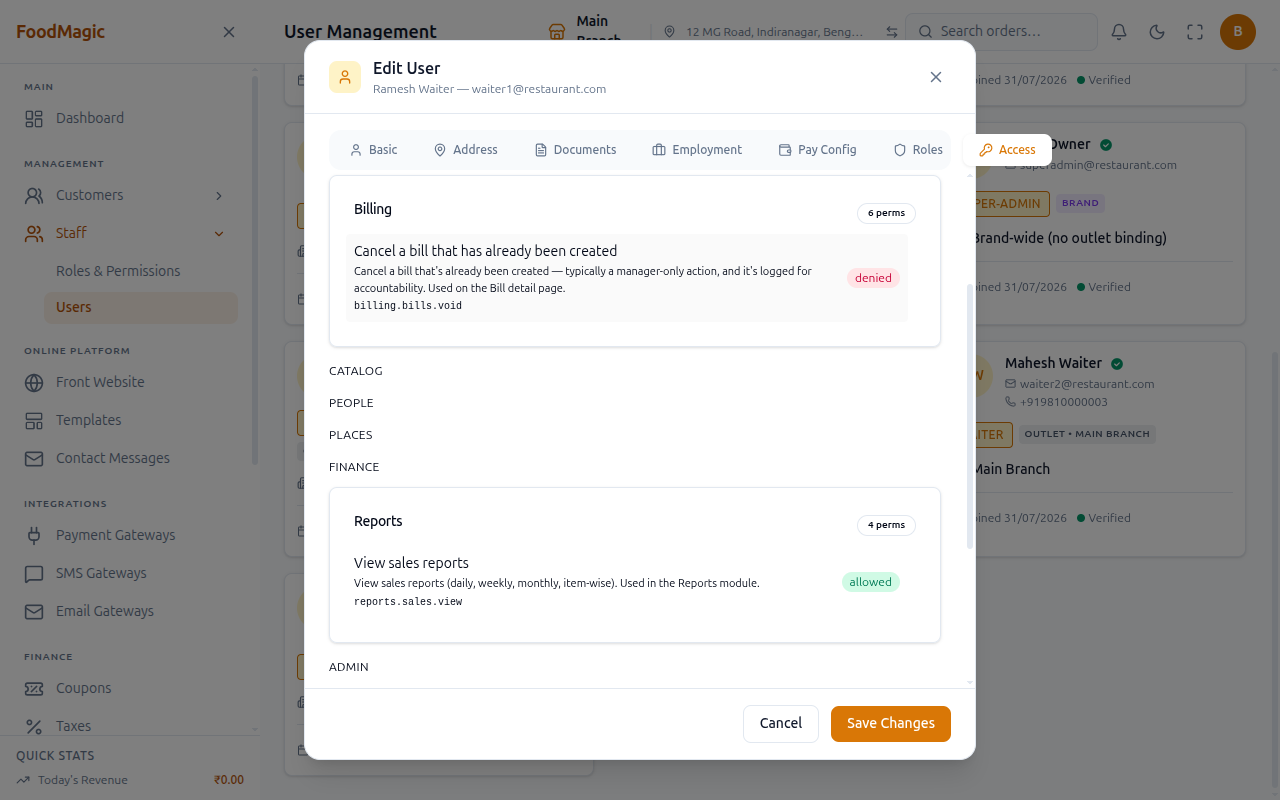
Normally, a person's access comes entirely from their role. But you can also fine-tune one specific person, using the Access tab on their staff record (open a user from Users → Edit). From there you can give them something their role doesn't normally include, or take something away. This tab has two parts.
Roles by Outlet
This changes which role a person holds, and at which outlet. It's the same choice you made when you first created the person, just available here as its own screen instead of a one-time setup step. Use it to fix a wrong role or outlet that was set when the person was created, or to move someone to a different role, without deleting and re-creating their account. This needs the same Manage roles permission as the role editor above.
A person can only hold one role at a time. This is a strict rule, not just a default. The screen looks like a list where you can add extra rows, but trying to give someone a second role at a different outlet, while they still hold their first one, will usually fail to save — the system only allows one role per person. To move someone to a different role or outlet, first remove their current assignment, then add the new one. Don't try to add the new one while the old one is still there.
Special Permissions
This is a list of allow/deny overrides for one specific person, separate from their role. Click a row to cycle through three states: inherited (go with whatever the role says), allowed (grant this even if the role doesn't include it), or denied (block this even if the role includes it). An Only show overrides toggle filters the long list down to just the permissions you've actually changed.
Use this for one-off exceptions — a specific waiter who should also be able to see reports, or a specific outlet manager who should be blocked from one sensitive action their role would otherwise allow. Anyone signed in with outlet access can view a user's overrides, but changing one needs the Manage user permissions permission. Unlike the role editor above, viewing and changing are separate permissions here.
A "denied" override always wins. If someone can't do something their role should normally allow, check their Access tab first. A denied override beats the role, and it also beats an allowed override that came from somewhere else.
How it is secured
Permission required
Managing roles and their permissions — viewing the list, creating, renaming or deleting a role, and choosing its permissions — all depends on one single permission. On the Roles & Permissions screen, it's called Manage roles. By default, only the Super Admin role has it, because it's a brand-level permission, and Super Admin is currently the only brand-level role. An Outlet Manager, Waiter or Delivery Rider cannot open Roles & Permissions at all, unless someone has specifically given them that permission.
Overriding one person's permissions — the Special Permissions tab — needs a separate permission, called Manage user permissions. Simply viewing someone's existing overrides needs nothing beyond being signed in with outlet access; changing one needs that extra permission.
Role access
Only the Super Admin role is meant to reach Roles & Permissions — that matches the "manage the system" job described earlier. Every other role, including Outlet Manager, manages staff, not the roles themselves. An Outlet Manager can create, edit and delete user accounts at their branch, but cannot create or change what a role is allowed to do.
Tenancy scoping
- Day-to-day records belong to one branch. Orders, customers seen at the till, tables, and so on all belong to a specific branch, and staff only ever see their own branch's records. The Super Admin sits outside this boundary entirely — that's exactly what lets them work across every outlet.
- The list of roles itself isn't tied to one brand. Unlike day-to-day records, nothing connects a role to the brand that created it. A custom role created by one brand's Super Admin sits in the same shared list as every other brand running on the same Food Magic installation — and would show up in another brand's role editor too.
Custom roles are shared across the entire platform, not kept separate per brand. On a system running only one brand, you'd never notice this — there's nothing else around to clash with. But on a system running more than one brand, a role name chosen by one brand (say, "Shift Lead") would be visible to every other brand's Super Admin too. We've confirmed this by checking how the system works, though we haven't tested it live with two brands side by side. It's still on the list of things for the security review to look at.
Validation
- A role must have a name, and no two roles can share the same name.
- The permission picker only ever offers outlet-level permissions to an outlet-level role. A brand-level permission can never be attached to an outlet-level role — even trying to force it fails, and the save is rejected.
- A person can hold exactly one role at a time — see the Roles by Outlet warning above.
Audit trail
None of this shows up in the Audit Logs area today. Creating, renaming or deleting a role, changing which permissions a role has, and moving a person from one role to another — none of it leaves a trace there. The only record is what the role and the person's assignment look like right now, not a history of who changed what, or when.
Related pages
Every settings screen, and which of these four can open it.