
How discounts work
Discount rules, service charges, Quick Order Presets, and how a discount or coupon amount reaches the saved order — including the gap in how it's checked.
There are two separate reductions that lower what a customer pays, and they work differently. Both feed into the same tax calculation — see how tax works for how a discount or coupon amount is turned into what actually gets taxed.
| Discount | Coupon | |
|---|---|---|
| Set up at | Rules & Presets, per outlet | Coupons, per brand |
| Who creates it | Outlet owner | Brand admin only |
| Can be checked before use | No | Yes |
| Re-checked when the bill is saved | No | No |
Discount rules
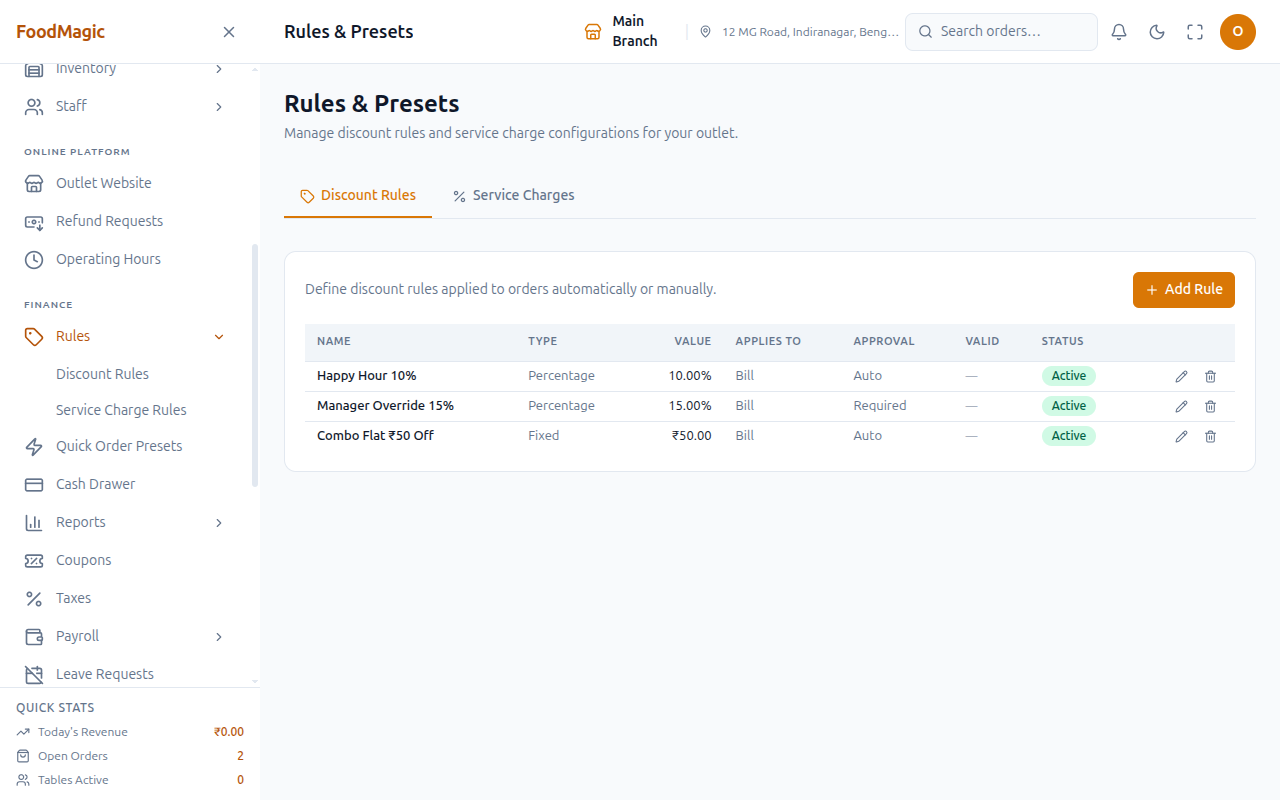
Set per outlet under Rules & Presets → Discount Rules, each with a name, type, value, what it applies to, an approval setting, a validity period and a status.
The approval setting is the one that matters:
- Auto — applies on its own, no one has to agree to it
- Required — a manager must approve before the discount goes on the bill
Supplied examples: Happy Hour 10% (auto), Manager Override 15% (approval required), Combo Flat ₹50 Off (auto).
A waiter can see this screen, because they need to be able to tell a customer which discounts apply, and whether one needs a manager's approval before it lands on the bill. There's no Add Rule button for them — only the outlet owner (or a role given the matching permission) can create or edit a rule.
Service charges
The second tab on the same screen adds charges automatically by order type — supplied examples are a 5% dine-in service charge and a ₹30 delivery handling fee. Whether these are taxed depends on the brand tax setting — see how tax works. Like Discount Rules on the tab next to it, a waiter can see which service charges apply to which order type, but has no Add Rule button of their own.
Quick Order Presets
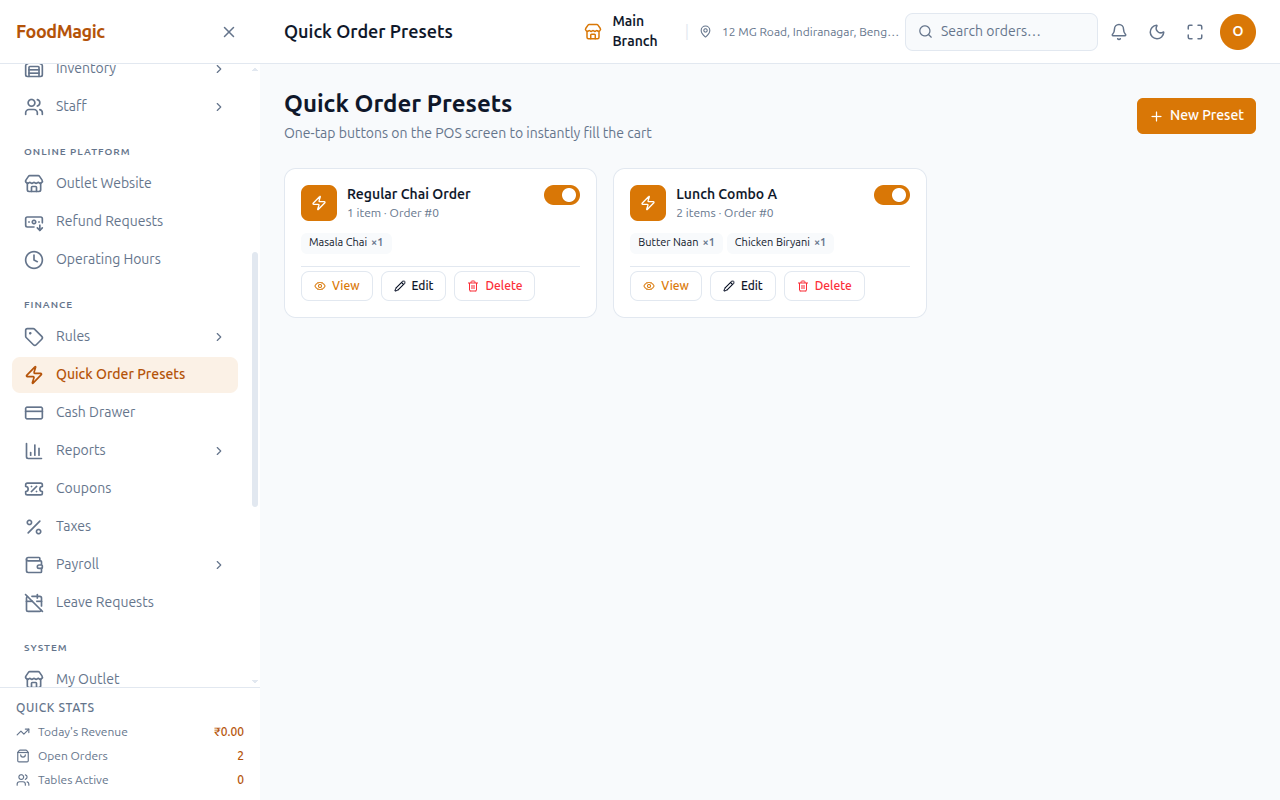
A separate screen from Discount Rules, but in the same Rules & Presets area of the sidebar — this one has nothing to do with tax or discounting. It saves a whole basket of items as one button.
A preset stores a fixed set of items under a name — "Lunch Combo A", "Regular Chai Order" — so a cashier taps one button at the till instead of adding each item individually. Presets have their own display order (for button layout) and can be turned on or off.
Set up once by whoever configures the outlet's till shortcuts, then tapped repeatedly during service — any combination of items that comes up often is worth turning into a preset.
Viewing the preset list is deliberately covered by the same permission as viewing discount rules, since both screens live under the same sidebar entry — holding either one gives you the read access. Creating, editing or deleting a preset works the same way, covered by either its own permission or the discount-rules one. Presets belong to a single outlet, so one branch's shortcuts never show up at another's till.
How the discount reaches the bill
The discount and coupon amounts are decided by the till, and aren't checked again against the rules when the bill is saved.
The coupon screen can check whether a code is valid, and the POS uses that check before applying one. But when the finished order is submitted, the amounts are accepted as sent. Nothing compares them again against the discount rules, the coupon's minimum order value, or its usage limit.
This matters twice over, because with the default after discount tax base, an inflated discount reduces both what the customer pays and the amount GST is charged on — see what tax is charged on.
Whether the totals should be checked again when an order is saved is a business decision — recorded here as an open item for the security review. As of this writing there is no tracked GitLab issue for it.
Demo: watching the gap happen live
Confirmed live, not just from reading the code — done end to end through the real POS as Owner, with a live network tamper standing in for a modified till client or a proxy tool sitting between the browser and the server.
Takeaway, one Paneer Tikka at ₹280, Happy Hour 10% selected from the
discount dropdown — an actual configured rule (discount_rule_id: 1,
capped at ₹100). The panel computes it correctly: −₹28.00, GST +₹12.60,
payable ₹264.60.
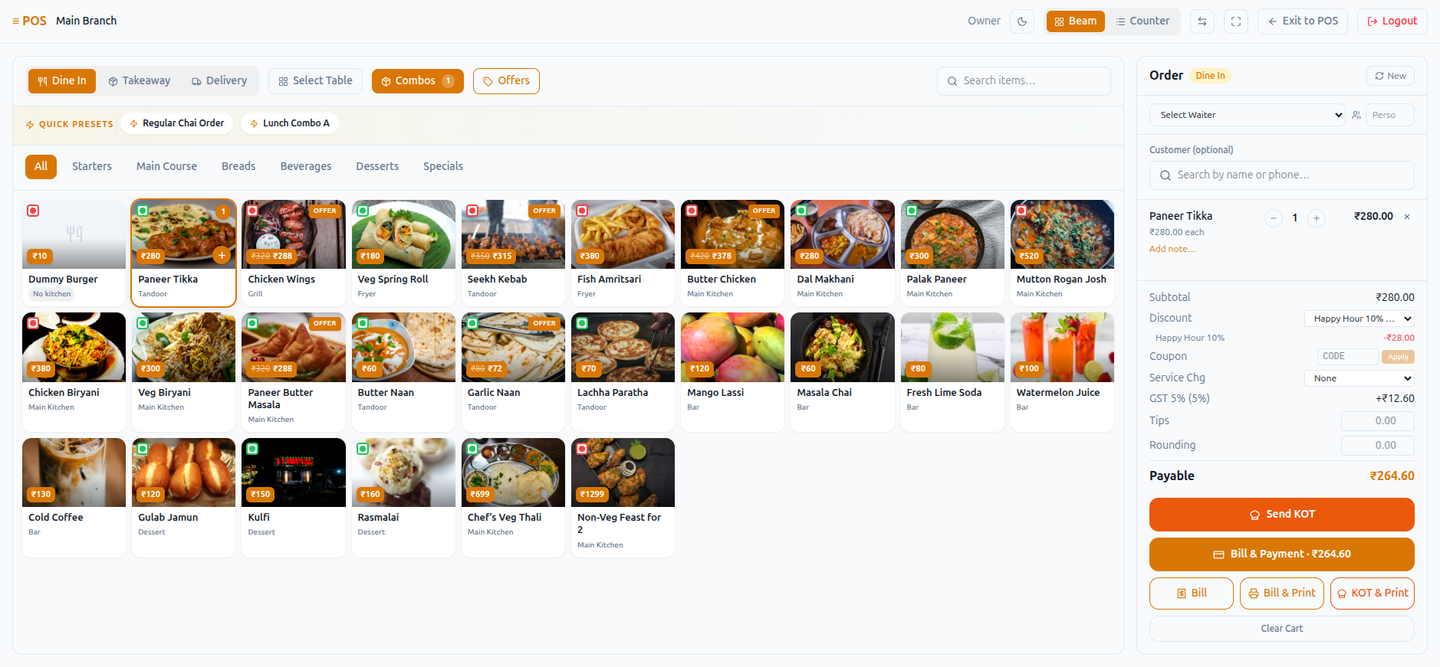
Before clicking anything, the outgoing order-save request was rewritten —
from the same browser tab, the same access a proxy tool gives an
attacker — to carry discount_amount: 5000 instead of the real 28.
Nothing else changed: not discount_rule_id, not what the cashier's own
screen showed. Then the real Bill & Payment · ₹264.60 button was
clicked, exactly as a cashier would.
The order was already created by the time the payment modal opened. It asks to collect ₹0.00 — while the cashier's own side panel, one component over, still reads "Payable ₹264.60." Nothing flagged the mismatch.
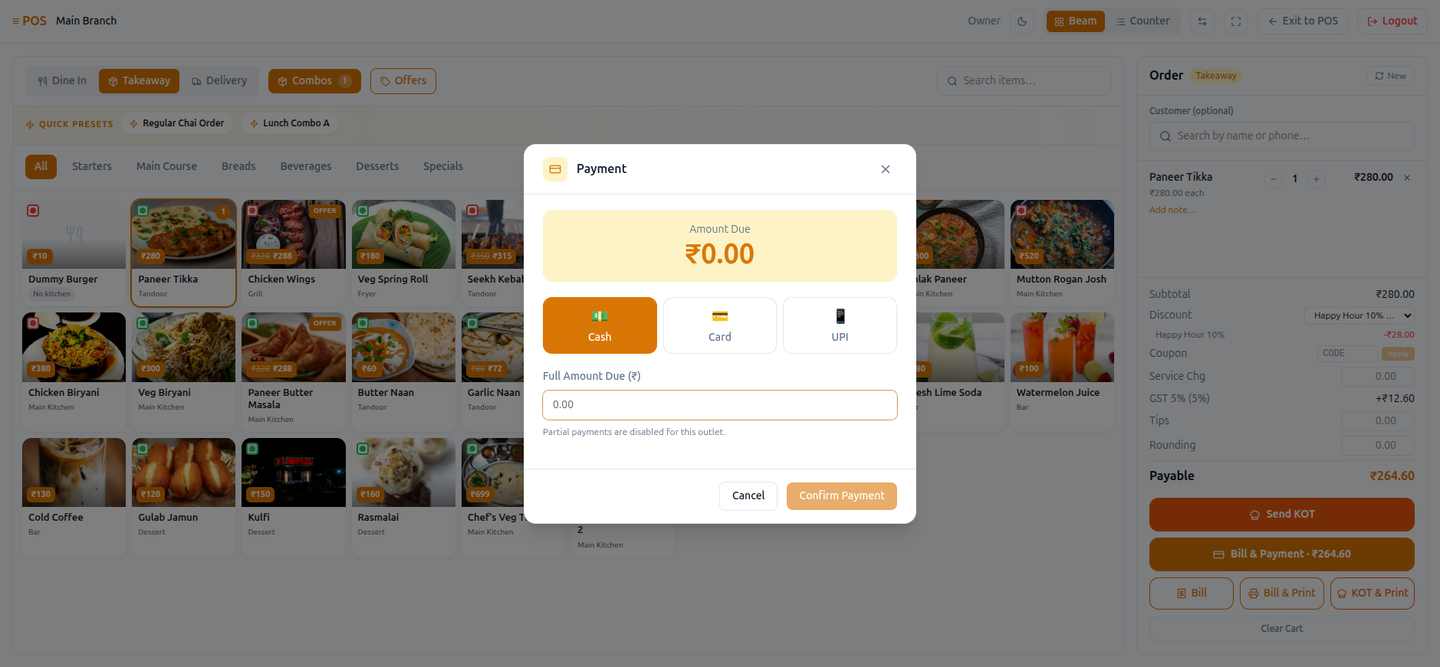
The saved order — Accepted, ready for "Start Preparing" — carries a −₹5,000.00 discount line on a ₹280 item and ₹0.00 payable. Not a display glitch: this is the row Order Management, the kitchen, and reporting all read from. The printable customer receipt reflects the same fabricated number.
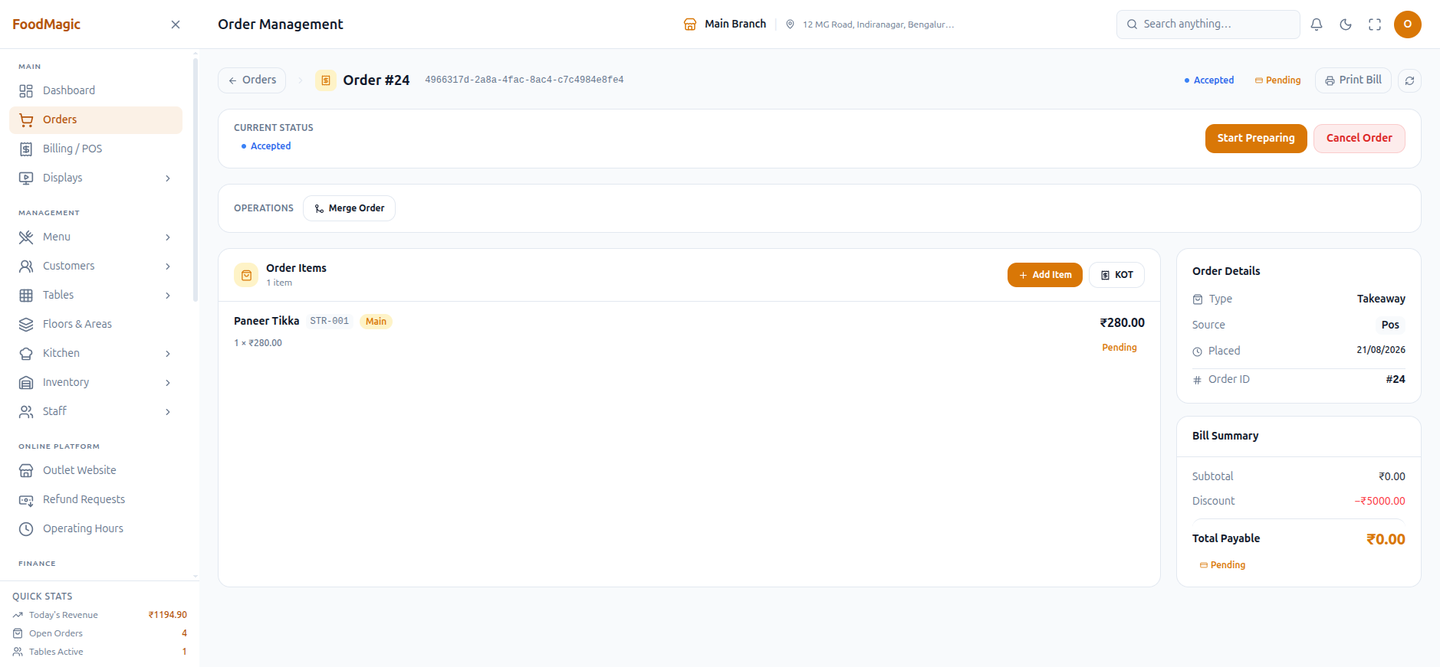
The coupon field was tested the same way, independently, to isolate it
from the discount field: an order was created with coupon_amount: 500
and no coupon code referenced anywhere — no code on this brand is
large enough to justify that figure. Saved without complaint.
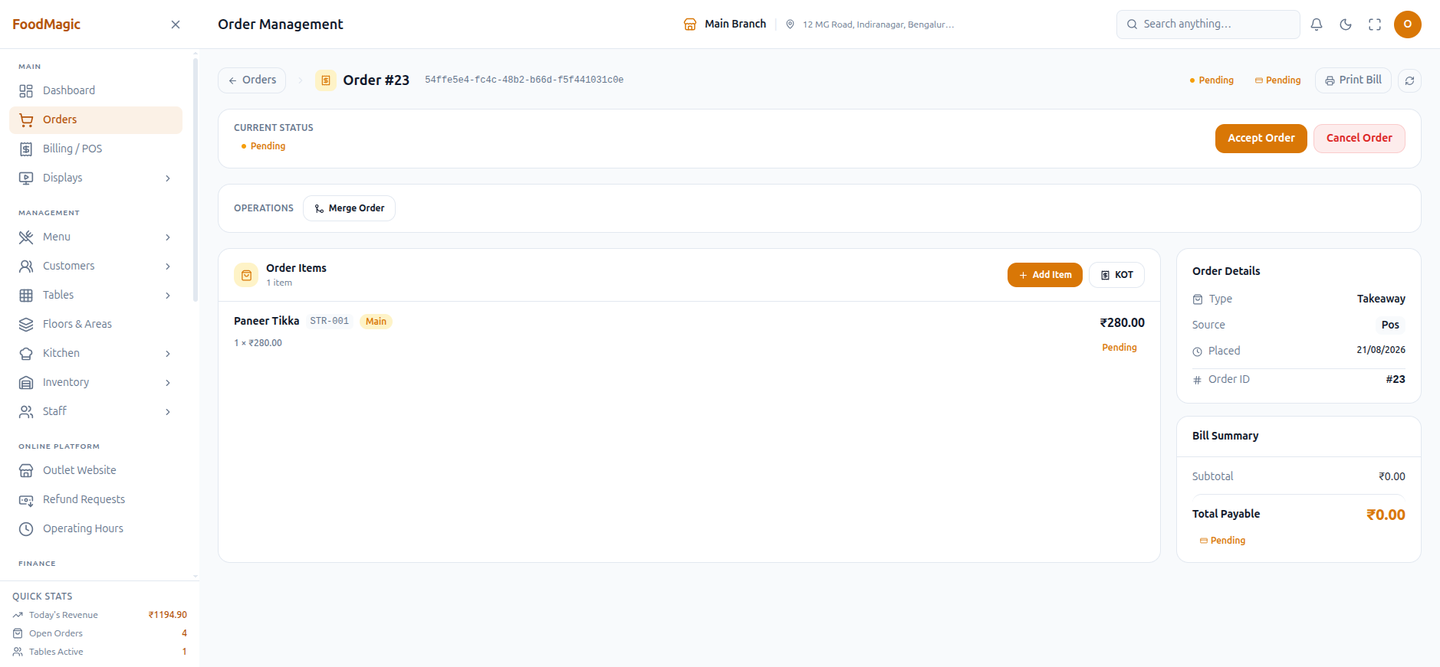
All test orders created for this demo were cancelled immediately after each screenshot — nothing was left in the live order queue.
Some history worth knowing: coupon amounts were once dropped silently when an order was saved, so bills were charged as though no coupon had been used — overcharging customers compared to what the POS screen showed them. That was fixed, but it shows how quietly a totals bug can behave.
A worked example
A ₹1,000 order on default settings, with a ₹100 coupon, a 5% service charge and an 18% exclusive GST rate:
| Step | Amount |
|---|---|
| Dishes | ₹1,000.00 |
| Less coupon | ₹900.00 |
| Service charge (5%) | ₹45.00 |
| Amount to be taxed | ₹945.00 |
| GST at 18% | ₹170.10 |
| Total | ₹1,115.10 |
| Rounding | −₹0.10 |
| Customer pays | ₹1,115.00 |
What the coupon actually saved
Run the same order with no coupon and the difference is bigger than it looks:
| No coupon | With ₹100 coupon | |
|---|---|---|
| Amount to be taxed | ₹1,050.00 | ₹945.00 |
| GST at 18% | ₹189.00 | ₹170.10 |
| Customer pays | ₹1,239.00 | ₹1,115.00 |
A ₹100 coupon takes ₹124 off the bill — a quarter more than its face value. The coupon reduces the dishes total, which reduces the 5% service charge worked out on it, which reduces the tax charged on both. Worth knowing when pricing a promotion. The full step-by-step calculation that produces these numbers is covered in how tax works.
Related pages
- How tax works — the other half of the bill calculation: tax modes, inclusive vs exclusive, and the full step-by-step order the calculation runs in.
- Coupons — the other on-invoice reduction, set up and managed separately at brand level.
- Menu Items — where the items a discount or preset applies to are defined.
- Orders — where a discount or coupon actually lands on a saved order.
- Roles & Permissions — where discount-rule editing rights get assigned to a role.