
How an order works
The full order process end to end — who places an order, who accepts it, who cooks it, who serves it, and who takes the money.
This is the most important process in Food Magic. It explains who does what, and in what order.
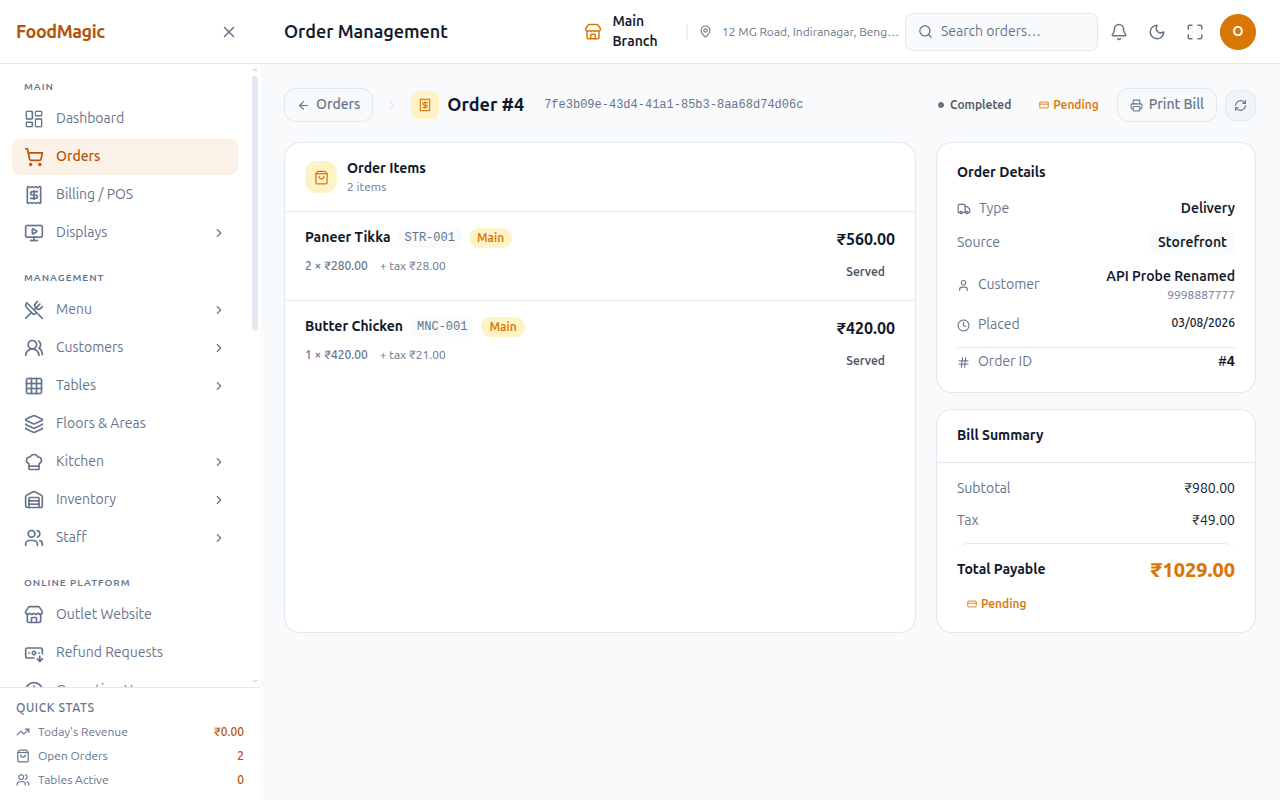
What it is
An order goes on a journey from the moment it's placed to the moment it's paid and closed. That journey runs across several parts of the system: the Billing/POS till, the Orders and My Orders/My Deliveries screens, the Kitchen Display, Notifications, and Loyalty. Up to four different people can touch one order — the person who places it, the waiter or rider it's assigned to, the kitchen, and a manager. Each one works from their own screen.
Looking for the actual till screens — choosing an order type, adding items, applying a discount or coupon, sending to the kitchen? That's covered step by step in Taking and managing orders. This page picks up from there: what happens to an order once it exists, who's responsible for it at each stage, and how each step is secured.
Everything on this page was checked directly against the real, running system — the list of order stages, which stage follows which, which button is disabled and why, and which permission unlocks each action. Anywhere that wasn't checked this way, it's called out.
The short version
An order is placed, then accepted by a person, cooked by the kitchen, handed over to the customer, and paid for.
flowchart LR
    A[📝 Order placed] --> B[✅ Accepted]
    B --> C[🍳 Kitchen cooks it]
    C --> D[🔔 Ready]
    D --> E[🤝 Handed to customer]
    E --> F[💳 Paid & completed]
Who places the order?
An order can start in three different ways.
At the table or the counter, using Billing / POS.
Also from Billing / POS — the manager can do everything a waiter can.
Themselves, on your website. These arrive marked STOREFRONT.
A delivery rider never places an order. They only receive one that has already been placed and assigned to them.
How it works
The process is the same for a while, then splits depending on the order type. All three types share the same first stages — Placed → Confirmed → Preparing → Ready — and then go different ways when it's time to hand the order over.
flowchart LR
A[📝 Waiter or customer places order] --> B[✅ Manager confirms it]
B --> C[🧑🍳 Order assigned to a waiter]
C --> D{🤔 Waiter decides}
D -->|Accepts| E[🙋 Waiter is responsible]
D -->|Declines with reason| C
E --> F[🍳 Sent to kitchen]
F --> G[👨🍳 Kitchen cooks and bumps items]
G --> H[🔔 Ready to Serve]
H --> I[🍽️ Waiter serves the items]
I --> J[💳 Payment taken]
J --> K[✅ Table freed, order completed]
A waiter or the manager takes the order at the table on the till, choosing the table and how many people are eating. Placing an order needs the Create orders permission.
Moving an order out of Placed needs the Update orders permission. If the order is assigned to a specific waiter, there's one extra rule: it can't move to Confirmed until that waiter accepts it from their own My Orders queue. A manager can push it through directly instead, but only if they hold Assign or change the waiter on an order — that permission acts as an override.
On My Orders, the assigned waiter accepts the order (needs Waiter: accept an assigned order) or declines it with a reason from a preset list (needs Waiter: reject an assigned order). A decline sends the order back to be given to someone else, and it's recorded in the order's waiter history. Only the waiter the order is actually assigned to can accept or decline it — unless a manager holds the assign permission above, which also lets them act on anyone's queue.
Once the order is sent to the kitchen (Send KOT on the till), each dish goes to its own station — tandoor, grill, fryer, bar, dessert, or the main kitchen. From here, the order updates itself: as soon as any dish moves past Placed on the Kitchen Display, the whole order shows as Preparing automatically. Nobody has to set that by hand.
Once every dish sent to the kitchen has been marked Ready on the Kitchen Display, the whole order switches to Ready by itself, the same way.
The waiter serves the food from My Orders, either one dish at a time or as a whole order. This needs its own permission, Waiter: mark a ready order as served. It's kept separate from the general editing permission a waiter already has, on purpose — so an owner can let a waiter build and edit an order without also letting them close out service. Like Preparing and Ready, the order's Served stage is set automatically once the items are marked served — nobody sets it directly.
A whole order can't be marked Served while any dish sent to the kitchen is still cooking. The button is disabled, with a message explaining why. Marking food as served before it's actually come out of the kitchen would record a serving time that never really happened.
The bill is settled from Bill & Payment on the till, and the order is marked Completed (Update orders). Unlike the earlier stages, Completed and Cancelled are never set automatically — someone always has to do it.
Behind the scenes, a notification may go out (see below), and if the order is linked to a customer, they get loyalty points once it's completed. Whether the table frees itself automatically, or needs clearing by hand, depends on a setting for the whole brand.
flowchart LR
A[📝 Order placed at counter or online] --> B[✅ Manager confirms it]
B --> C[🍳 Sent to kitchen]
C --> D[👨🍳 Kitchen cooks and bumps items]
D --> E[🔔 Ready]
E --> F[🛍️ Customer collects: Picked Up]
F --> G[✅ Completed]
Same as dine-in, except there's no waiter step — a takeaway order has no waiter assigned, so there's nothing to accept.
The customer collects the order at the counter. Moving to Picked Up needs the Update orders permission.
The order closes.
A takeaway order can be completed even if it hasn't been paid yet. Only delivery has a payment check at this stage.
flowchart LR
A[📱 Customer orders online or by phone] --> B[✅ Manager confirms it]
B --> C[🧑💼 Manager assigns a delivery rider]
C --> D{🤔 Rider decides}
D -->|Accepts| E[🏍️ Rider is responsible]
D -->|Declines with reason| C
E --> F[🍳 Kitchen cooks it]
F --> G[🔔 Ready]
G --> H[📦 Picked Up by rider]
H --> I[🚴 Out for Delivery]
I --> J[📍 Reached]
J --> K[🏠 Delivered]
K --> L{💳 Paid?}
L -->|Yes| M[✅ Completed]
L -->|No| N[❌ Cannot complete until paid]
Identical to the other two types.
A manager assigns a delivery rider from the Orders screen — needs Assign or change the delivery boy on an order.
On My Deliveries, the assigned rider accepts the delivery (needs Delivery boy: accept an assigned order) or declines it with a reason from a preset list (needs Delivery boy: reject an assigned order), which sends it back to be reassigned. Just like the waiter, only the assigned rider can accept or decline — unless a manager holds the assign permission above and overrides it.
The rider walks the order through each stage from My Deliveries, needing the Update orders permission at each step.
The order closes once payment is settled.
Two checks can block a delivery order:
- It can't be marked Picked Up or sent Out for Delivery until a rider is assigned. The button is disabled, with the message "Assign a delivery boy first".
- It can't be completed until payment is marked as collected. The button is disabled, with the message "Collect payment first". This check only applies to delivery — dine-in and takeaway can be completed with payment still outstanding.
Where the order status comes from
Placed, Confirmed, Preparing, Ready, and Served all update themselves, based on the order's own items — nobody sets these by hand. As the kitchen marks each dish done, and the waiter serves each one, the order's overall stage follows automatically. Completed and Cancelled, along with every delivery stage (Picked Up, Out for Delivery, Reached, Delivered), are the only stages a person sets directly — these are billing or dispatch decisions, not something the food itself can tell you.
This is why a waiter serves items one at a time instead of just flipping the whole order to Served. It's also why pulling back one dish on the Kitchen Display — if it was bumped by mistake — can pull a Ready order back down to Preparing automatically.
What the waiter sees
When a waiter signs in, they land on a dashboard built around their part of the job, showing a live count at each stage:
| Counter | What it means |
|---|---|
| To Accept | Orders assigned to you, waiting for you to accept or decline |
| Preparing | Yours, currently being cooked |
| Ready to Serve | Cooked — go and serve these |
| Today's Orders | Everything you have handled today |
| Served Today | How many you have served |
| Completed Today | How many have closed |
Their quick actions are New Order, My Orders, Tables, and Kitchen Display — the four screens the job actually needs. Below the counters, a live My Active Orders list shows what they're currently working on. When there's nothing in progress, it says "No active orders — take one from Billing / POS."
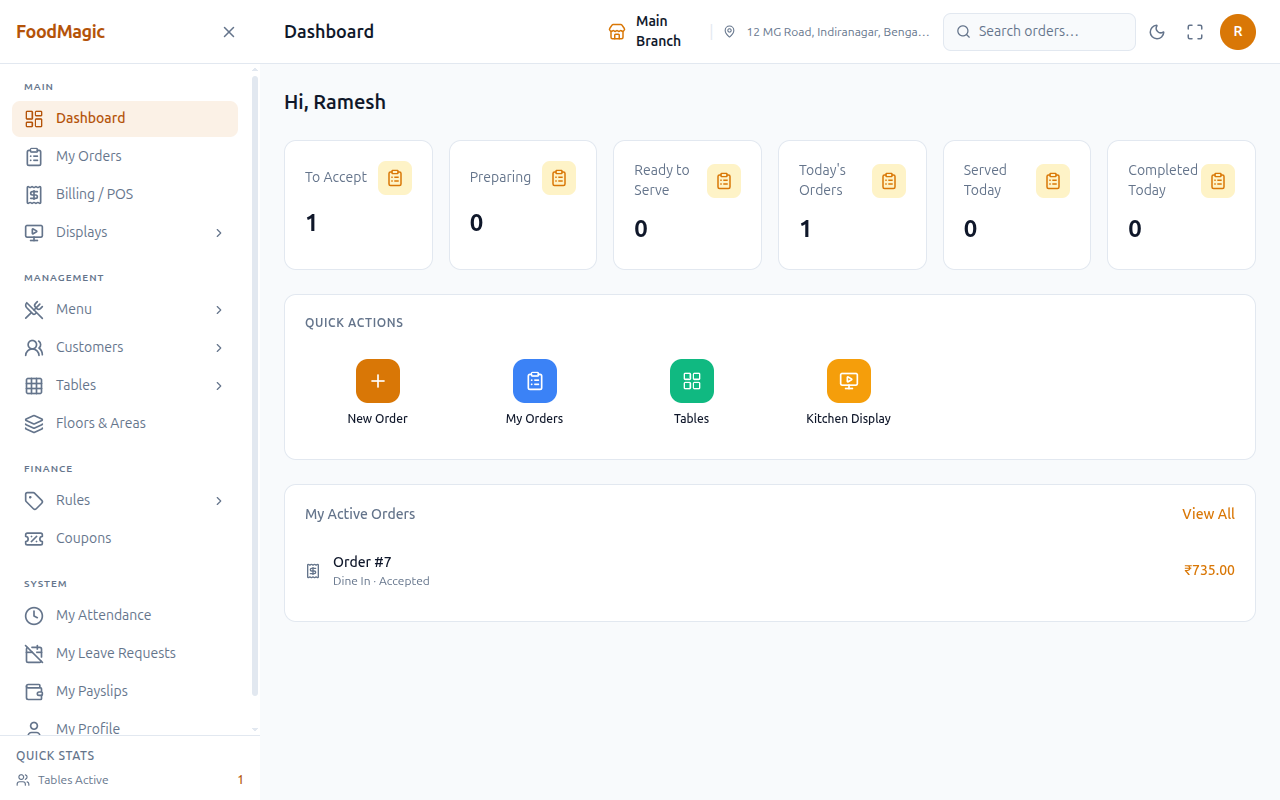
A waiter's dashboard never shows a revenue figure. The owner's dashboard leads with money. The waiter's leads with To Accept and Ready to Serve — the two counts that mean someone is waiting on them.
When an order the waiter accepted becomes ready, they are alerted. The alert deliberately goes only to the waiter who accepted it, not to everyone on the floor.
What the rider sees
When a delivery rider signs in, they land on their own dashboard, built around one question: what am I carrying right now?
| Counter | What it means |
|---|---|
| To Accept | Deliveries assigned to you, waiting for you to accept or decline |
| Out for Delivery | Yours, currently on the road |
| Today's Deliveries | Everything assigned to you today |
| Delivered Today | How many you have handed over |
| Completed Today | How many have closed |
Their only quick action is My Deliveries — the one screen the job needs. Below the counters, a live panel shows their current work. When there's nothing in progress, it says "No active deliveries assigned." The My Deliveries screen refreshes itself automatically every 14 seconds.
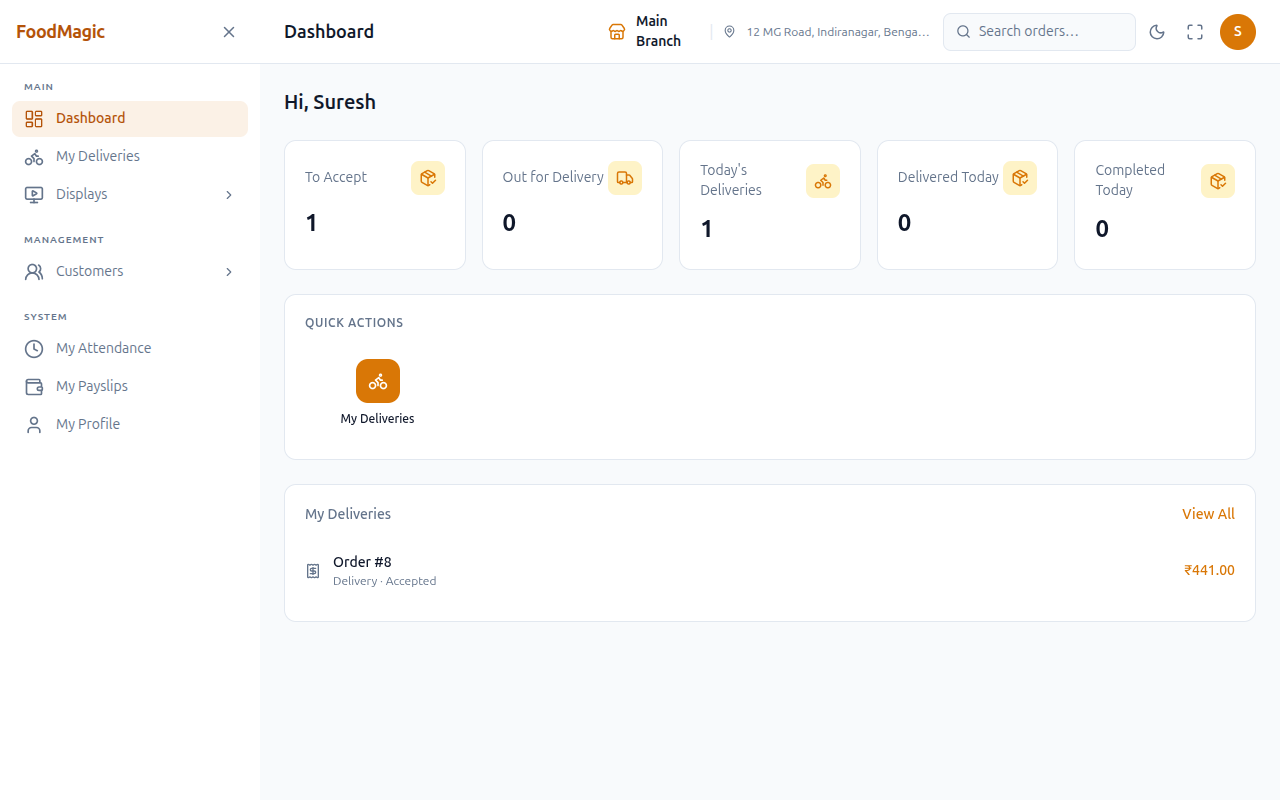
Like the waiter's dashboard, there's no revenue figure, no order totals, and no table information. The owner's dashboard leads with money, the waiter's leads with To Accept and Ready to Serve, and the rider's leads with To Accept and Out for Delivery — the two counts that mean something is waiting on them.
What the kitchen does
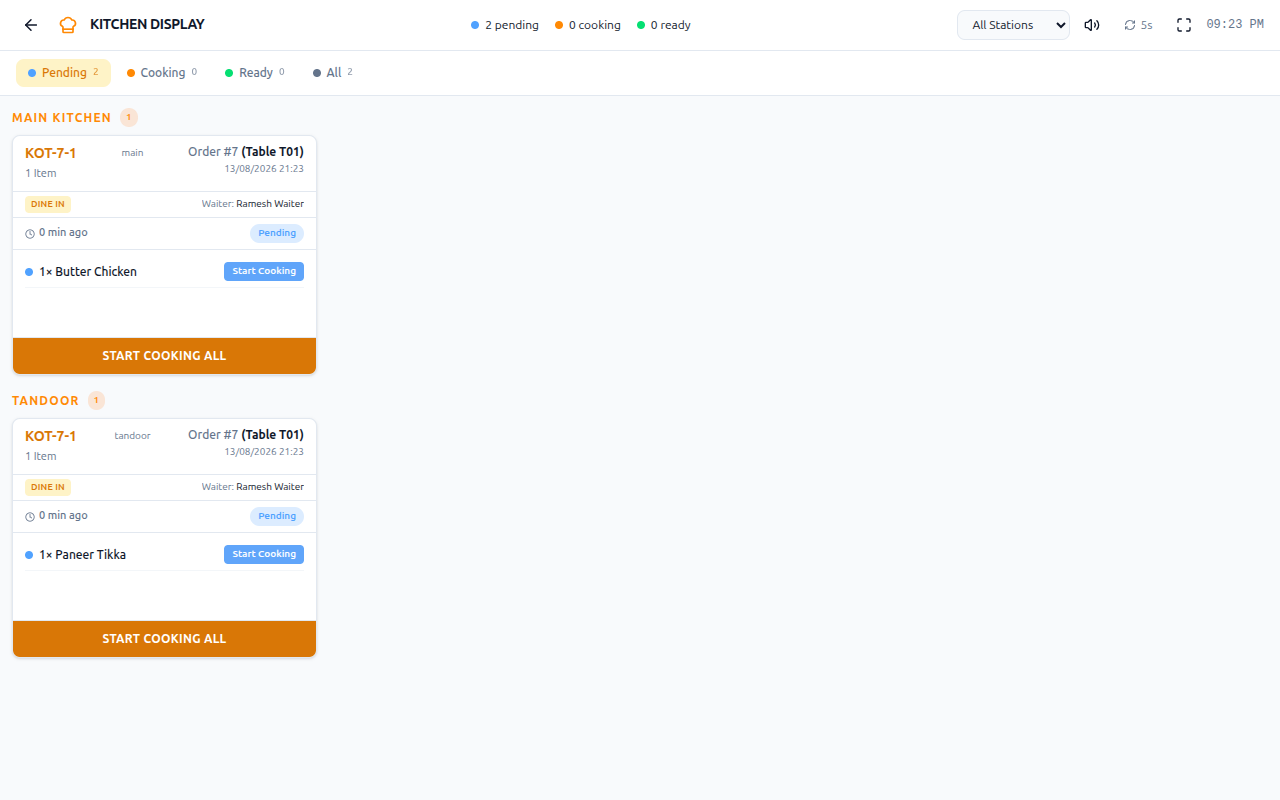
The kitchen works from the Kitchen Display.
flowchart LR
  A[📥 Items arrive from Send KOT] --> B[🔀 Routed to a station]
  B --> C[🍳 Cooked]
  C --> D[✅ Bump]
  D --> E[🔔 Item is Ready]
  E -.->|Bumped by mistake| F[↩️ Recall]
  F --> C
Each dish goes to a station — Tandoor, Grill, Fryer, Bar, Dessert, or Main Kitchen — set up under Kitchen → Stations. The station shows on the dish tile at the till, so whoever takes the order can see where it will be cooked.
- Bump — mark the dish as done and clear it from the screen.
- Recall — bring back a dish that was bumped by mistake. Since the order's stage is calculated from its items, a recall can pull the whole order's stage back down too.
- Reassign — move a dish to a different station, one at a time or in bulk.
If something goes wrong
The waiter declines the order
The waiter picks a reason from a set list, and the order goes back to be assigned to someone else. The list of reasons is managed centrally, so declines can be tracked and reported on.
The rider declines the delivery
Same idea — the rider picks a reason from a list, and the order goes back to be reassigned. Delivery has its own separate list of reasons.
The customer cancels
Cancelling an order is a manager-level action, and a reason is recorded. How long a customer's own cancel button stays available is set in the brand's Front Website settings — separately for prepaid orders and cash-on-delivery orders.
The customer wants their money back
Requests show up under Refund Requests. Approving a refund and actually paying it out are two separate steps, so a manager can agree to a refund before any money moves. The refund can be paid back as money, or given as credit for the customer to spend next time.
Two tables join together
Merge the tables, which combines their orders into one bill. Splitting does the reverse.
How it is secured
Once an order is Cancelled or Completed, it's frozen. No further status change, item edit, or reassignment is allowed on it, anywhere in the system.
Every step below is controlled by its own switch on the Roles & Permissions screen. Day to day, a waiter or rider only sees the ones relevant to their job. An owner decides which role gets the rest.
| Step | The permission that unlocks it | Notes |
|---|---|---|
| See the full outlet order list | View orders | Full visibility across the outlet's orders |
| See just your own queue | View My Orders (orders assigned to me) | A narrower view for floor and delivery staff, who shouldn't see the whole outlet's orders. The owner doesn't get this one — they use the full list instead |
| Place an order | Create orders | Also covers viewing the order right after you place it on the till |
| Edit an open order, and general status moves | Update orders | Covers editing items and notes, and moving the order through its ordinary stages from Placed to Completed |
| Assign or reassign the waiter | Assign or change the waiter on an order | Resets the order to await that waiter's acceptance again |
| Waiter accepts / declines | Waiter: accept an assigned order / Waiter: reject an assigned order | Restricted to the assigned waiter, unless the acting user also holds the assign permission above |
| Mark a ready order Served | Waiter: mark a ready order as served | A separate switch from general editing, so serving can be reserved for a senior role |
| View an order's waiter history | View waiter assignment history of an order | — |
| Configure the waiter decline-reason list | Manage waiter reject reasons catalog | Brand-wide list, set once by a brand admin rather than per outlet |
| Assign or reassign the delivery rider | Assign or change the delivery boy on an order | Resets the order to await that rider's acceptance again |
| Rider accepts / declines | Delivery boy: accept an assigned order / Delivery boy: reject an assigned order | Restricted to the assigned rider, unless the acting user also holds the assign permission above |
| View an order's delivery history | View delivery assignment history of an order | — |
| Configure the rider decline-reason list | Manage delivery reject reasons catalog | Brand-wide, mirrors the waiter one |
| Cancel an order | Cancel orders | A separate switch from Update orders. Being able to edit an order doesn't, on its own, let you cancel it |
| Configure the brand's cancel-reason list | Manage cancel reasons catalog | Brand-wide |
| Approve, reject or pay out a refund request | Process pending refunds | One permission covers both seeing the Refunds queue and acting on it. There's no separate view-only version |
Two more permissions exist on the Roles & Permissions screen — one for assigning orders to staff, one for cancelling an order that's already been billed. Neither one is currently connected to any button on the Orders screens. Turning them on for a role has no visible effect today; they look like they're reserved for a feature that hasn't been built yet.
There are actually two different cancel controls. The main Cancel action, on the order screen, lets staff pick a reason and choose how to refund any money already taken. There's also an older, simpler cancel option on the orders list, which only works while an order is still at the Placed or Confirmed stage. If a cancel option seems to disappear for an order that's moved further along, that's this older control disappearing — the main Cancel action still works right up until the order is Completed or already Cancelled.
One branch at a time. Every order belongs to a single outlet, and that's enforced automatically everywhere in this process. A manager, waiter, or rider only ever sees — and can only ever act on — their own outlet's orders. Only the platform's super-admin account, which isn't tied to one outlet, can see across outlets.
Notifications. A status change can trigger a message to the customer or to staff, but not every stage has a message set up by default. See Notification templates and rules for exactly which stages currently send one.
Related pages
The step-by-step screens for each part of this.
The same journey from the angle of what each order type's stage list looks like.
Which of these status changes actually send a message today.
How the points credited on Completed are calculated.
The full permission list and how it's assigned to a role.