
Order types and stages
The three order types, the stages each one passes through, and the three checks that stop an order moving too early.
What it is
An order doesn't follow just one path. Each order type has its own sequence of steps, and the system won't let staff skip ahead. This page covers all three types, and the checks that stop an order moving too fast.
For who does each step — waiter, kitchen, manager — and exactly which permission unlocks each move, see How an order works, the companion page that goes into more depth.
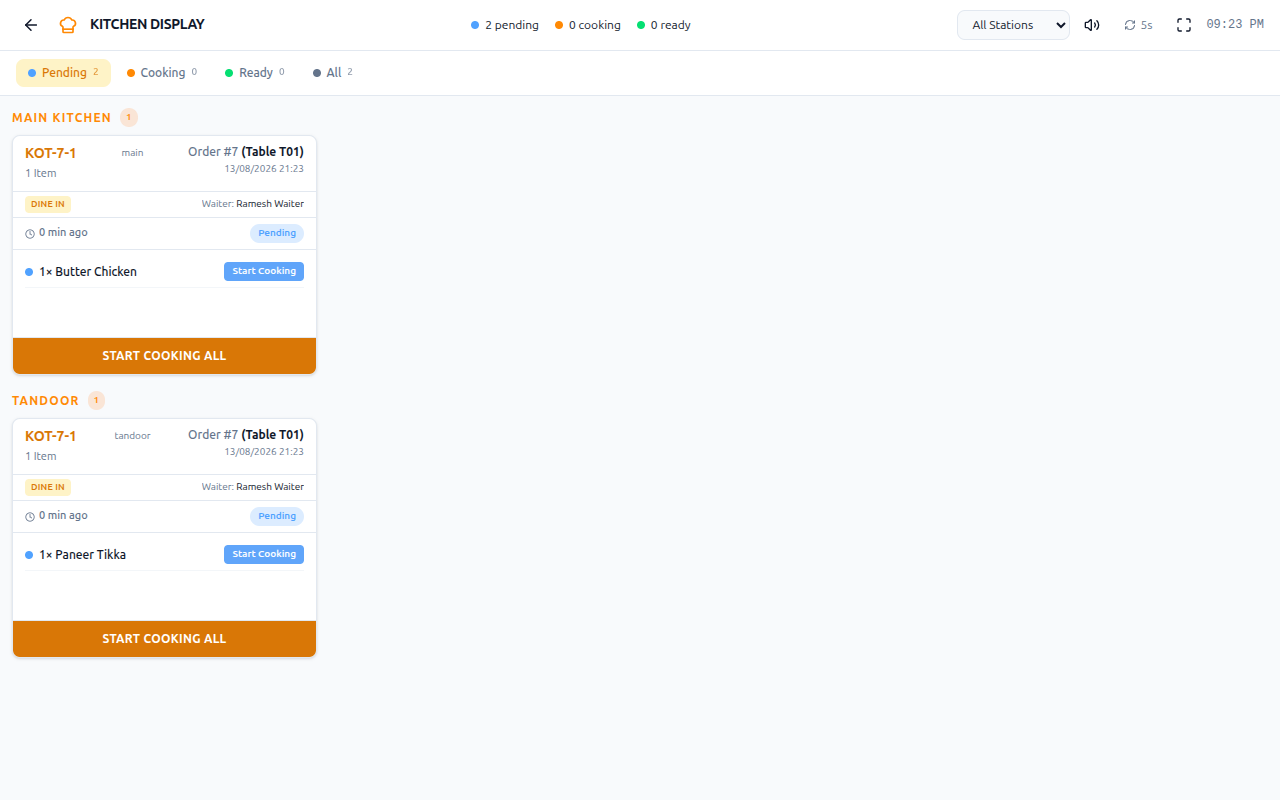
Every stage and every blocking rule below was taken from the running system, not from a plan. The wording matches what staff actually see on screen.
This page and How an order works are, together, the only process documented in this much detail so far. Food Magic also has processes for inventory, customers, and staff, but they don't have a deep-dive page like this one yet. Check Managing stock, Customers and Staff for how those work today.
The three paths at a glance
| Stage | Dine-in | Takeaway | Delivery |
|---|---|---|---|
| Placed | ● | ● | ● |
| Confirmed | ● | ● | ● |
| Preparing | ● | ● | ● |
| Ready | ● | ● | ● |
| Picked Up | — | ● | ● |
| Out for Delivery | — | — | ● |
| Reached | — | — | ● |
| Served | ● | — | — |
| Delivered | — | — | ● |
| Completed | ● | ● | ● |
The handover stage is what differs. Dine-in food is Served to a table, takeaway is Picked Up at the counter, delivery is Delivered to a door. Everything before the handover is identical.
Dine-in
Six stages, the shortest path.
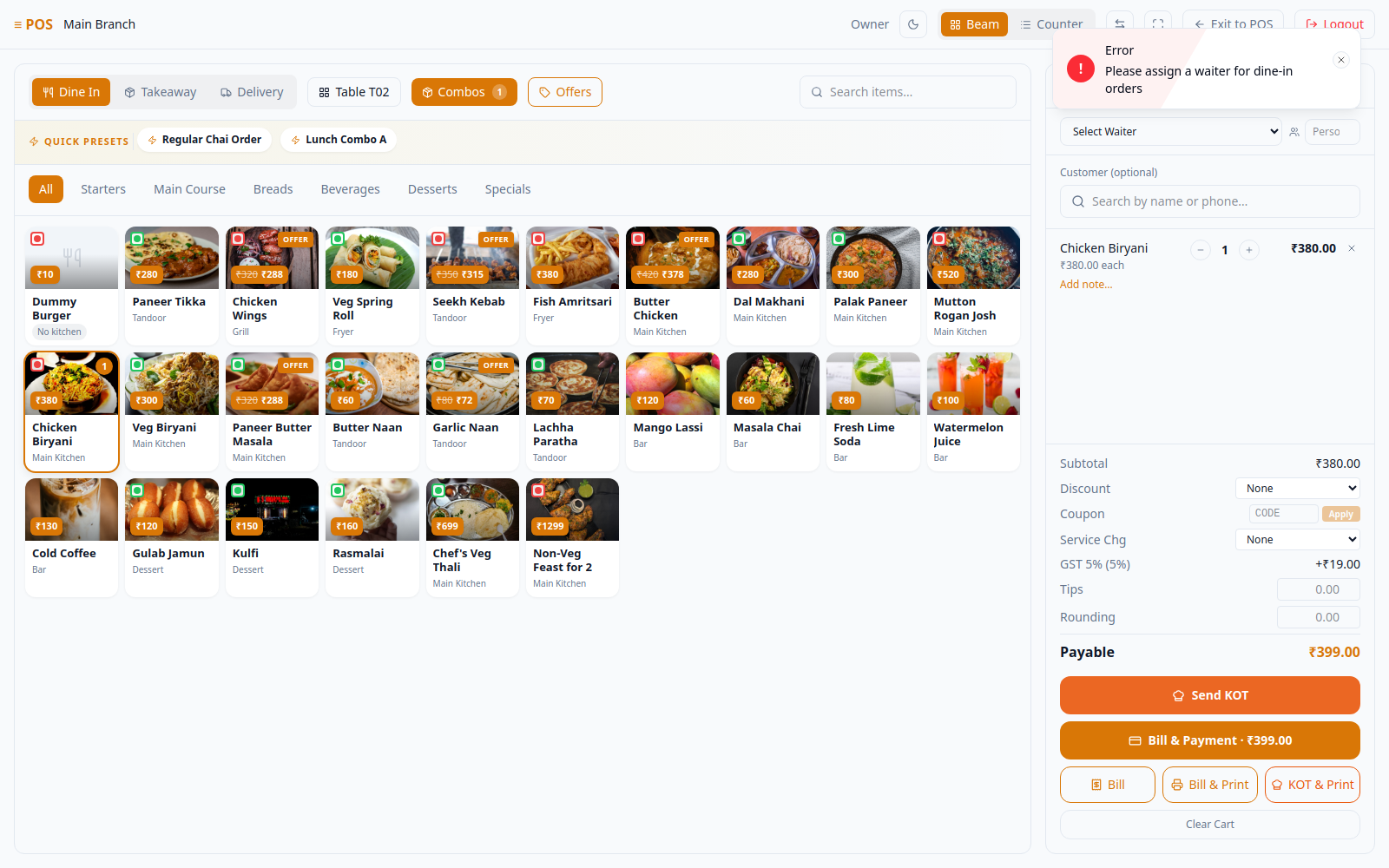
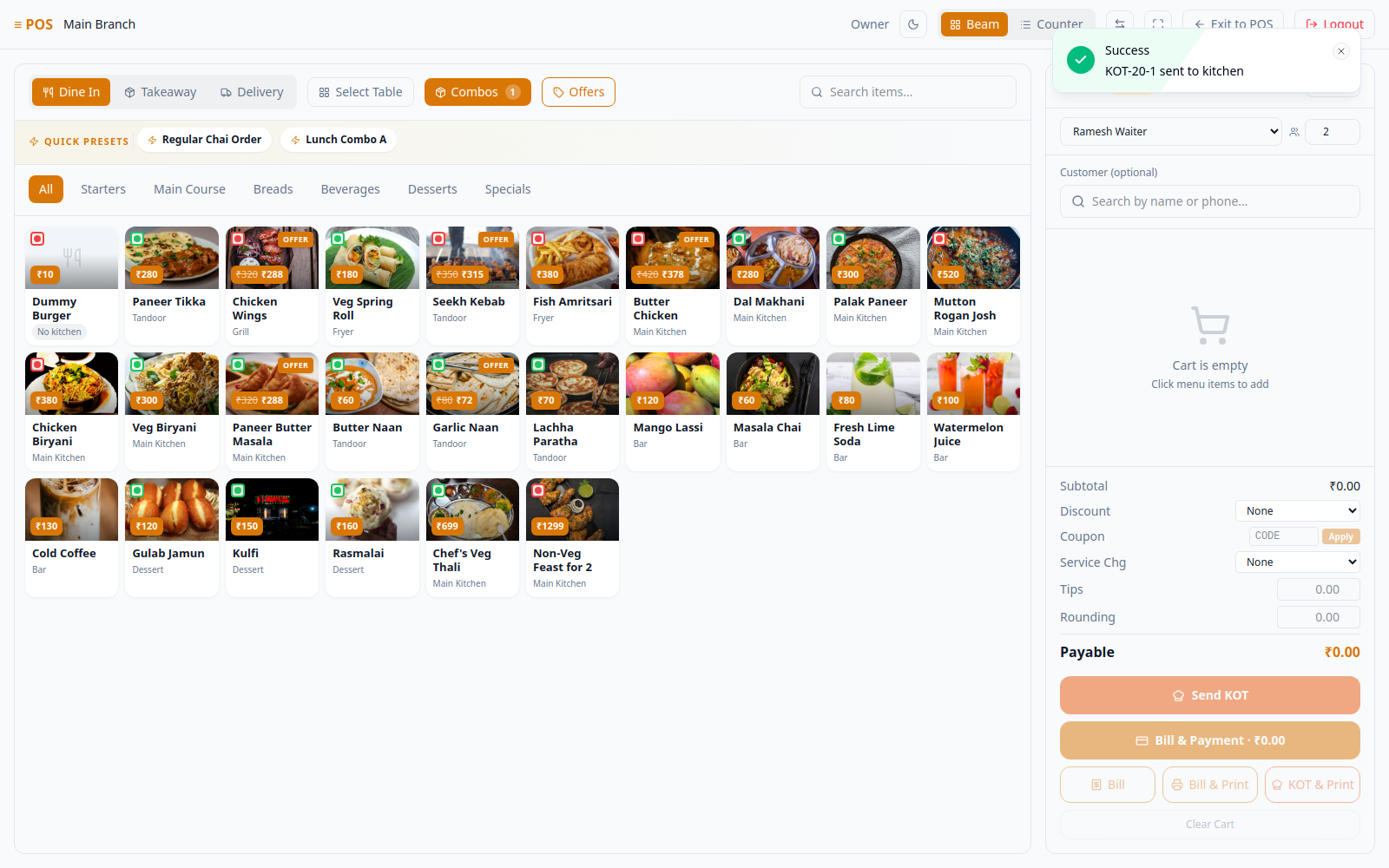
A waiter takes the order at the table on the till, choosing the table and how many people are eating. Two fields are required before the till will even send the order — both confirmed live, by leaving them empty:
The order is accepted. If it was assigned to a waiter, they accept it from their own queue — or reject it with a reason, which sends it back to be given to someone else.
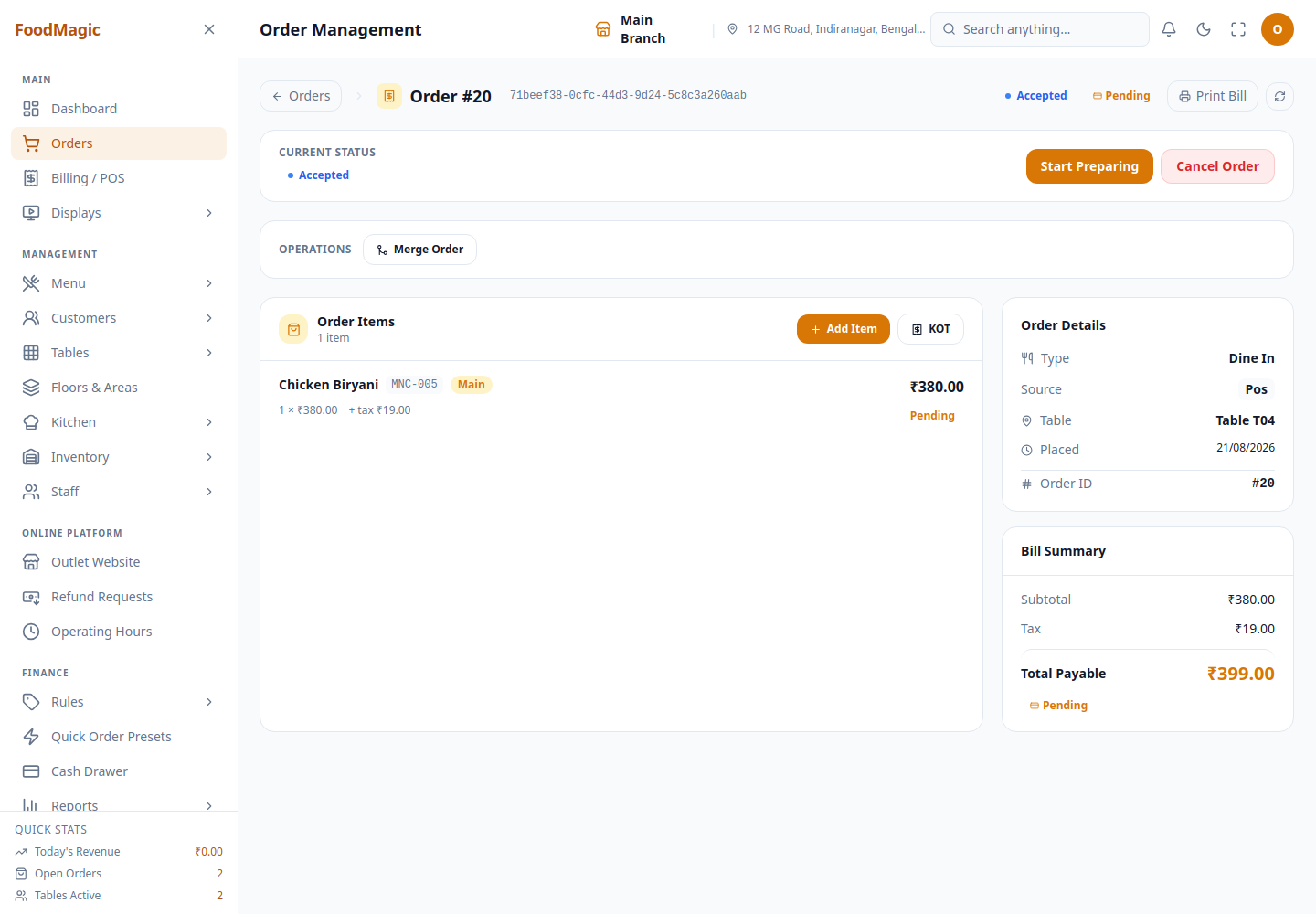
The kitchen has the ticket. Each dish is routed to its own station — tandoor, grill, fryer, bar, dessert or the main kitchen.
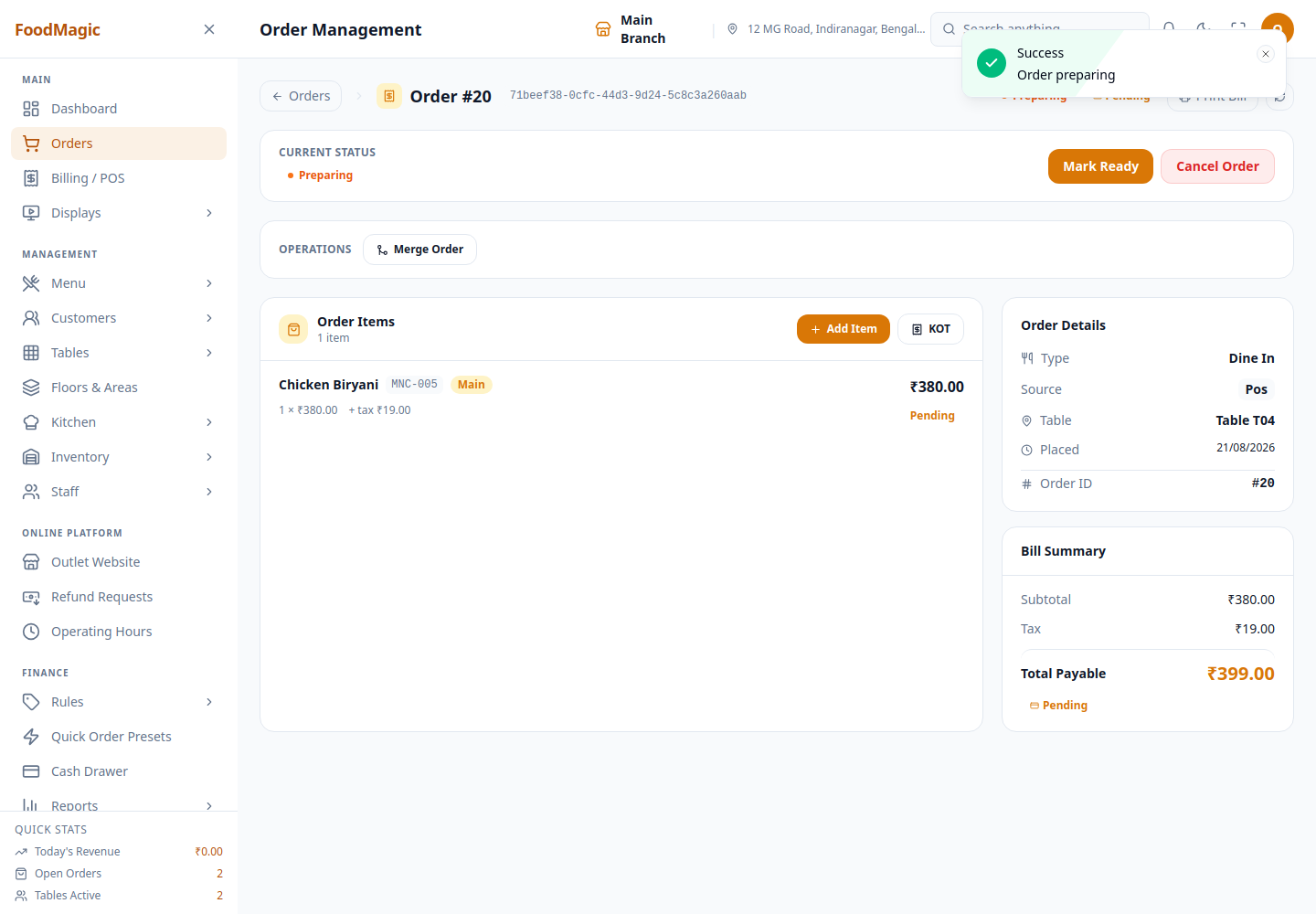
The kitchen has finished. The dishes appear on the display board for collection.
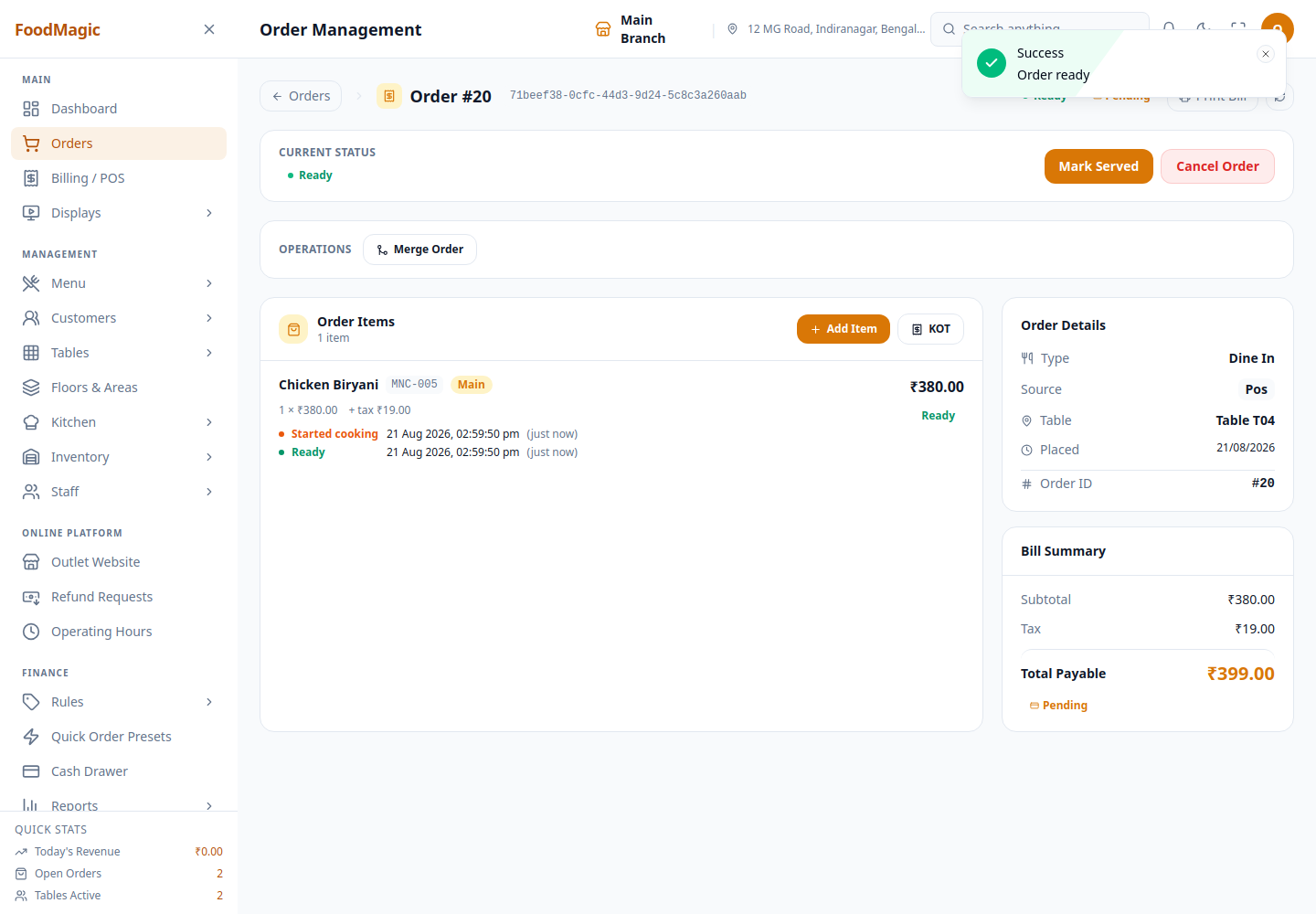
The food reaches the table.
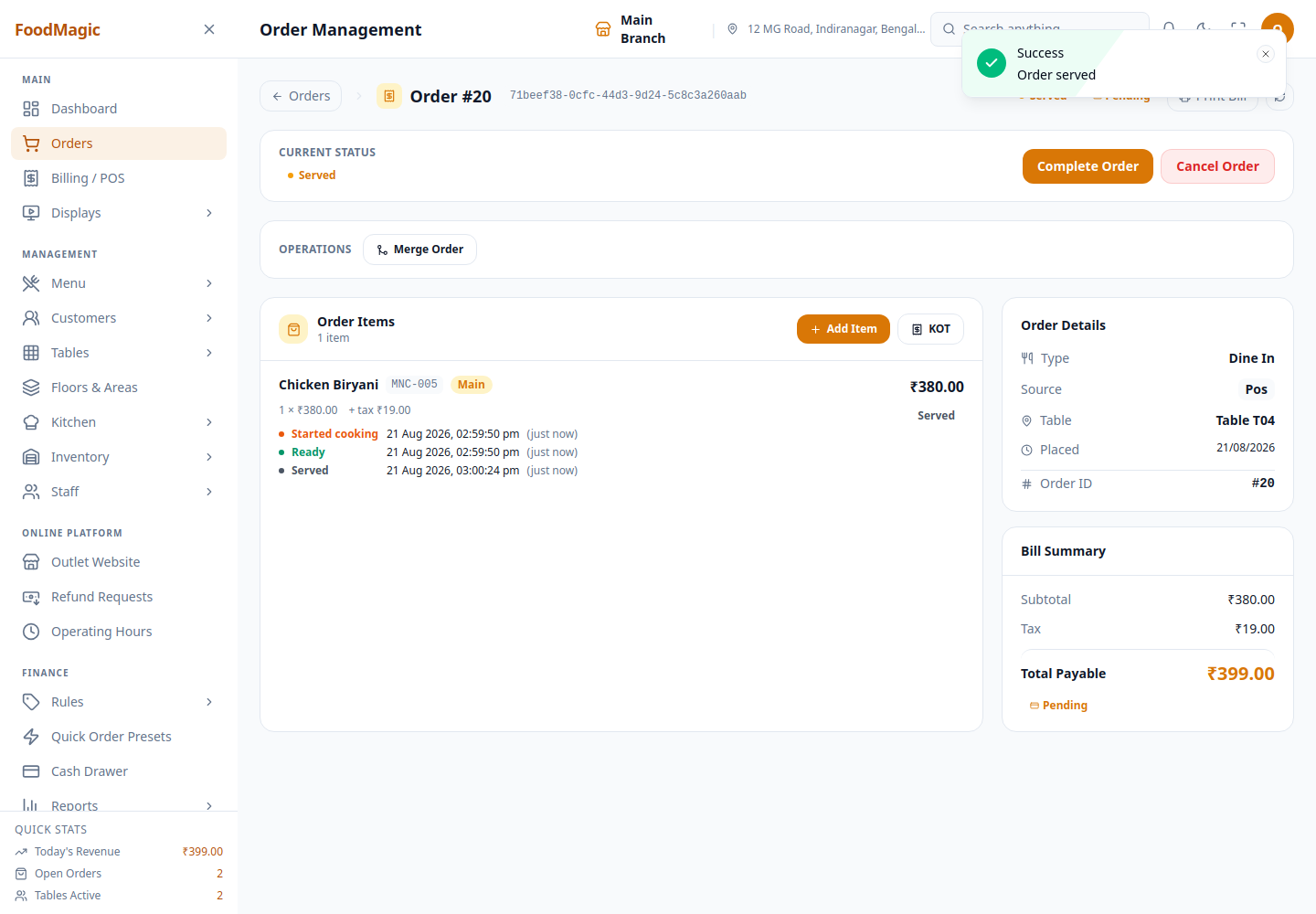
The bill is settled and the order closes.
An order can't be marked Served while the kitchen is still cooking. If any dish sent to the kitchen hasn't been finished yet, the button is disabled and shows "Kitchen has not finished every dish". Marking food as served before it's actually ready would record a cooking time that never really happened.
Mark Ready is how a manager clears that block. Clicking Mark Ready on the order doesn't just check the kitchen — it's the manager's own assertion that every dish is done, and it force-advances any dish the kitchen forgot to bump, straight to Ready. This is by design: in the normal flow the kitchen bumps each dish first and Mark Ready simply confirms it, but if a dish gets missed on the Kitchen Display, Mark Ready on the order is exactly how to unstick it — confirmed by testing a two-item order live, with only one dish bumped in the kitchen.
Freeing the table. Whether the table clears itself once the order is completed depends on a setting for the brand. With it turned on, tables free up automatically. With it off, staff have to clear each table by hand.
Takeaway
Same as dine-in until the food is ready, then the customer collects it.
Identical to dine-in.
The customer collects the order at the counter.
The order closes.
A takeaway order can be completed even without payment being settled. Only delivery has a payment check built in. If you want takeaway payment required before completion, that would need to be built — it isn't a setting you can turn on today.
Delivery
The longest path — nine stages — because the food leaves the building.
Identical to the other types.
Before the order can move any further, a delivery rider must be assigned.
The rider collects the order from the counter.
The rider is on the road.
The rider has arrived at the customer's address.
The customer has the food.
The order closes.
The two checks that stop a delivery
A delivery can't be completed until payment is collected. The button is disabled and shows "Collect payment first". This only applies to delivery — dine-in and takeaway can be completed with payment still outstanding.
A delivery can't be picked up or sent out without a rider assigned. The button shows "Assign a delivery boy first". This stops an order being marked as on its way when nobody is actually carrying it.
What the rider does
A rider only ever sees deliveries assigned to them, in four groups: New, Delivered, Completed and Rejected.
Riders cannot pick up unassigned work — the outlet assigns it.
Rejecting asks for a reason and sends the delivery back to be reassigned.
Through pickup, on the road, arrival and handover.
What stops an order moving — summary
| Check | Applies to | Message staff see |
|---|---|---|
| Kitchen not finished | Dine-in (serving) | Kitchen has not finished every dish |
| No rider assigned | Delivery only (pickup / dispatch) | Assign a delivery boy first |
| Payment outstanding | Delivery only (completion) | Collect payment first |
In each case, the button is disabled and shows the reason, instead of letting staff press it and then showing an error afterward. You can see the problem before you even try.
How it is secured
Every action on this page is controlled by a permission on the Roles & Permissions screen. Every order also stays inside the outlet it belongs to — a manager, waiter, or rider only ever sees and can act on their own outlet's orders. The full list of permissions is on How an order works rather than repeated here, since that page covers who does what at each step.