
How tax works
Item-wise vs order-wise tax, inclusive vs exclusive, what tax is charged on, and where the round-off lands.
Every money figure on a bill comes from one calculation, used by the POS, the storefront and the printed invoice alike. There's no second place where totals get worked out, so what follows is how tax is worked into every order. Discounts and coupons are the other half of that calculation — see how discounts work.
All money is held to two decimal places and calculated exactly — never rounded along the way — so repeated fractions never drift a paisa out over a long bill.
What it is
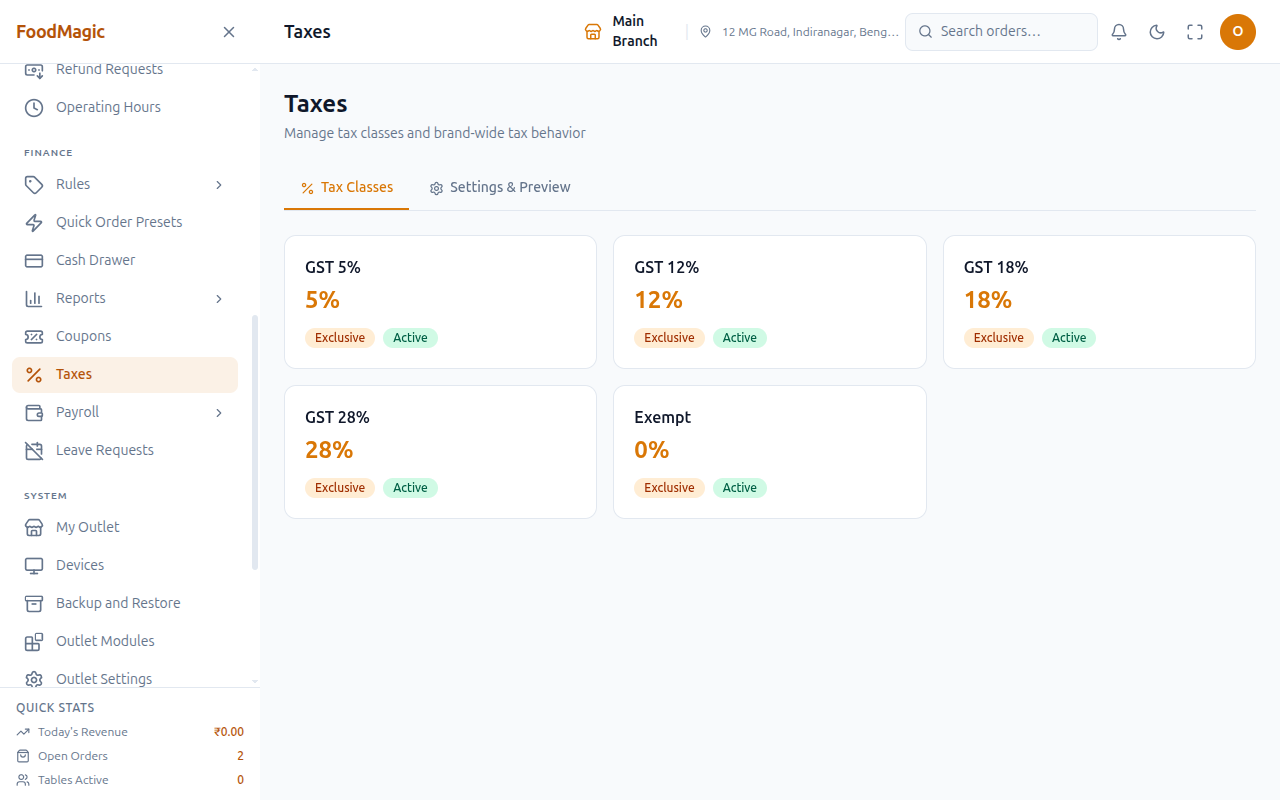
The Taxes screen (/taxes) is where a brand sets up which tax rates
exist, and how tax applies to every bill across all of its outlets.
- Who uses it — Brand admins set this up. Outlet staff only touch it indirectly, by picking a tax class while pricing a menu item.
- Where it lives — the Taxes entry in the sidebar, under Finance.
- Current status — live. Two tabs: Tax Classes (the rate list — GST 5%, 12%, 18%, 28% and Exempt on this test site) and Settings & Preview (how tax behaves, plus a live sample-bill preview).
Where the settings live
Tax behaviour is set once for the whole brand and applies to every outlet. There is no per-branch override.
| Setting | Default | What it decides |
|---|---|---|
| Tax mode | Item-wise | Whether tax follows each dish or the whole order |
| Tax base | After discount | Whether discounts reduce the amount taxed |
| Service charge taxed | Yes | Whether the service charge itself is taxed |
| Round to whole rupee | Yes | Whether the final amount is rounded |
These defaults apply even if a brand has never opened the tax settings screen, so a new brand still bills correctly from day one.
Item-wise vs order-wise tax
There are three modes.
Item-wise (the default)
Each dish carries its own tax rate, so a 5% item and an 18% item can sit on the same bill and each is taxed correctly. Tax is worked out dish by dish, then grouped by rate for the invoice.
Quantity times price.
An order-level discount or coupon is split across the dishes in proportion to what each one costs. A dish worth a third of the order takes a third of the discount. See how discounts work for how that amount is decided in the first place.
A line can never go below zero.
Only if the service charge is set to be taxed. It is shared out the same way.
Then add up every line, grouped by rate, to produce the invoice.
Splitting the discount by value is what makes mixed tax rates come out right. A ₹500 discount on a bill with both a 5% dish and an 18% dish can't simply be taken off one of them — it's split by value, so each rate is reduced by its fair share.
A dish with no tax rate set is skipped entirely. It still counts towards the bill, but no tax is ever charged on it — worth checking if a total looks low.
Order-wise
One or more tax rates are chosen for the brand and applied to the order as a whole, ignoring whatever individual dishes are set to. Rates that are switched off are skipped.
No tax
No tax is charged and no tax lines appear on the invoice.
| Item-wise | Order-wise | |
|---|---|---|
| Rate comes from | each dish | the brand's chosen rates |
| Different rates on one bill | Yes | No |
| Tax recorded against each dish | Yes | No |
| Discount shared across lines | Yes, by value | Not needed |
Inclusive vs exclusive
Every tax rate is either inclusive or exclusive, and this changes the total:
| Mode | Meaning | On a ₹100 dish at 18% |
|---|---|---|
| Exclusive | Tax is added on top of the menu price | Customer pays ₹118 |
| Inclusive | Tax is already inside the menu price | Customer pays ₹100, of which ₹15.25 is tax |
All five rates that come with the system — GST 5%, 12%, 18%, 28% and Exempt — are exclusive. Menu prices are before tax, and GST is added at billing.
What tax is charged on
After discount (the default)
The discount and the coupon are both taken off before tax is worked out.
Both reduce the amount GST is charged on. This follows how Indian GST treats on-invoice reductions: if the customer never paid it, it isn't taxed. A discount bigger than the order simply brings the taxable amount to zero — never below. See how discounts work for how a discount or coupon amount is actually arrived at.
Before discount
Tax is charged on the full menu value, and the discount comes off afterwards. The customer ends up paying tax on money they didn't spend.
The service charge
By default the service charge is added to the bill before tax is calculated, so the service charge itself gets taxed too.
The order of the calculation
Quantity times price for every line. No tax, no discount yet.
Only when the tax base is set to after discount. See how discounts work for how these two reductions are set up and applied.
If it is set to be taxed.
Item-wise or order-wise, inclusive or exclusive, as configured.
Dishes plus tax plus service charge — before any fees, before rounding.
Payment fee, delivery fee and cash-on-delivery handling are added on top.
To the nearest whole rupee. The adjustment is shown on the bill.
Fees are never taxed. Payment, delivery and cash-on-delivery handling fees sit completely outside the tax calculation — they're added after tax is final. Only the dishes and, optionally, the service charge are taxed.
Where the rounding lands
The whole-rupee rounding is applied to the final amount the customer pays, not to the goods and tax alone. This was changed in June 2026: before that, only goods and tax were rounded, which left stray paise on the total as soon as a percentage payment fee or a fractional delivery fee was added. Rounding last means the customer always pays a clean rupee figure.
What is recorded
Every recalculation stores the dish total, the taxable amount, the discount, the coupon, the service charge, tips, each fee, the tax, the rounding adjustment and the final payable amount.
The invoice also gets one line per tax rate, each showing what was taxed and how much tax it produced — which is what a GST invoice requires. In item-wise mode, the tax is additionally recorded against each individual dish. For a full worked example of a bill going through this calculation, see how discounts work.
How it is secured
Who can see and change what:
| Action | Who |
|---|---|
| View tax rates (to price a menu item) | Anyone who can create or edit a menu item, at any outlet — not just the Taxes screen's own viewers |
| View the Taxes screen itself, and the brand's tax settings | Any outlet-level role that's been given access |
| Add, edit or delete a tax rate | Brand admin only |
| Change tax settings (mode, base, service charge, rounding) | Brand admin only |
Outlet staff can always see the tax rates — you can't price a dish without knowing what tax it attracts. But at outlet level, the Taxes screen is read-only: there's no Add Tax button, and the Settings tab's Save Settings button doesn't appear either. Both only show up for a brand admin. There's no separate permission for "settings" versus "tax rates" — whoever can edit rates can also edit settings, and the other way round.
Tenancy — settings are per-brand; the tax rate list itself is not.
The tax behaviour settings (mode, tax base, service charge, rounding) are saved once per brand, and can't be seen or changed by another brand.
The tax rate list (GST 5%, 12%, 18%, 28%, Exempt) is shared across the whole platform, not kept separate per brand — even though it's shown on the brand's own Taxes screen as if it belonged only to them. A brand admin adding a new rate is really adding a row every other brand on the platform can also see and pick from, and two brands can't both have their own "GST 18%" under different definitions — the name has to be unique across the entire system, not just within one brand. This test site only has one brand set up, so this couldn't be watched happening between two real brands — it's a finding from reading how the system is actually built, not something seen happening live. Worth raising with whoever owns the security review before more brands are onboarded.
What's checked when a tax rate is saved: a name (required, must be different from every other rate on the platform, kept short), and a rate between 0 and 100 — this range is enforced twice over, once on the form and once again deeper in the system, as a backup.
What's recorded: every tax rate and every brand's tax settings keep a record of who created and who last updated them. Neither one writes an entry to the separate Audit Logs screen, though — so a change to tax settings won't show up there. Whether that's intentional wasn't confirmed.
Related pages
- How discounts work — the other half of the bill calculation: discount rules, coupons, and how a discount or coupon amount is actually decided before tax ever sees it.
- Coupons — the other on-invoice reduction; discount and coupon amounts both feed the same tax-base calculation documented above.
- Menu Items — every menu item picks a tax class from this catalog, which is why anyone who can create or edit a menu item can also read the tax rate list.
- Orders — where these settings actually get applied to a live bill.
- Roles & Permissions — where tax editing rights get assigned to a role.