
System tools and audit
Audit logs, error logs, module control, device sync, and where the hardware lives.
What it is
This page covers the admin tools that don't belong to any single trading screen. It includes the record of who changed what, a technical error log, the switches that turn whole features on or off, and the hardware an outlet runs on — terminals, kitchen displays, and printers.
Reporting also lives in this same part of the product. It has its own page.
Two parts of this area already have their own pages, so we won't repeat them here. The System Settings screen and Platform Modules are covered button-by-button in Settings reference. The Roles & Permissions screen is covered in Who can do what.
This page covers everything else: audit logs, error logs, how module switching actually behaves, device sync, and the devices/printers screen.
Audit logs
This is the record of who changed what. Check it when a price looks wrong, a discount appears from nowhere, or an order was cancelled and nobody remembers who did it.
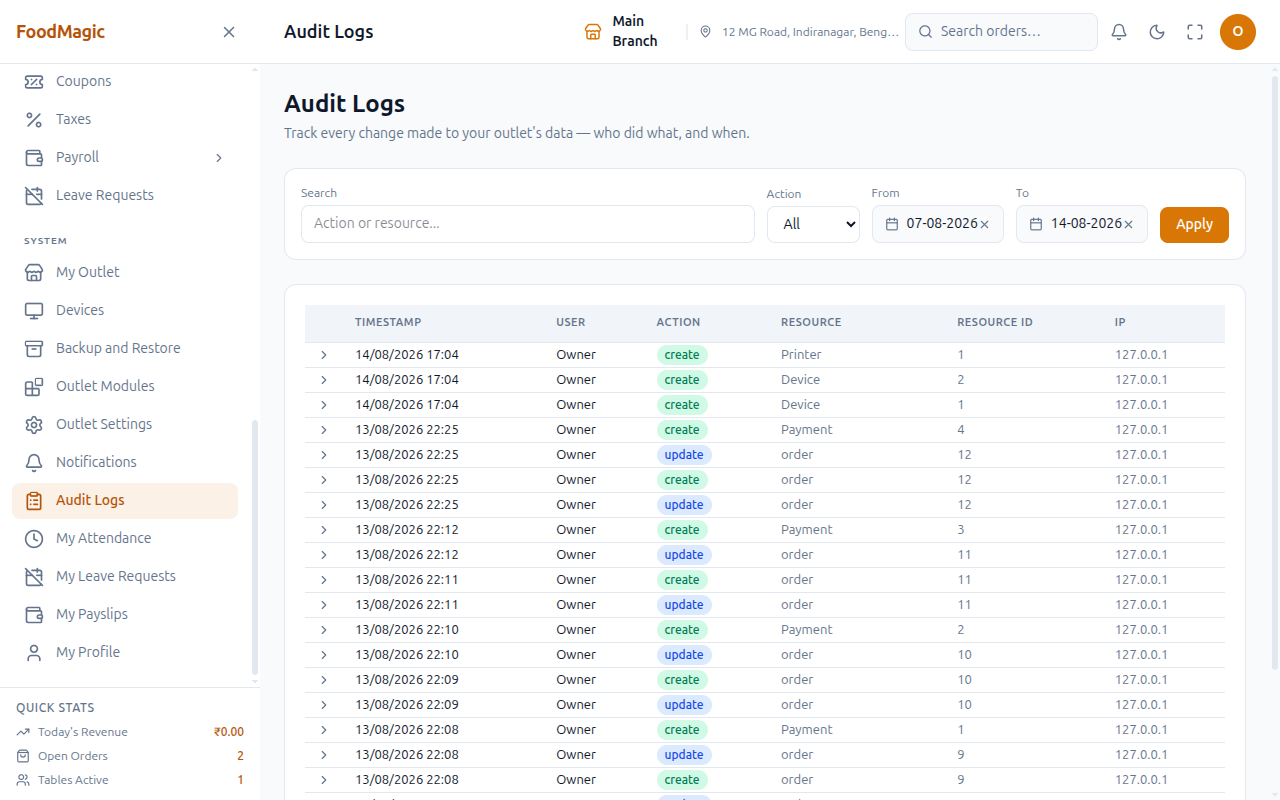
The screen shows a timestamp, the user, the action taken, and what was affected, plus where the request came from. You can search, filter by action type (Create, Update, or Delete), pick a date range, and page through results.
Viewing audit logs is granted at the outlet level, not at head office. An Outlet Manager can check their own branch's history without needing brand-wide access.
By default, the Super Admin role is not given this permission. In the standard setup, head office cannot see any outlet's audit trail at all. There's no automatic combined feed of everything happening across every branch.
Click anywhere on a row to open a detail panel. It shows the old value and the new value side by side, so you see exactly what changed, not just a summary.
The row itself only tells you the type of change, like "update" or "Order." Opening it is how you see which fields changed and what they changed to.
The search box matches on the action or the item's text. The action filter narrows results to create, update, or delete. The date range defaults to the last 7 days.
None of these apply until you click Apply. This is different from the Reports section, where filters apply as you type.
Use these filters to narrow a long log down before you scan it — for example, to find out who deleted a menu item yesterday.
This screen may be able to show more than it should. There is no button anywhere on this page for switching to another branch's history — you won't find a branch picker. But when we checked how this screen works underneath, we found no safeguard confirming that the branch being asked about is actually your own.
Nobody has actually made this happen by clicking through the app — there's no visible way to trigger it. This is flagged here as something a security review should look at, not as a confirmed problem.
Turning a whole feature module on or off (see below) does not show up on this screen. That history only exists in a technical log behind the scenes — there's currently no place inside the product where a manager can review it.
The User column doesn't always show a name. Some rows show a named staff member (like "Owner"), others show just a number, and some show a dash.
This is confirmed and happens on the live system. Customer actions from the online storefront are especially likely to show as a number instead of a name. So a row that looks unlabelled isn't missing information — it's more likely a customer action that never got matched to a display name.
Error logs
This is a separate log for diagnosing technical faults, rather than tracking who made a change. It sits behind the same access permission as Audit Logs, so anyone who can see one can see the other.
Module control
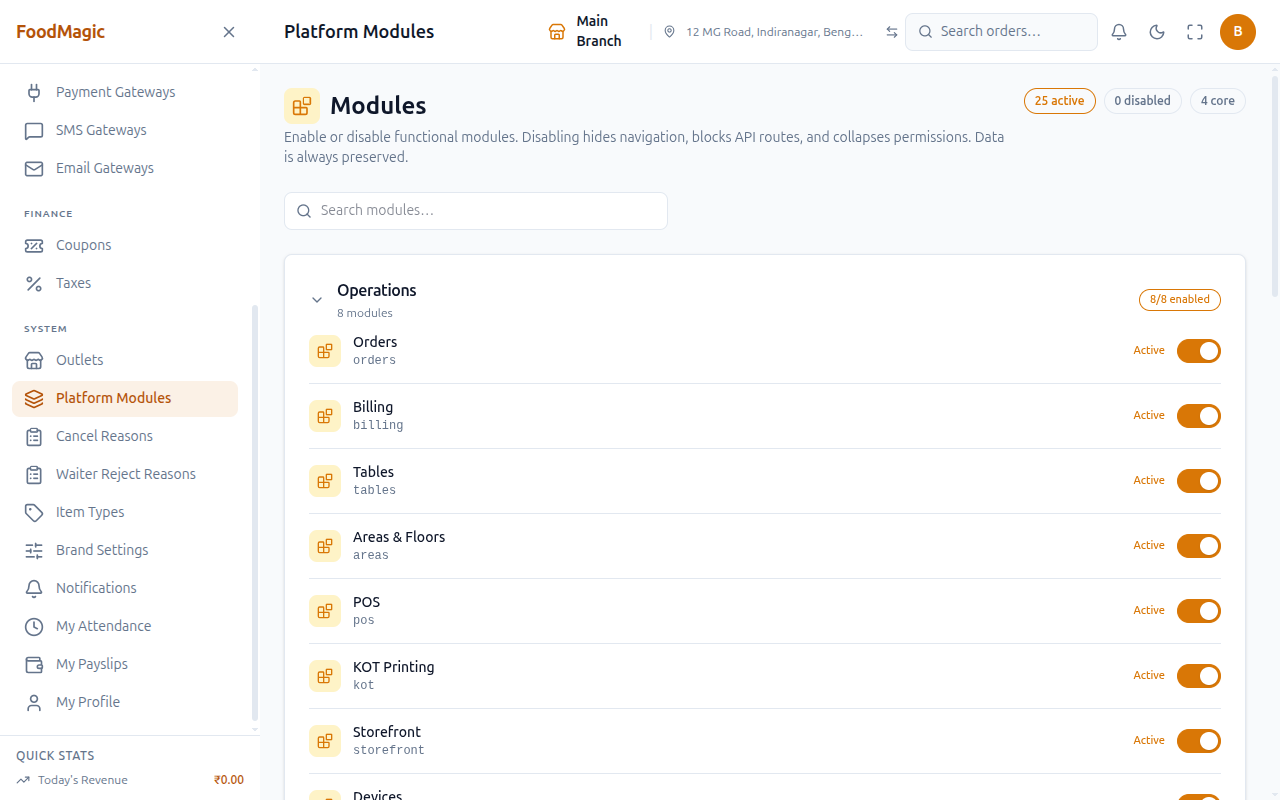
Two screens share this idea. Platform Modules works business-wide and decides what exists at all. My Outlet Modules works for one branch, and lets that branch switch off anything it doesn't use, out of what the business allows.
The outlet-level screen's buttons and toggles are documented in Outlets and brands → Outlet Modules. Platform Modules itself is covered in Settings reference. This section explains the rules both screens follow — rules that aren't obvious from looking at either screen on its own.
Anyone signed in can see which modules exist and which ones are switched on. The app's sidebar needs this information to know what to show each user, so just looking is never restricted.
Switching a module off hides it everywhere. Individual branches can then switch off anything else they don't use, out of what the business still allows. But a branch can never turn back on something the business has already disabled at the top level (see Outlets and brands).
A module marked core can't be turned off from either screen. It's always on.
System settings
This is covered in full, button by button, in Settings reference → System Settings. In short, it's a raw settings list for configuration options that don't have their own proper screen yet. Don't open this unless you know exactly which value you need to change.
Platform Backups
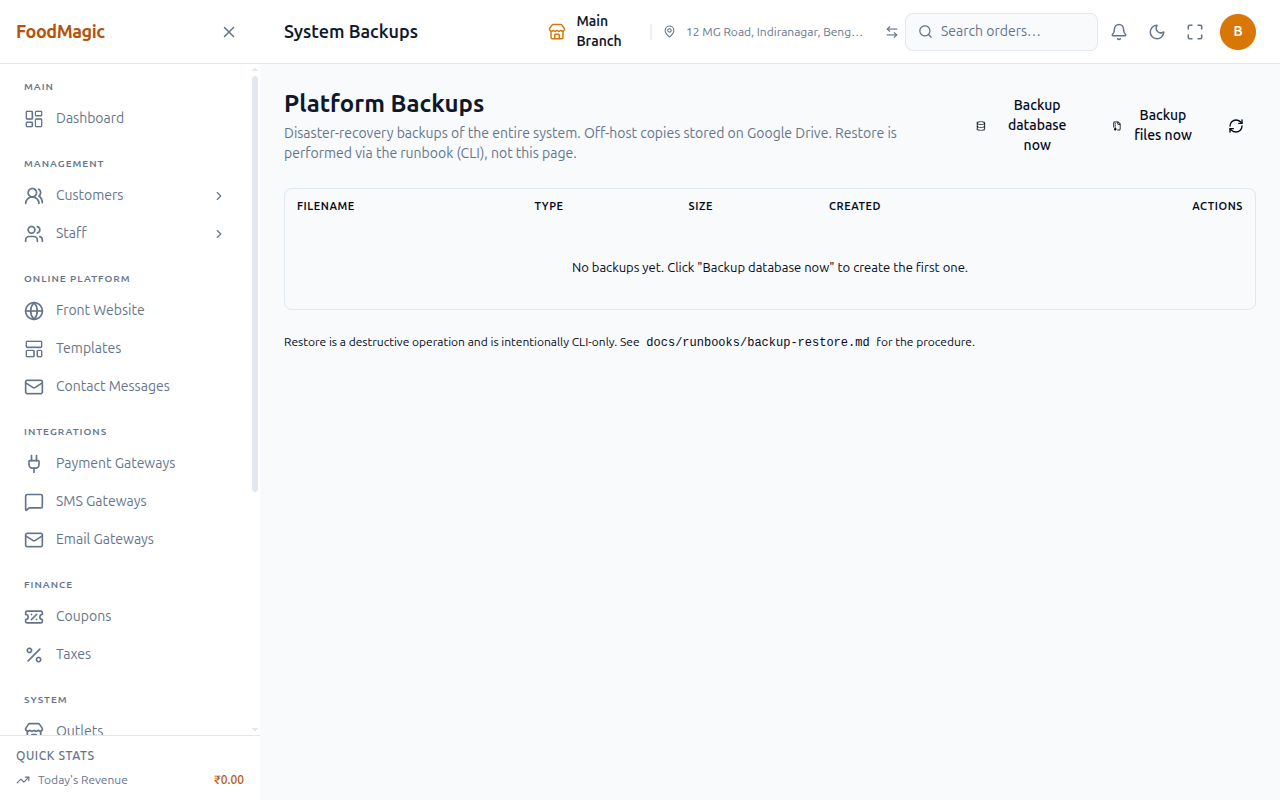
This is covered in full in Backup and restore. Platform Backups is the business-wide version, and it only backs up to Google Drive. It's the counterpart to the outlet-level Backup and Restore screen, and the two are similar enough that it made more sense to document them together. See that page for the tab layout, the buttons, and how the two systems relate to each other.
Device sync
Taking an order while the network is down really works. See Orders → Working offline for the full explanation.
In short: a till keeps a small local queue of anything it couldn't send to the server. The moment the connection comes back, everything queued gets sent up automatically. The app checks the connection every 20 seconds, and also the instant the browser itself signals it's back online.
Nothing gets recorded twice, even if something is retried — the system checks what's already there before adding it again.
Devices and printers
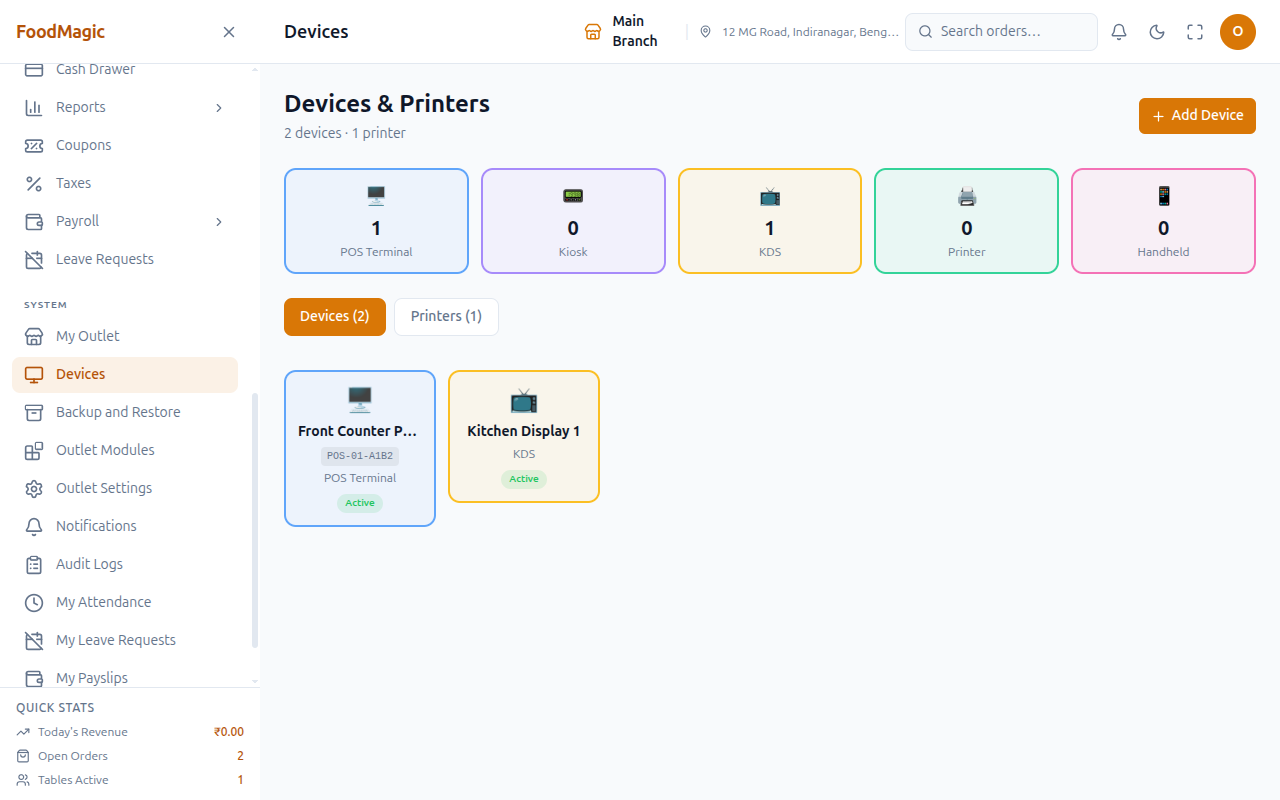
Physical hardware — terminals, kitchen displays, and receipt or kitchen printers — is managed from its own screen. It has separate Devices and Printers tabs.
Add Device opens a form for the device's name, its type (POS Terminal, Kiosk, Kitchen Display, Printer, or Handheld, each with its own icon), an identifier, and a switch for whether it's active. Edit opens the same form already filled in. Delete asks you to confirm first.
Use this to register a new till, kitchen display, or handheld device when it's set up, or to rename or retire one later.
Add Printer works the same way. You fill in a name, the connection type (USB, LAN/IP, Bluetooth, or Cloud), an optional linked device, an IP address, and a queue name. This is how you pair a receipt or kitchen printer to a station or terminal.
Printers have their own separate viewing permission from devices. So someone who can see devices but not printers will still see their device list — the whole page won't fail just because one part is restricted.
Quick order presets are shortcut buttons on the POS screen for your most common sales, like a coffee or a bottle of water. This means your busiest items don't need a menu search.
The POS terminal offers two layouts, and each device remembers its own choice: a card grid, or a dense list for high-volume counter service.
Store credit at the till
Spending store credit against an order happens in two steps. First, the credit is set aside for that order. Then, once the sale actually goes through, it's deducted for real. This means credit is never taken away for a sale that ends up failing.
The same staff who normally take payment at the till can do both steps.
How it is secured
Permission required. Each row below is its own separate switch on the Roles & Permissions screen. An admin can hand out exactly what someone needs, and nothing more.
| Action | Level | Permission label on the Roles screen |
|---|---|---|
| View audit logs / error logs | Outlet | "View audit log" |
| Turn features on/off business-wide | Brand | "Turn features on/off for the whole brand" |
| Turn features on/off for one outlet | Outlet | "Turn features on/off for this outlet" |
| Manage system settings | Brand | "Manage system settings" |
| Trigger / download Platform Backups | Brand | "Manage backups" |
| Sync a device | Outlet | "Sync offline POS data with the server" |
| Manage devices | Outlet | "View devices" / "Register devices" / "Edit devices" / "Delete devices" |
| Manage printers | Outlet | "View printers" / "Add printers" / "Edit printers" / "Delete printers" |
Role access. Three business-wide abilities — turning features on or off, managing system settings, and Platform Backups — only ever go to the Super Admin role. Viewing audit logs, and everything to do with devices and printers, only ever goes to the Outlet Manager role.
Neither the Waiter nor the Delivery Rider role gets any permission on this page. None of it shows up in either role's sidebar.
Branch boundaries. Audit and error logs are meant to show only your own branch's history. See the warning above the Audit Logs section — this is the same open item, worth flagging even though it hasn't been shown to happen live.
Devices, printers, and module toggles all correctly stay within the outlet or business they belong to.
Validation. You cannot turn off a module marked core, from either screen, even with full access. Devices and printers each need a name and a type before they can be saved.
Audit trail. Turning a module on or off is written to a technical log, not to the Audit Logs screen. So a Super Admin checking "who turned off Inventory" on the Audit Logs page today would find nothing.
Device and printer changes do show up on the Audit Logs screen. Registering, editing, or removing a terminal or printer is recorded correctly.
Known weaknesses. See the note above about audit logs and branch boundaries — that's the one item flagged for review on this page.
Open question, not yet resolved. A number of the system's behind-the-scenes actions don't have an obvious permission check attached to them out front. A couple of these were checked by hand and turned out to still be protected, just further inside the process rather than at the first checkpoint. Most of them haven't been checked individually yet, so we don't know if all of them are safely covered, or if some are genuinely open. This is recorded here rather than left unmentioned.
Related pages
The reporting half of this same area of the product.
The full "Working offline" explanation this section summarizes.
Both backup systems — outlet-level and Platform Backups — documented together.
My Outlet, Outlet Settings and the outlet-level Modules toggle.
System Settings and Platform Modules, button by button.
The role editor itself, and why Super Admin can't see audit logs.