
Staff payroll
Running a pay period, how each pay type is calculated, every deduction, and the point of no return.
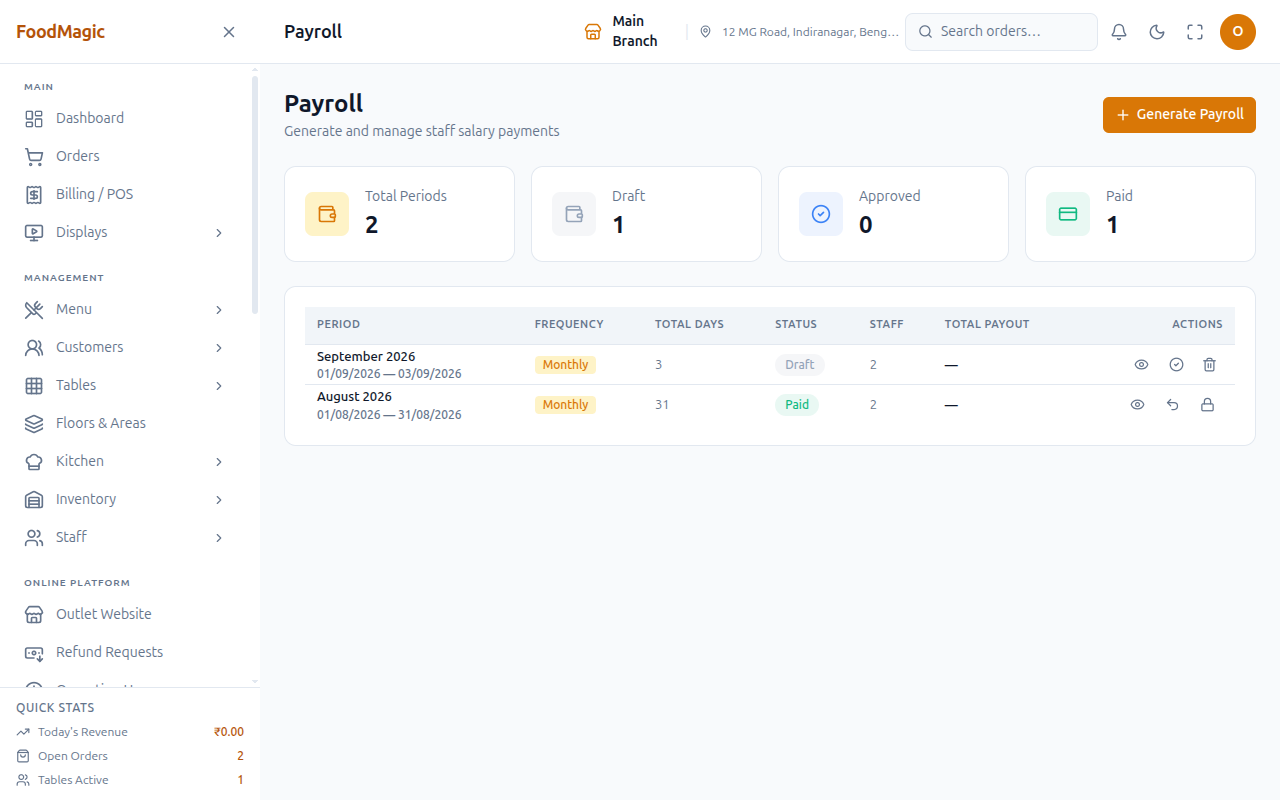
Payroll turns attendance into money. It runs for a date range and produces one record per staff member.
What it is
The Payroll screen is where an outlet manager starts a pay period, checks the figures it produces, approves it, and marks it paid. It's a manual, review-then-approve process — there is no scheduled monthly run that fires on its own. Someone has to open the screen, pick a date range, and start the period. Nothing happens automatically in the background.
- Who uses it — Outlet managers run periods. Every staff member has a read-only My Payslips screen for their own pay history, and doesn't need any special permission to see it.
- Where it lives — A list of periods, a detail screen per period showing one record per staff member, and Salary Advances sitting alongside it as a related screen.
- Current status — Live, and run by hand each pay cycle. Once a period is started, the figures are worked out automatically from attendance and pay setup — but starting, reviewing, approving, and paying are all separate, deliberate steps a manager has to take.
How it works
The three states
| State | Meaning |
|---|---|
| Draft | Being prepared. Attendance for these dates can still be changed |
| Approved | Signed off. Attendance is now locked for good |
| Paid | Money has gone out; payslips become visible to staff |
Running a period
This is your last chance to fix it. Check the Staff Attendance Report for any unmarked days.
Pick the date range. A record is created for each staff member.
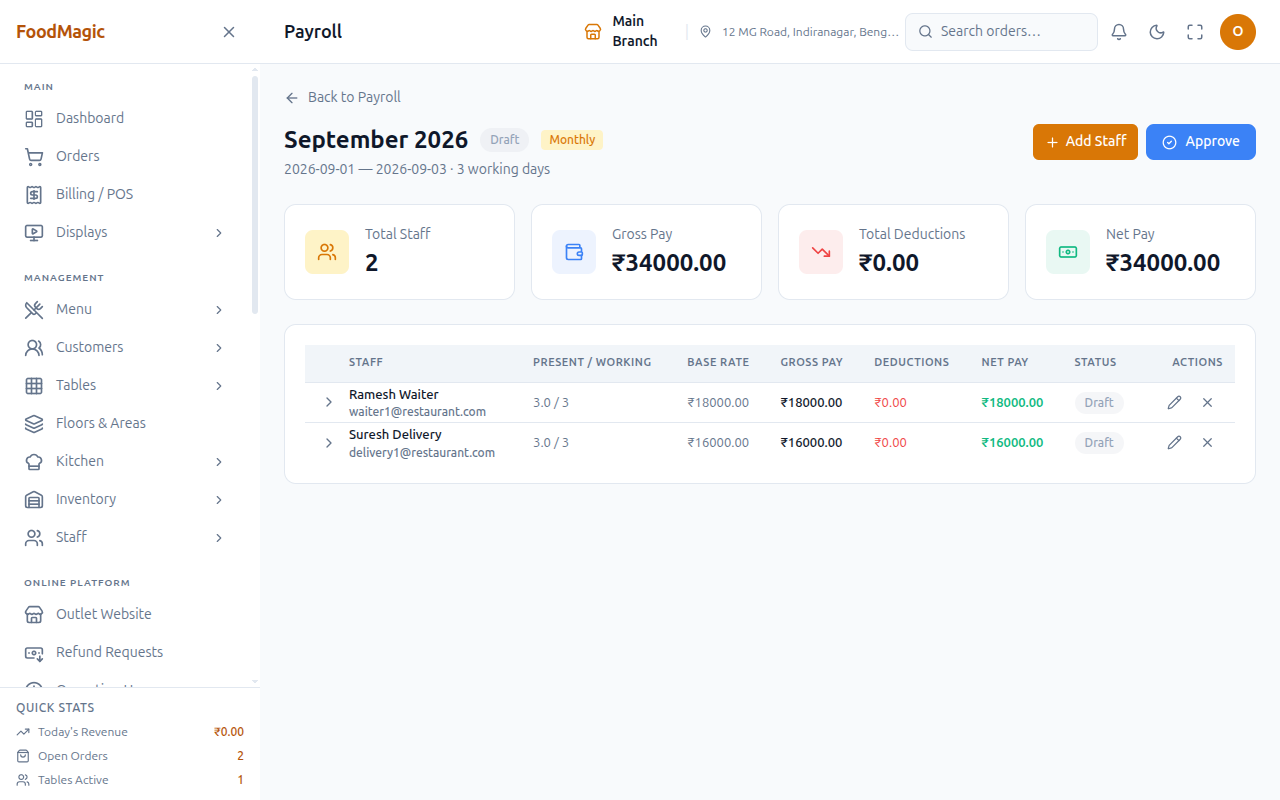
Each record shows days present, days absent, earnings, and every deduction.
This signs the period off — and locks the attendance behind it.
Do this once the money has actually gone out. The payslip then appears under that staff member's My Payslips.
Generate Payroll — starting a period
The dialog asks for a frequency (monthly, weekly, or daily), a start date and end date, and the number of working days in the period (1–31 — this number is used to work out Fixed pay, see below). An optional staff picker lets you run payroll for just some staff instead of everyone; leave it empty and a record is created for every staff member with active pay setup at the outlet.
An outlet manager never has to pick which outlet this is for — the system already knows, because it always uses the outlet the signed-in manager belongs to. There's no way to accidentally run another outlet's payroll from this screen.
Run this once attendance for the period is finished and checked. Starting the period is the step that turns the attendance sheet into money, so any mistake in attendance is now baked into the numbers.
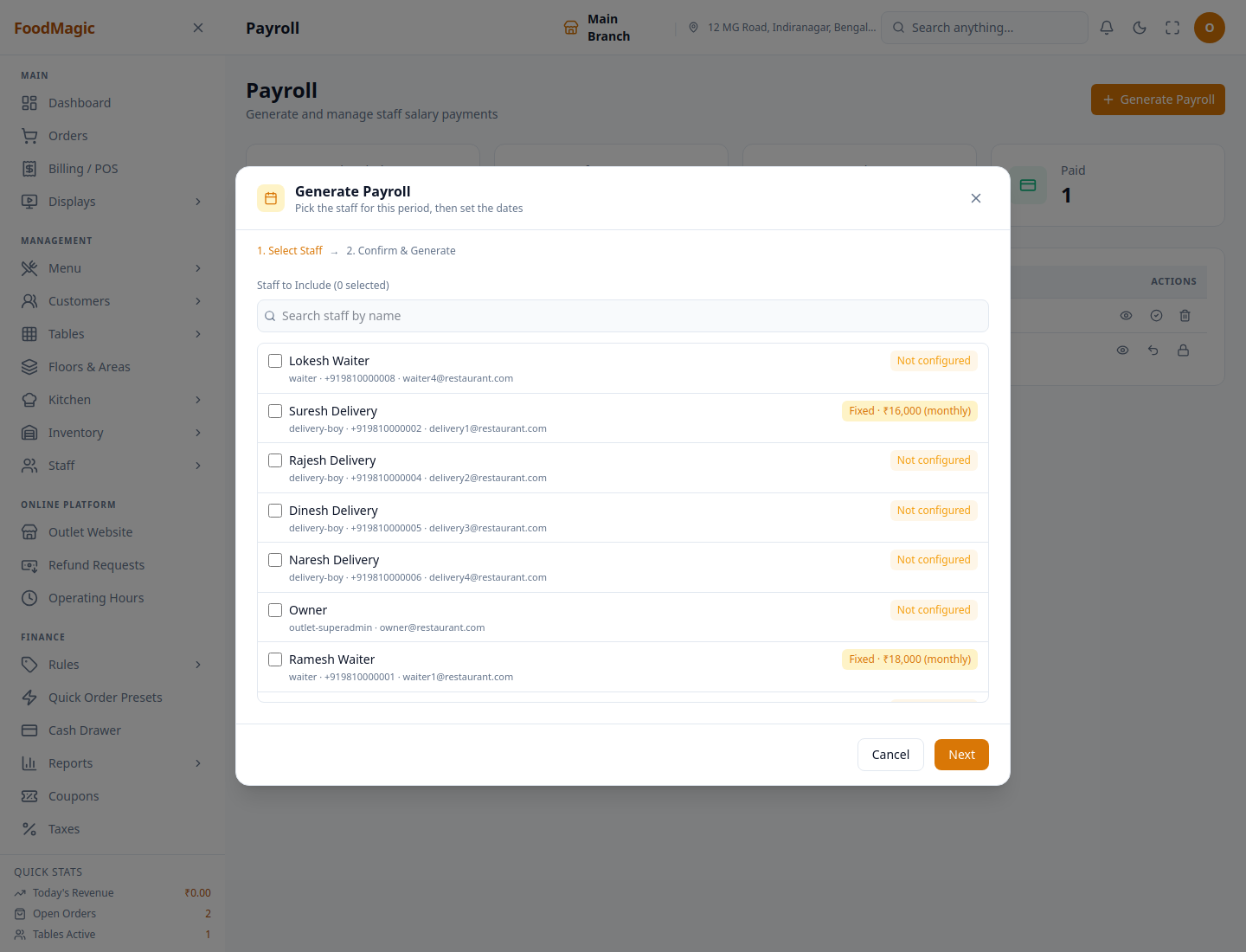
This is exactly where the Pay Config gap from Staff overview shows up in practice: a staff member created without their Pay Config step completing successfully appears here as Not configured, and earns nothing for the period even if their attendance is marked perfectly.
Inside a period
Opening a period shows one record per staff member, with actions for individual figures:
| Action | What it does |
|---|---|
| Add a staff member to the period | Creates a record for someone the original run missed |
| Update a record | Corrects a figure by hand before approval |
| Remove a record | Drops one person from the period. Any advance deduction already taken is reversed first, so the numbers stay consistent |
| Add an adjustment | A manual earning or deduction on top of the calculated figures — a type (earning or deduction), a category label, an amount, and an optional note |
| Pay one record | Records a single person's payment — payment method (cash, bank, UPI, or cheque), an optional reference, and which outstanding advances the payment settles |
| Delete the whole period | Only possible while the period is still in Draft — see the state table above |
Preparing and adjusting a period is a separate permission from recording payment against it — an admin can let someone prepare payroll without letting them mark it paid, or the other way around.
Approve and Revert
Approve moves the period from Draft to Approved, and in the same step, locks every attendance date the period covers — for good, as the warning below explains. Revert to Draft is the way back, but it only works while the period is Approved and not yet Paid.
Approve once every figure has been checked. Only use Revert if you spot a mistake in the window between approving and paying — once a period is marked paid, reverting is no longer available.
Pay All and Close
Pay All records a payment for every unpaid record in the period in one step, using a single payment method for all of them. Close marks the period fully settled once every record shows as paid.
Use these after approval, once the actual bank transfer or cash payout has happened. This is what makes payslips appear under My Payslips for everyone in the period.
Approving payroll locks the attendance behind it, with no way back. A staff member marked absent when they were actually on approved leave has already lost that day's pay, and it can no longer be fixed. Always check attendance before approving.
How earnings are calculated
Each staff member has a pay type, and it decides everything:
| Pay type | Earnings |
|---|---|
| Fixed | The monthly amount ÷ working days in the period × days actually worked |
| Daily rate | The daily amount × days worked |
| Hourly | The hourly amount × hours recorded |
Under fixed pay, attendance carries straight through — a holiday counts as a full day worked, a half-day counts as half.
Under hourly pay, only recorded clock times count. If start and end times were never entered, hourly staff earn nothing for that day even if they were marked Present.
Deductions
| Deduction | Applies when |
|---|---|
| Absence | Fixed pay only — the daily rate × days absent |
| Salary advance | An approved advance is still outstanding |
| PF | Provident fund — 12% of gross pay, only where that person's pay setup has PF switched on |
| ESI | Employee state insurance — 0.75% of gross pay, only where switched on |
| Other | Anything recorded manually |
Absence is deducted only for staff on fixed pay. Daily-rate and hourly staff are never charged an absence deduction — they already earn nothing for a day they didn't work, so deducting again would penalise them twice for the same absence.
Overtime
Hours beyond eight in a day are paid as overtime. For fixed-pay staff, the hourly rate is worked out from their salary: the monthly amount divided by the working days, then divided by eight. For hourly staff it's simply their hourly rate, and for daily-rate staff it's their daily rate divided by eight. Whatever that base rate comes out to, it's then multiplied by that person's own overtime multiplier, set on their pay configuration.
Where to see it
| Screen | Who | Shows |
|---|---|---|
Payroll (/payroll) |
Managers | Start and manage periods; counts of draft, approved, and paid |
| Payroll Report | Managers | Salary spending for a date range — staff paid, total gross, net paid, PF and ESI collected, average net pay |
My Payslips (/my-payslips) |
Every staff member | Their own payslips only — no permission needed, everyone can see their own |
The order that avoids trouble
No surprises at month end.
Including marking approved leave as Holiday.
They need to be approved before payroll runs if they're to be recovered in it.
Unmarked days pay nothing.
In that order. Approving is the point of no return.
How it is secured
Payroll is split across four separate controls on the Roles & Permissions screen, so preparing a period, approving it, and paying it out can each be handed to a different person:
| Control | What it lets someone do |
|---|---|
| View payroll | See the list of periods, open one, and read the salary report |
| Generate payroll | Start a new period, add or remove a person from it, edit a figure, add an adjustment, and delete a still-draft period |
| Approve payroll | Approve a period (locking attendance behind it), or revert one that isn't yet paid |
| Pay salaries | Record a payment on a single record, or pay and close a whole period |
There's also a separate Pay Config setting in the same area — the per-staff pay setup (frequency, pay type, base amount, bank details). It's controlled by the same Generate payroll permission used to build periods, rather than having its own separate control.
Who holds these by default
By default, only the Outlet Manager role has all four payroll controls. Neither Waiter nor Delivery Rider has any of them, and the brand Super Admin doesn't either — payroll is handled at the outlet level, and the Super Admin's automatic permissions cover brand-wide things plus a short list that doesn't include payroll. That means a brand's Payroll Report — the one screen showing total salary spending across the brand — is out of reach for the Super Admin unless the role setup is changed. See Staff overview for the full picture and the exact limitation.
Tenancy — one outlet at a time
Every payroll period, and every record inside it, belongs to a single outlet. There is no brand-wide payroll run — a brand with several restaurants runs, reviews, and pays each outlet's payroll separately, because the underlying records don't carry any note of which brand their outlet belongs to.
Validation
Starting a period needs a valid frequency, a start and end date where the end isn't before the start, and a working-days number between 1 and 31. An optional staff list, if given, can only contain real staff members. Every payment recorded — on a single record or a whole period — needs a recognised payment method (cash, bank, UPI, or cheque). A manual adjustment needs a type of either earning or deduction, a category label, and an amount greater than zero.
Audit trail
Every period records who started it and who approved it. Every record shows who marked it paid, by what method, and when. There's no separate audit log on top of that — to see what happened to a period, you open the period itself.
Related pages
How all four staff processes connect, and the safe order to do them in.
The input payroll is calculated from — and the lock payroll creates.
Approved leave still needs marking as Holiday before payroll locks it.
Advances must be approved before a period is generated to be recovered in it.