
Billing and payments
Taking money — payments, split payments, refunds, tips, coupons and the cash drawer.
Billing is where an order becomes money — payments, refunds, tips, coupons and cash reconciliation.
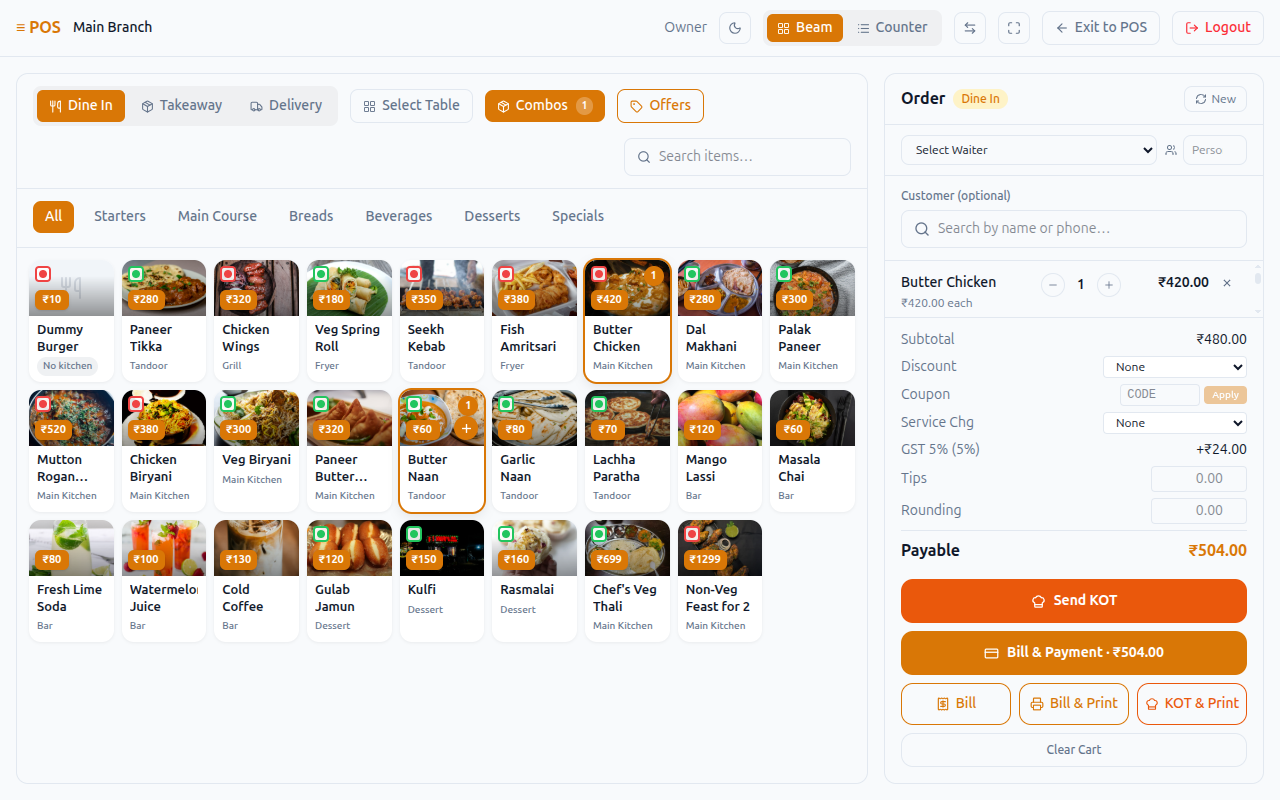
What it is
Billing is the till screen, and the money-side screens around it — taking payment for an order, splitting a bill across cash and card, redeeming store credit, recording tips, reconciling the cash drawer, and handling refunds. It's what a cashier or waiter uses dozens of times a shift, and what an outlet owner uses to reconcile the day.
- Who uses it — Outlet managers and waiters take payments at the till, day to day. Outlet managers also issue refunds and run the cash drawer. A brand-level Super Admin sets up payment gateways centrally, but is deliberately kept out of day-to-day till work (see How it is secured below).
- Where it lives — the Billing / POS screen for taking payment, the Cash Drawer screen for opening/closing a till, the Coupons screen for managing codes, and Refund Requests for the customer-facing refund queue.
- Current status — live for payments, split payments, store-credit redemption, tips and the customer refund-request queue. A separate, older refund record-keeping screen also exists behind its own permission but isn't wired up to anything in the app today — see the warning under Refunds below.
Where to find it
| Screen | URL | Who typically sees it |
|---|---|---|
| POS / billing terminal | yourdomain.com/billing |
Outlet Owner, Waiter |
| Cash drawer | yourdomain.com/cash-drawer |
Outlet Owner |
| Coupons | yourdomain.com/coupons |
Outlet Owner, Super Admin |
| Refund requests | yourdomain.com/storefront/refunds |
Outlet Owner |
| Payment gateways | yourdomain.com/settings/payment-gateways |
Super Admin |
| Bills | yourdomain.com/bills |
Anyone granted just "View bills" |
How it works
The till screen — every control
This section walks through every button, tab, filter and toggle on the till
screen (/billing) — the screen both outlet managers and waiters use day to
day to take an order and get paid.
One difference worth knowing: an outlet manager sees each item's kitchen station badge in title case — Tandoor, Grill, Fryer — while a waiter sees the same badges in lowercase — tandoor, grill, fryer. A waiter doesn't have access to the station list itself, so the screen falls back to the plain label instead. It's just a display quirk, but it shows up on the exact screen waiters use all day — the same gap described for the kitchen queue in Orders.
Layout toggle — Beam and Counter
Beam and Counter are two ways of viewing the same menu. Beam is an image card grid; Counter is a compact list, better suited to fast counter service where a cashier is working down a long list quickly. Switching between them doesn't reload anything — it just changes how the menu already on screen is displayed. The choice is remembered on that device, rather than tied to a particular user or role.
Order-panel side, theme and fullscreen
Three more icons on the top bar — all just personal screen preferences, nothing sent to the server: a swap icon that moves the order/cart panel between the right and left edge of the screen (remembered on that device); a sun/moon toggle for light/dark theme across the whole site (remembered site-wide); and a maximize/minimize icon for full-screen (resets on reload).
Order type — Dine In, Takeaway, Delivery
A three-way choice for dine-in, takeaway or delivery — it's the first decision made on every order, because everything else on the screen depends on it. Dine-in shows a Select Table control, a waiter picker and a Persons field. Delivery shows a delivery-boy picker instead. Takeaway needs neither. This choice also decides what the till will require before the order can be sent — a dine-in order, for instance, can't go through without a table.
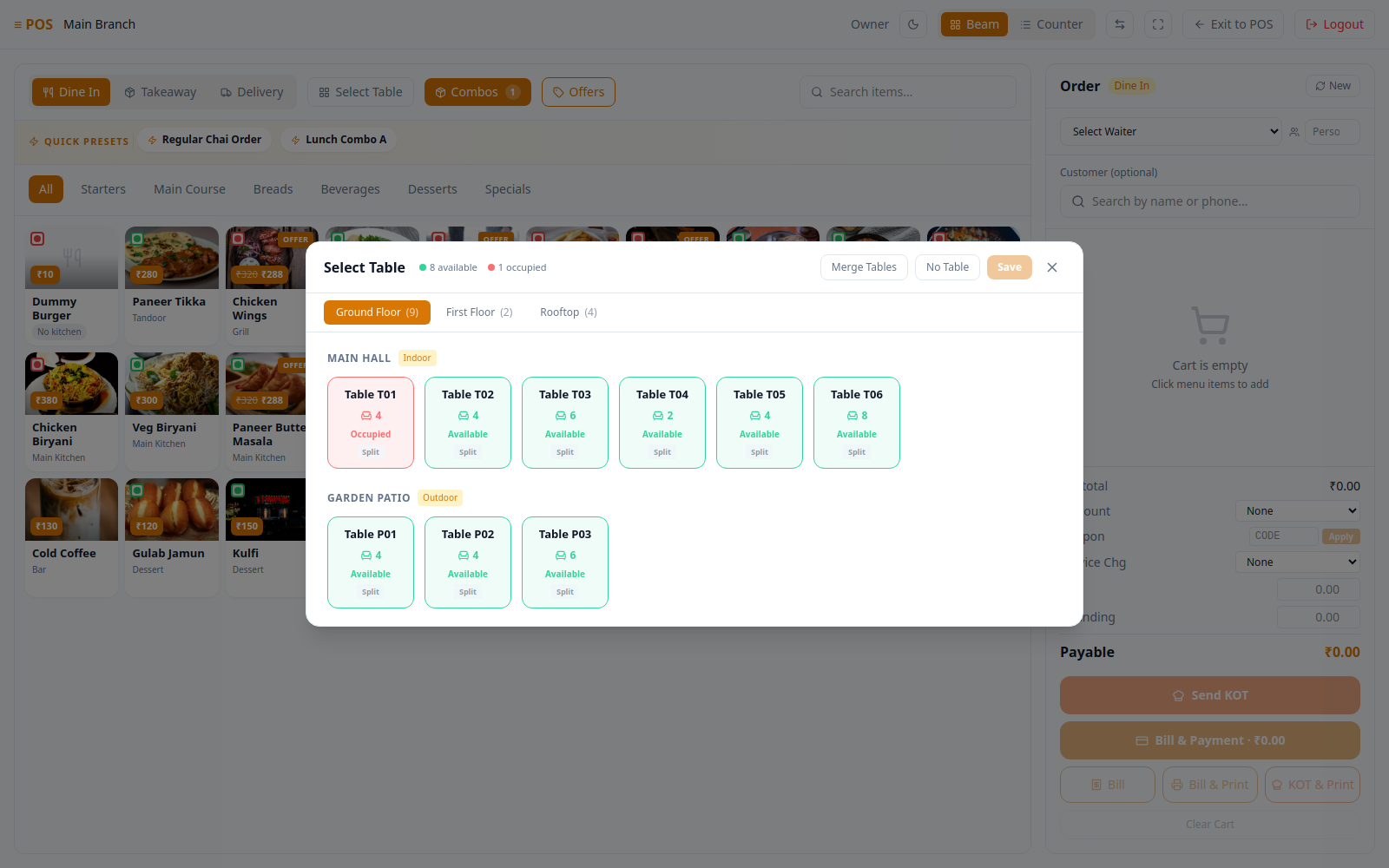
Select Table (dine-in only)
Opens the same Table Chart used to browse the floor plan — floor tabs, and tables colour-coded by status (available, occupied, reserved, dirty, blocked) — with merge and split options built in, for anyone holding the right permission. Picking a table only stages the choice on screen; nothing is sent to the server until the order itself is created.
A dine-in order can't be sent to the kitchen or billed without a table selected first. See Tables for the full merge/split picture.
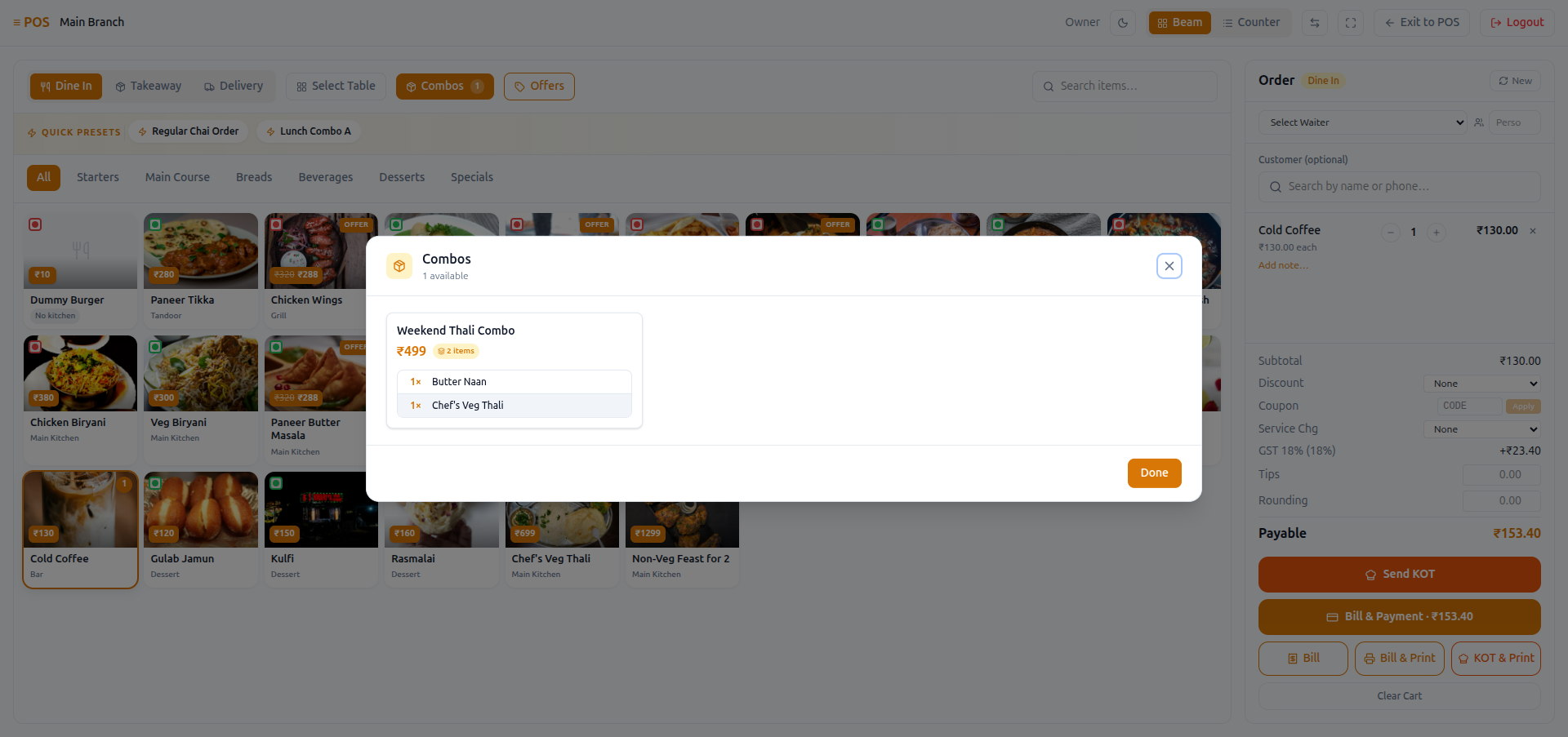
Combos
A pop-up listing the outlet's combos — picking one adds every item in the combo to the cart at once, tagged with the combo's name so the cart line shows which deal it came from. Use this whenever the order is a bundled deal rather than separate items.
Offers
Acts like a fifth menu category rather than a separate pop-up: clicking it filters the menu already on screen down to items and variants that currently carry a special offer price, and clicking it again returns to the full list. See Menu for how an offer price gets set on an item in the first place.
Category tabs and item search
Category tabs — All, Starters, Main Course, Breads, Beverages, Desserts, Specials, or whatever the outlet's real categories are — scroll with arrows once there are too many to fit, and the search box filters the same item list on screen by name as you type. Neither one reloads anything from the server.
Quick Order Presets strip
The same Quick Order Presets feature described elsewhere in this documentation, shown here as a horizontally scrolling strip above the menu grid — tapping a preset adds its whole saved basket to the cart in one go.
Waiter / Delivery Boy assignment and Persons
For a dine-in order, a manager who holds the permission to reassign staff sees a Select Waiter dropdown. A waiter without that permission instead sees their own name, already filled in and read-only — either way, the order ends up assigned to whoever is actually working it. Delivery orders work the same way, with a delivery-boy picker. Persons is a plain number field, dine-in only, and must be at least 1. Both fields are required before a dine-in or delivery order can be sent.
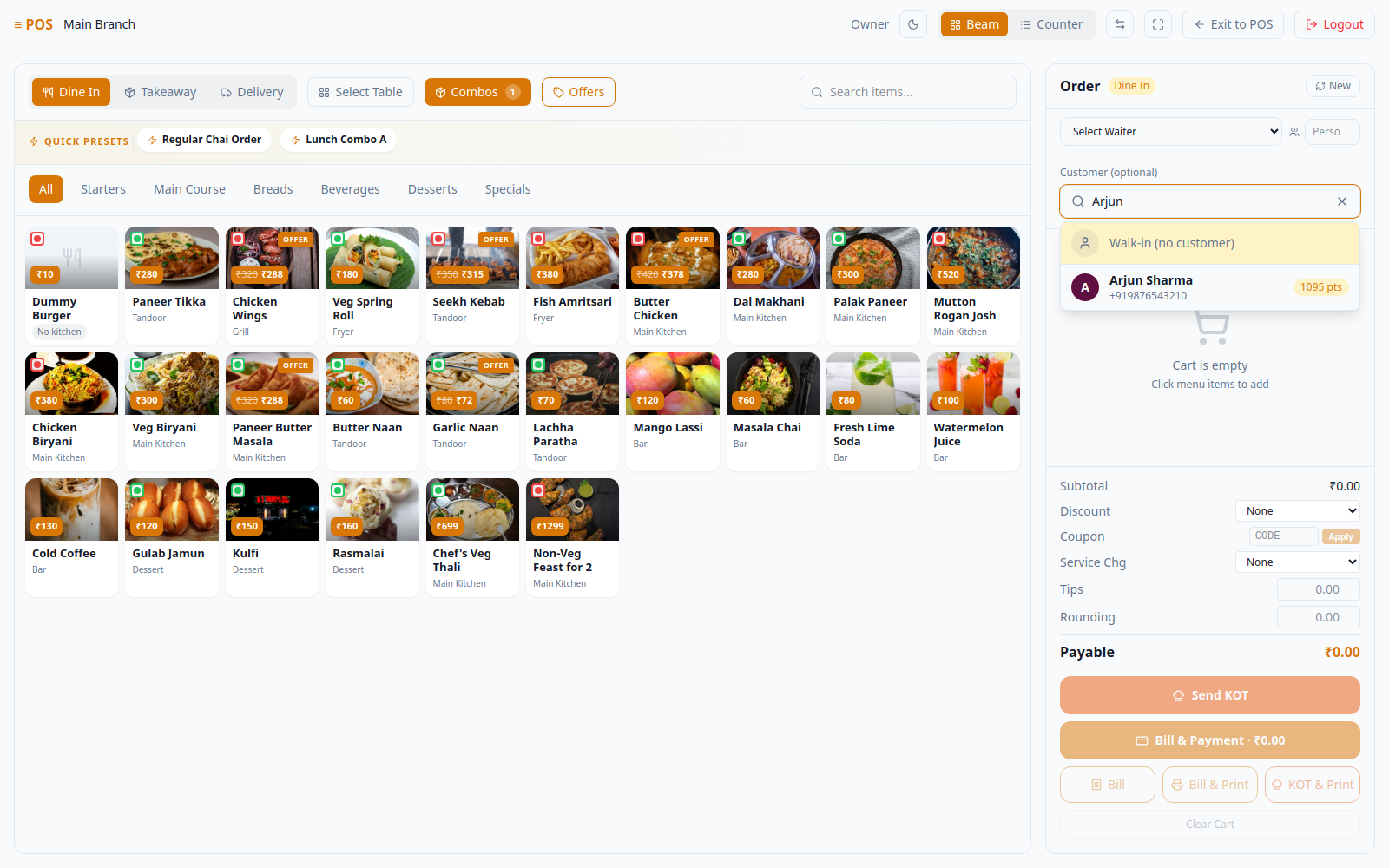
Customer (optional)
A search box, by name or phone, that either matches an existing customer or leaves the order as a walk-in if left blank. Picking a customer shows their loyalty points right away, and — if they have a verified phone or email — unlocks the option to pay with store credit later at the payment step. See Customer records for more on customer profiles.
Cart line controls
Each line in the cart has a quantity stepper, a remove button, and an "Add note…" toggle for a free-text instruction like "no onions, extra spicy." None of this is sent to the server until the order is actually created, or items are added to an existing one.
Item Customization modal
Clicking a menu item that has variants or modifier groups (sizes, add-ons) opens a pop-up to make those choices before it's added to the cart; a plain item with neither skips the pop-up and goes straight in. One deliberate design choice: if a required modifier group has no active options left to choose from, the system treats it as already satisfied rather than blocking the sale — the alternative would be an item nobody could ever order. See Modifiers for the incident that led to this fix.
Discount, Coupon, Service Charge, Tips, Rounding
These five sit directly under the cart, in the order the bill actually applies them — see how tax works for that sequence.
| Row | Control | Source |
|---|---|---|
| Discount | Dropdown of active discount rules | The outlet's own discount rules |
| Coupon | Code field + Apply | Checked against the same rules a customer's own cart would get |
| Service Chg | Dropdown of applicable service-charge rules, or a manual amount if none apply | The outlet's own service-charge rules |
| Tips | Free-entry amount | Entered by the cashier |
| Rounding | Auto-computed, or a manual override field when auto-round is off | — |
Discount and Service Charge are dropdowns built from the outlet's own rules — see Discount rules and service charges for how those are set up. If no service-charge rule applies to the current order type, a manual amount field appears in its place instead. Tips and manual rounding are plain number fields entered by the cashier; rounding is only ever touched by hand when the brand's automatic rounding is switched off.
As covered under The discount process, none of these amounts are checked again against the underlying rules when the order is saved — whatever the till sends is what's accepted. The coupon field has the same gap: see Coupons for exactly how a coupon typed in at the till differs from one used on the online storefront.
Send KOT, Bill, Bill & Payment, Bill & Print, KOT & Print, Clear Cart
| Button | Does |
|---|---|
| Send KOT | Creates/updates the order, fires it to the kitchen, resets the cart for the next order |
| Bill | Same as Send KOT, no payment prompt — for handing over a bill before paying |
| Bill & Payment | Same as Bill, then opens the Payment modal |
| Bill & Print | Same as Bill, then opens the browser print dialog on the receipt |
| KOT & Print | Same as Send KOT, plus opens the browser print dialog on the KOT slip |
| Clear Cart | Empties the in-progress cart and resets the form |
All five "commit" buttons work the same way underneath — they create or update the order, then send any cart items that haven't yet reached the kitchen. This means an order can never be finalized without the kitchen finding out. If nothing in the cart needs a kitchen station at all (an all-bottled-drinks order, say), that step is simply skipped without an error — though if some items genuinely have no station assigned, the cashier is told which ones by name.
Use Send KOT for a straightforward kitchen ticket, Bill when the guest wants to see the total before paying, Bill & Payment for the common case of settling right away, and Bill & Print / KOT & Print when paper is part of the workflow. The Bill & Payment button only appears at all for staff who hold the permission to take a payment — a waiter without it never sees the button.
The Payment modal — Cash, Card, UPI, Split, and store credit
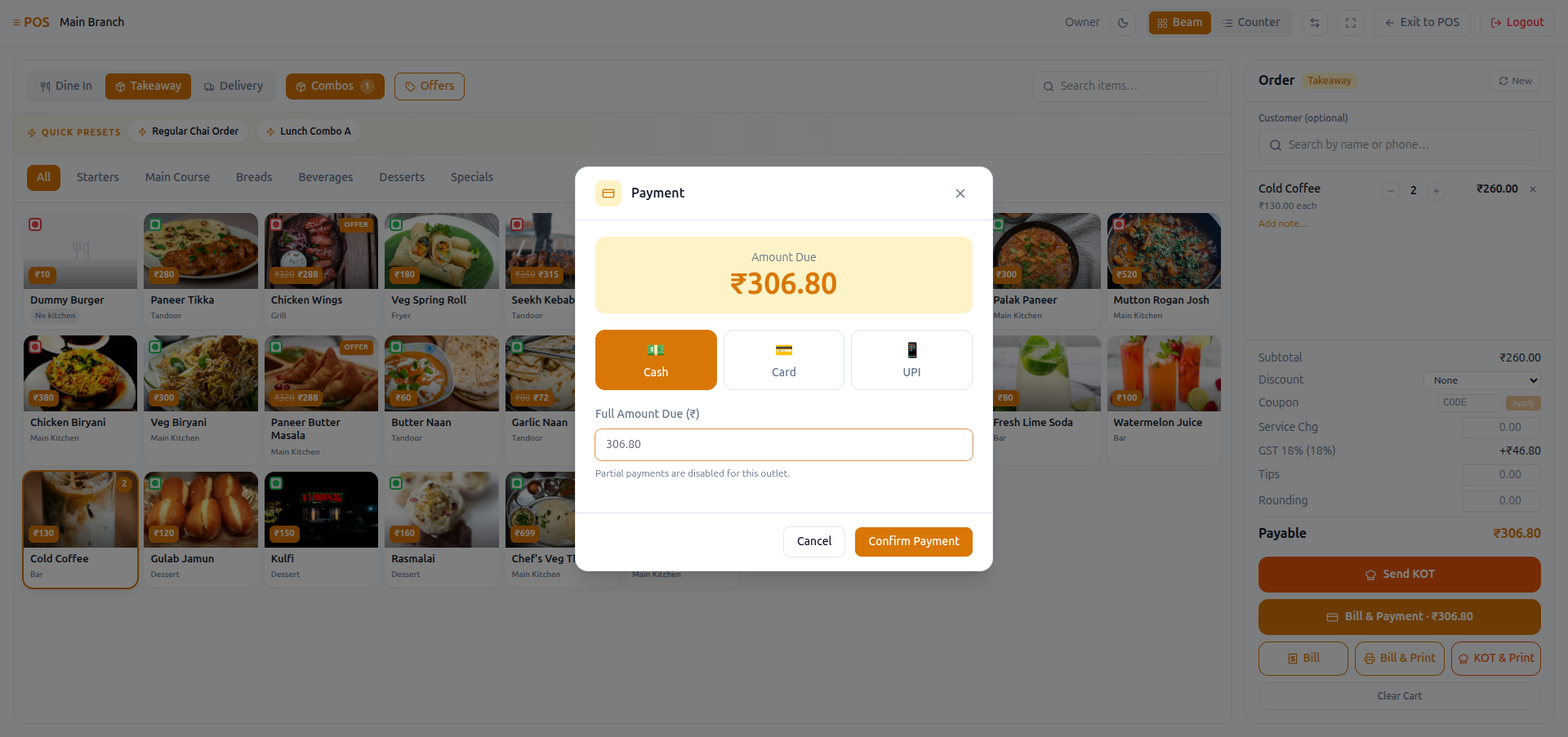
Four payment methods are available as tabs — Cash, Card, UPI and Split, where Split only shows up if the brand allows partial payment. Cash shows a running Change or Partial — remaining line as the amount tendered is typed in (if partial payment is switched off, the field is locked to the exact amount due). Split lets the cashier add several payment rows, each with its own method and amount — and warns if they don't add up to what's owed. Every payment is checked as it's entered: an order that's already cancelled or already fully paid won't accept another payment, and if a payment somehow comes in higher than what's still owed, it's automatically trimmed down to the exact amount owed, rather than letting the bill go into credit by accident.
Before any of that, if the order has a customer attached with a store-credit balance, and the brand has loyalty enabled, a Use store credit checkbox appears. Checking it and entering an amount sends a 4-digit verification code to the customer — or, if the brand's OTP setting is set to display it on-screen instead, shows the code directly on the till for a one-tap match, rather than the customer reading it aloud. The code expires after five minutes, and after a small number of wrong attempts (three by default) it locks and a new code has to be sent — this stops someone from just guessing their way into a customer's balance. Confirming the code applies the credit and reduces what's still owed; if it covers the bill entirely, the modal closes straight to the receipt with nothing further to pay. See Credit balance for how a customer builds up store credit in the first place.
Store-credit redemption requires the customer's phone or email to already be verified — if neither is, the checkbox is disabled with an on-screen explanation, rather than letting staff redeem an unverified customer's balance.
The Receipt modal
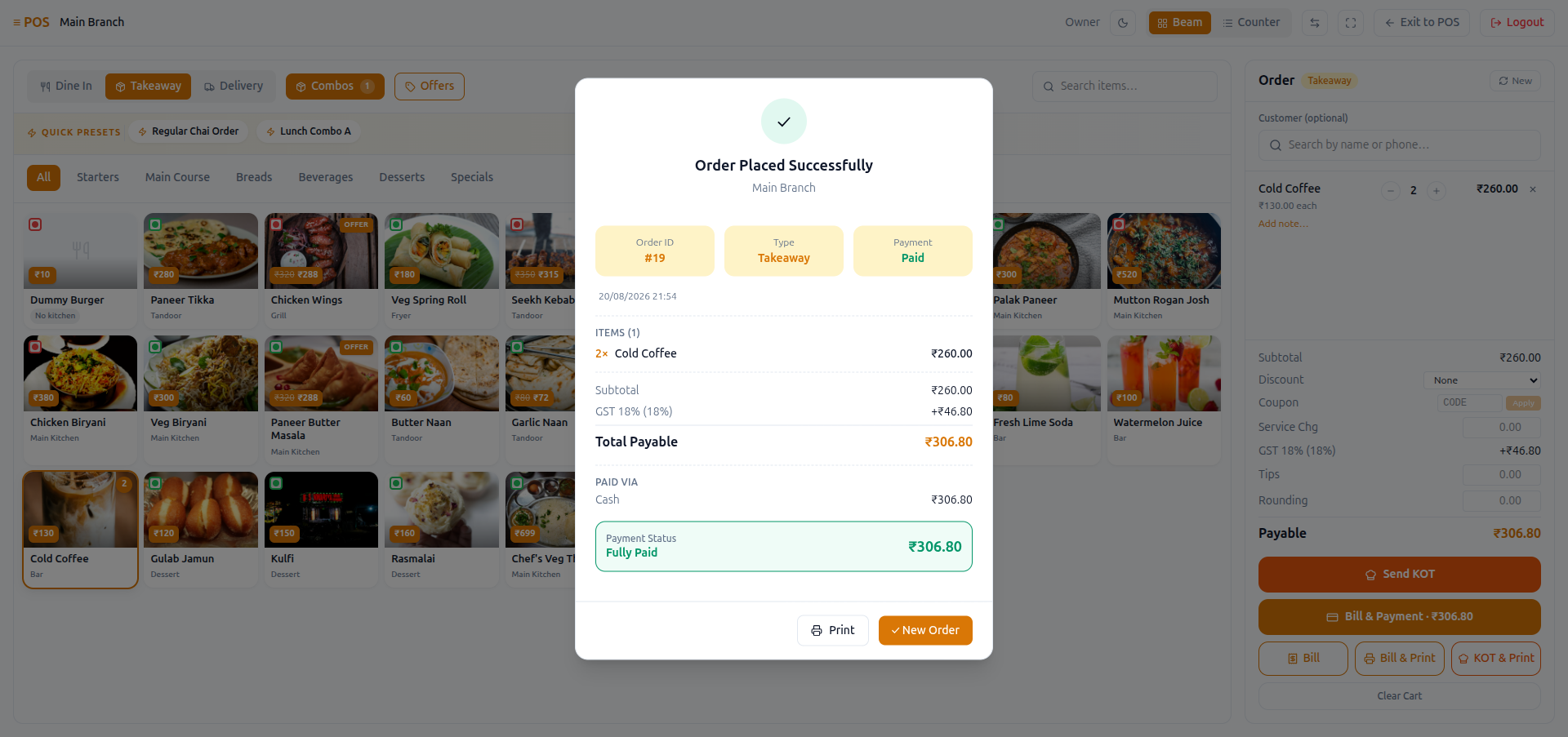
Shown automatically after a successful payment, or after Bill & Print: the order ID, type, payment status, the full breakdown of items, discounts, coupon, tax and tips, and a Paid via section showing exactly how the bill was settled — including store credit, if any was used. Print opens the browser's print dialog, and New Order clears the cart and returns to a blank till, ready for the next customer.
Taking a payment
An order can be settled by more than one payment — part cash, part card. The system checks that the payments taken never add up to more than what is owed, trimming any payment that would push the bill over rather than allowing it through.
Whole-rupee rounding is applied to the final payable amount, after every fee has been added — not to goods and tax alone. The customer pays a clean rupee figure, and the same calculation runs in the online cart and at the till, so both show the same number.
How the bill is calculated
The order total is worked out in one place, in a single calculation, so the POS, the customer's cart and the invoice can never disagree.
Each line's price, including any variant and modifier charges.
Item-level offers, then any bill-level discount rule.
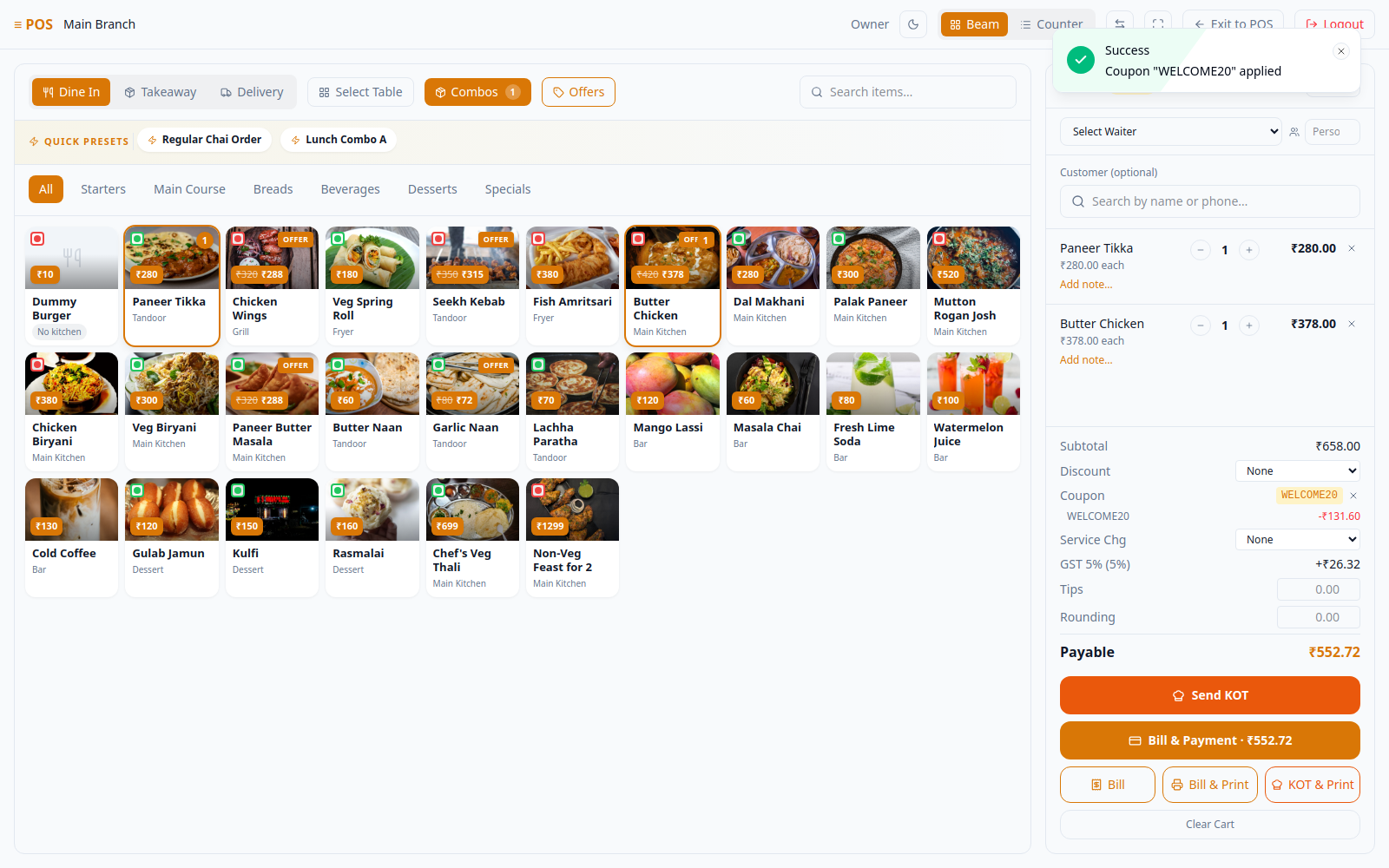
A coupon reduces the amount as well.
Calculated on the discounted amount.
Delivery, packaging and other operational charges.
Applied to the final payable figure.
Both discounts and coupons reduce the taxable amount. Under Indian GST rules, an on-invoice reduction lowers the amount GST is charged on. Tax is therefore worked out after discounts and coupons, not before. See how discounts work for the full worked calculation.
Refunds
A refund can go back to the customer as money out, or as credit balance they can spend on a future order. The total refunded can never exceed what was paid.
Customer-initiated refunds arrive as refund requests, with their own approval queue, separate from the till — see Orders. Approving and paying out are two separate steps, and a payout can never exceed the amount that was approved.
A second, older screen for recording refunds also exists in the system, reachable behind its own permission — but nothing in the app today uses it. Every refund a customer actually sees goes through the Refund Requests queue above. Unlike that queue, this older screen has none of the same safeguards: no limit against overpaying, no check for a duplicate refund on the same payment, nothing to stop two people acting on it at once. It's effectively unused, but the permission behind it is still switched on and can still be assigned — if anything is ever connected to it in future, those safeguards would need to be added first.
Tips
Tips are almost always recorded automatically the moment a bill is paid in full — whatever amount was entered on the till flows through as a tip once payment is confirmed. There isn't a separate day-to-day "manage tips" screen outside of billing itself.
Coupons
Listing and checking a code are covered by one permission; creating, editing or removing a coupon needs a separate, more restricted one. See Coupons for the full picture, including an important difference between how a coupon is checked at the till versus on the online storefront.
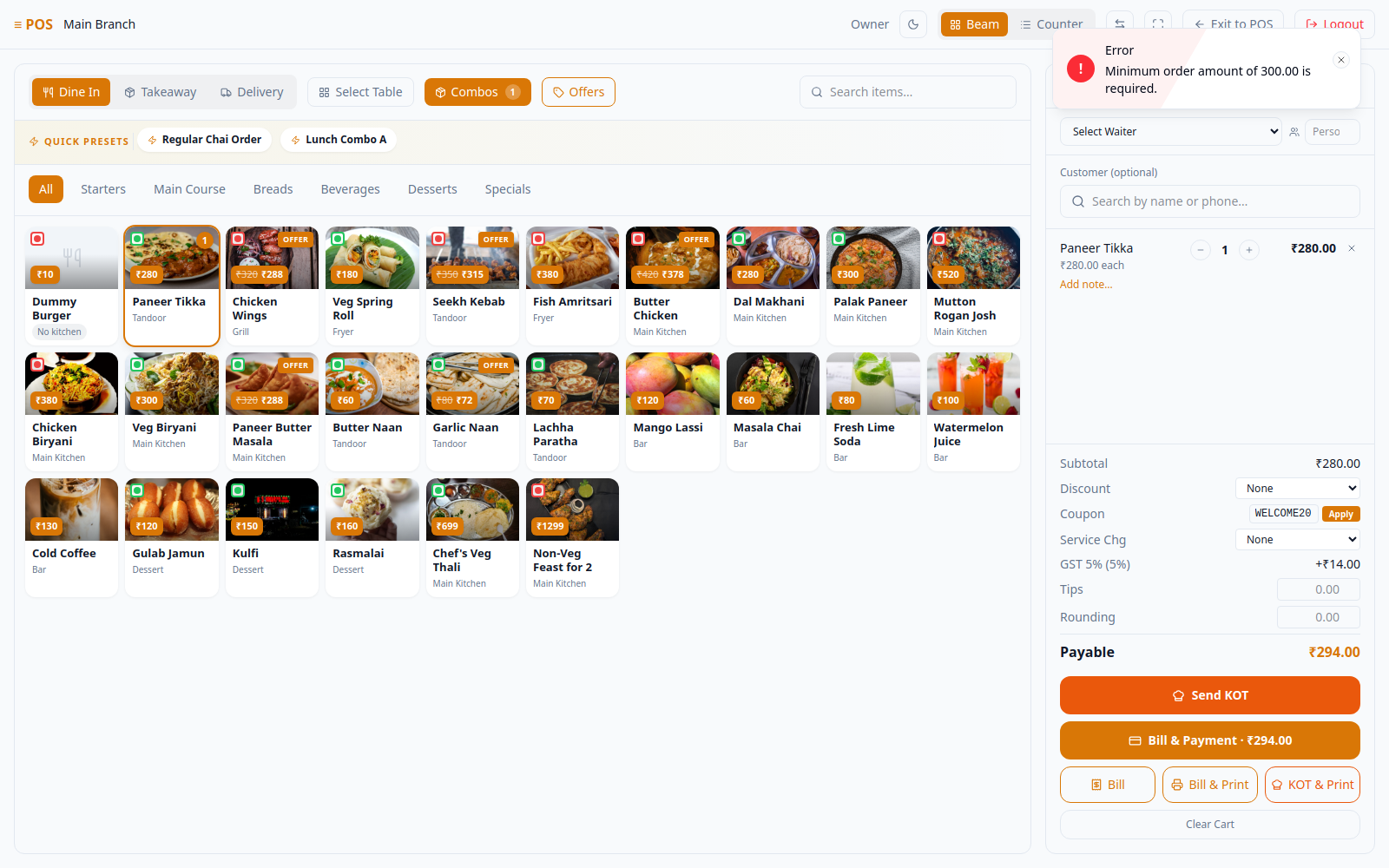
Coupons are defined brand-wide. Every branch of a brand shares the same set of codes — there's no way to create a code that only works at one outlet.
Waiters can check and apply a code at the till but cannot create or change one — the two are controlled by different permissions.
The cash drawer
/cash-drawer covers opening a till with a float, recording what's in it,
and closing it off at the end of a shift.
This is what makes cash reconcilable in principle: the drawer is counted at the start and end of a shift.
Every closed session is kept in a history list — opened/closed timestamps, opening cash, expected cash, closing cash and a Variance column, shown as Balanced once the counted and expected figures agree.
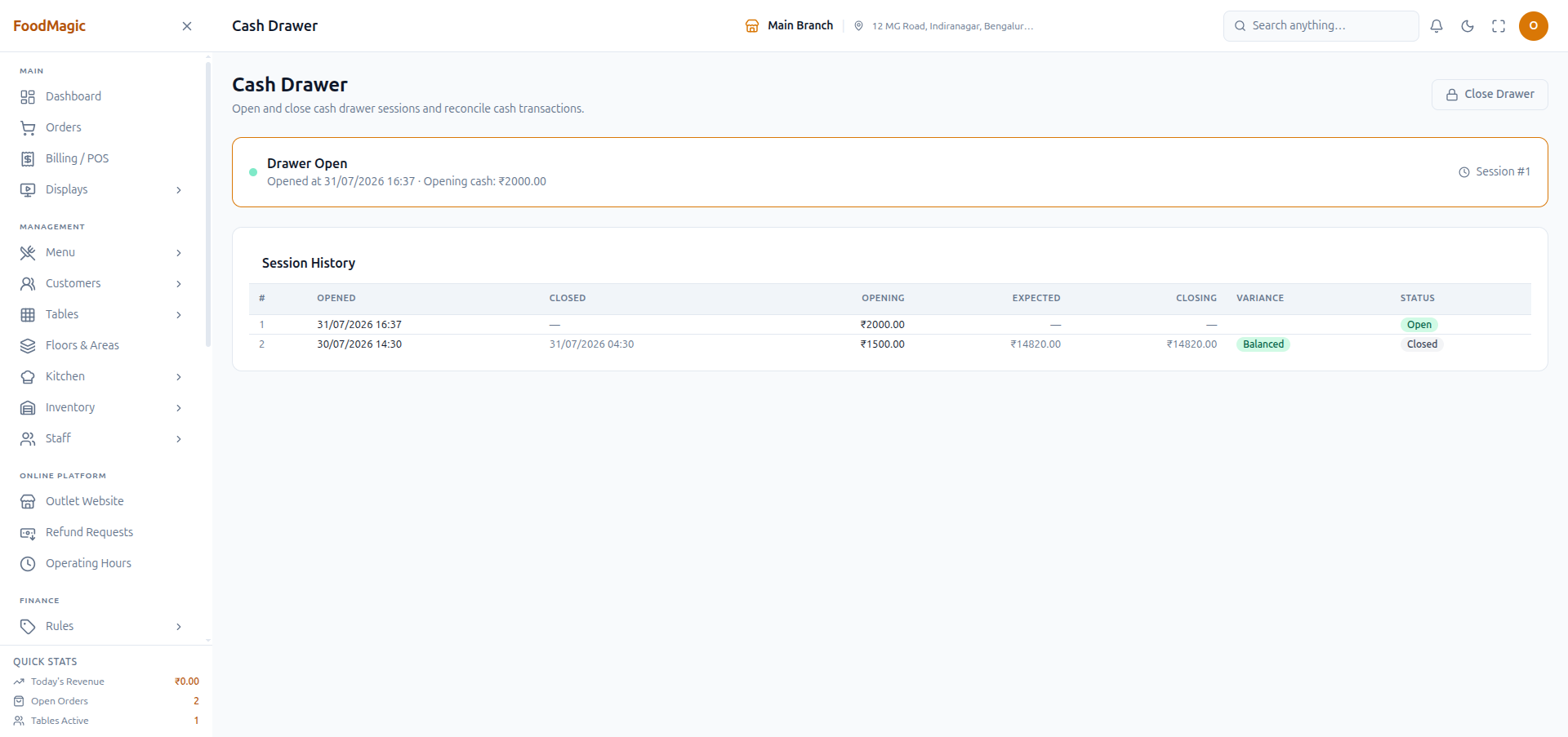
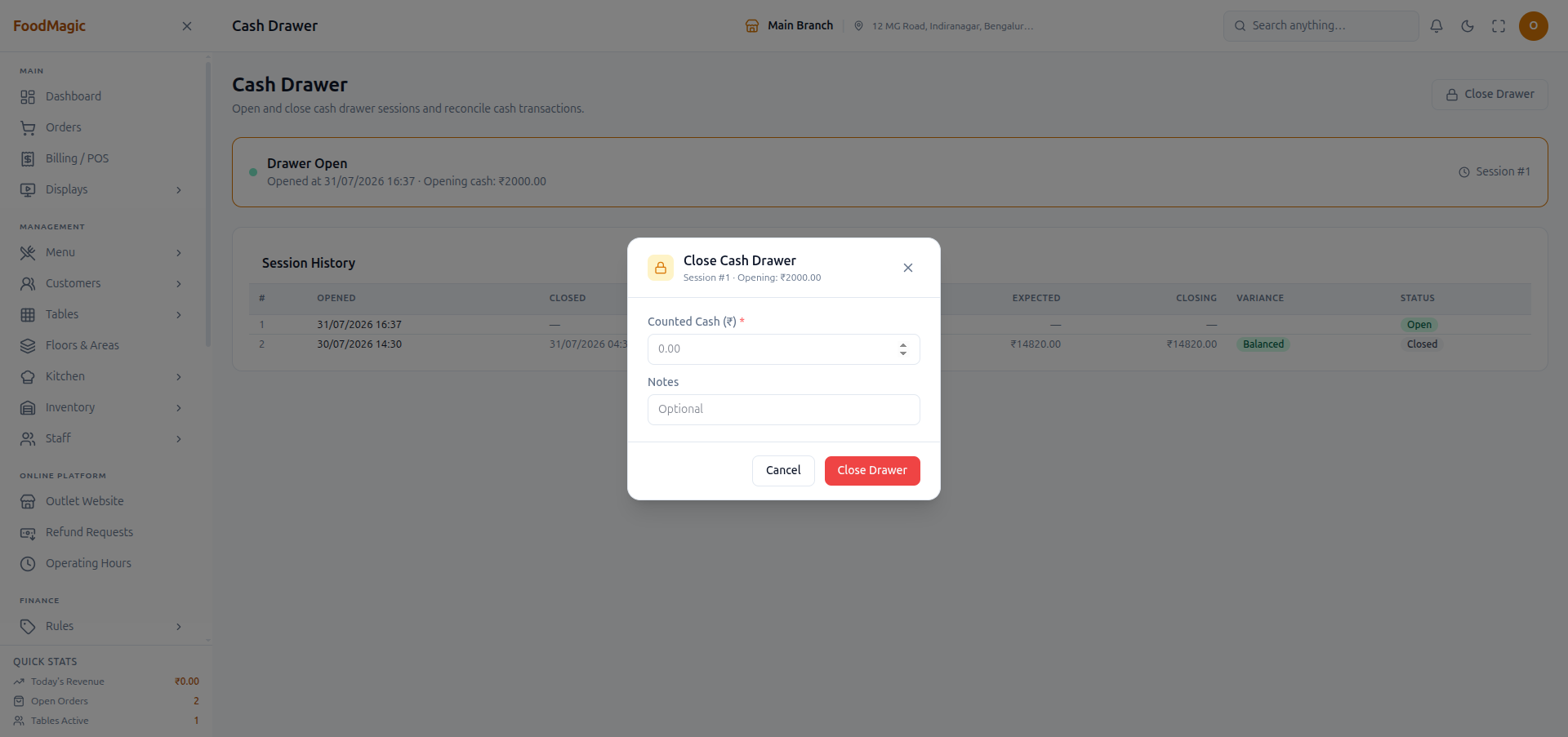
The "expected amount" shown when closing a drawer is currently a placeholder — it starts from the opening float rather than actually adding up the cash payments taken during the shift, so it isn't yet a true cash-versus-sales check. Worth knowing if a business relies on this number for cash accountability, rather than counting the drawer by hand against the payment list.
Bills
A read-only payment ledger for the outlet — every payment attempt, one row each, independent of the till itself.
This screen exists specifically for a role that holds "View bills"
(billing.bills.list) but nothing stronger. Before it existed, that
permission had nothing to open — the payment-history data it gates was
only ever visible inside an order's own detail page, itself gated behind
the much broader "View orders" permission. Now a bookkeeper-style role can
see every payment without also being able to take one, void one, or open
the POS terminal at all.
A KPI strip up top shows Total, Success, Failed, Refunded, ₹ Paid and ₹ Refunded — counted across whatever the current Status/Method filters match, not just the visible page. Below that, a filter card (Status, Method, Reset) and, inside the table's own toolbar, a search box (matches the payment reference), Export (CSV/Excel/PDF/print) and a reload button. Columns: date, the order it belongs to, method/gateway, amount, and status — sort by clicking any column header. A totals row at the bottom adds up the amount actually visible on the current page.
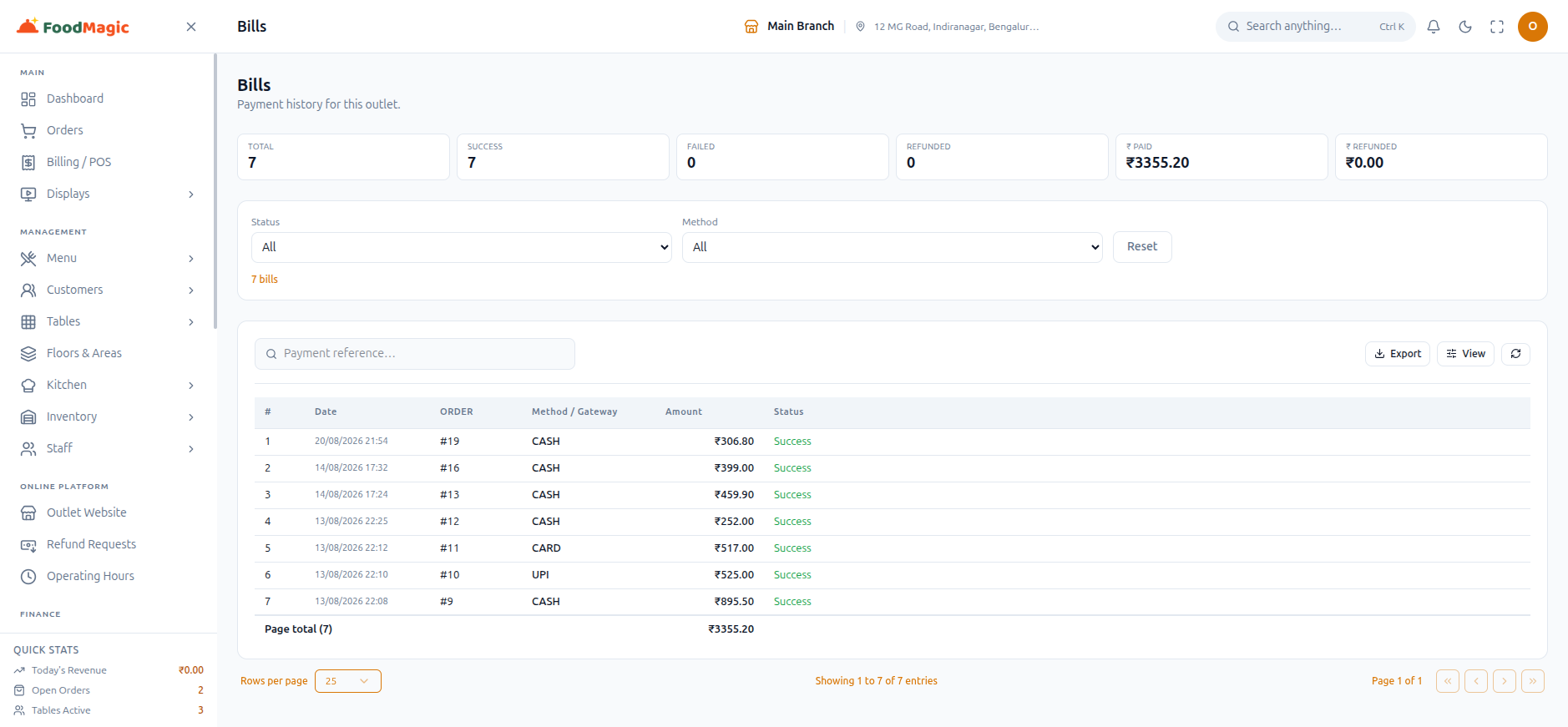
This page deliberately has no take-payment, refund, or void controls —
those live on the till (/billing) and inside an order's own page,
gated on their own stronger permissions. Bills is read-only by design.
How it is secured
On-screen permissions. Viewing bills, creating a bill, voiding a bill, accepting a payment, issuing a refund, and managing the cash drawer are each their own separate on/off switch on the Roles & Permissions screen, set per outlet rather than shared automatically across a whole brand.
Role access.
| Action | Who holds it by default |
|---|---|
| See bills, take a payment | Outlet Owner, Waiter |
| Issue a refund, manage the cash drawer | Outlet Owner |
| Validate and apply a coupon | Outlet Owner, Waiter |
| Create, edit or deactivate a coupon | Super Admin only |
A waiter can take money but cannot give it back — refunds and the cash drawer are deliberately held back for the Outlet Owner, and are confirmed as absent from the Waiter's default permissions.
Interestingly, the brand-level Super Admin role doesn't automatically get day-to-day billing abilities either — accepting payments, issuing refunds and managing the cash drawer are all deliberately left as outlet-level, hands-on jobs for the Outlet Owner and their staff, not the brand owner. The customer-facing Refund Requests queue works the same way: a Super Admin doesn't get it by default under the built-in role, either.
On-screen gating. The Bill & Payment button on the till only appears for staff who hold the payment-taking permission. The Cash Drawer screen's Open/Close buttons only appear for staff who hold the cash-drawer permission. Reaching the till screen at all requires holding both the permission to create orders and general POS access together — not either one alone — after an earlier version let someone reach the till with only one of the two, without really being set up to run it.
Validation. A payment needs an amount and a method before it's accepted. A refund amount can't be negative. The older, unused refund-recording screen mentioned above, however, doesn't check a refund amount against what was actually paid on the order — one more reason it shouldn't be relied on if it were ever connected to anything.
Tenancy. The payments list is limited to the signed-in user's own outlet, the same way orders and the cash drawer are, and a payment taken at the till is automatically tagged with its order's outlet.
The cash drawer, tips, and the customer refund-request queue are all correctly limited to one outlet at a time — a login for one branch cannot see another branch's drawer sessions or refund requests.
Opening a cash drawer session locks the outlet to whichever branch the logged-in user belongs to — an outlet manager can't accidentally open a session for the wrong branch. A brand-level Super Admin using this screen, who isn't tied to any one outlet, would instead default to a placeholder outlet rather than being asked to choose — a gap that would only affect a Super Admin login, not ordinary outlet staff.
Audit trail. Payment and refund actions taken through the main payment screen are written to a central activity log — who did it, when, what changed. Cash-drawer opens/closes and tips are not currently captured in that same central log, and neither are refund-request decisions (those are recorded on the request itself, not in the general log) — so tracing a cash discrepancy or a tip dispute after the fact means checking the relevant screen directly, rather than searching the general activity log.
Quick reference — who can do what
| Action | Roles |
|---|---|
| See bills | Outlet Owner, Waiter |
| Take a payment | Outlet Owner, Waiter |
| Issue a refund | Outlet Owner |
| Manage the cash drawer | Outlet Owner |
| Validate a coupon | Outlet Owner, Waiter |
| Create coupons | Super Admin |