
Login and password reset
How signing in works, what happens to other sessions, the self-registration flow — including a real bug found while verifying it — and Forgot Password / Reset Password.
What it is
These are the screens you see before you sign in: Login, Register, Forgot Password, and Reset Password. You don't need to be signed in already to use any of them — they're how you get signed in in the first place.
Login
Where it lives — /login. Anyone with the URL can reach it; no
sign-in or permission is needed to see the form itself.
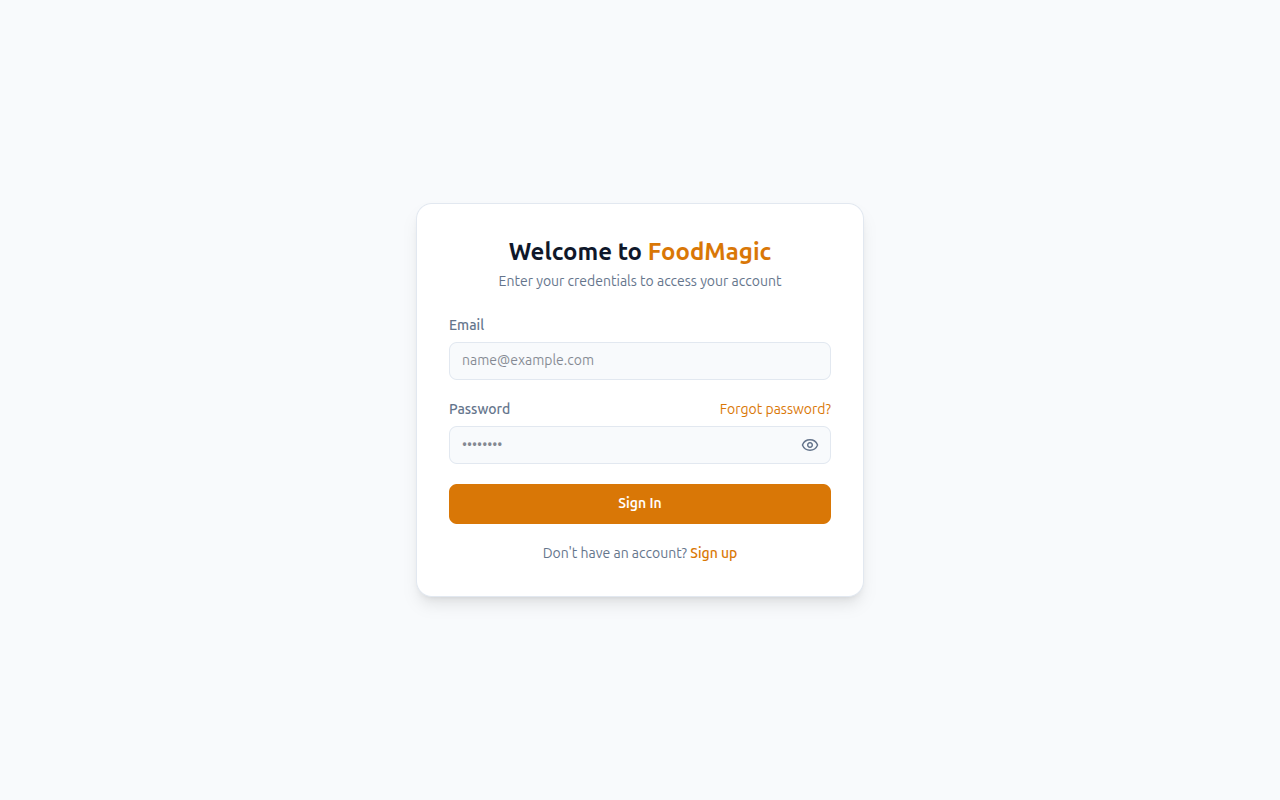
The login form only asks for an email and a password, nothing else. Both fields are always empty when the page loads — nobody's email or password is ever filled in for you, not even a Super Admin's, the first time they open the app.
| Field | Required? | What to enter |
|---|---|---|
| Yes | The email address the account was created with | |
| Password | Yes | The account's password, case-sensitive |
| Button | What happens |
|---|---|
| Sign In | Submits the form. Nothing happens until both fields have a value. |
| Sign up (link, bottom of form) | Goes to Register — only shown when self-registration is turned on |
| Forgot password? (link) | Goes to the Forgot Password form |
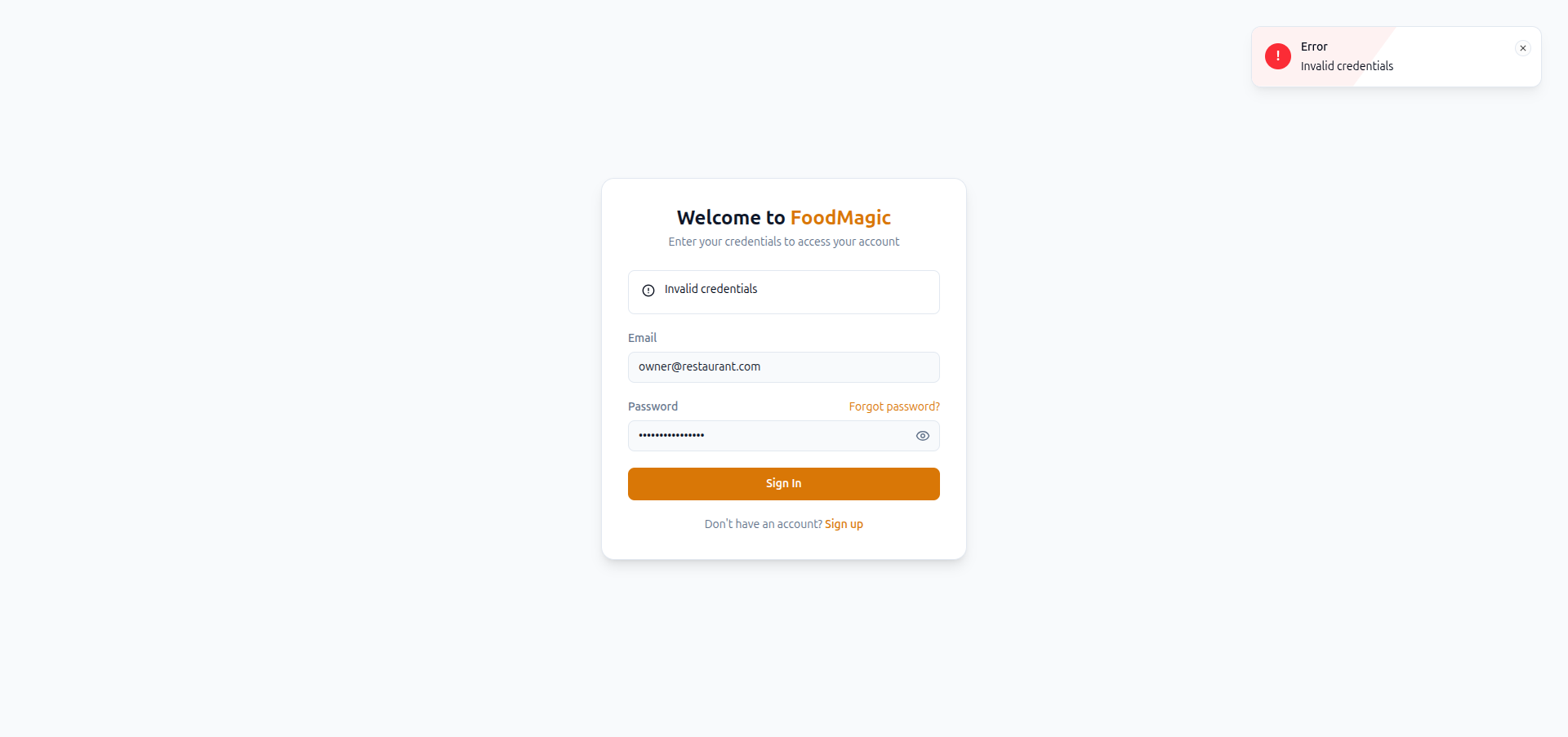
When you submit the form, Food Magic checks your email and password. It also checks that your email address has been verified. If either check fails, you are not signed in and no session is started — the form shows an error and you stay on the login screen.
Signing in on one device signs you out everywhere else. Food Magic only allows one active session per account, by design. If you sign in on a second phone or browser, the first one is signed out right away. It's not left hanging, either — for the next five minutes, that old session sees a clear message explaining why: "You were signed out because your account signed in from another device or browser," instead of just being silently kicked out.
Once you're signed in, Food Magic sends you to the right place next. If your account is marked to change its password, you're sent to the change-password screen. If you manage more than one outlet but haven't picked one yet, you're sent to a screen to select an outlet. Otherwise, you go straight to the dashboard.
Register
Where it lives — /register, reached from the "Sign up" link at
the bottom of the login screen. That link only shows up when
self-registration is turned on for your installation — it is turned on
by default. No sign-in is needed to reach it.
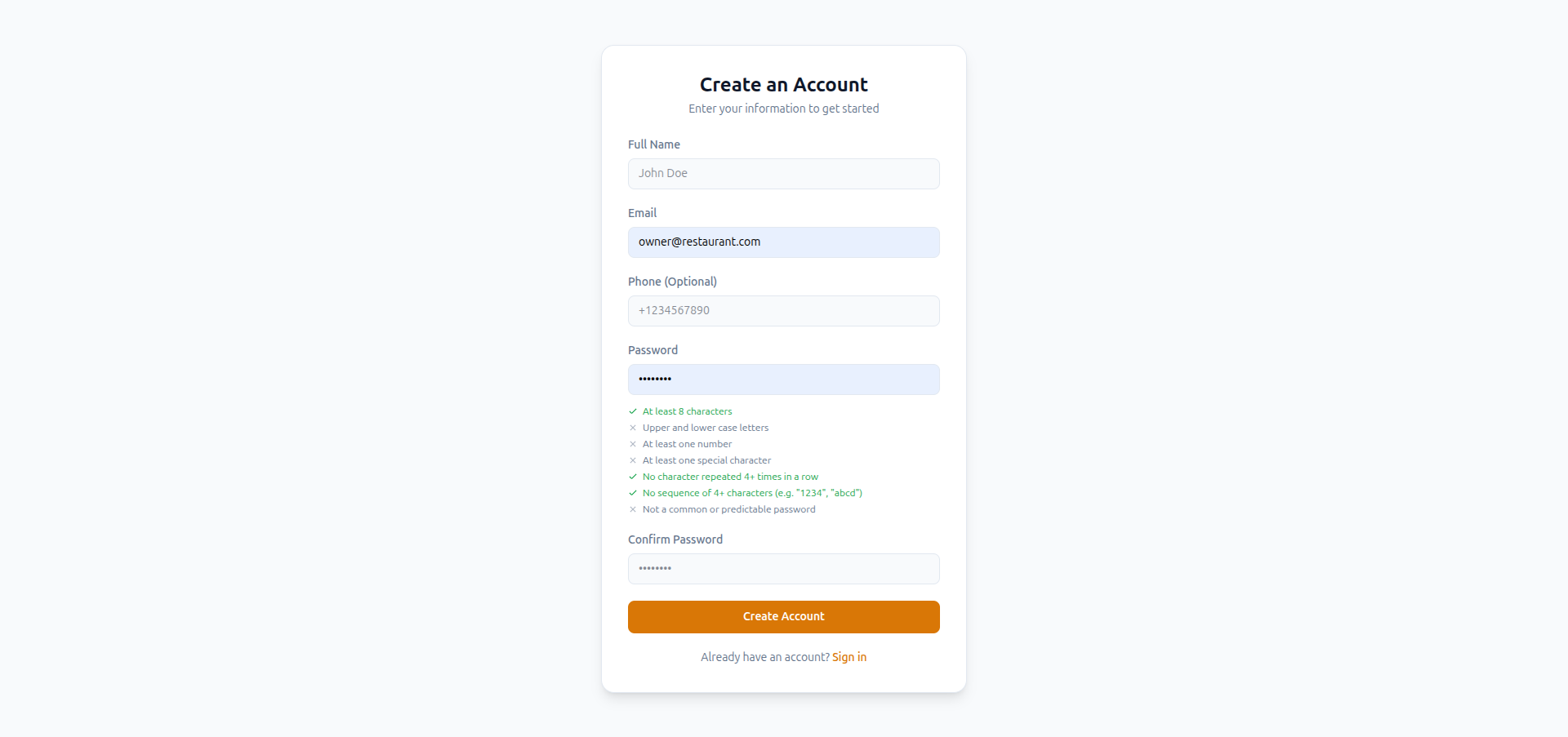
| Field | Required? | What to enter |
|---|---|---|
| Full Name | Yes | The name shown on the account |
| Yes | Becomes the login email; must not already be registered | |
| Phone | No | Optional contact number |
| Password | Yes | Checked live against the seven rules below as you type |
| Confirm Password | Yes | Must match Password exactly |
| Button | What happens |
|---|---|
| Create Account | Submits the form and, if everything passes, signs the new account straight in |
| Sign in (link) | Goes back to /login without creating anything |
As you type your password, it's checked live against the same seven strength rules described under Reset Password below — see the two checklist screenshots there for what a failing vs. a passing password looks like.
When someone submits this form, Food Magic:
- creates the account — though it isn't attached to any restaurant or outlet yet; a self-registered account starts out with no business connected to it,
- either verifies the email address right away or sends a verification email first, depending on how your installation is set up,
- always sends a welcome email, and
- signs the new account in immediately and takes it to the dashboard. There's no "please verify your email before continuing" step — access is granted right away, whether or not verification is still pending.
Right now, signing up this way leaves the new account with no access to anything at all — we confirmed this by actually creating a test account, not just by reading how the feature is supposed to work. Every account needs a role — Owner, Waiter, Delivery Rider, and so on — to decide what it can see and do. Self-registration tries to give a new account a basic starter role, but that role doesn't exist in this installation's setup, so the step silently fails. Nothing on screen shows an error. The sign-up still looks like it worked: the account is created and the browser lands on the dashboard. But that dashboard is almost completely empty — the sidebar only shows Dashboard, My Attendance, My Payslips, and My Profile — because the account has no role and no restaurant attached to it. This isn't a case of limited access; the account can't reach a single working screen. We confirmed this by signing up a real test account and watching it land exactly there.
Whether sign-up is turned on at all, and whether a new account needs to verify its email before signing in, are both simple on/off settings for your installation — see Settings reference → Technical and personal for where settings like these live.
Forgot Password
Where it lives — /forgot-password, reached via the Forgot
password? link on the login form. No sign-in is needed.
| Field | Required? | What to enter |
|---|---|---|
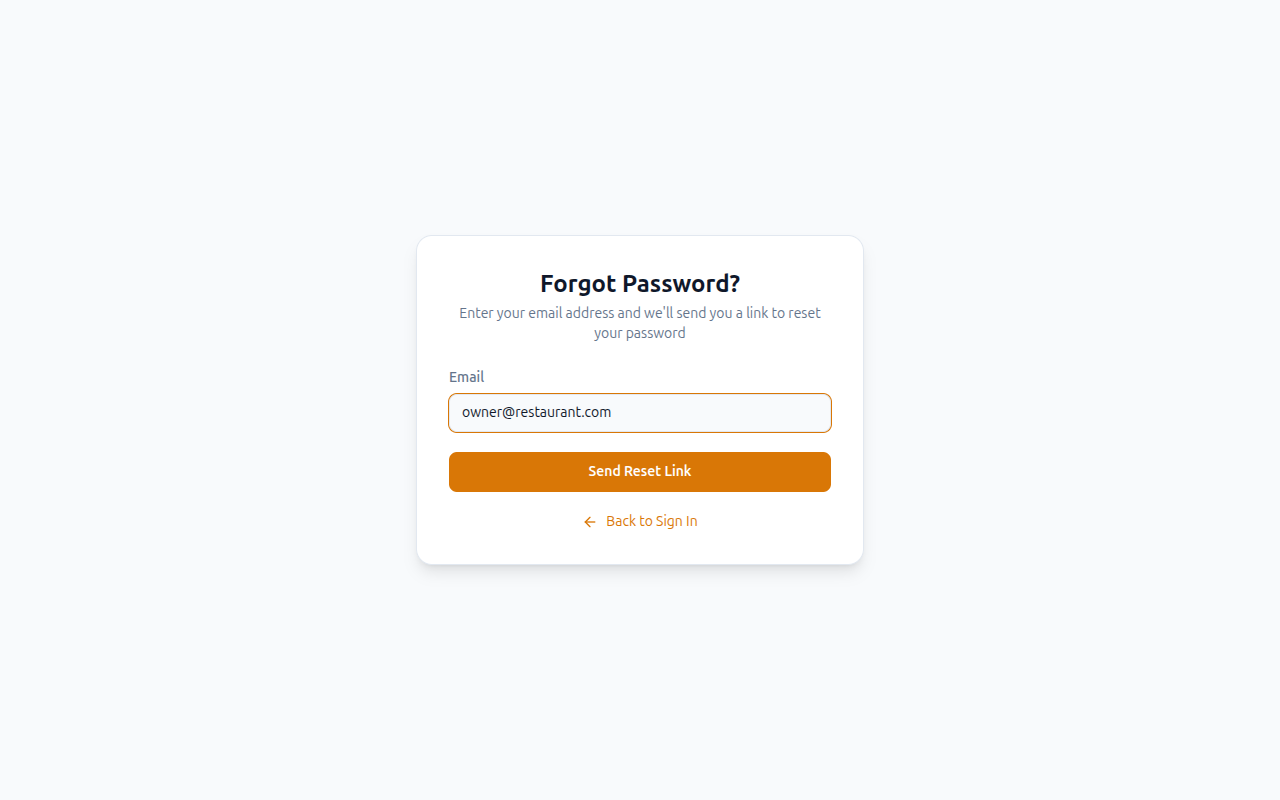
| Yes | The email address on the account you want to reset |
| Button | What happens |
|---|---|
| Send Reset Link | Submits the email and requests a reset link |
| Back to Sign In | Returns to /login without submitting anything |
This page just asks for your email address. When you submit it, Food Magic checks whether that email belongs to a real account and, if so, sends a password reset link to it.
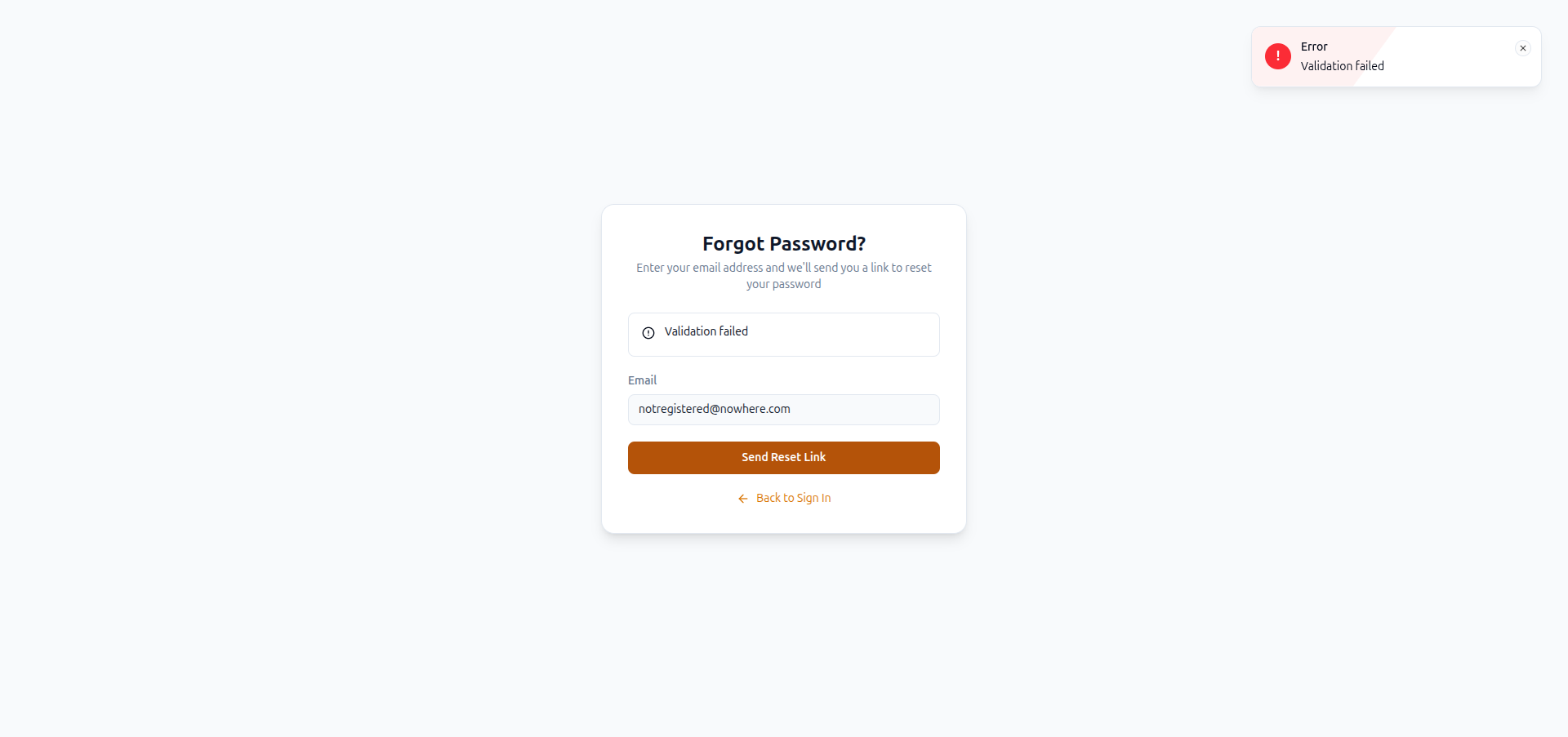
There's a real, live-verified privacy gap here — the API responds differently for a registered vs. an unregistered email, even though the screen doesn't spell that difference out in words. Behind the scenes, an unregistered email gets back "No user found with this email address" in the response body, and a registered one gets a different response. But the on-screen message a user actually sees is more generic than that on both paths, and its exact wording is currently entangled with the crash bug below — see the two screenshots for exactly what's shown.
A reset link is valid for 60 minutes after it's created.
While testing this page in our development setup, submitting a registered email produced a server error instead of the "check your email" success message you'd expect. The reset link itself is created and saved correctly. But the very next step — sending the reset email — crashes, because the email tries to build its link using a method this backend doesn't support. Food Magic actually has its own properly designed password-reset email ready to use, but the step that sends the email isn't wired up to use it, so the system falls back to a broken default and crashes. In this development setup, the email never even reaches the point of being logged — the crash happens before that. We only found this by actually clicking through the flow ourselves; reading the code alone wouldn't have caught it.
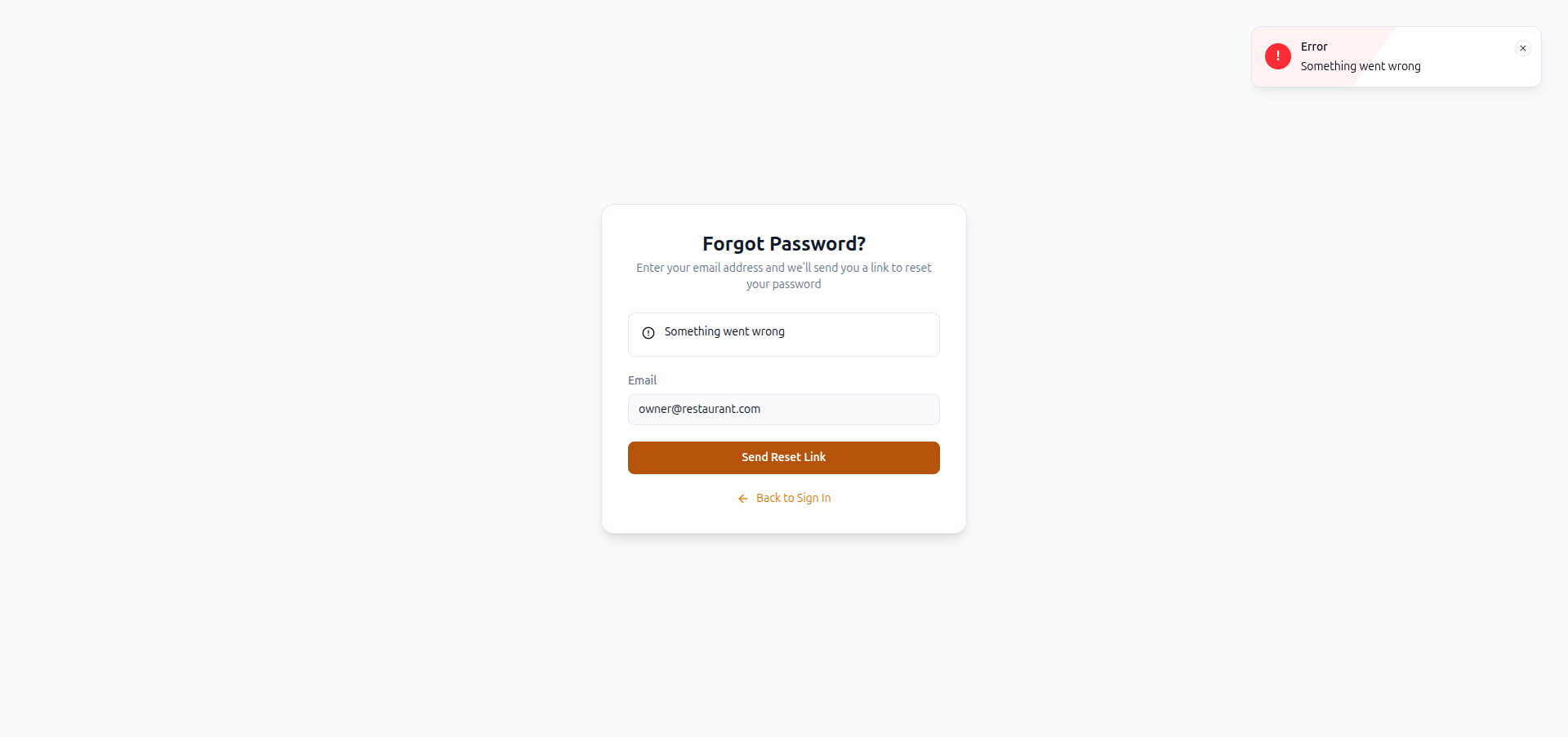
Put together, the two screenshots above still show a real, observable difference between a registered and an unregistered email — "Validation failed" versus "Something went wrong" — just not the specific wording originally assumed here. Once the email-sending crash is fixed, the registered path should show a success message instead, at which point the difference becomes even easier to notice.
Reset Password
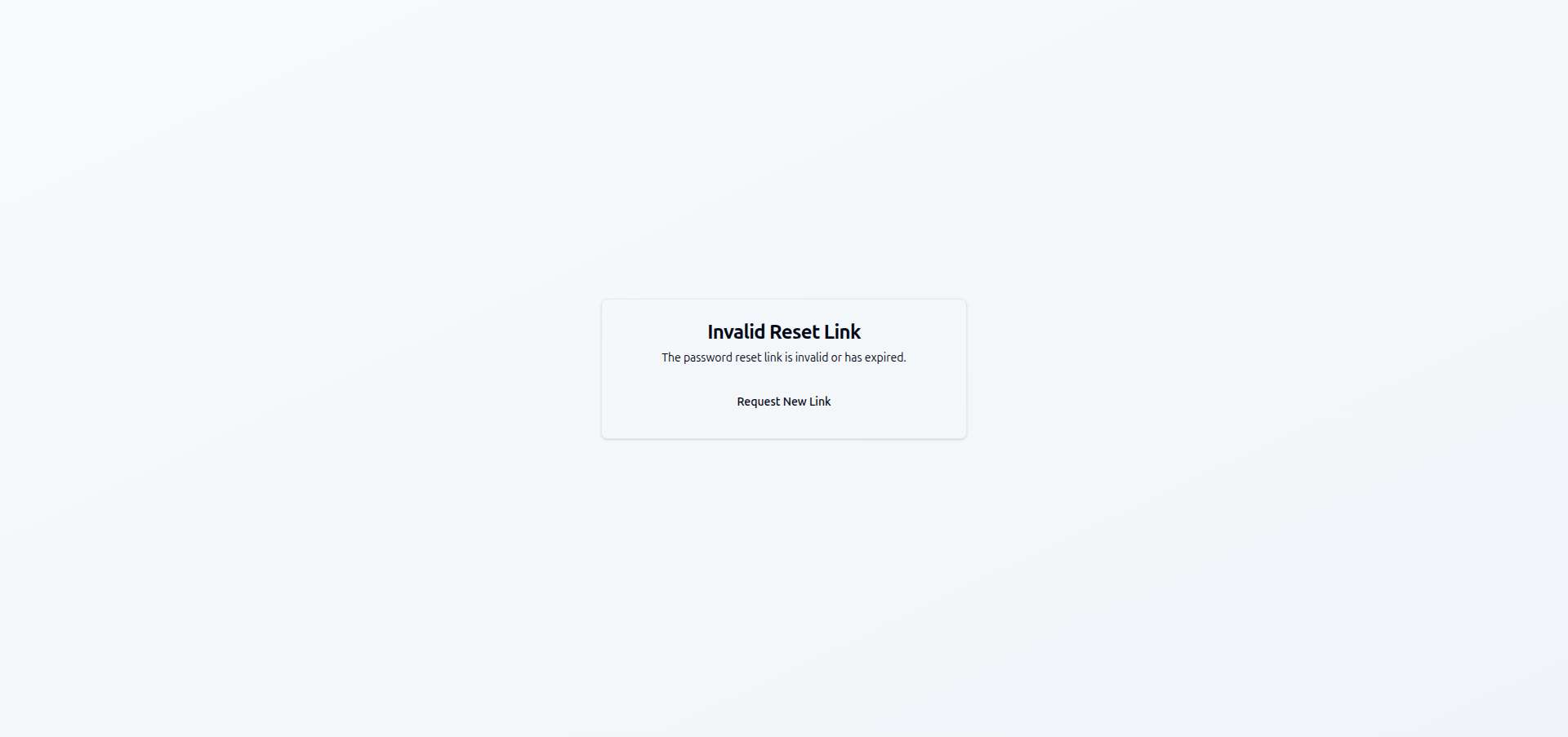
This is the page the emailed reset link takes you to. It reads the reset code and your email address directly from that link, and shows your email address as read-only. If you open this page without a valid reset code, you just see an "Invalid Reset Link" message instead of the form.
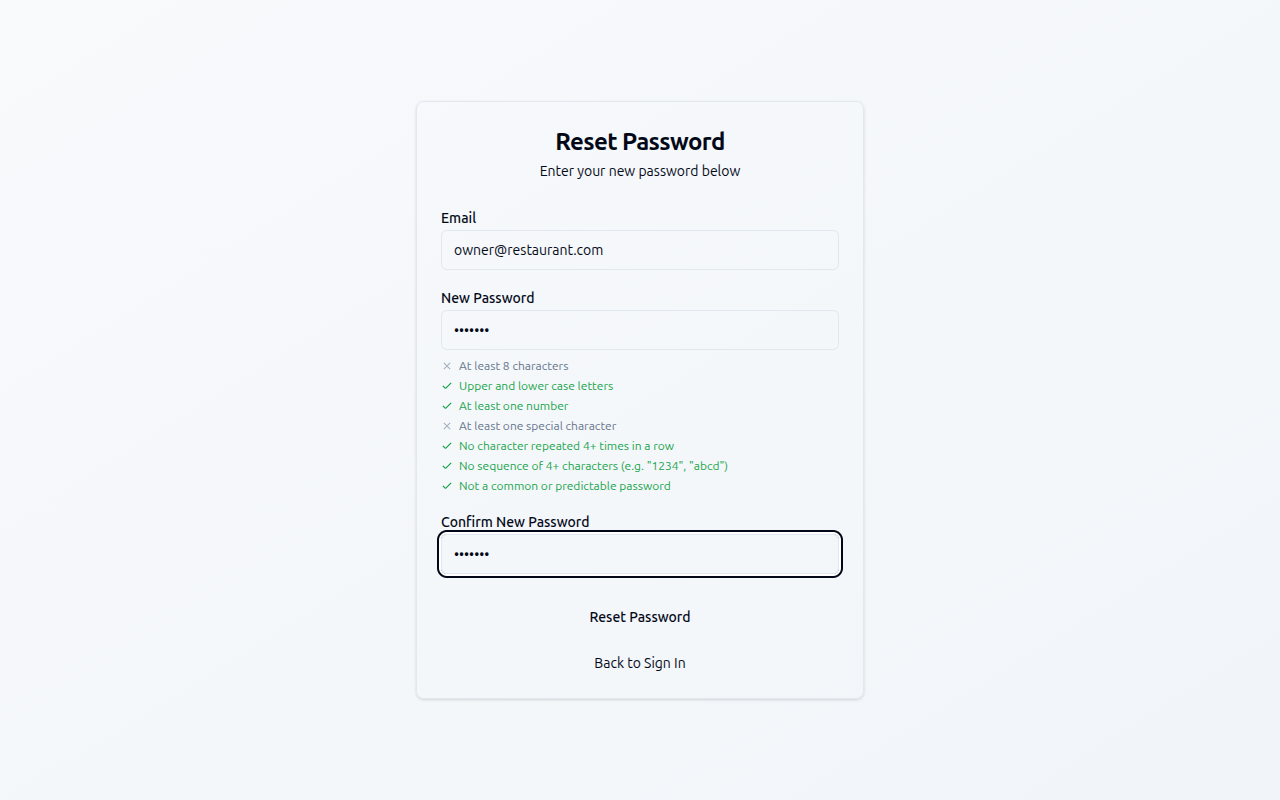
As you type your new password, it's checked live against seven rules. These are exactly the same rules the server checks, so if the on-screen checklist turns all green, the password is guaranteed to be accepted:
| Requirement | What it means |
|---|---|
| Length | At least 8 characters |
| Case | Has both uppercase and lowercase letters |
| Digit | Has at least one number |
| Special character | Has at least one symbol that isn't a letter or number |
| No repeated run | No single character repeated 4 or more times in a row |
| No sequence | No run of 4 or more letters or digits in order, like "1234" or "abcd" |
| Not common | Isn't a common or weak password — even with digits or symbols added to the end, so "password123!" is still rejected |
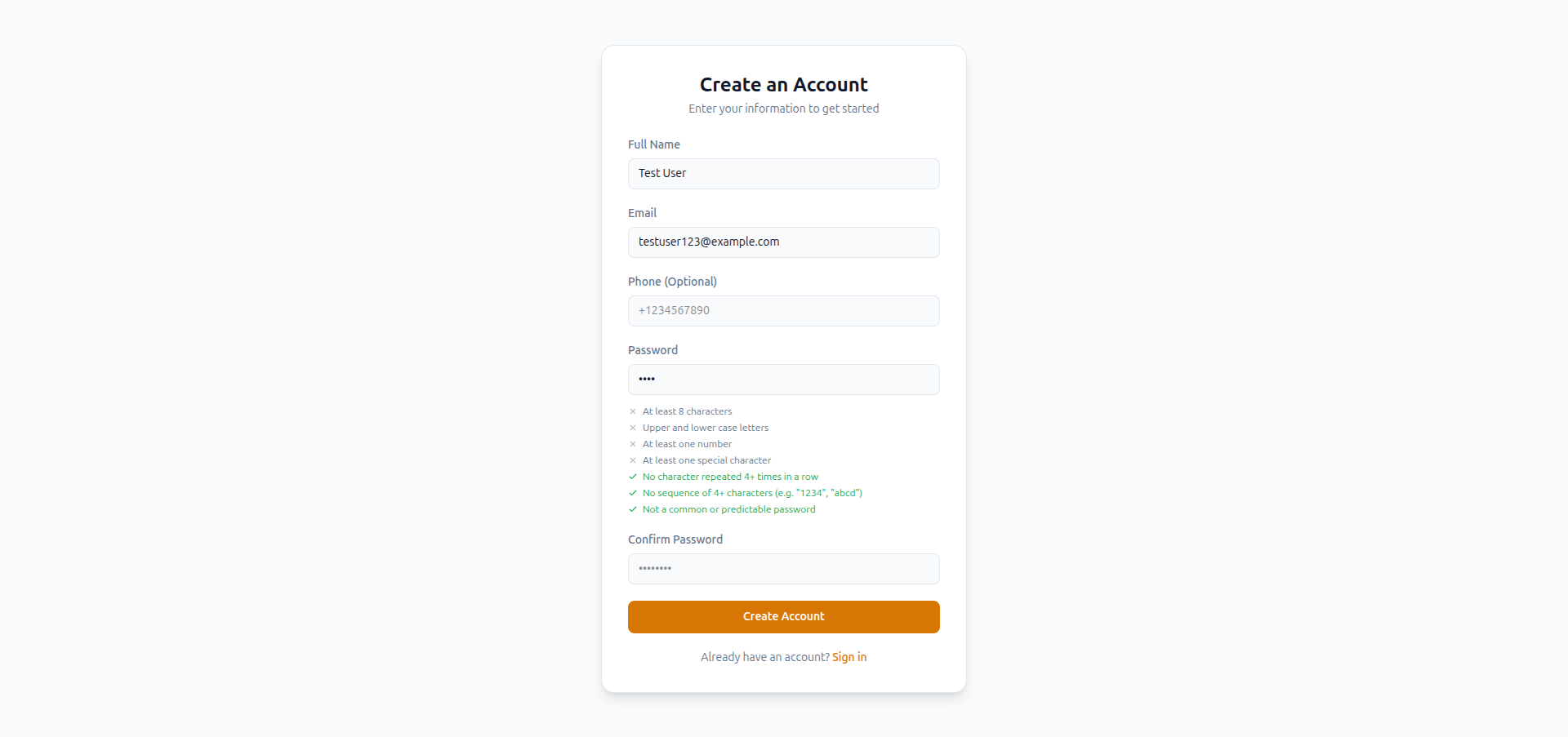
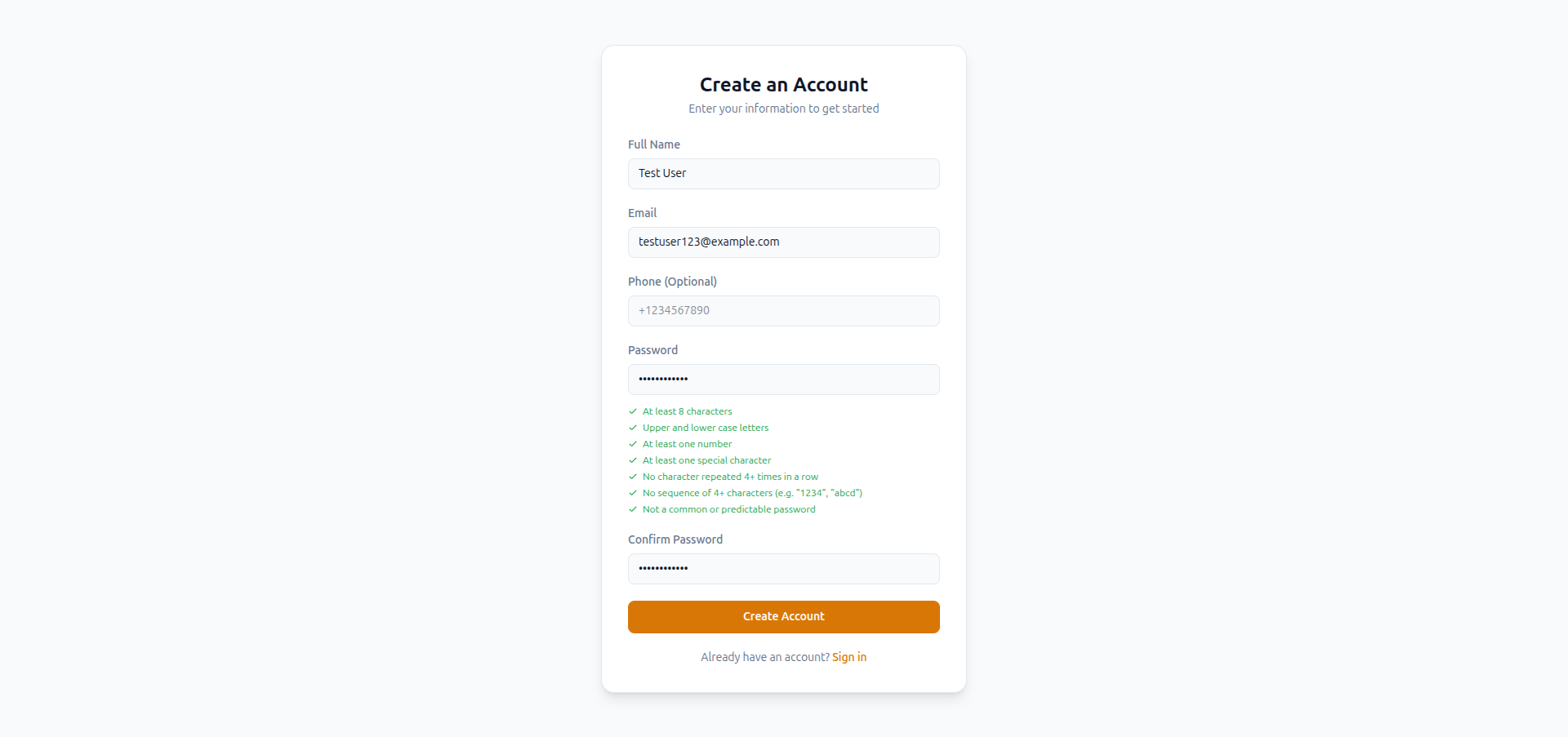
When you submit the new password, along with the confirmation, Food Magic checks everything and, if it all passes:
- saves your new password and clears any "must change password" flag on the account,
- signs out every device and browser that was signed into that account — not just the one used to reset the password. Everyone has to sign in again with the new password, and
- sends an email confirming the password was changed.
This page also checks that the email matches an existing account — the same privacy issue described above under Forgot Password applies here too, though by this point you already know the email, since it's the one the link was sent to.
How it is secured
No permission is needed for any of these four screens. They come before sign-in by definition, so anyone with the URL can reach them. Register also checks two simple on/off settings for your installation: whether sign-up is turned on, and whether new accounts need to verify their email. Neither of those is a permission — just a setting.
Rate limiting. You can only request one password reset link per account every 60 seconds. A second request within that time is turned down.
Link lifetime. A reset link is valid for 60 minutes from the moment it's created, whether or not it's ever used.
Keeping sessions clean. Both signing in and completing a password reset sign out every other session on that account — see the Login and Reset Password sections above. So even if someone else has your password, they get signed out the moment you sign in yourself or reset the password.
Known issues. Three real problems are called out above rather than left unmentioned: self-registration creates a dead-end account with no role and no access, instead of failing clearly or setting something sensible up; the Forgot Password and Reset Password pages reveal whether a given email has an account; and the Forgot Password flow currently crashes with a server error in this environment because of a broken email link. All three are real and repeatable — we found them by actually using the app, not by spotting gaps in the documentation.
Common questions
What do I need before I can sign in?
Just an email and password for an account someone has already created for you. You can't create your own working account through Register — see the warning under Register above — so if you don't have credentials yet, ask whoever manages your outlet or brand to create one on the Users screen.
Where do I go to sign in, register, or reset my password?
All four screens are unauthenticated — /login, /register,
/forgot-password, and /reset-password. None of them need you to be
signed in already, and none of them need a permission.
Do I need a specific role or permission to reach these screens?
No. Login, Register, Forgot Password, and Reset Password all come before sign-in by definition, so there's no permission gate on any of them. Permissions only start mattering once you're signed in and looking at the rest of the app.
What should I enter on the login form?
Just your email and password — nothing else. Both fields start empty; nothing is pre-filled, even for a Super Admin's first login.
Can I change my email after registering?
Not from these four screens — there's no self-service email change here. An admin with the right permission would need to update it from the Users screen.
What happens if I make a mistake typing my password on Reset Password?
The live checklist just turns that rule red instead of green — see the two checklist screenshots above. Nothing is submitted until you click Update Password, so mistakes while typing cost nothing.
How do I know my password reset worked?
You'll get a confirmation email, and every device that was signed in — including the one you're on now — gets signed out and has to sign in again with the new password. That forced sign-out is itself the confirmation: if it didn't work, your old session would still be active.
Can I cancel out of any of these forms?
Yes — every one of them has a link back to Sign In (Back to Sign In on Forgot Password, Sign in on Register) that discards whatever you typed without submitting it.
Why can't I sign in even though I'm sure my password is right?
Two things to check: is your email verified (an unverified email fails sign-in even with the right password), and is a second device currently signed into the same account (see the single-session warning under Login above — the newest sign-in wins)?
Why did Forgot Password fail with "Something went wrong"?
That's the known email-sending crash described above — the reset link is actually created successfully server-side, the crash happens only in the step that emails it to you. There's no user-side fix; it needs the backend's email-link generation fixed.
Why do I keep getting signed out on my phone?
Someone (possibly you, on another device) signed into the same account more recently. Food Magic only allows one active session per account — see the single-session warning under Login above.
Troubleshooting
| Problem | Likely reason | What to do |
|---|---|---|
| "Invalid credentials" on login | Wrong email or password, or an unverified email | Double-check both fields; if the email is new, confirm it's been verified |
| Signed out unexpectedly | Someone signed into the same account elsewhere | Sign back in — if it wasn't you, change the password immediately from a session you control |
| New account can't see anything after signing up | Self-registration's known role bug — see the warning under Register | Ask an admin to assign a proper role to the account from the Users screen |
| Forgot Password shows "Validation failed" | The email typed in isn't registered | Double-check the email, or use Register/ask an admin if you don't have an account yet |
| Forgot Password shows "Something went wrong" | The known email-sending crash — see the warning under Forgot Password | No user-side fix; this needs the backend issue resolved |
| Reset link says "Invalid Reset Link" | The link is more than 60 minutes old, already used, or mistyped | Click Request New Link and request a fresh one |
| Password rejected on Reset/Register | One of the seven live-checklist rules still shows red | Fix whichever rule is red — the checklist is exhaustive; all-green is guaranteed to be accepted |